The API lets another program work with your KEHR account automatically. A key tells the service which account sent a request. You do not need to create one if you only use the dashboard. Protect it like a password: someone who obtains it can use the API capabilities available to your account.
Get a key#
- Sign in and click “API key” in the top bar. On a phone, if the button is hidden, open the dashboard menu with ☰ first.
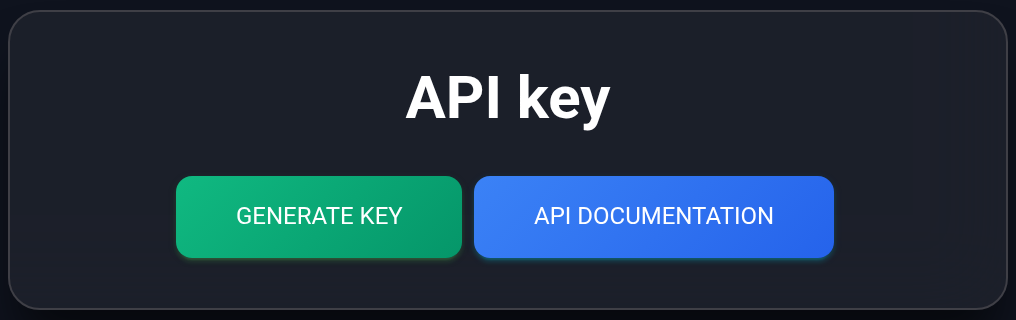
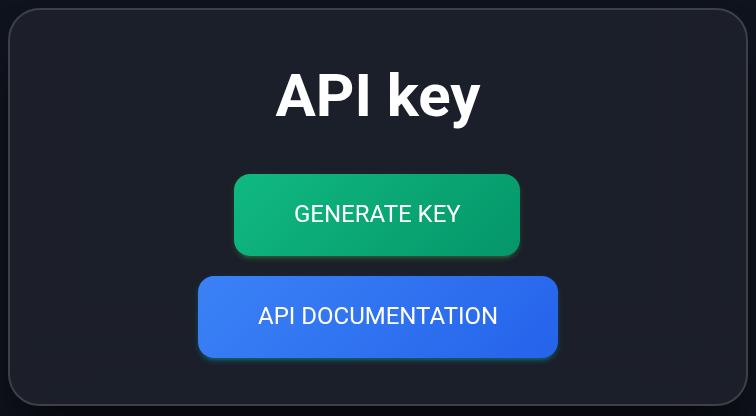
- If the window only offers “Generate key”, click it and wait for a value to appear. If a key is already shown, use it; you do not need to generate another one to copy it.
This is the window before the first key is created.
Copy an existing key#
- Click the key row or the two-sheet icon beside it. This copies the key value, not a link to the window.
- Wait for “API key copied to clipboard”. Save the value in your application’s private secret store or send it to your developer through a secure channel.
- Keep the key out of page URLs, public repositories, screenshots and support requests. You do not need to enter it in dashboard forms for normal dashboard use.
The screenshot contains a nonworking example, EXAMPLE_DO_NOT_USE_…. It cannot be used for requests.
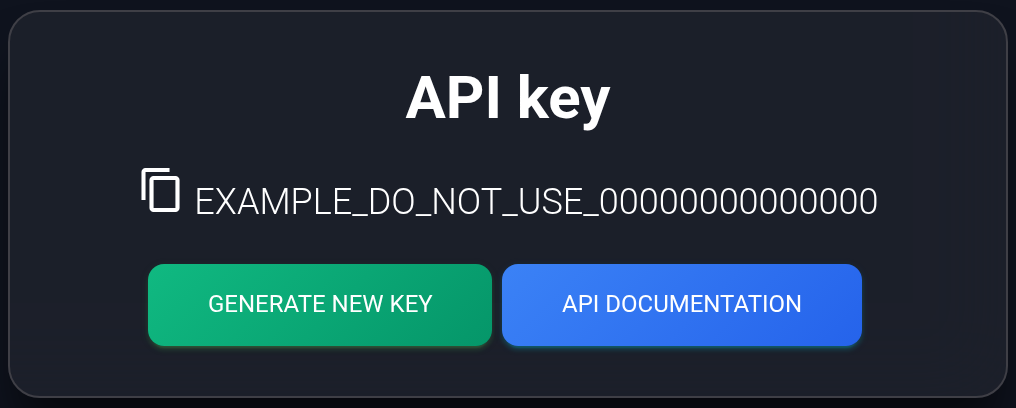
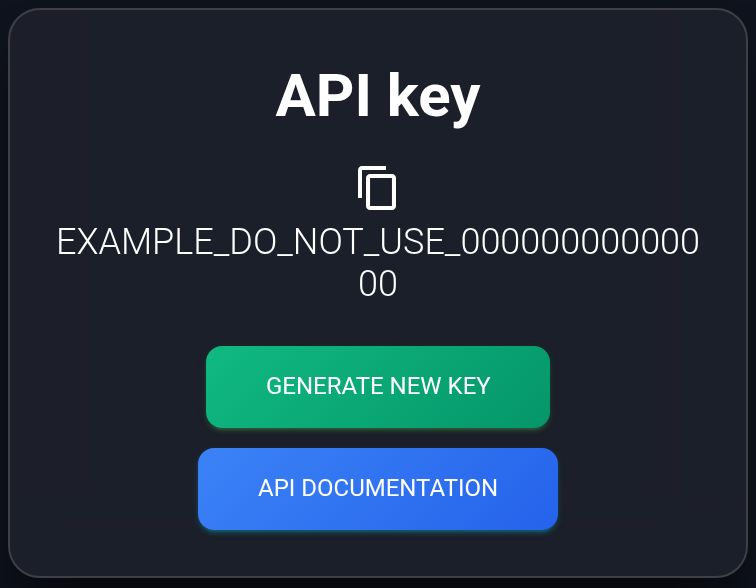
A short confirmation appears after you click the key.
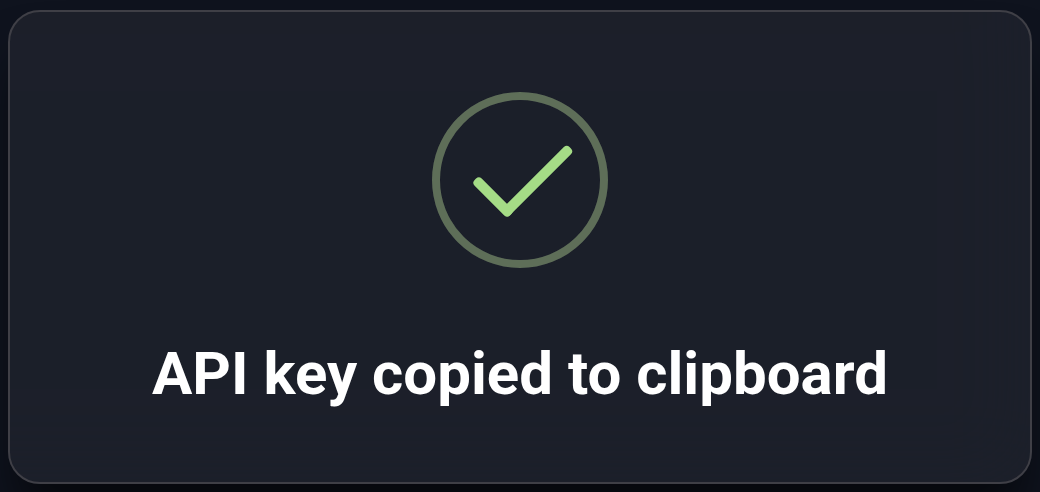
If no confirmation appears, check your browser’s clipboard permission. If needed, select and copy only the value manually, without the icon, spaces or line breaks.
Open the public documentation#
- Click “API documentation” in the key window or open the public documentation. Reading it does not require signing in or a key.
- Find the group for the required service and expand an operation row. Its request method, such as
GET, appears next to the address. - Read request fields under Parameters and possible responses under Responses. Some operation descriptions are currently in Russian; preserve technical parameter names exactly.
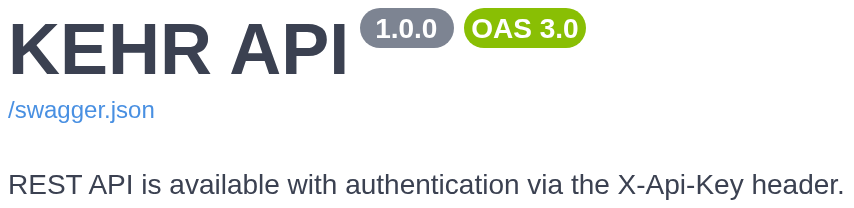
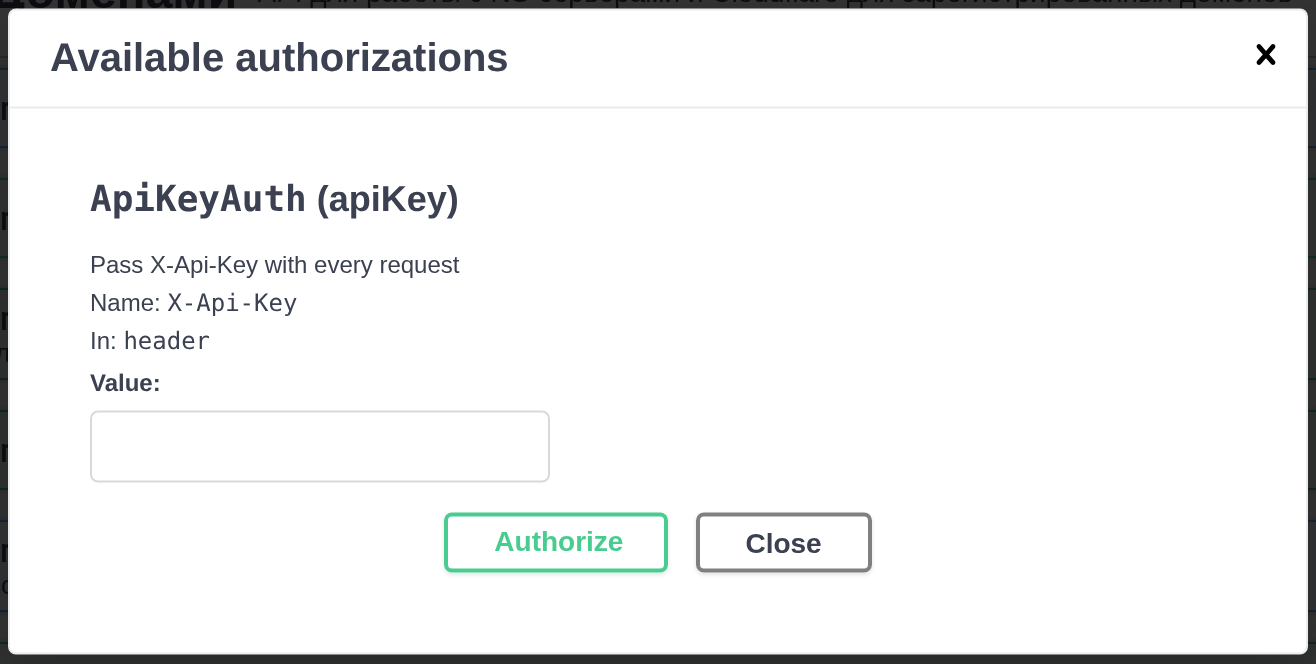
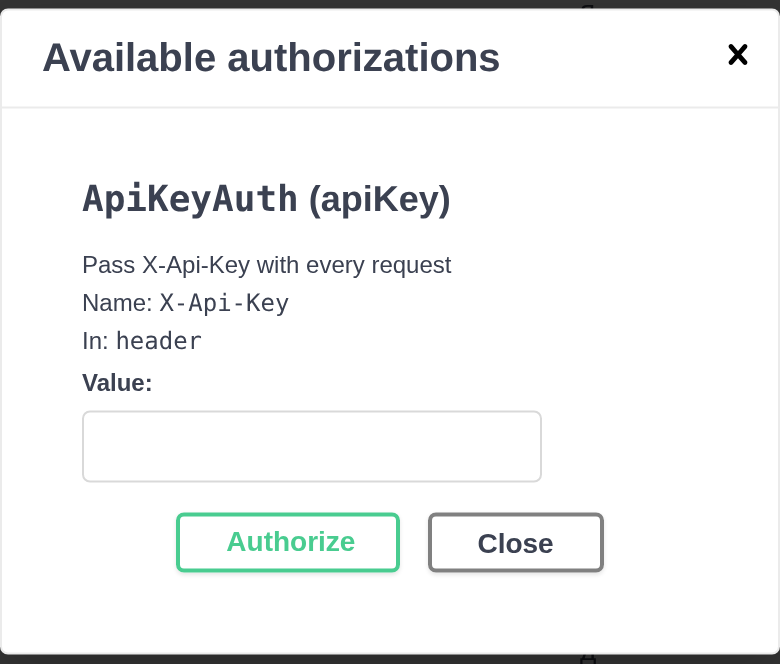
Your developer must send your key in the X-Api-Key request header. This is an extra field the program sends with a request; the key does not belong in the page address. Authorize in the documentation opens the authentication details: Name: X-Api-Key and In: header. The screenshot leaves the value empty; reading the documentation does not require filling it in.
Running an operation with Try it out / Execute acts on your account. Review the specific operation with your developer first, especially if it creates a paid order or changes settings.
Replace a key#
- If someone else may have obtained your key, reopen “API key”. The existing-key window shown above offers “Generate new key”.
- Click it and confirm replacement in the browser dialog. Cancel if you only intended to view or copy the key.
- Copy the new value and update it in every application and script. The old key will no longer authenticate new requests.
- Check a suitable safe operation from each application. Replacing a key does not fix incorrect parameters or renew paid services.
If a request fails#
- An authentication error, such as 401: check that the application sends the current key in
X-Api-Key, without spaces, quotes or line breaks. After replacement, check every place where the old value was stored. - Access forbidden, such as 403: read the response message and check the required service’s availability and plan status in the dashboard.
- A parameter error: match the address, request method, field names and values against the specific documented operation.
- The documentation did not load: reload the page and check whether the browser blocks its scripts. Save the message if the error repeats.
For support, include the operation address without the key, request method, time, response code and text, and the expected result. Remove your key from headers, examples and screenshots before sending them. To obtain User-Agent strings without programming, use the dashboard generator.