A User-Agent is a string a browser uses to tell a website its name, device and operating system. The “User Agents” page provides ready-made sets of these strings. Without an active plan, you can place a one-time order paid from your balance; with an active plan, you can use the retrieval form and your plan’s included features.
Check prices and limits in your dashboard before ordering. The screenshots use original forms with example data. The User-Agent strings shown are examples, not an export from your account.
One-time order#
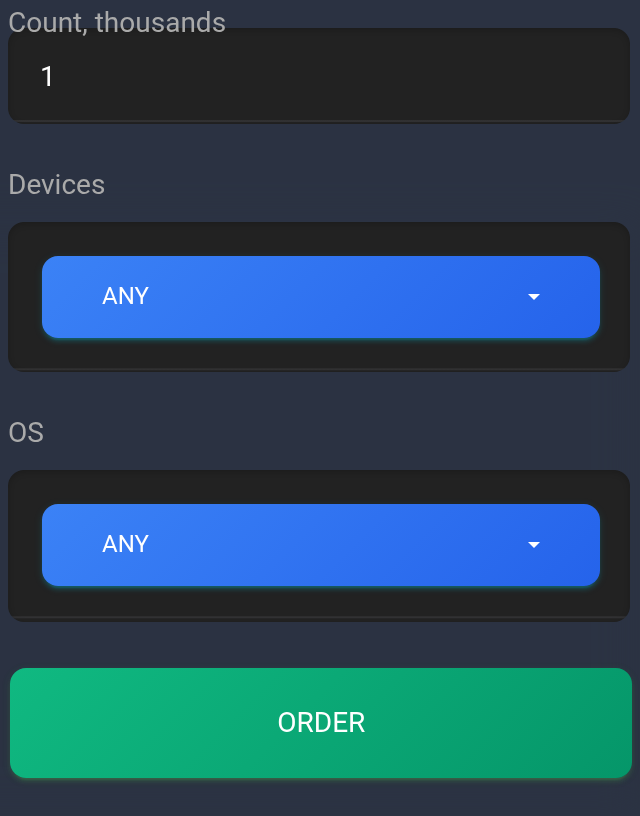
- Open “User Agents” and find the “UA” card with “Order”. The price above the form is for 1,000 strings, not the entire order.
- In “Count, thousands”, enter the number of thousands: 1 orders 1,000 strings; 2 orders 2,000. Current retrieval is capped at 20,000 strings, so do not enter more than 20 for a one-time set. Discuss a suitable option with support first if you need more.
- Choose a device under “Devices” and an operating system under “OS”. Leave “Any” selected for a broad list. Choosing a specific OS hides the device field because the system now determines the selection.
- Check the price per thousand, your quantity and your available balance. For example, quantity 2 is charged as two units of the price per thousand. Click “Order”.
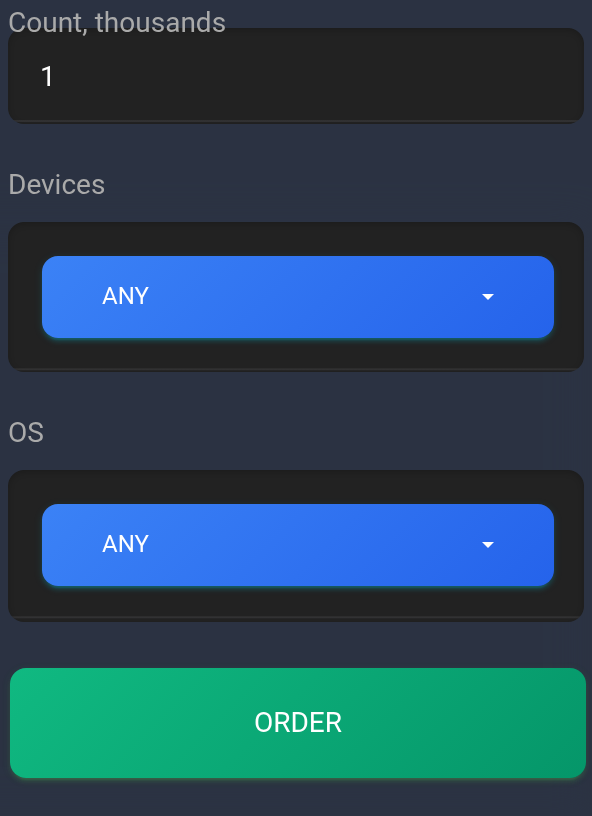
The example requests one thousand strings without restricting the device or OS. The current price appears above this part of the form.
Confirm the order and download the file#
- Read the balance charge warning. Choose “Yes” only for the order you want; “No” cancels confirmation.
- After a successful order, wait for the export-ready message and the automatic page reload.
- Find the “User-Agent” block with “Download”. Save the ZIP archive, unpack it and open
ua.txt; each line contains one User-Agent.
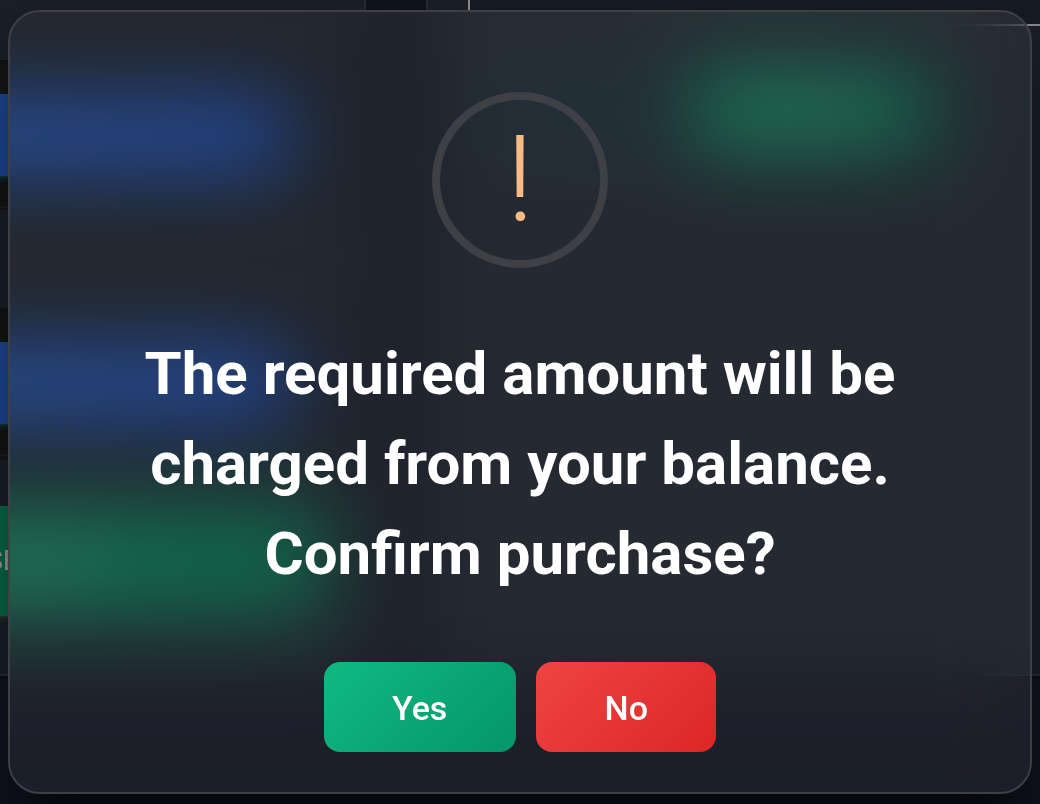
If you chose “No” and want to fill in an order again, reload the page before retrying: the current form may leave its button in the waiting state after cancellation.
This is the link to a ready one-time set. The order and link in the screenshot are examples.
A narrow selection may contain fewer matching strings. If the result differs from what you expected, retain your order parameters and check history before buying again. Do not confirm another paid order solely because the file takes time to appear.
If you have an active plan#
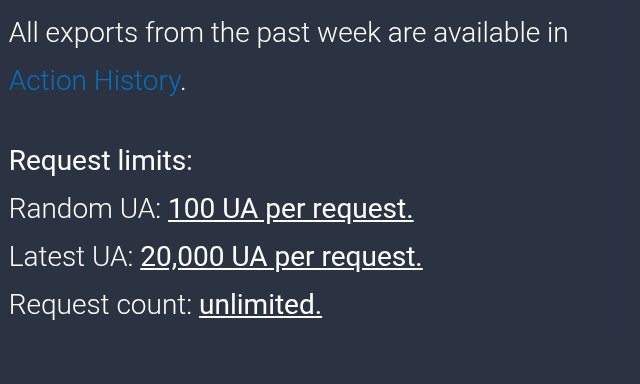
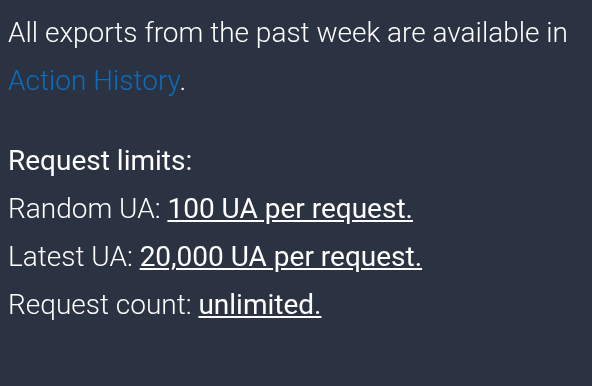
Check the expiry in “Plan details” and current limits in “Important information”. The dashboard version shown allows up to 100 random UA from the full database and up to 20,000 UA from the new database per request. Here the quantity counts individual strings, not thousands.
Choose a source and filters#
- In “Get User Agents”, choose a source. “From the full UA database” provides a random selection. Under “Devices”, choose “Desktop”, “Mobile” or “Any”.
- Enter the number of strings in the quantity field below the selectors. Start with a small number within the limit; the example uses 2.
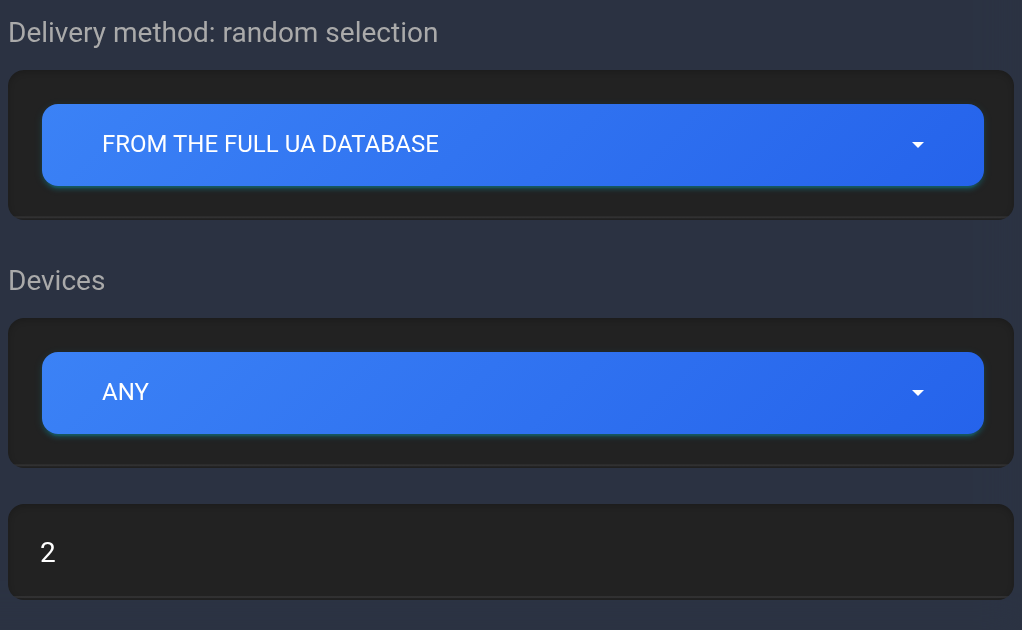
Choosing “From the new UA database” also reveals “OS”. Select a specific system, such as Windows, or leave “Any”. A specific OS hides the device selector. To select a device separately again, return OS to “Any”.
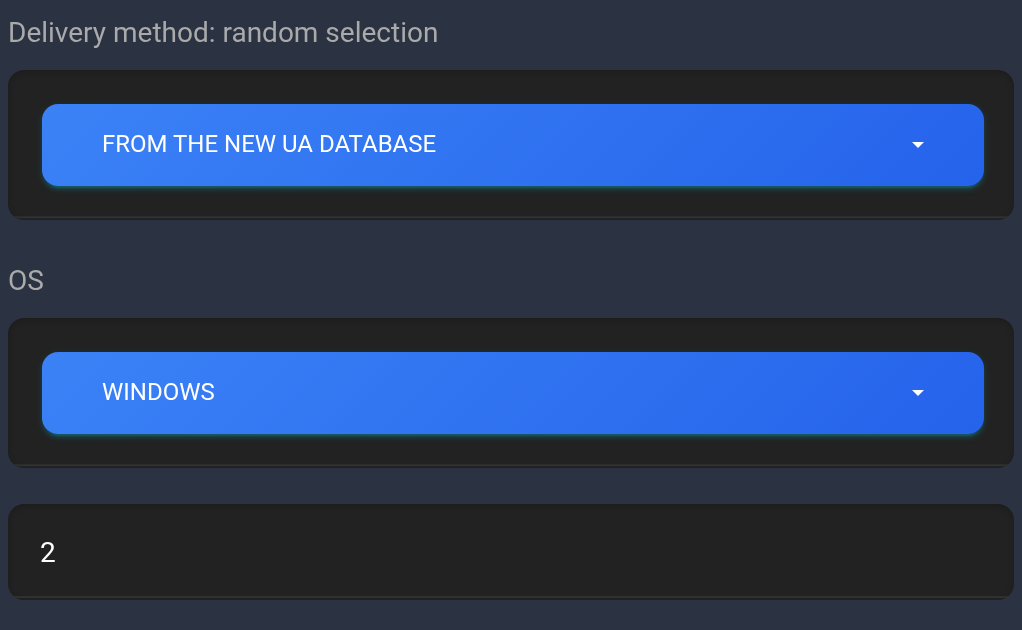
New strings are selected primarily from the new UA database. If there are too few, the set may be supplemented from the full database. The source name therefore does not mean that every string was necessarily added recently.
Retrieve and copy the result#
- Save any previous result you need, then click “Get”: the result field is cleared before a new request.
- Wait for the list in “Result”. The button may briefly become unavailable during the request.
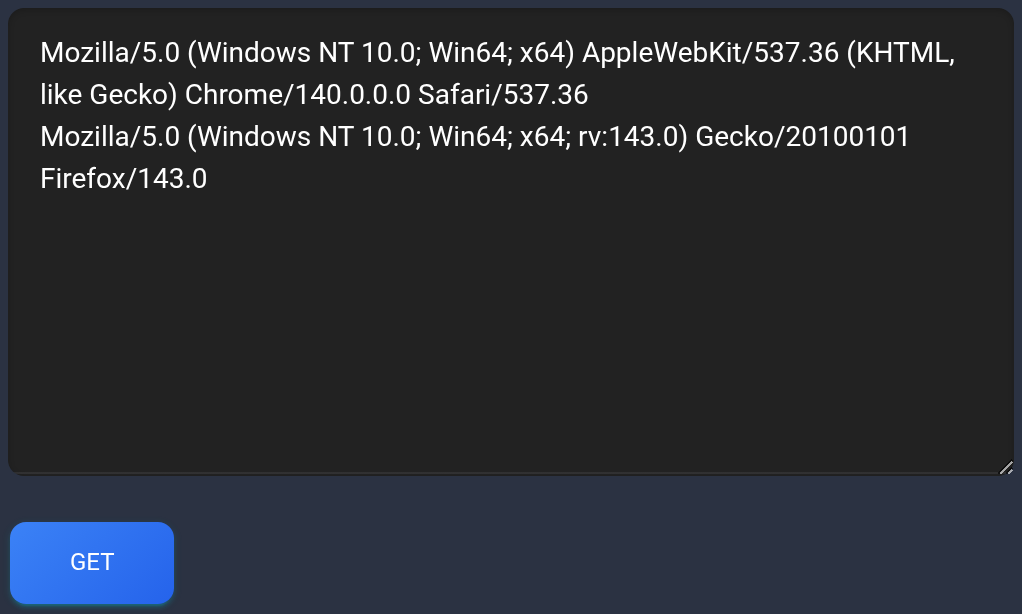
- Click inside the result and select the required strings. On a computer, use Ctrl+A or ⌘A to select all text in this field, then copy it; on a phone, use text selection. Save the list in a text file with one User-Agent per line.
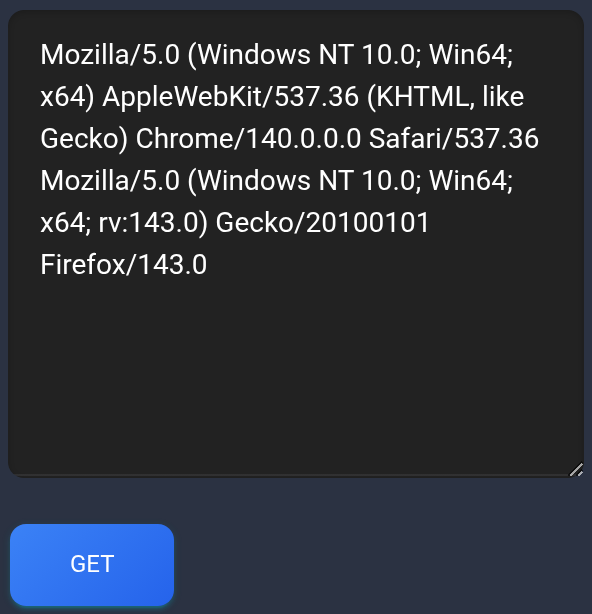
The screenshot shows two example strings. A long string wraps on screen; the wrap does not create a new User-Agent.
Download the full database#
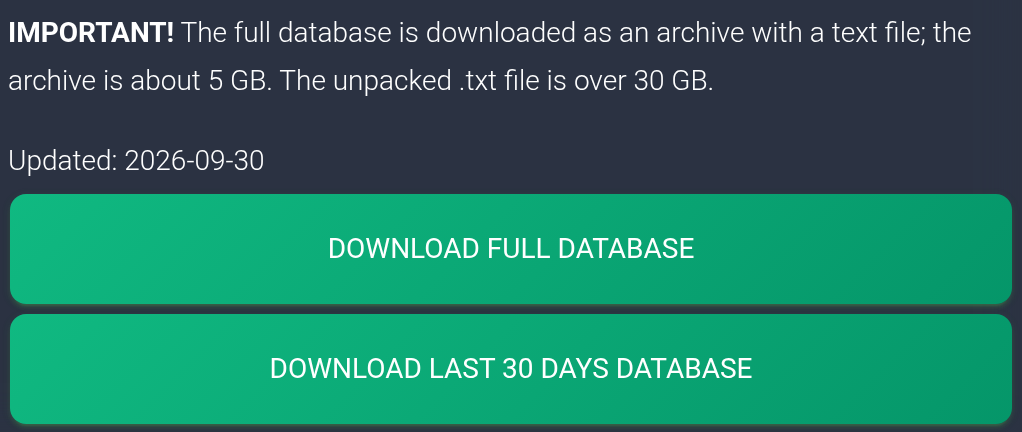
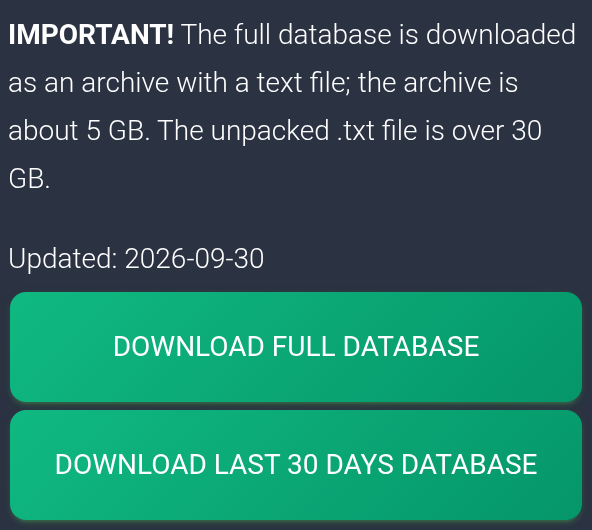
If your plan includes database downloads, “Download full database” and “Download last 30 days database” appear next to the generator. These are separate exports, not the contents of “Result”. Read the size shown on the page and check free space first: the interface warns of roughly 5 GB for the full database archive and over 30 GB for the unpacked TXT. Save the files you need in advance; “Action History” lists exports from the past week.
If no result appears#
- An empty result with a plan: wait for the request to finish and check plan activity, a positive quantity and the source limit. Try a small number and a broad device/OS selection.
- An error after “Get”: retain the exact message and selected parameters. If another attempt with an available plan does not help, send these details to support.
- A paid one-time order without a visible file: check Transaction history and Action History. If no ready export appears, send support the date, quantity, filters and order state before paying again.
- The full database cannot be downloaded: check your plan’s features, free space and the browser’s download message. Retrieving strings through the form and downloading the full database are separate features.
Keep your API key out of support requests. For automatic retrieval from an application, use the API key and documentation guide; this article covers dashboard actions.