USD means US dollars. A top-up adds money to your account balance; you then purchase the service you need separately. The amount credited in USD and the amount requested by the payment provider may differ in currency and fees.
The screenshots show an example. The payment methods and terms offered for your order may differ, so check them before paying.
1. Enter the amount in USD#
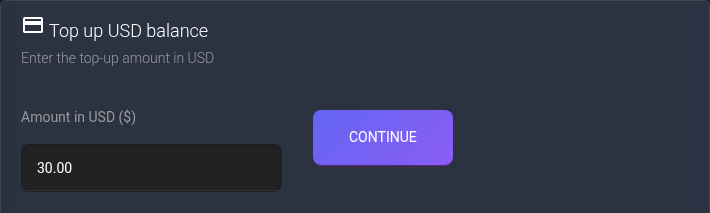
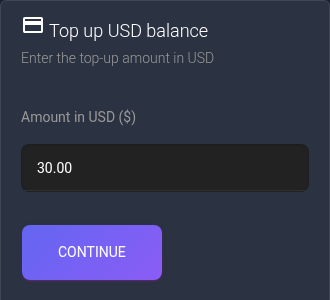
Sign in to the account you want to fund and open “Top up USD balance”. In “Amount in USD ($)”, enter how many dollars you want to add to your balance. For example, enter 30.00 to add 30 dollars.
Click “Continue”. If an error appears below the field, correct the amount using the message and try again. Otherwise, the payment method page opens. This creates an order; no funds have been credited yet.
2. Choose a method and pay#
Check the top-up amount above the list of methods. Review the currencies and fee in the card you want to use. If the card contains an additional list of options, choose the appropriate option first, then click “Select”.
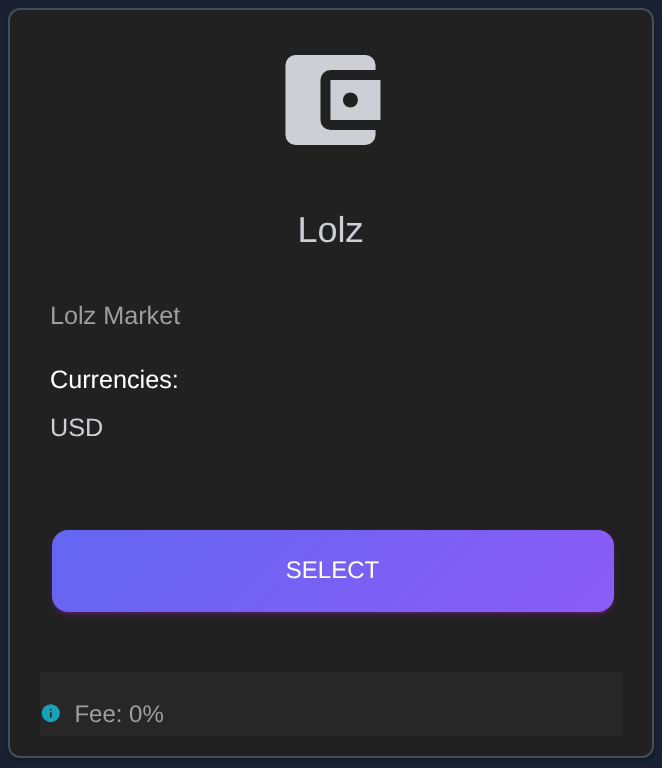
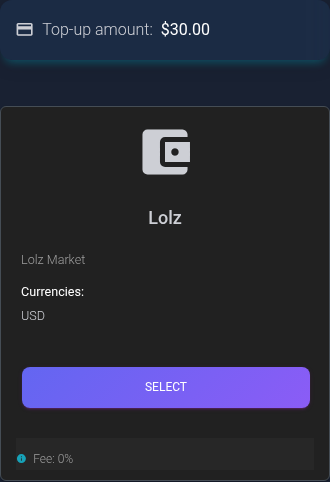
The selected provider's payment page or form opens. The remaining steps depend on the payment method: follow the instructions on that page. Before confirming, check the final amount, currency and fee again. Clicking “Select” does not mean that you have paid for the order.
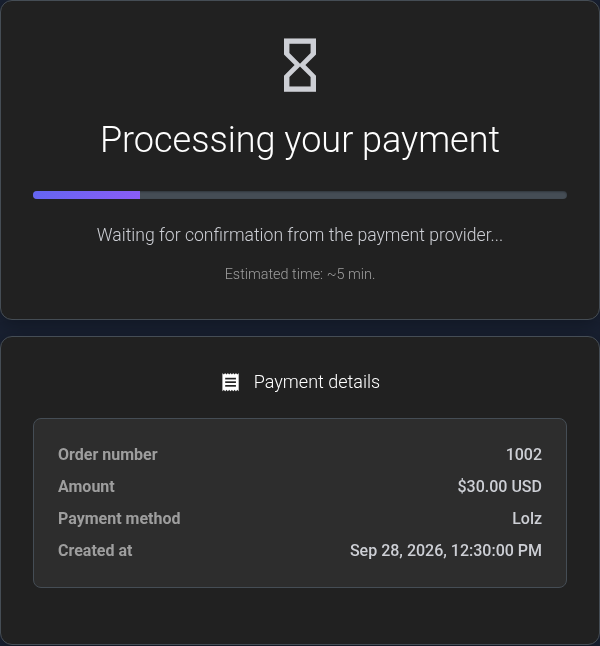
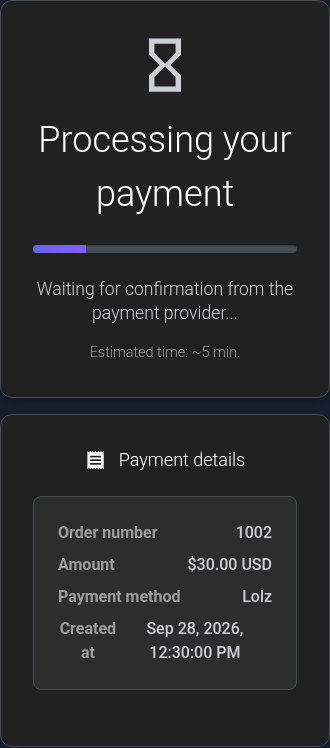
After paying, return to KEHR using the provided link or open the dashboard yourself. If the waiting page appears, it is waiting for confirmation from the payment provider. It shows the order number and amount; keep the number in case you need support. Returning to the dashboard alone does not confirm that funds have been credited.
3. Confirm the credit in your history#
Open “Activity Center” → “Billing”. The page is called “Balance history”. Find your top-up by its date and amount; recent operations appear at the top. The number in the “Order” column identifies the operation and is useful when contacting support.
Your top-up's row should show “Completed”. Then reload the dashboard to see your current USD balance. If other purchases or charges occurred meanwhile, use the top-up's own history row to check its result rather than relying only on the total balance.
On a phone, the table is wider than the screen. Swipe left across it to reveal the “Amount” and “Status” columns on the right. The images below show the left and right parts of the same table.
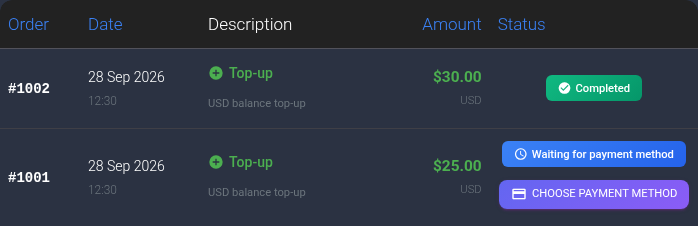
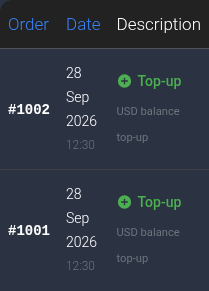
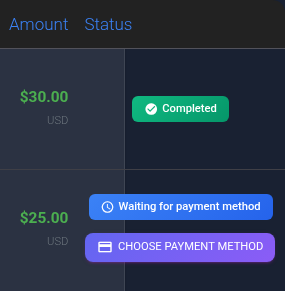
In this example, order #1002 for $30 is complete, while the earlier order #1001 for $25 is still waiting for a payment method. These are separate orders. In your account, match the number, date and amount to your own top-up.
If no payment methods are available#
“No payment methods available” means that no option is currently available for this order. “Change amount” returns you to the form. If you decide to enter a different amount, a new order is created only after you click “Continue” again. Changing the amount does not guarantee that a suitable method will appear.
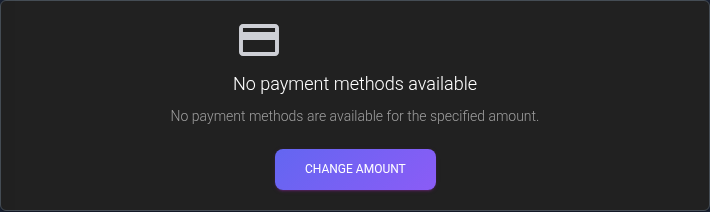
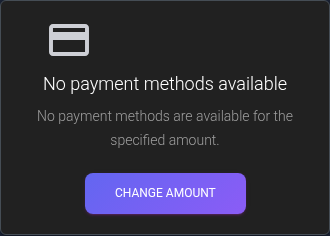
If no suitable method is available, contact KEHR support. You can find the order number in the “Order” column of your balance history.
If payment was interrupted or the status does not change#
- “Waiting for payment method”. The order row contains a “Choose payment method” button. Use it to continue this order without creating a new one.
- “Processing”. The final payment result has not been confirmed yet. The waiting time depends on the payment provider.
- Money was debited, but the top-up is not complete. Do not pay for the order again until you have checked its state. Follow the missing top-up checklist.