“Activity Center” contains two separate histories. “Billing” shows top-ups, purchases and other money operations. “Activity Log” helps you find account events, such as a domain registration or plan purchase.
Start with “Billing” if your question concerns an amount or payment. Use “Activity Log” to find when an action occurred and which address it involved. A history entry describes a past event; the service's current state must be checked separately.
1. Find the money operation#
- Open “Activity Center” → “Billing”, which leads to “Balance history”.
- Find the row by its date, number in the “Order” column, description and amount. Recent operations appear at the top; use later table pages for older entries.
- Check the currency. USD means US dollars and RUB means Russian rubles. Amounts in different currencies cannot be added together as one balance.
On a phone, swipe left across the table to reveal “Amount” and “Status”. The images below show the left and right parts of the same table.
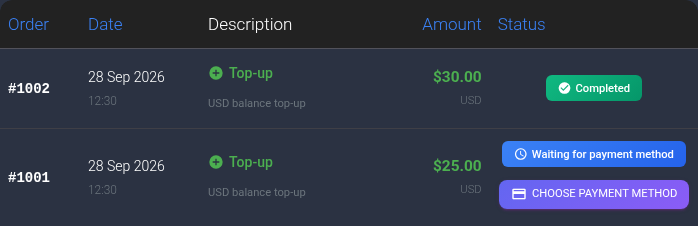
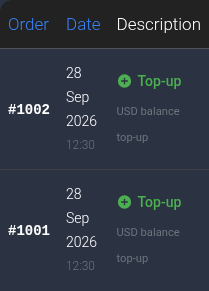
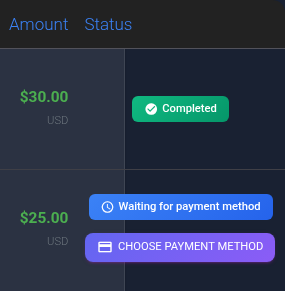
The screenshots show two example top-ups. In your account, check the operation type: purchasing a service and adding funds are separate entries. USD amounts are green for purchases too, so color alone does not identify a credit.
- “Completed” means the operation is marked as processed. For a top-up, check its own row, then reload the page showing your balance. Later purchases may already have reduced the remaining balance.
- “Processing” or “Pending” means completion has not yet been confirmed.
- “Waiting for payment method” means no method has been recorded for this top-up order; a selection button is available beside it. If money has already been debited, first follow the missing top-up checklist.
- “Cancelled” means the order is not marked complete. It does not confirm a refund.
For a purchase, also open the service itself. For example, check a domain registration under “Registrar” → “My Domains”: the money operation and the registration state are separate stages.
2. Filter the activity log#
Open “Activity Center” → “Activity Log”. The page is called “History” and contains an “Activity history” panel.
- Enter a domain, IP address or amount in “Search”. For example, replace the sample
example.comwith your own domain. Press Enter or move to another field to update the list. - If needed, choose an “Action type”, such as “Domain registration”. Use this list to find an action type rather than typing its displayed name into the search field.
- To narrow a long list, set “Date from” and/or “Date to”. Both boundary dates are included. The date format depends on your browser; you can use the calendar icon to choose a date.
Type and date changes apply immediately. Conditions work together: a search for one domain combined with an unrelated action type may hide the entry you need. There is no separate “Search” button.
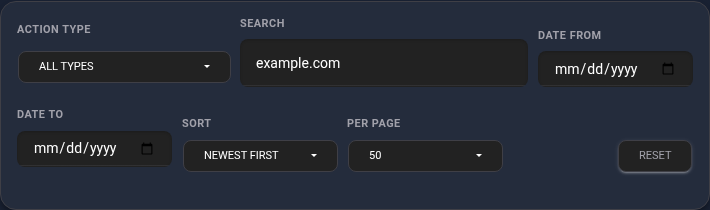
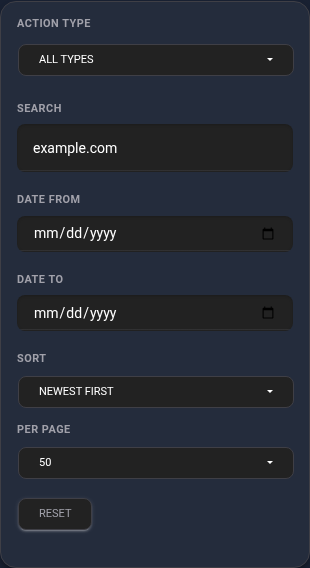
“Sort” changes the order, while “Per page” controls how many entries are shown at once. New entries come first by default. Page links appear below the list.
3. Read the entry and check the service#
Read the card's type, date and time, and description. The example below records the registration of example.com; check that your own entry refers to the address you need.

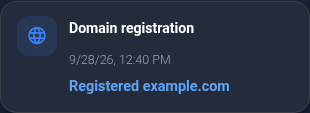
Then open the relevant service section and check its current state. Other changes may have occurred since the recorded event. The activity log also does not replace the money history: return to “Billing” for payment questions.
If you cannot find an entry#
- Click “Reset” in the activity log. Search again using the domain or another known value without unnecessary conditions; set a broader date range if needed.
- Check the account and later pages of the list. Look for money operations in “Billing”, not only in the activity log.
- If the issue remains, contact KEHR support. For a payment, provide the order number, date, amount and currency. For an action, provide the address or item, action type and approximate time. If you could not find an entry, explain this and share the details you have.
If money was debited but your top-up is incomplete, use the dedicated guide. Do not send passwords, API keys or one-time codes to support.