First identify which step prevents sign-in: the password, email activation, or the Telegram code. Each uses a different action. A password reset neither activates the account nor disables two-factor authentication.
Sign-in and recovery forms use the dashboard language. For the English labels shown here, select EN in the shared KEHR language switcher.
1. Check the sign-in step#
- Open KEHR sign in. Enter your account's username or email and password, and complete the verification on the page.
- Check your keyboard layout, Caps Lock and any details filled in by a password manager. Do not use another account's password.
- If KEHR opens account confirmation, complete email activation with the six-digit code. Password recovery does not send a reset email for an inactive account.
- If the account is blocked, contact support. Changing the password does not remove the block.
2. If you forgot the password, request a reset link#
- Click “Forgot password?” on the sign-in page, or open password recovery.
- Enter the email address registered to the account, complete verification and click “Send link”.
- Open that mailbox and find the KEHR email. Check Spam/Junk too. If you requested recovery more than once, use the most recent email: a newly issued link replaces the previous one.
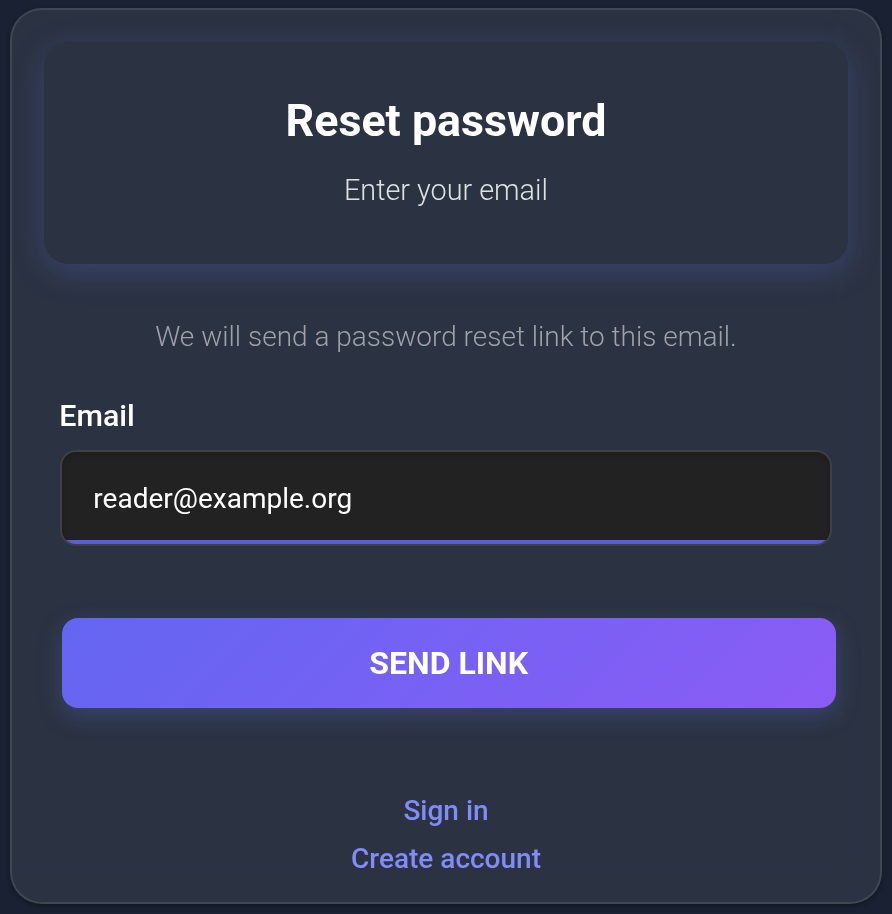
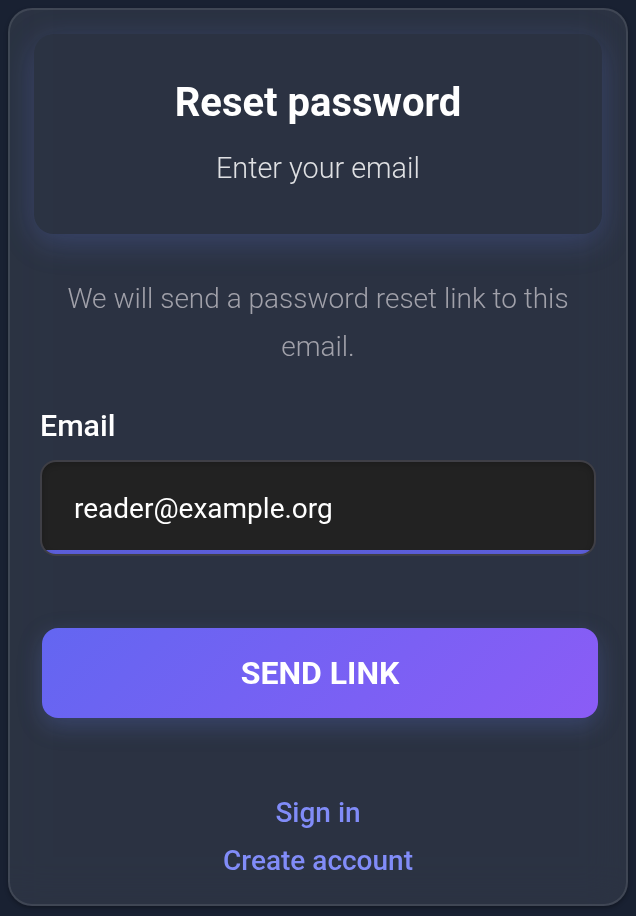
The request message also appears when no email will be sent: for example, if the address has no active account or requests are temporarily limited. It does not prove that the address is registered or that a message was sent or delivered. Do not submit repeatedly; if no email arrives, check the address, account activation and mailbox, then try again later.
3. Save a new password and sign in again#
- Open the link from the latest email. It is valid for one hour; a used or replaced link no longer works. If the link is invalid or expired, return to recovery and request a new one.
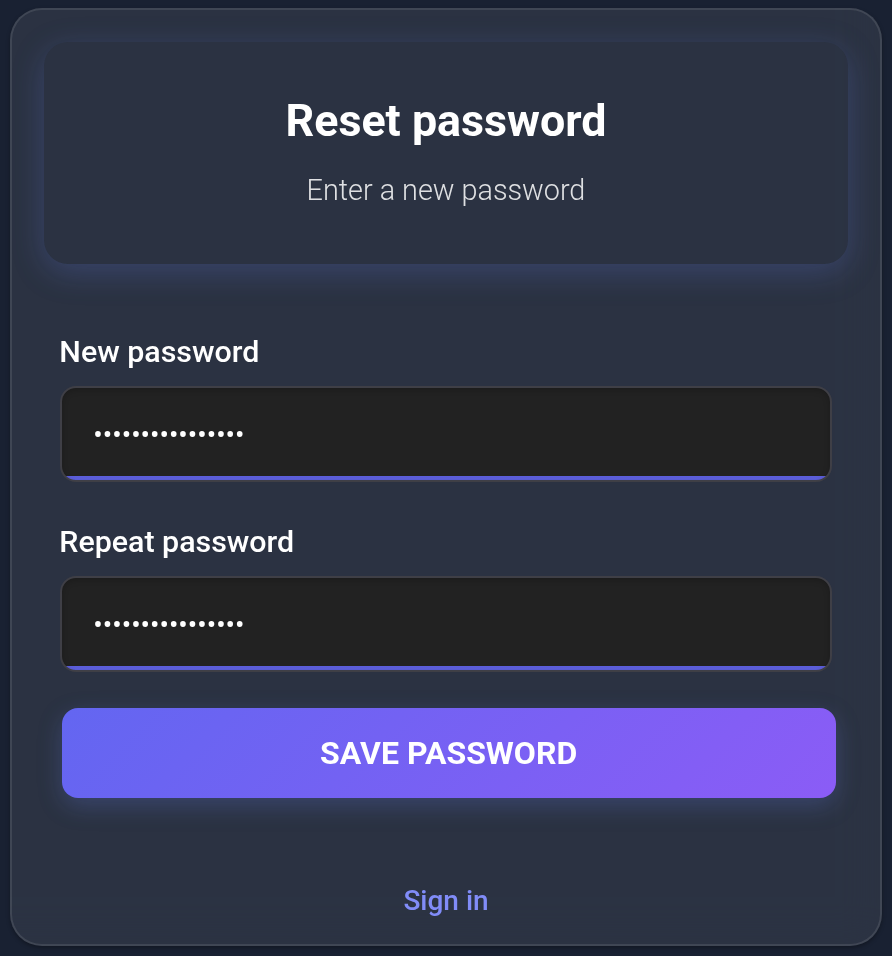
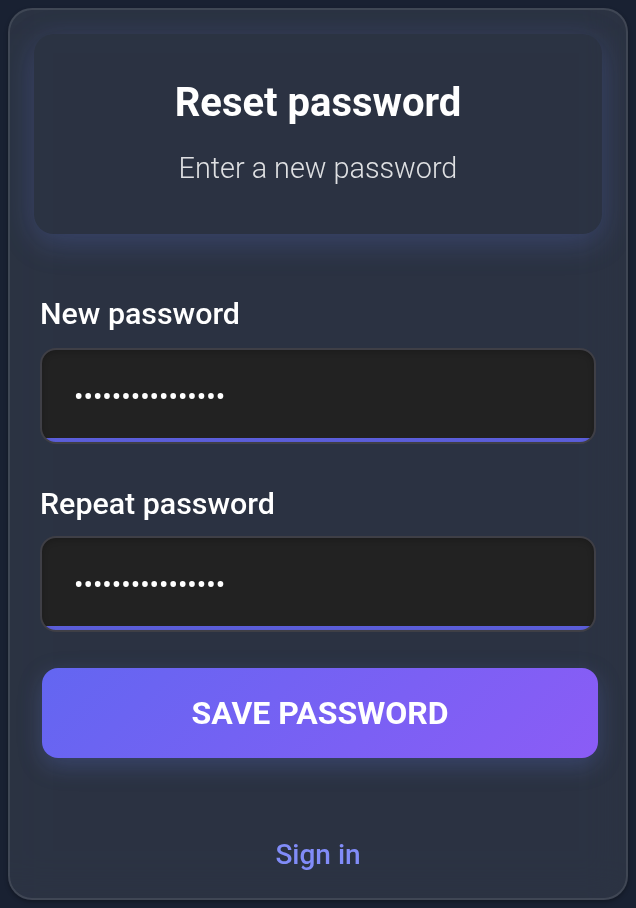
- Enter a new password with at least 8 characters, then repeat it exactly. Choose a unique password.
- Click “Save password”. Check for the successful-save message; correct any errors shown by the form.
- Return to sign in and enter the new password. Saving the password does not itself sign you in.
4. If sign-in requires a Telegram code#
With 2FA enabled, the correct password takes you to “Confirm sign in”. Find the latest code message in the linked Telegram account, enter its eight digits in “Confirmation code” and click “Confirm”.
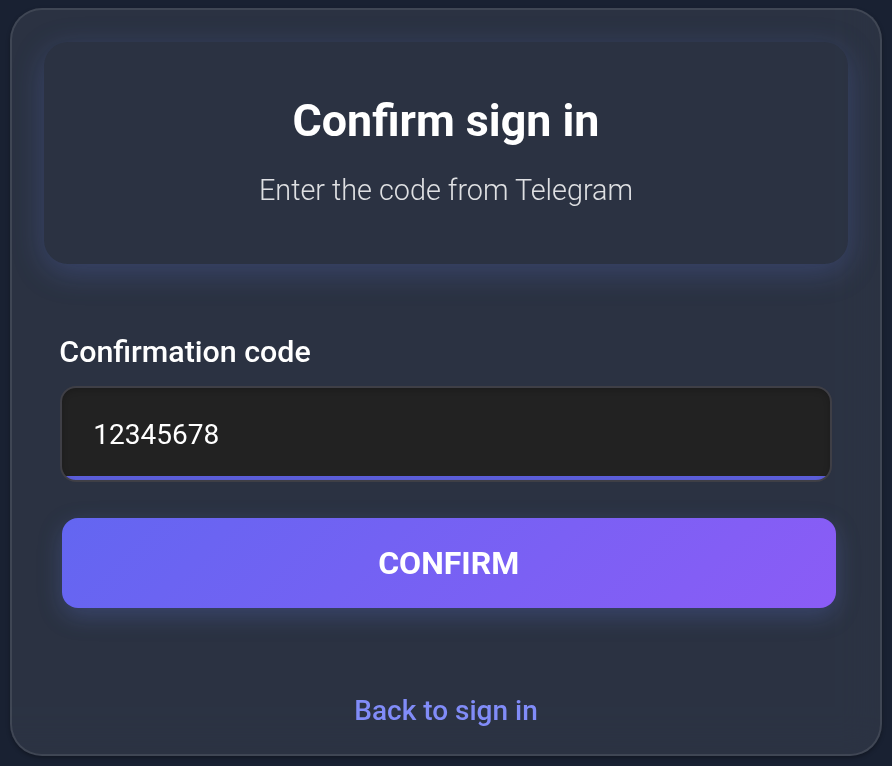
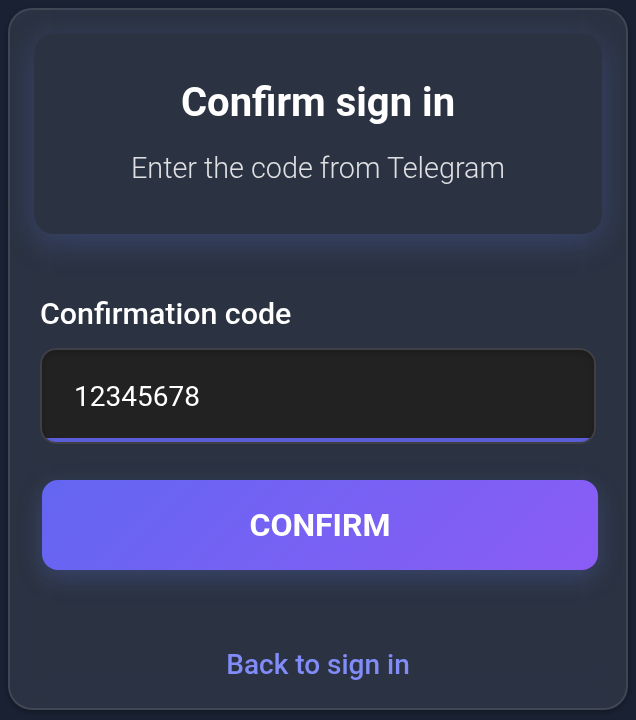
The code belongs to the current sign-in attempt and expires after 10 minutes. If it expired, you exhausted the code attempts, or you restarted sign-in, click “Back to sign in” and enter your account details to get a new code. Do not use the six-digit email activation code in place of the Telegram code.
- No code arrives. Check the linked Telegram account, your connection and access to @kehr_bot. Make sure you have not blocked the bot.
- You lost Telegram access but still have the dashboard open. If you know the current password, you can disable 2FA in settings before changing the linked account; follow the sign-in protection guide. Disconnecting the bot alone does not disable 2FA.
- You cannot access either the dashboard or Telegram. Contact support. A password reset does not replace the second factor; there is no customer action that bypasses this check.
If you still cannot recover access#
For KEHR support, prepare your username, the last attempt time and the exact error text. Explain which step fails: the activation email, reset link or Telegram. Contact support if you lost your email too; this form does not let you recover the account through a new email address.
Do not send passwords, reset links, API keys, email codes or Telegram codes. Do not create a second account just to find your previous services: they belong to the original account.
Result: you can sign in to the original account and see your services. After sign-in, check security settings.