KEHR lets you change your password and require an additional sign-in code from Telegram. Two-factor authentication, or 2FA, means your password alone is not enough to sign in.
Open Account settings. In the account menu, the item is called “Settings”: click your name in the top right. If the menu is collapsed into a ☰ button, open it first, then select your name.
The password and switch form requires your current password when you click “Save”. Telegram linking is a separate process through the bot.
1. Change your password#
- Enter your existing password in “Current password”.
- Enter a new password in “New password” and enter it identically in “Repeat new password”. Use at least eight characters; it must differ from your current password.
- Leave the other switches in the state you want and click “Save”. The message “Settings updated.” confirms saving. If an error appears above the form, correct the details and re-enter the passwords: the fields are cleared after an error.
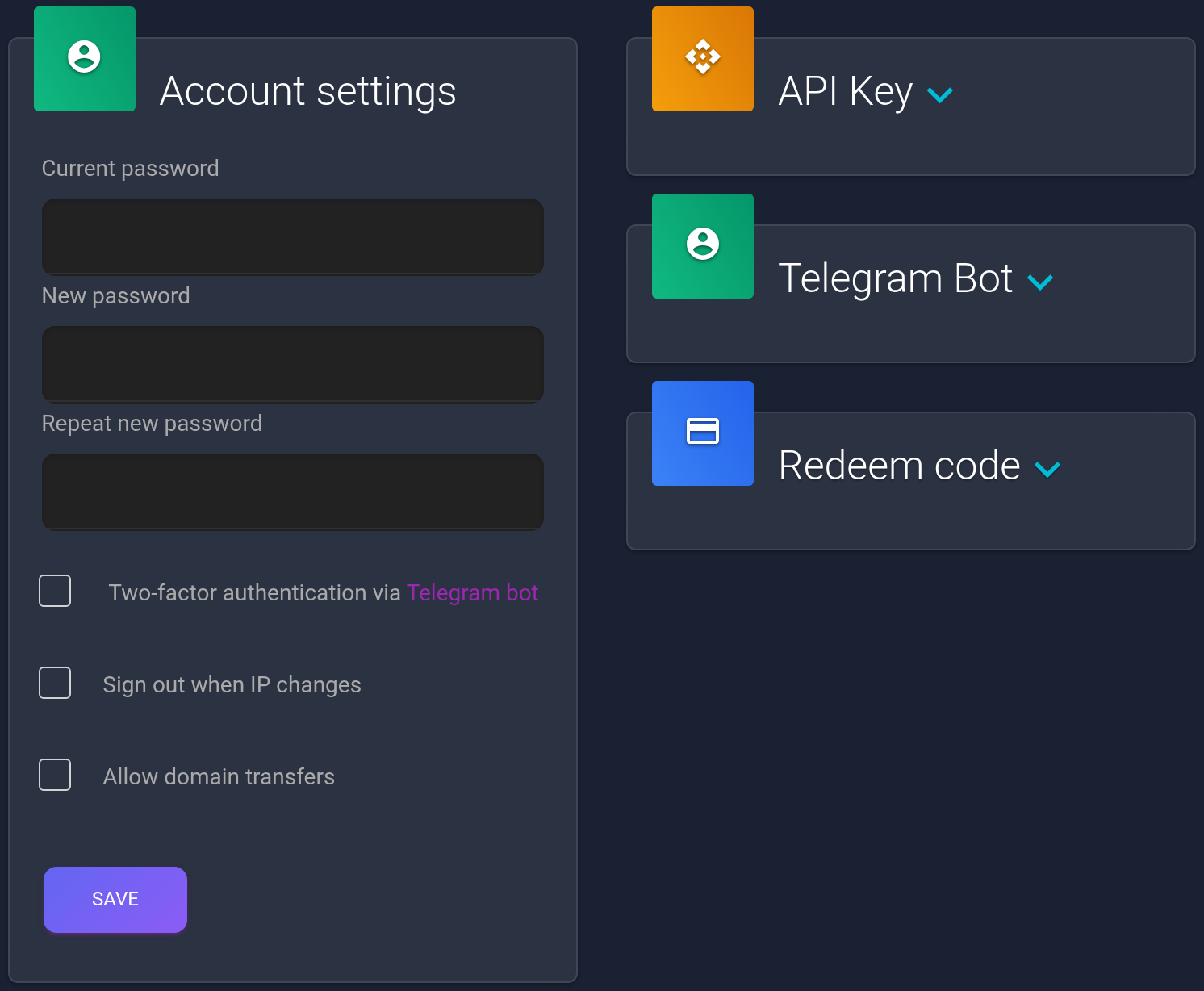
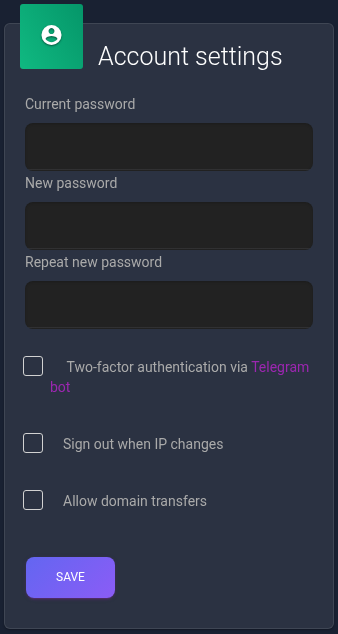
If you are only changing a switch, leave both new password fields empty. Your current password and “Save” are still required.
2. Link the correct Telegram account#
- Expand “Telegram Bot” and click “Connect Telegram bot”. This opens @kehr_bot.
- Start the bot in Telegram using its start button or send
/start. Use a Telegram account that you can continue to access. - The bot sends a personal linking URL. Open it in a browser where you are signed in to the correct KEHR account. If Telegram opens an in-app browser where you are not signed in, sign in to KEHR and open the same linking URL again.
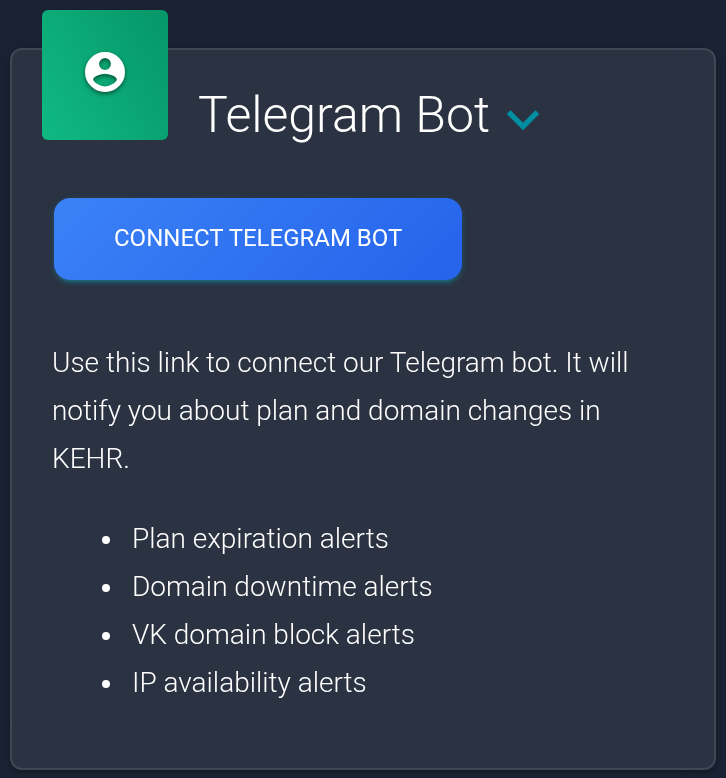

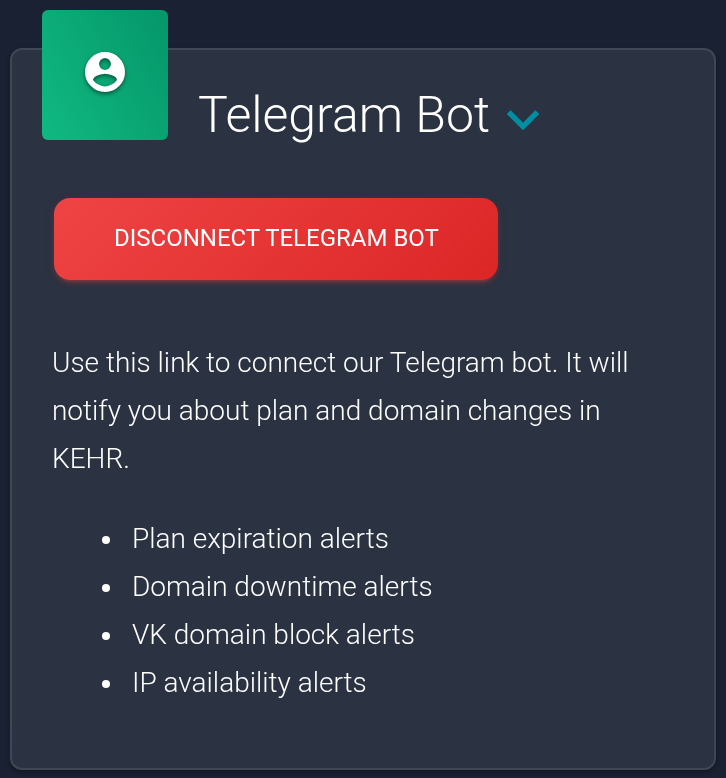
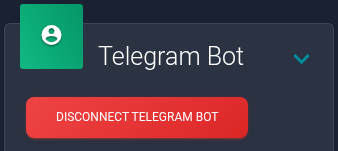
After linking, return to Account settings and reload the page. “Disconnect Telegram bot” should replace the connect button in “Telegram Bot”, confirming that the link was saved.
Keep the personal linking URL private. If it no longer works, request a new one with /start. The bot's own messages are currently in Russian even when the KEHR dashboard is in English. Linking the bot alone does not enable 2FA.
3. Enable 2FA and confirm your next sign-in#
- Make sure Telegram is linked and you can access the bot conversation.
- In the settings form above, enter your current password, leave the new password fields empty and enable “Two-factor authentication via Telegram bot”.
- Click “Save”, wait for “Settings updated.” and check that the switch remains enabled.


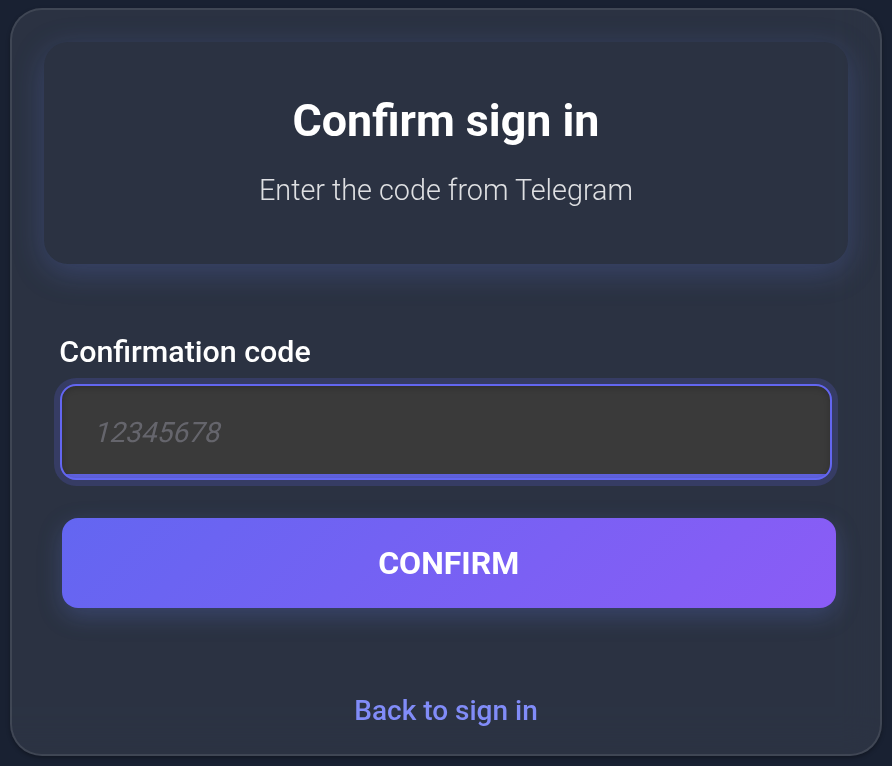
At your next KEHR sign-in, entering your username and password opens “Confirm sign in”. Find the latest code message in the linked Telegram account, enter its eight digits in “Confirmation code” and click “Confirm” in KEHR.
The code belongs to a sign-in attempt and expires. If it has expired or you restarted sign-in, use the new code from the bot. Do not send codes to other people.
If you need to disable 2FA or change Telegram accounts#
While you still have dashboard access, clear the two-factor authentication checkbox, enter your current password and save the form. To change Telegram accounts, first disable 2FA this way, then click “Disconnect Telegram bot” and confirm disconnection. Link the new account and enable 2FA again.
Disconnecting the bot alone does not clear the 2FA setting. If you disconnect it while protection remains enabled, your next sign-in may be unavailable.
Other switches#
“Sign out when IP changes” adds a network-address check. You may need to sign in again after your address changes, which can happen on a mobile network or when switching connections.
“Allow domain transfers” enables obtaining codes to move plan domains between KEHR accounts. It does not transfer a domain registration to another registrar. Changing this switch also requires your current password and saving the form.
If you cannot save settings or sign in#
- “Current password is incorrect.” Check your keyboard layout, Caps Lock and the current password you entered.
- The new passwords do not match. Enter the same value in both fields. If you do not want to change your password, clear both fields.
- No code arrives. Check the correct Telegram account, access to @kehr_bot, your connection and whether you have blocked the bot. If a code has expired, click “Back to sign in” and start again.
- You forgot your password. Follow the access recovery guide. Resetting your password does not disable 2FA.
- You lost Telegram access. Contact KEHR support about the second factor. Do not expect a password reset to replace Telegram confirmation.
Do not send support passwords, personal linking URLs, API keys or one-time codes. You can also check password or 2FA changes in the activity log; use settings to check the switch's current state.