A debit by your bank or payment provider and a credit to your KEHR balance are two separate steps. If money has already been debited, do not pay for the order again. First check its state using the steps below.
1. Find your top-up#
- Make sure you are signed in to the KEHR account where you started the payment.
- Open “Activity Center” → “Billing”. The page is called “Balance history”.
- Find the “Top-up” row by its date and amount in USD — US dollars. The number in the “Order” column distinguishes it from other operations. Recent operations appear at the top; older ones may be on later pages of the table.
The amount in your KEHR history is the top-up amount in USD. Your bank receipt may use another currency or include a fee, so the two amounts do not have to match numerically.
On a phone, swipe left across the table to reveal “Amount” and “Status”. The images below show the left and right parts of the same table.
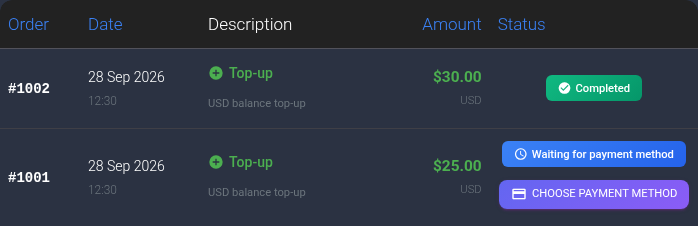
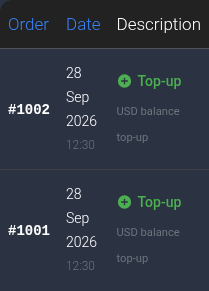
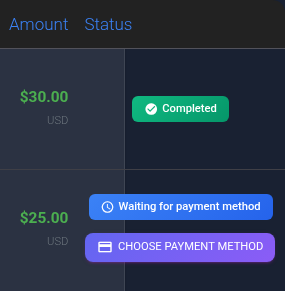
In this example, order #1002 for $30 is complete, while #1001 for $25 is still waiting for a payment method. In your account, check the row for your own top-up.
2. Check the status and outcome#
- “Completed”. This top-up has been processed. Reload the page to see your current USD balance. If it is lower than expected, check later charges in your history: services may have been paid for after the top-up. If this does not explain the difference, contact support.
- “Processing” or “Pending”. Your history does not yet confirm completion. Check the result with your payment provider; confirmation time depends on the provider. If money was debited and the outcome remains unclear, send the details to support.
- “Waiting for payment method”. KEHR has not yet recorded a selected method for this order. If you are sure you have not paid, use “Choose payment method” in its row to continue. If money was debited or you are unsure, contact support first.
- “Cancelled”. The order is not marked complete. This status alone does not confirm a refund. If money was debited, do not make another payment before checking with support.
3. Send the details to support#
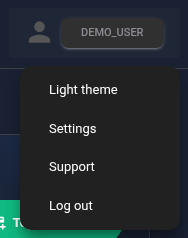
Open KEHR support in Telegram. The same link is available in the dashboard's account menu.
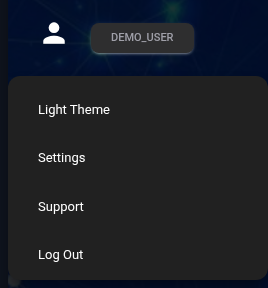
Click your name in the account menu and choose “Support”. On a computer, your name is in the top right. If the menu is collapsed into a three-line button ☰, open that first, then select your name.
This image shows Support in the account menu on a computer.
On a phone, first open the menu with the three-line button, then tap your account name. Both steps are shown below.

Include the following in one message:
- your KEHR order number and status, if you found its history row;
- the payment date and time, and the requested top-up amount in USD;
- the payment method, the amount actually debited and its currency;
- the provider's payment reference, if available, and proof of the debit.
Hide unrelated payment details on the receipt. Do not send your password, full card number, CVV, API keys or one-time codes. Keep the conversation and wait for the result of the check; do not repeat the payment while its outcome is unclear.
If you cannot find the order#
Check the account, date and later history pages again. If money was debited, contact support with the confirmation you have and explain that you could not find the KEHR order number. Do not make a new payment just to obtain an order number.
If no money was debited and you want to start a new top-up, follow the USD balance top-up guide.