You need an activated account to use KEHR services. Registration creates the account; a six-digit email code confirms access to the address you entered. After activation you can sign in to the dashboard. Adding funds and purchasing services are separate steps.
These forms use the dashboard language. If their labels differ from the screenshots, select EN in the shared language switcher in the KEHR top bar.
The screenshots use an example username, email address and codes. Enter your own details; the pictured code is not a real activation code.
1. Create your account#
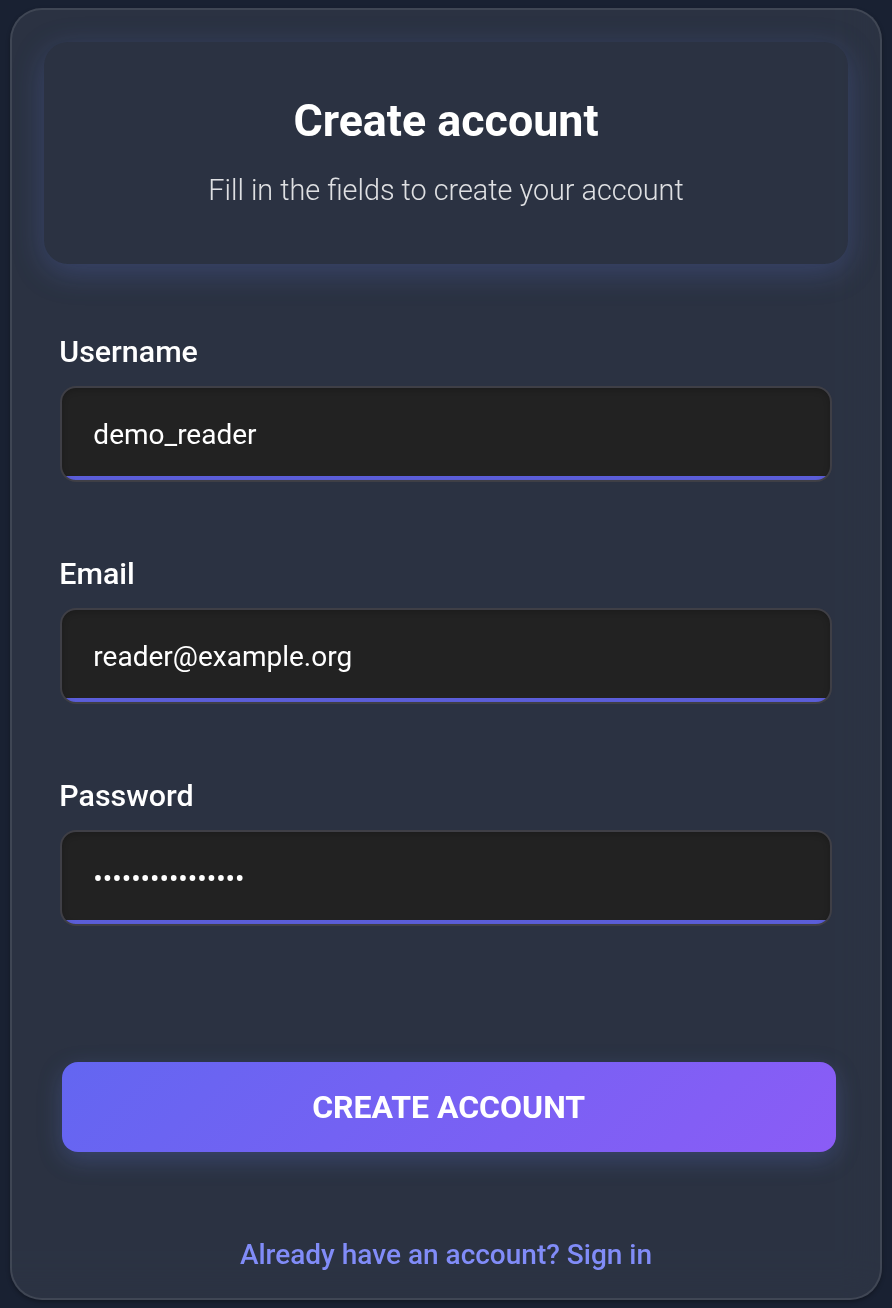
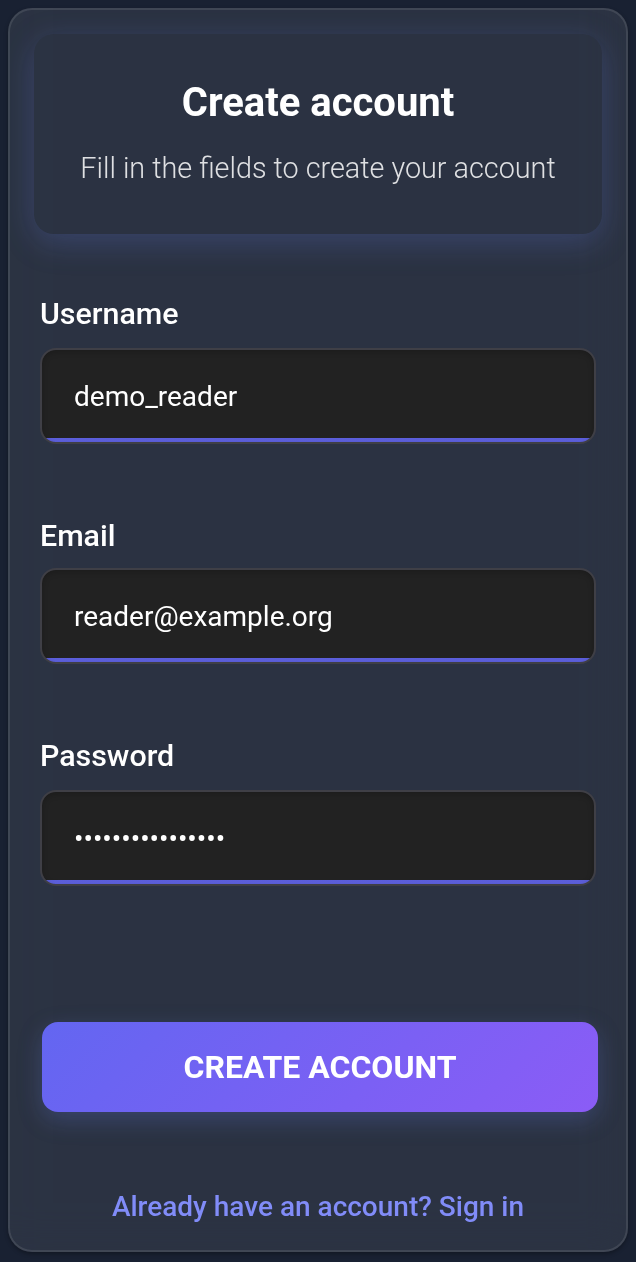
- Open Create account. The sign-in page has a link with the same name.
- Enter a Username with 4–20 characters: Latin letters, digits, hyphens or underscores. The username must be available.
- Enter an Email address you can access. You will need it for activation and password recovery. If your email already belongs to your account, recover access to that account.
- Choose a password. Registration accepts at least 6 characters; choose a long, unique password you do not use for other services.
- Complete the verification on the page and click “Create account”. If a field has an error, correct it and submit the form again.
2. Verify your email with the code#
- Registration takes you to “Confirm account”. Open the email address used for registration and find the KEHR activation email.
- Enter its six digits in “Activation code” and click “Activate account”. The code is valid for two hours. After a successful resend, use the new code.
- After the activation confirmation, sign in to KEHR with your username or email and password.
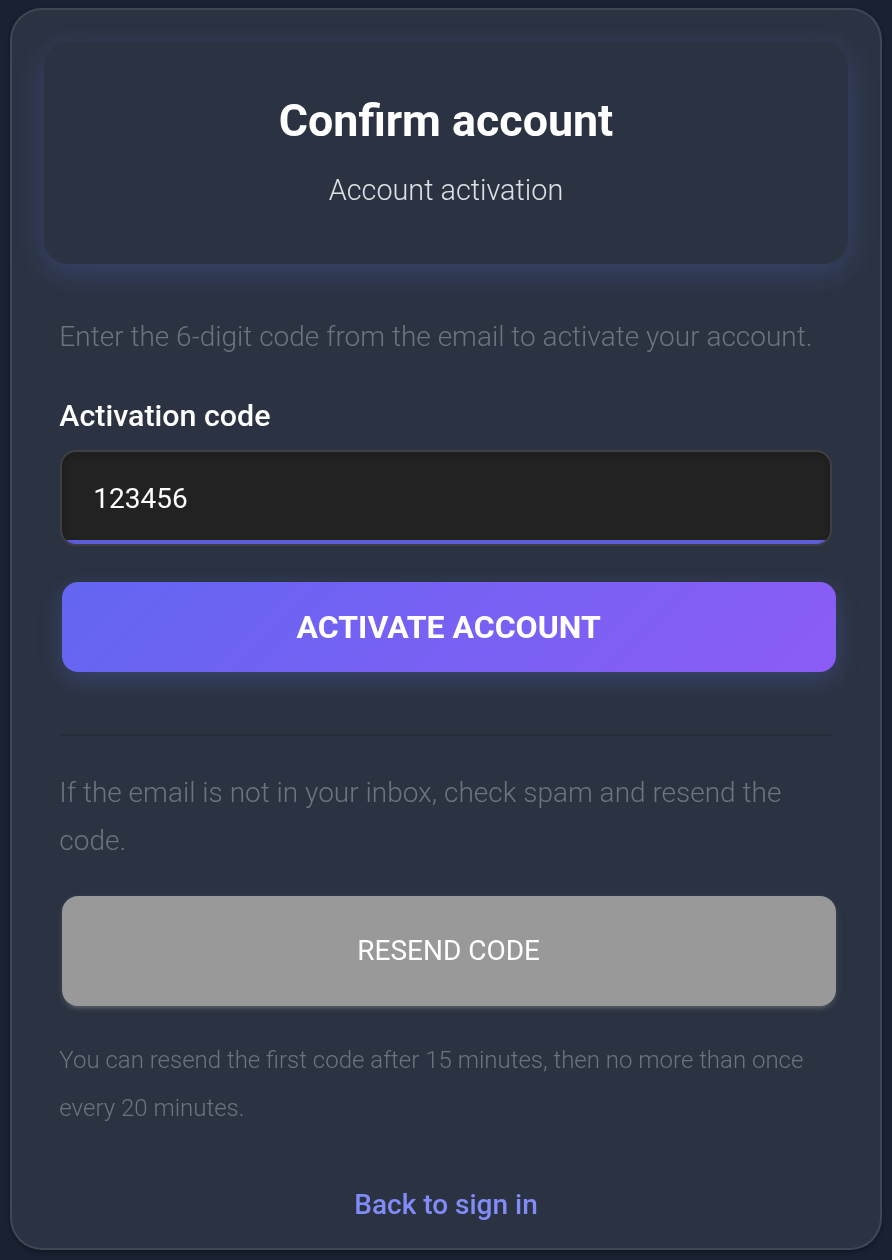
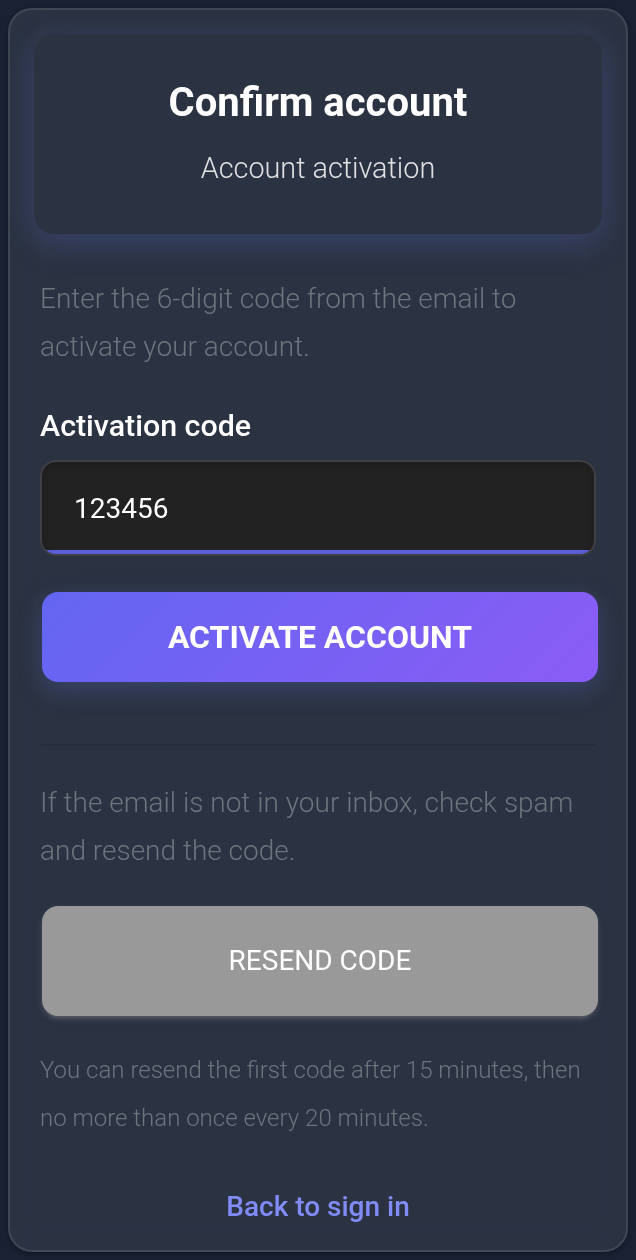
If you closed the confirmation page, return to sign in and enter the details of the account you created. KEHR takes an inactive account back to confirmation. Opening confirmation directly without a known username leaves the code buttons unavailable; return to sign in.
If the email does not arrive or the code does not work#
- No email. Check the correct mailbox and your Spam/Junk folder. The activation email may be in Russian even when the KEHR interface is in English. A message on the website does not by itself confirm delivery to your inbox.
- You need a new code. Click “Resend code” on the confirmation page. The first resend is available 15 minutes after the first successful send; further resends are available no more than once every 20 minutes. If KEHR shows a waiting period, wait for it to end.
- The code is invalid or expired. Check that it is the six-digit code from the most recent email for this account, without extra characters. If it has expired, request a new code. Do not guess codes: repeated errors require a waiting period.
- The account is already active. Go to sign in. You do not need to activate it again.
- You entered the wrong email, lost access to it, or sending repeatedly fails. Contact KEHR support. This page does not offer a way to change the email address yourself.
Check the result and continue#
The result to confirm is that you can sign in to your account and see the dashboard. Next, read Getting started with your dashboard and Password, Telegram and two-factor authentication. If you still cannot sign in, follow the access recovery guide.
Never share passwords or codes. For support, provide your username, the attempt time and the error text; remove codes and personal details from screenshots before sending them.