In KEHR, you can buy a website address, set up how incoming visits are handled, or connect protection for an existing website. These are separate tasks: you do not need to complete all three in order. This guide shows you where to start and which instructions to follow.
The home page and menu#
After signing in, open your dashboard home page. The welcome panel shows your balance in US dollars (USD) and shortcuts to common actions. Adding funds puts money on your balance; you purchase a service separately. To add money, follow the USD balance top-up guide.

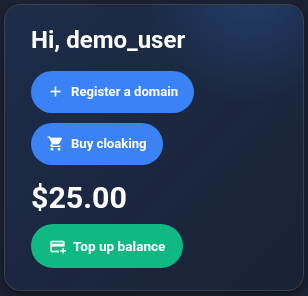
On a phone, the menu is hidden. Tap the three-line button in the top bar, then tap a section name to reveal its menu items.

On a computer, the menu is on the left. Click a section name to reveal its menu items.
The screenshots show an example account. Your balance, number of services and available menu items may differ.
You need a new website address#
A domain is a name such as example.com that visitors enter in their browser. Buying a domain reserves the name for you for the paid registration period. It does not create a website or provide storage for its files.
Open “Registrar” → “Register Domains”, or click “Register a domain” on the home page. Follow the domain search and purchase guide to check whether a name is available and complete your order. You do not need a “Cloaking | Tracker” plan just to buy a domain.
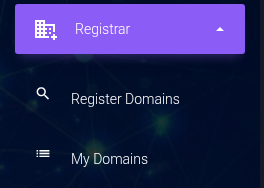
Check your purchase under “Registrar” → “My Domains”: your domain should appear with the “Registered” status and its registration expiry date.
Redirect visitors or protect a website#
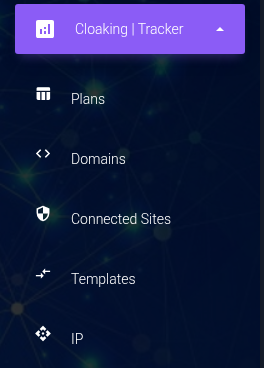
The “Cloaking | Tracker” section handles incoming visits: for example, sending visitors to different pages according to your rules. This is also where you connect protection against unwanted visits. These services use a paid KEHR plan.
Send visitors to the right pages#
Open the plan purchase page. Its shortcut on the home page is called “Buy cloaking”. The plan selection and payment guide shows how to compare plans, pay from your balance and check the result under “Cloaking | Tracker” → “Plans”.
“Domains” in the same section lists addresses connected to a plan. Adding an address there does not buy a domain. See the guide to registered domains, plan domains and PHP sites for the differences.
You want to protect an existing website#
KEHR connects this protection through a PHP module: files installed alongside your website's files. You need hosting that supports PHP and access to your site's files. Hosting is where those files are stored and served to visitors. If you do not know whether your site supports PHP, ask your hosting provider or the person who built the site.
You need an active plan that supports site protection. Adding a new address also requires an available domain slot in that plan.
First, read what the protection can and cannot do. If it fits your needs, open “Cloaking | Tracker” → “Connected Sites” and follow the guide to adding a site. You will then need to install the module on your hosting account. Adding a site to the dashboard alone does not mean its protection is working.
Where to check payments and account activity#
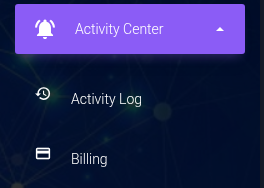
Expand “Activity Center” in the menu:
- “Billing” opens “Balance history”, where you can check top-ups, charges and their statuses.
- “Activity Log” shows account events such as a password change or domain operations.
If an operation's result is unclear, start with the guide to these two logs. If a menu item is missing, check that you are signed in to the right account: some sections require an active plan and an enabled service. Do not buy a plan just to reveal a missing button; ask KEHR support whether the service you need is available.
Your account trust level#
Your account trust level may appear in the dashboard top bar and on the home page. It describes account terms; it does not confirm a domain purchase, plan payment or enabled site protection. Click the widget or open trust level conditions to check current requirements and benefits. Your trust score history shows the actions behind score changes. Use the current information on these pages, as terms may change.