A domain is a name used to reach a website. It consists of a chosen name and a zone: in demo-kb.com, the name is demo-kb and the zone is .com. After successful registration, the name is reserved for you for the paid period; setting up the website itself is a separate task.
The screenshots show a training example. Their names, availability states and prices are illustrative; check current availability and pricing in KEHR for your own purchase.
1. Enter a name and choose a zone#
- Open “Registrar” → “Register Domains”.
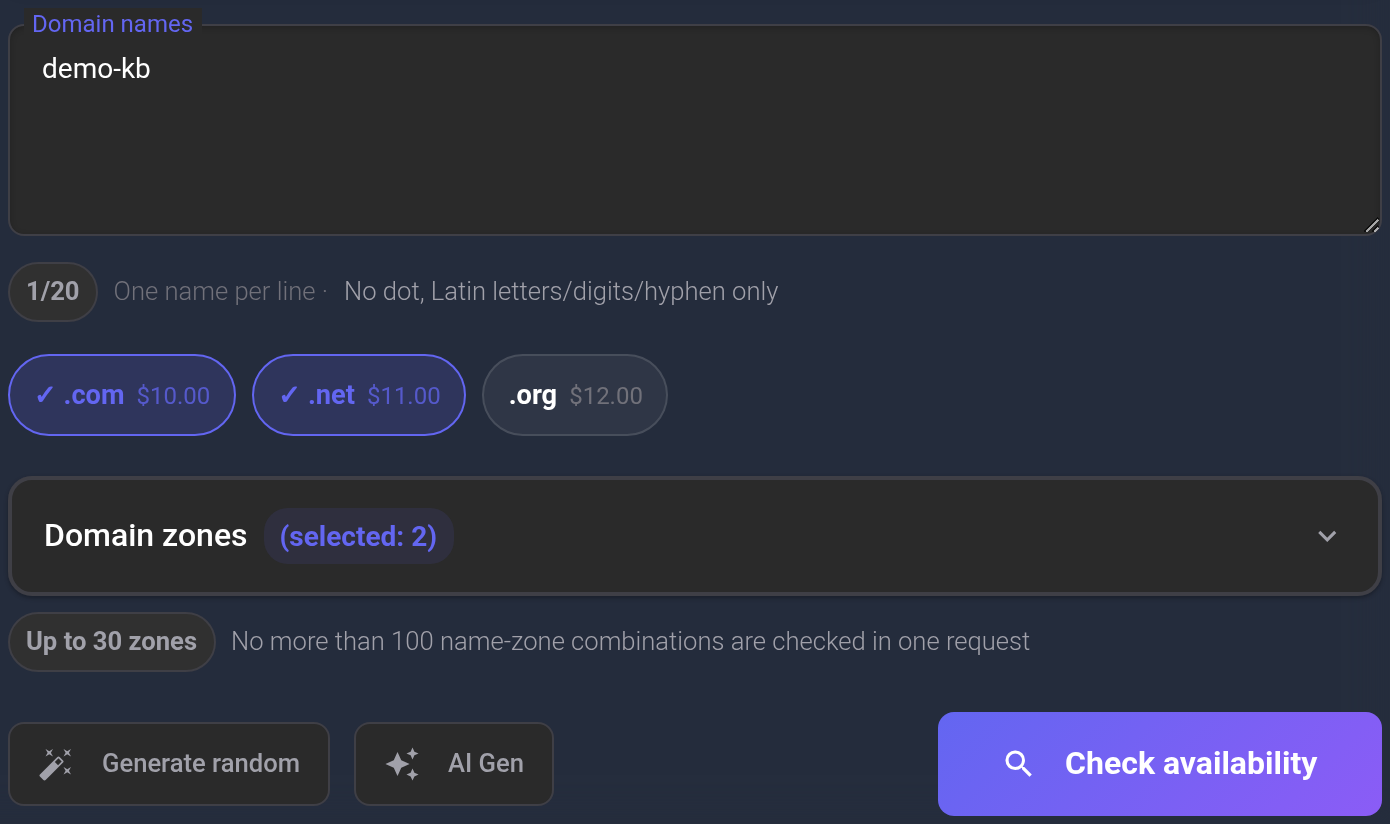
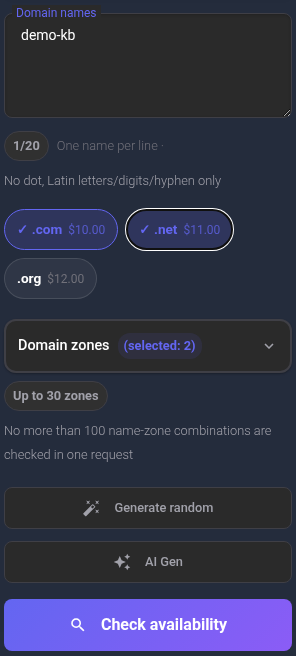
- In “Domain names”, enter the chosen name without a dot or zone. For the example
demo-kb.com, enterdemo-kb. Do not includehttps://or a page path. Use 3–63 characters: Latin letters, digits and hyphens. Do not put a hyphen at the beginning or end. Put each name on a separate line if checking several. - Choose a zone, such as .com, using a quick selection button or the zone dropdown. You can select several zones; the chosen combinations will be checked for each name.
- Click “Check availability” and wait for the results. Do not submit the same check again while it is running.
The training example checks two zones, .com and .net, so it checks two different full names.
If you have not chosen a name: random suggestions and AI Gen#
“Generate random” fills the names field with five suggestions, replacing its existing contents. Copy your current list first if you want to keep it.
For topic-based suggestions, click AI Gen, enter a topic and optionally choose a language, count and profile. Click “Generate”, select the suggestions you want, check whether insertion will append to or replace the list, then click “Add selected”. Use the labels shown in your interface. Generation does not check availability, reserve a name or buy a domain: select zones after insertion and click “Check availability” separately.
How many suggestions you can check at once#
A check accepts up to 20 distinct names and 30 distinct zones, and checks no more than 100 name × zone combinations. For example, 10 names and 10 zones make 100 combinations. If there are more combinations, KEHR reduces the set of zones checked; split a large list into separate checks and inspect the full names in the results. If you generate 50 suggestions, select or leave at most 20 in the field for a single check. If the interface temporarily limits checking frequency, wait for the time it shows.
2. Check the result and select a domain#
Check the card's full name and status. For an “Available” card, check the price; you can select this domain for an order. A “Taken” card cannot be ordered and has no price or selection checkbox. Try another zone or another name and check again.
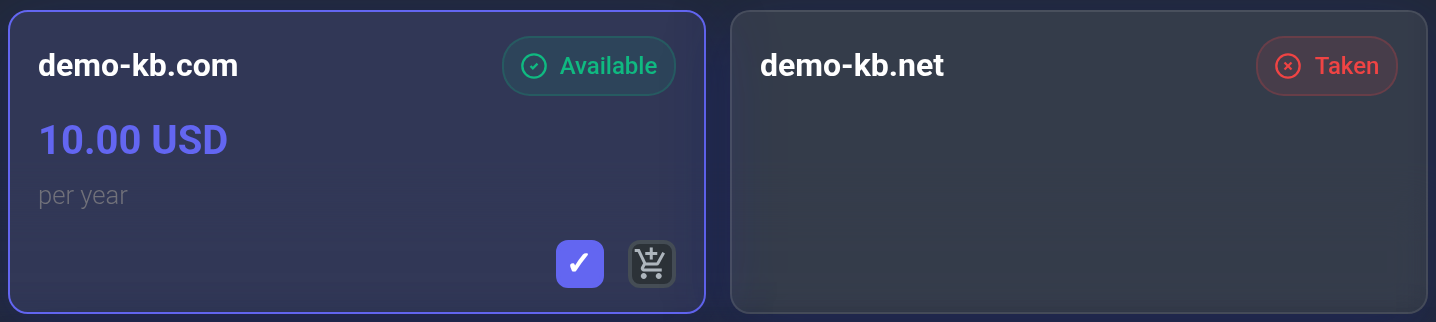
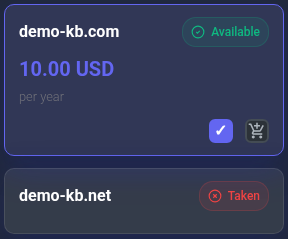
Prices may differ between zones and individual names. Cards marked “Premium” cannot be purchased through this list's normal registration button; ask support whether the name can be obtained. Searching does not reserve a domain: availability or terms may change before you order.
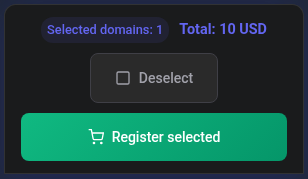
Select the checkbox for the available domain you want. Make sure only the intended names are selected and check the total in the selected-domains bar. Then click “Register selected”. This starts order preparation; final confirmation is a separate step.

3. Save initial settings and accept the rules#
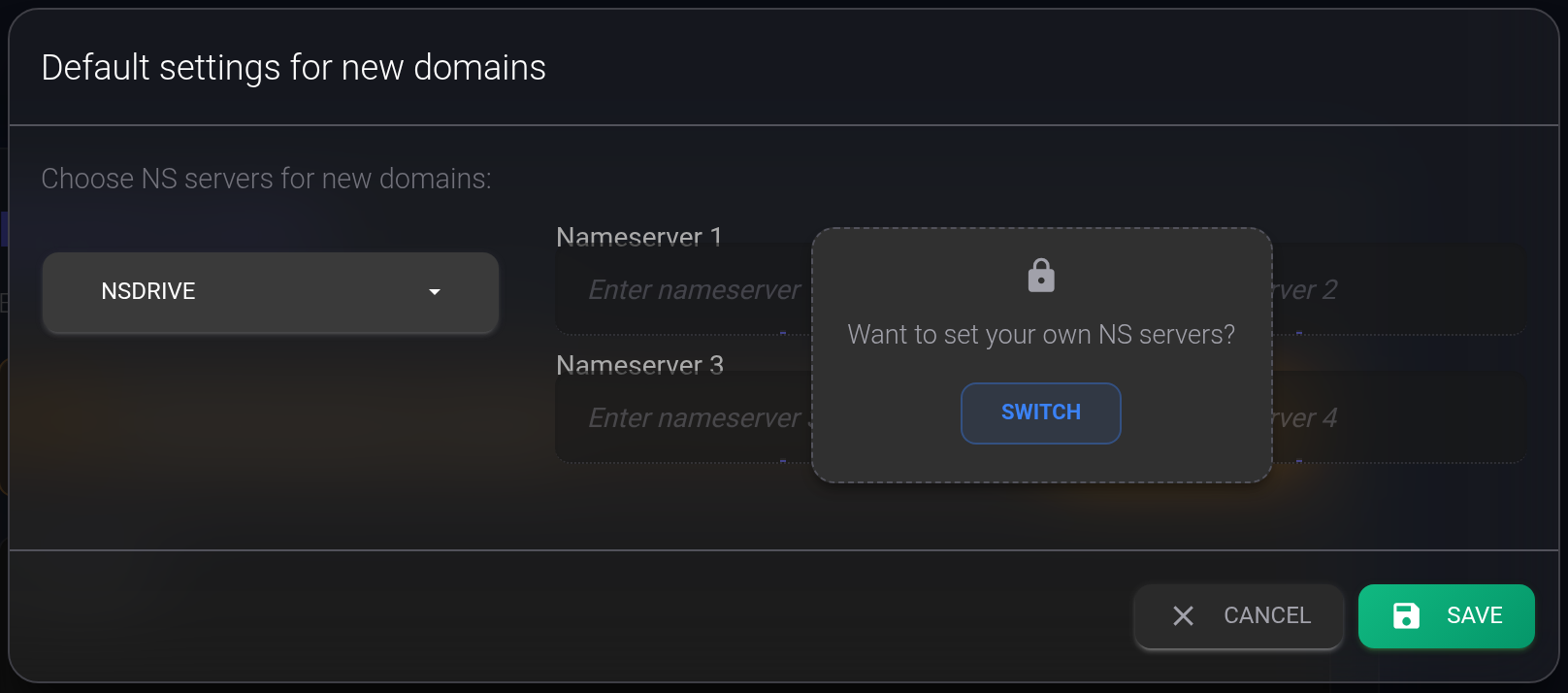
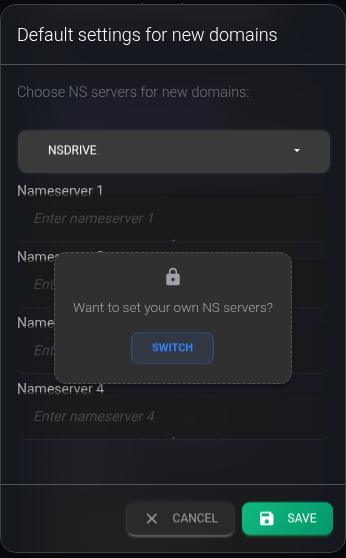
If your account does not yet have default registrar settings, their window opens. Choose a DNS provider or custom nameservers and click “Save”. Nameservers indicate where a domain's DNS records are hosted. If you are unsure which option to choose, first read the nameservers for new domains guide.
After settings are saved successfully, the purchase flow continues with your selected names. Saving these settings alone does not confirm registration.
The screenshot uses NSDrive. With this provider selected, you do not need to fill in the Nameserver fields manually; save the provider selection.
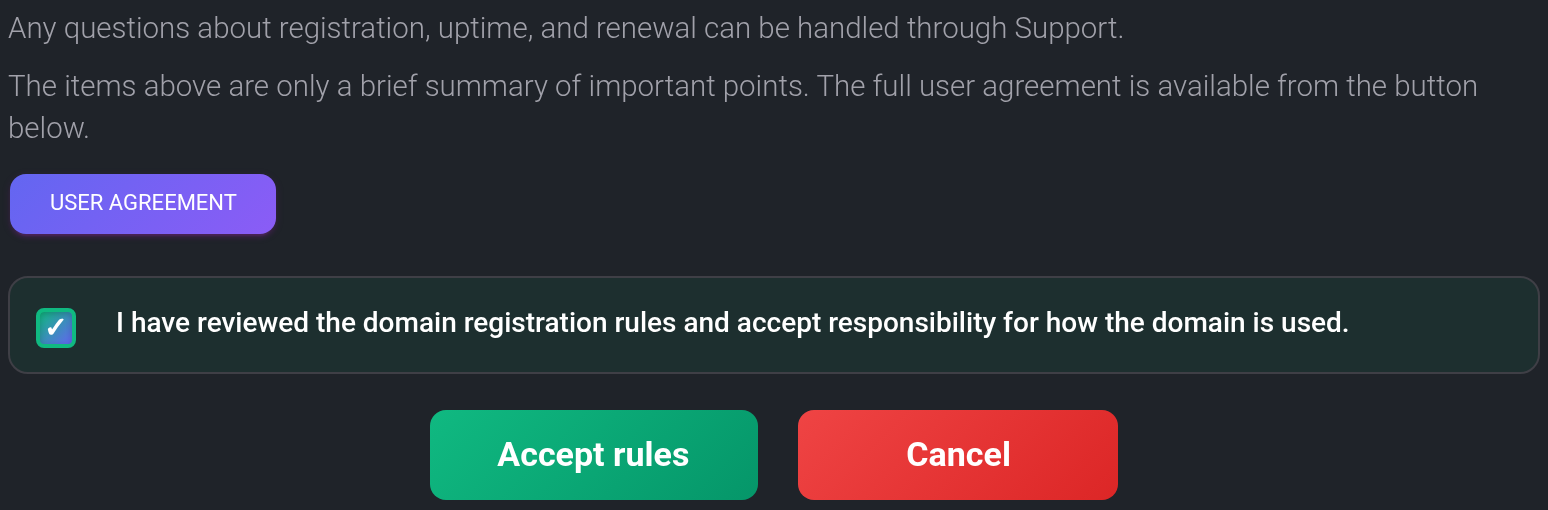
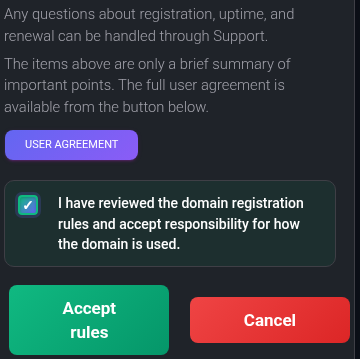
If “Rules agreement” appears, read the conditions and the full terms linked in the window. If you agree, select the checkbox and click “Accept rules”. The window may be skipped if your agreement is already saved in this browser.
4. Confirm the purchase amount#
Registration is paid from your KEHR USD balance. Check the available amount in the dashboard's top bar; if navigation is collapsed, open ☰ first. If you need more funds, top up your USD balance, return to the search and check availability and pricing again.
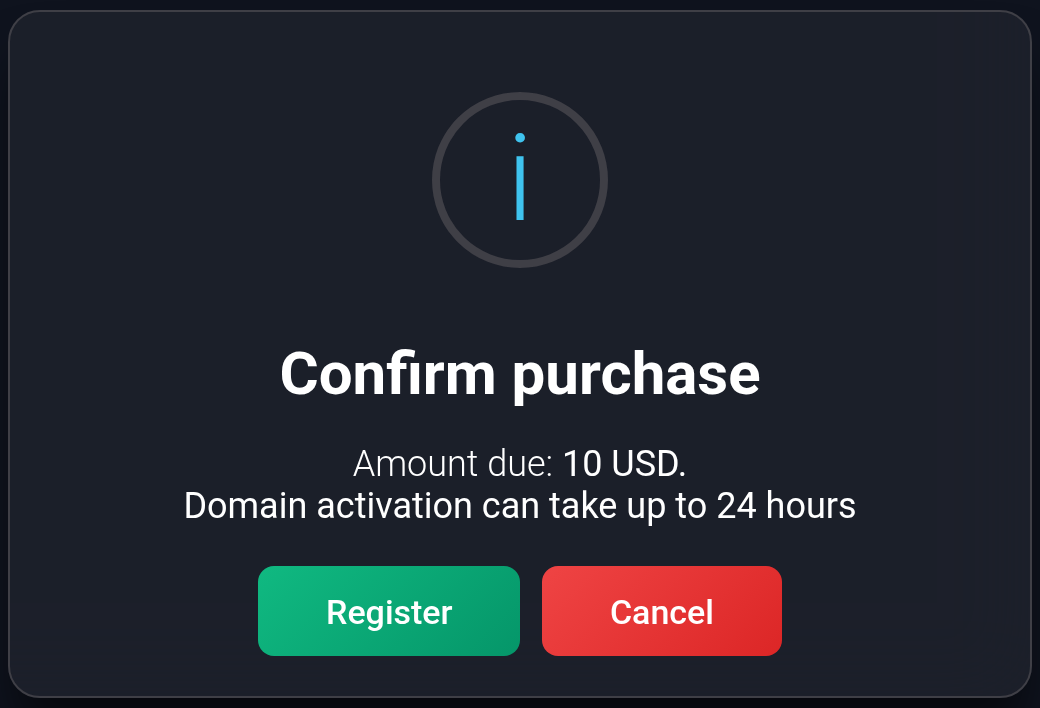
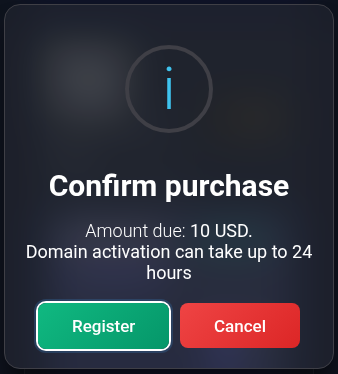
In “Confirm purchase”, check the amount due for the selected names. This window does not display your balance. Click “Register” to submit the order; “Cancel” closes confirmation without submitting it.
Wait for the response. If the order is accepted, KEHR takes you to “My Domains”. Acceptance means processing has started; it does not mean every domain is ready to use.
5. Check that registration has finished#
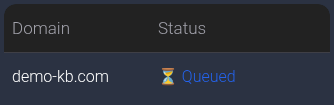
Open “Registrar” → “My Domains” if you were not redirected automatically. While an order is running, the “Domain registration status” panel appears at the top. “Queued” and “Processing” mean you should wait for the result; this panel updates automatically. “Completed” means the order finished successfully; “Cancelled” means registration did not complete through that order.

After successful registration, find each ordered name in the main list, check its “Registered” status and registration expiry date. A domain may not appear in this list until processing has finished.

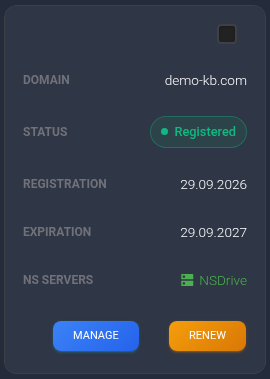
Each name has its own order and charge. When ordering several names, outcomes may differ: one may be registered while another is still processing or has failed. Check each one separately. Registering a name does not create a website or assign it to a plan; the domain types guide explains the differences.
If you cannot complete the purchase#
- The availability check expired or the price changed. Search again and check the new offer before confirming.
- Insufficient funds. Check your USD balance and the total for the selected domains. Adding funds is a separate operation.
- A name is already processing or the response was interrupted. First check “My Domains” and your balance history. Do not submit the same order again before checking its state.
- Only some names were accepted. Check each result. Do not resubmit the entire list including names already accepted.
- A charge or status is unclear. Contact KEHR support with the domain, time, error message and the matching order number from your balance history, if available.
The My Domains guide explains statuses and what to do when an error occurs.