Open “My domains” and find the name you need. Several different indicators may appear beside it:
- “Status” and “Expiration” describe the registration state and the date through which the domain is registered.
- KT is a flag indicating that Google considers the address unsafe. It is separate from the registration period.
- The red triangle opens abuse reports. The number beside it counts new reports.
- The green “M” means a monitoring record exists for the domain. It does not confirm that the website is working now.

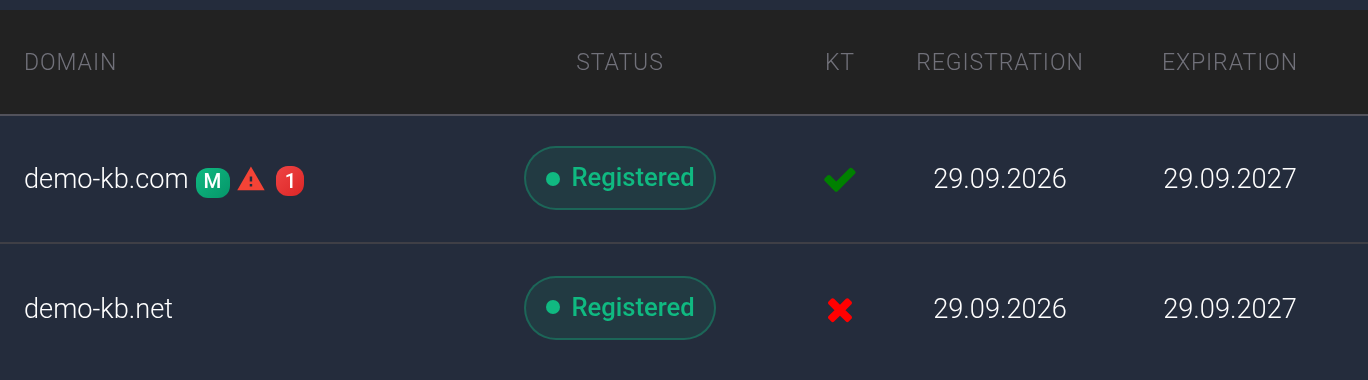
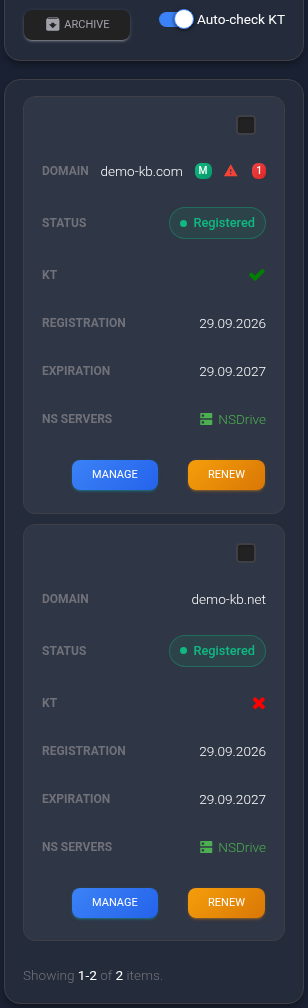
Example: registration, KT, abuse reports, and monitoring describe different checks. Their results can differ for the same domain.
Check registration and blocking#
First read “Status” and “Expiration”. If the date has passed, check whether renewal is possible, even if the row still says “Registered”. Pending registration is a separate case: check the order and domain status.
- Click “Manage” for the domain.
- Find “Domain status” and click “Check status”. This check is available for a domain whose status is “Registered”. Here, the message “only for an active domain” does not mean any domain outside the archive.
- Wait for the result in the same section. You do not need to click “Save” or change any settings to run the check.
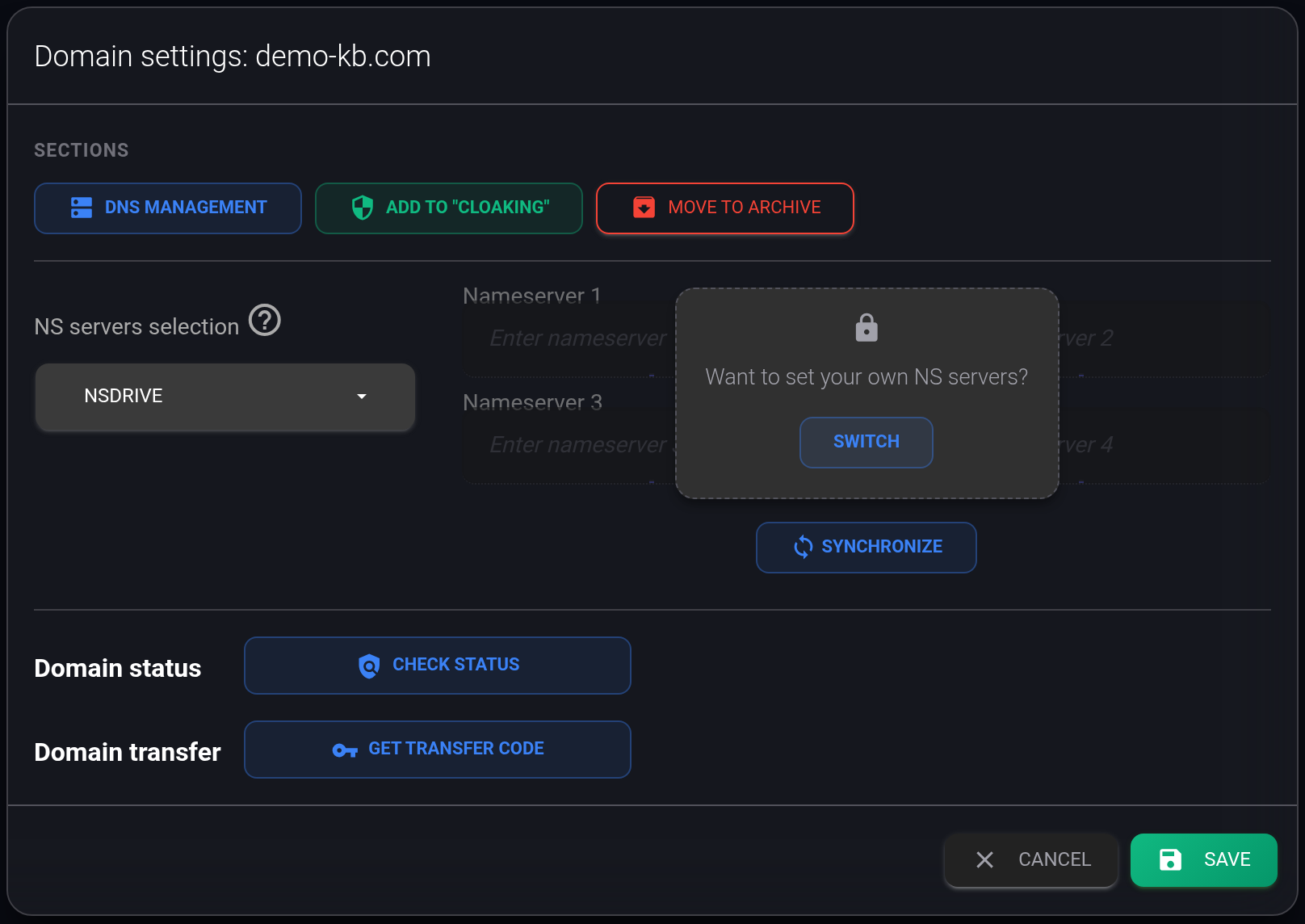
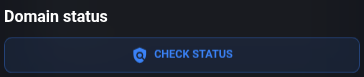
The check button is in the selected domain’s settings window.
“Domain is not blocked”#
The check found no domain hold imposed by the registrar or registry, the organisations that handle registration. This does not check Google, your hosting, or whether DNS is configured correctly. The website may still fail to open for another reason.

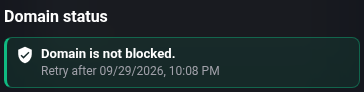
After the response, the button is temporarily replaced by the result and “Retry after…”. You can check again after 30 minutes; use the time shown in your own window. Refreshing the page does not shorten the wait.
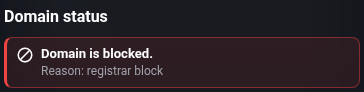
“Domain is blocked”#
Read “Reason”: registrar block or registry block. Save the result and contact support with the domain name. The check does not remove the restriction. When it detects this kind of block, KEHR changes the domain status to “Blocked” and disables “Save” in its settings window.

A failed check or a long wait#
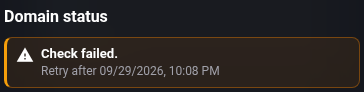
“Check failed” means the result could not be obtained. This message does not tell you whether the domain is blocked. Try again after the displayed time. If the error repeats, send support the domain, the time, and a screenshot of the message.

While “Checking status…” is displayed, wait for the response. If you see “The check is taking longer than usual. Reopen the settings later”, close the window and return later. No response is not a successful check.
Check the KT flag#
- On “My domains”, find “Auto-check KT” near the filters and turn it on.
- The “KT” column appears when the list refreshes. This setting applies to the account, not just one selected row. Turning it on does not immediately check every address.
- Look at the domain’s indicator: a green tick with the “OK” tooltip or a red cross marked “KT”.
The switch and both KT indicators are shown in the screenshots at the beginning of this article.
A red cross means KEHR has saved a Google Safe Browsing flag for the address. If the browser also shows a warning, do not disable protection to open the site. Investigate the issue with whoever maintains the website, then contact KEHR support if the flag needs clarification.
A green tick means there is no saved KT flag in KEHR. It does not guarantee a recent successful check or a safe website. Fixing the site and refreshing the page do not automatically clear a red flag. Turning the switch off and on does not reset it either.
Read an abuse report#
- Click the red triangle beside the name. The numbered circle itself does not open the window. The triangle can remain after all reports have been handled: it opens the full history.
- In “Abuse history”, find the report by its subject and date. An abuse report is a complaint about a domain or website.
- Click its row to expand the sender and message. Read which address and issue it describes.
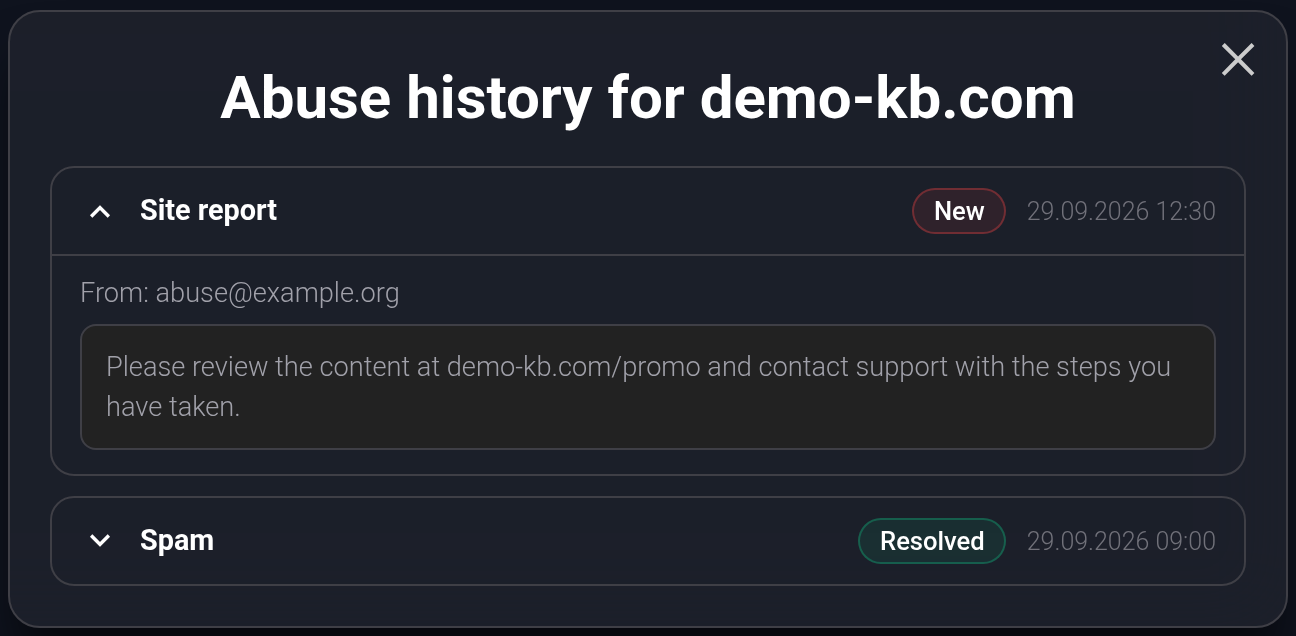
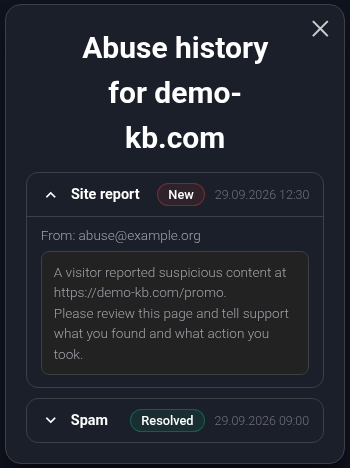
Example: the new report is expanded; the resolved report remains in the history. The number beside the domain counts only new reports.
“New”, “In progress”, “Resolved”, and “Ignored” describe the handling of the report. “Resolved” does not confirm that a domain block has been removed automatically. This window has no button for replying or changing the status. For a response or clarification, contact support with the domain, report subject and date, and what you have already fixed. Simply opening the message does not resolve the complaint.
Check monitoring#
The green “M” in the screenshots at the beginning of this article means a monitoring record exists. It can remain when the service is paused or unpaid. The letter alone does not tell you whether checks are enabled or when the website last responded successfully.
Monitoring checks the website’s response and, when configured, its SSL certificate for HTTPS. It is not a person browsing every page. To check the website now, open its normal HTTPS address: you should see the expected page without a certificate warning. Do not bypass browser warnings.
“M” is not a button. Contact support with the domain name to confirm the monitoring status or settings. Notifications require the Telegram bot to be linked; linking it alone does not enable monitoring.
If the website does not open#
- Check the registration period and the “Check status” result.
- If the browser reports an unsafe website, save the warning text and check KT and abuse reports.
- If the registration period is valid and no block was found, check the DNS records and nameservers, then contact whoever manages the hosting. Domain registration alone does not guarantee a working website.
Give support the domain, exact address of the affected page, check time with its time zone, and the error text or screenshot. Include the visible status and check result. This helps distinguish a registration issue from a website issue.