Nameservers indicate where a domain's DNS records are hosted: the settings that direct visitors to a website and support other services, such as email. Here you choose a default for future registrations in your account. This does not change domains that are already registered.
Open the settings#
- Open “Registrar” → “My Domains”.
- At the top of the page, click “Default settings”. The “Default settings for new domains” window opens.

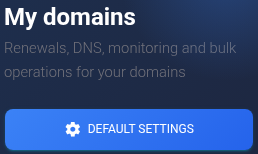
If no settings have been saved yet, this window also appears during your first purchase. KEHR preselects NSDrive in a new form; check the choice and save it. Opening the window alone does not save anything.
Choose where to manage DNS#
Open the provider dropdown and choose one option:
- NSDrive or Cloudflare. These options let you manage DNS through KEHR. You do not need to fill in the Nameserver fields manually: they are locked and covered by an explanatory message. The DNS provider guide explains the differences.
- “Custom NS servers”. Choose this if your hosting company or another DNS service has already supplied its nameserver names. You then manage DNS records at that external provider.
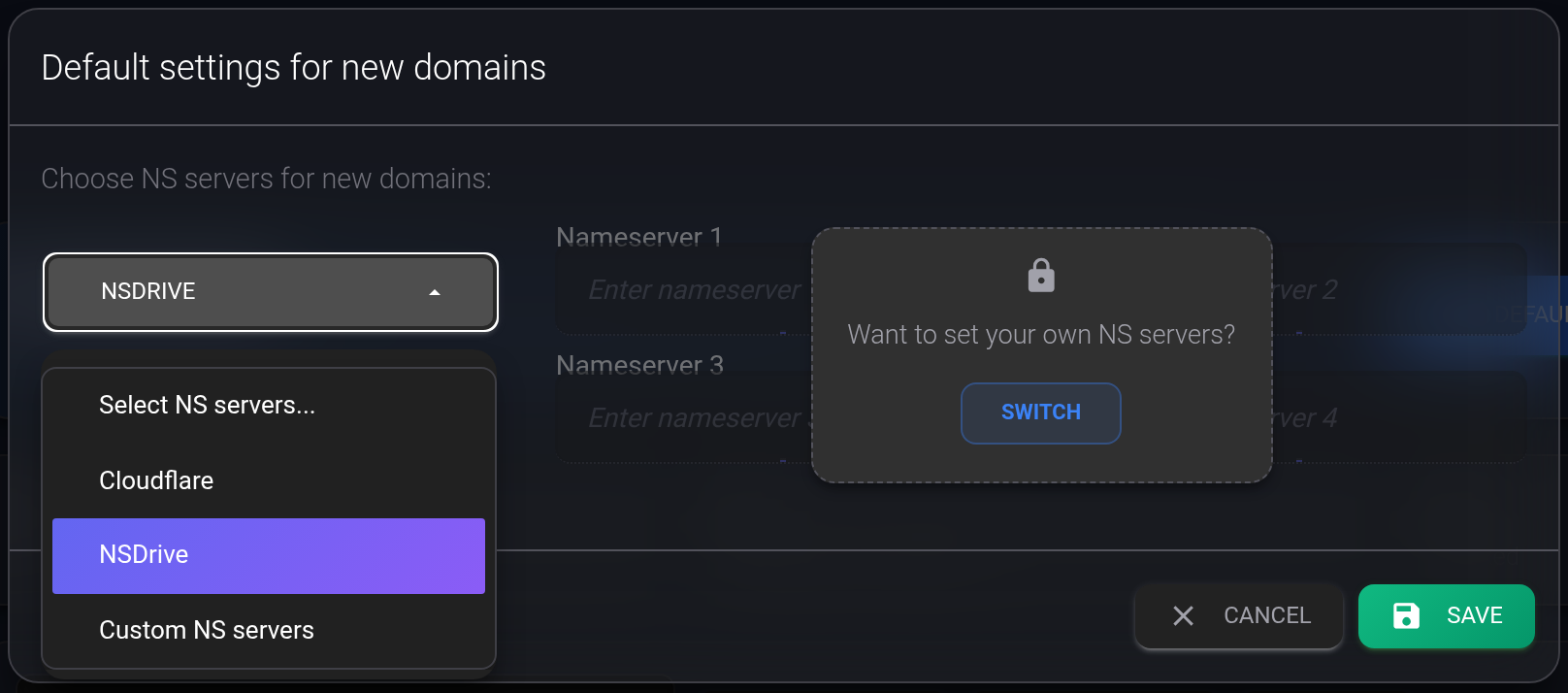
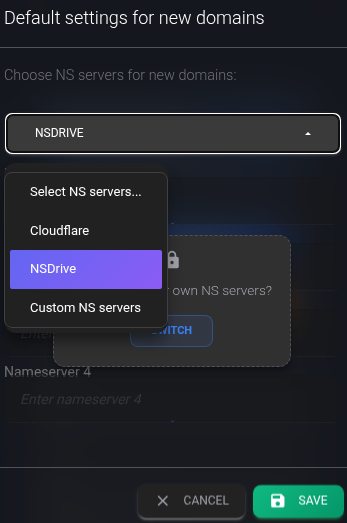
The “Switch” button over the locked fields also selects “Custom NS servers” and unlocks the inputs. You do not need to click it when using NSDrive or Cloudflare.
Save your selection#
- For “Custom NS servers”, fill in at least Nameserver 1 and Nameserver 2. Put one server name from your provider's instructions in each field. If the provider supplied more servers, use fields 3 and 4 as well.
- Check the spelling. The example
ns1.example.comandns2.example.combelow only demonstrates the format; these are not ready-to-use settings for your domain. Do not enter a website address withhttps://, a page path or a bare IP address instead of a nameserver name. - Click “Save” and wait for “Settings saved”. Closing the window or clicking “Cancel” does not save your selection.
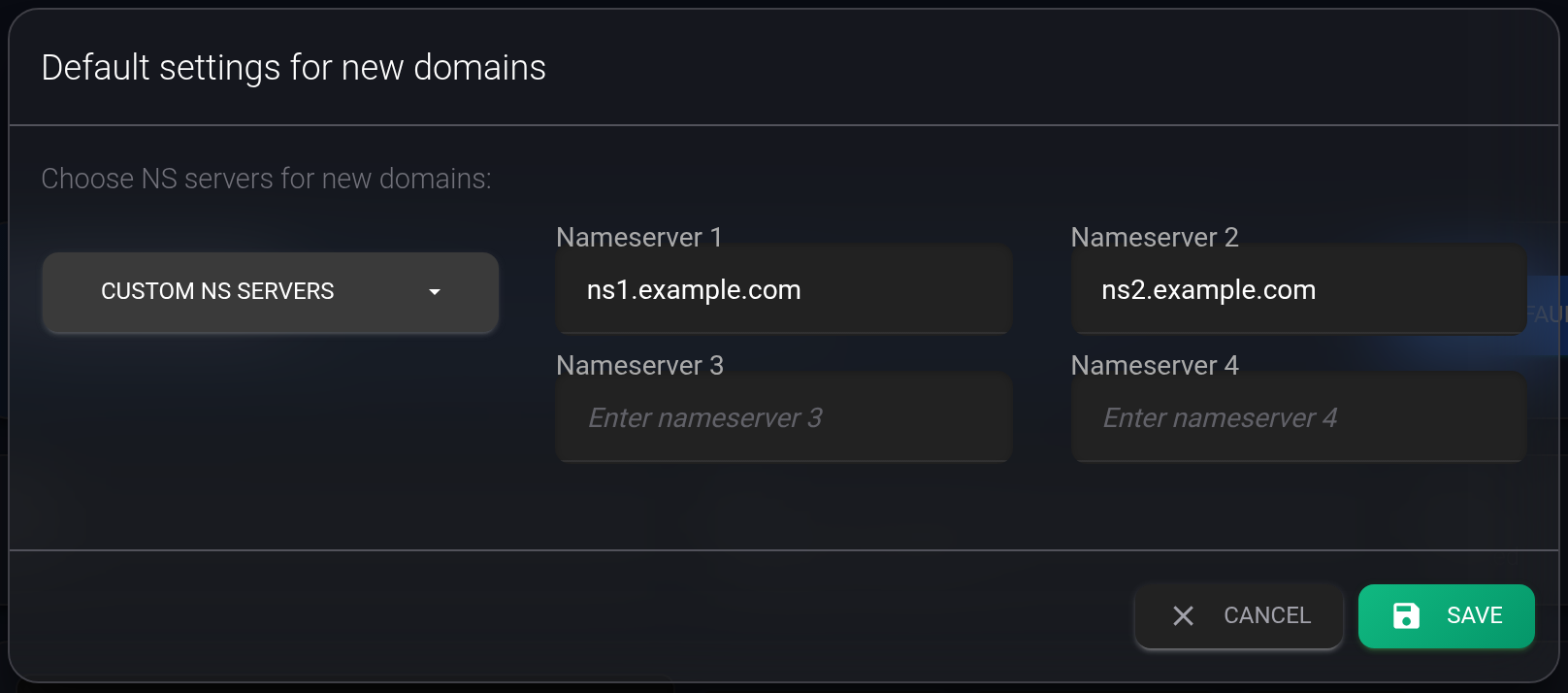
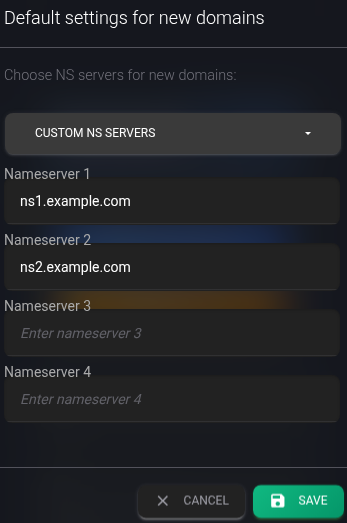
If an error appears, correct the indicated fields and save again. Custom nameservers require at least two valid names. If no response arrives, reopen “Default settings” and check which values were saved.
When you opened the window from “My Domains”, you can next check and buy a domain. If it appeared during a purchase, the flow continues with the names you already selected; you do not need to create the order again.
Check newly registered domains#
After successful registration, find the new domain in “My Domains”. The “NS servers” column on desktop, or the matching field on a mobile card, shows the provider assigned to that domain: NSDrive, Cloudflare or “Custom NS”. This is the provider label, not the full list of nameserver addresses. If the actual provider differs from the one you expected, ask support about it before configuring DNS.
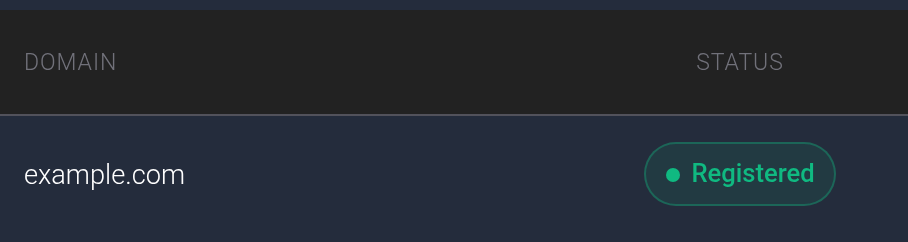
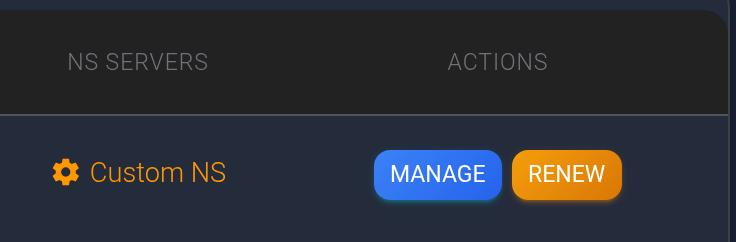
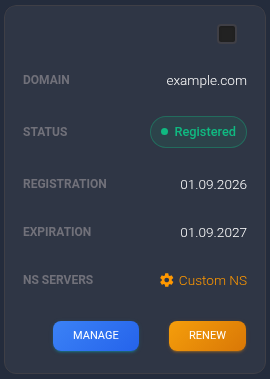
The screenshot shows a sample domain using custom nameservers. Saving a default does not create a website or configure its DNS records for your needs. With custom nameservers, continue at the external provider; for NSDrive/Cloudflare, see adding and editing DNS records.
If the domain is already registered#
Default settings do not move existing domains. To change a specific domain, open “My Domains” → “Manage” for that name. The DNS provider guide covers changing and checking its provider.
Before changing providers, save the records your website and email need. Do not assume they will transfer automatically: after switching, check them at the new provider and recreate any missing records. Changes take time to become visible across the internet. If the website or email stops working afterwards, check the nameservers and the records at the selected provider. For an unclear error, send KEHR support the domain name and error text.