Nameservers specify which provider hosts a domain’s DNS records. Those records connect the name to a website, email, and other services. Changing nameservers changes where the internet obtains these settings. Together, the domain’s records form its DNS zone.
If you only need to point the domain to a different web server, start with editing the DNS record: changing nameservers is often unnecessary.
Which option to choose#
- NSDrive — DNS records are edited in KEHR. Choose it to manage the domain and DNS in the same dashboard.
- Cloudflare — a connection through KEHR’s integration. The domain’s records and available Cloudflare settings are managed in KEHR.
- “Custom NS servers” — an external provider or hosting service manages DNS. Enter the nameservers it gives you in KEHR, then edit the records in that provider’s dashboard.
If the domain is already configured in your own Cloudflare account, choose “Custom NS servers” and use the nameservers assigned to that specific domain in your account. Selecting “Cloudflare” in KEHR does not connect your personal account. Do not copy nameservers from another domain or a worked example.
Prepare the website and email records#
- Save the current nameservers and the complete list of DNS records at the current provider: type, name, value, and any other parameters. Websites commonly use A, AAAA, or CNAME; email commonly needs MX and TXT. Keep subdomain and service verification records too.
- For a move to custom nameservers, add the domain and required records at the external provider in advance. Obtain its nameservers. Both the old and new zones should contain the necessary website and mail settings.
- When switching to managed NSDrive or Cloudflare in KEHR, do not rely on automatic record migration. Connecting the new zone and starting the nameserver change happen after “Save”; this window has no separate step for preparing the new zone first. If the website or email is already in use and interruption is unacceptable, arrange the move with support beforehand.
If the domain uses DNSSEC, which authenticates DNS responses, plan its migration as well. An uncoordinated nameserver change with this protection enabled can make the domain unreachable. Keep the old DNS records until you have checked the result.
Change nameservers for a registered domain#
- Open “My domains”, find the name, and check its status and registration period. Contact support first if the domain is blocked.
- Click “Manage” for that name. Check that the window title shows the correct domain.

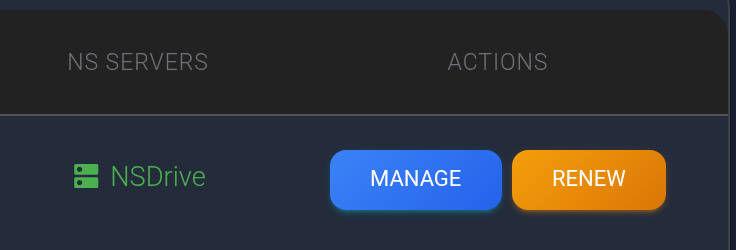
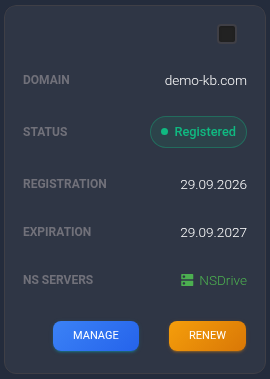
Training example of a registered domain. Check the name, registration period and provider; “Manage” opens this domain’s settings.
- In “NS servers selection”, choose NSDrive, Cloudflare, or “Custom NS servers”.
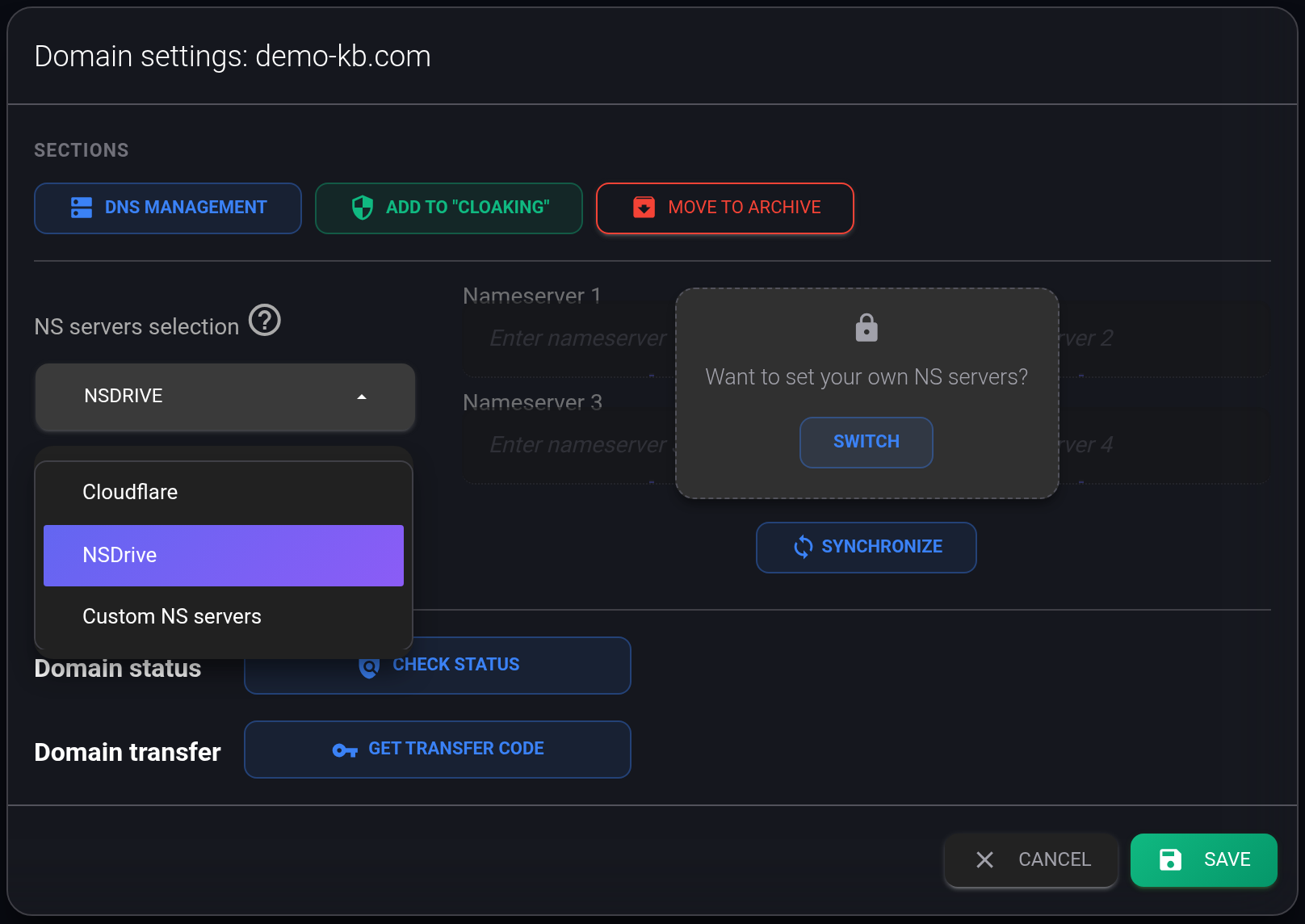
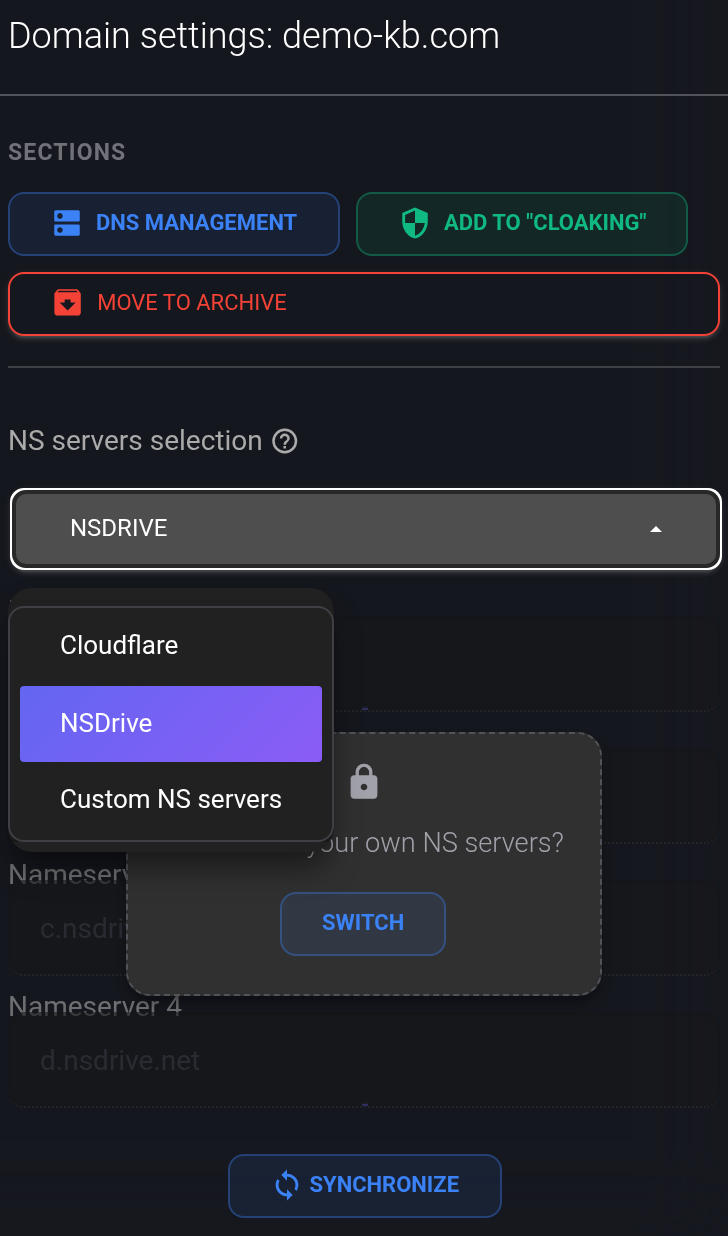
For NSDrive and Cloudflare, the Nameserver fields are locked because the integration assigns the addresses. Before saving, the fields may still show the old nameservers. Selecting a different option alone does not change the domain’s settings.
- For “Custom NS servers”, fill in Nameserver 1 and Nameserver 2 with the addresses supplied by the provider. If it supplied more, use Nameserver 3 and 4; otherwise, clear those fields. Switching to custom nameservers does not automatically remove the old addresses: replace the entire list so that you do not mix the old and new providers. Enter one server name per field, such as
ns1.example.net. A plain IP address or a page address starting withhttps://…does not belong here.
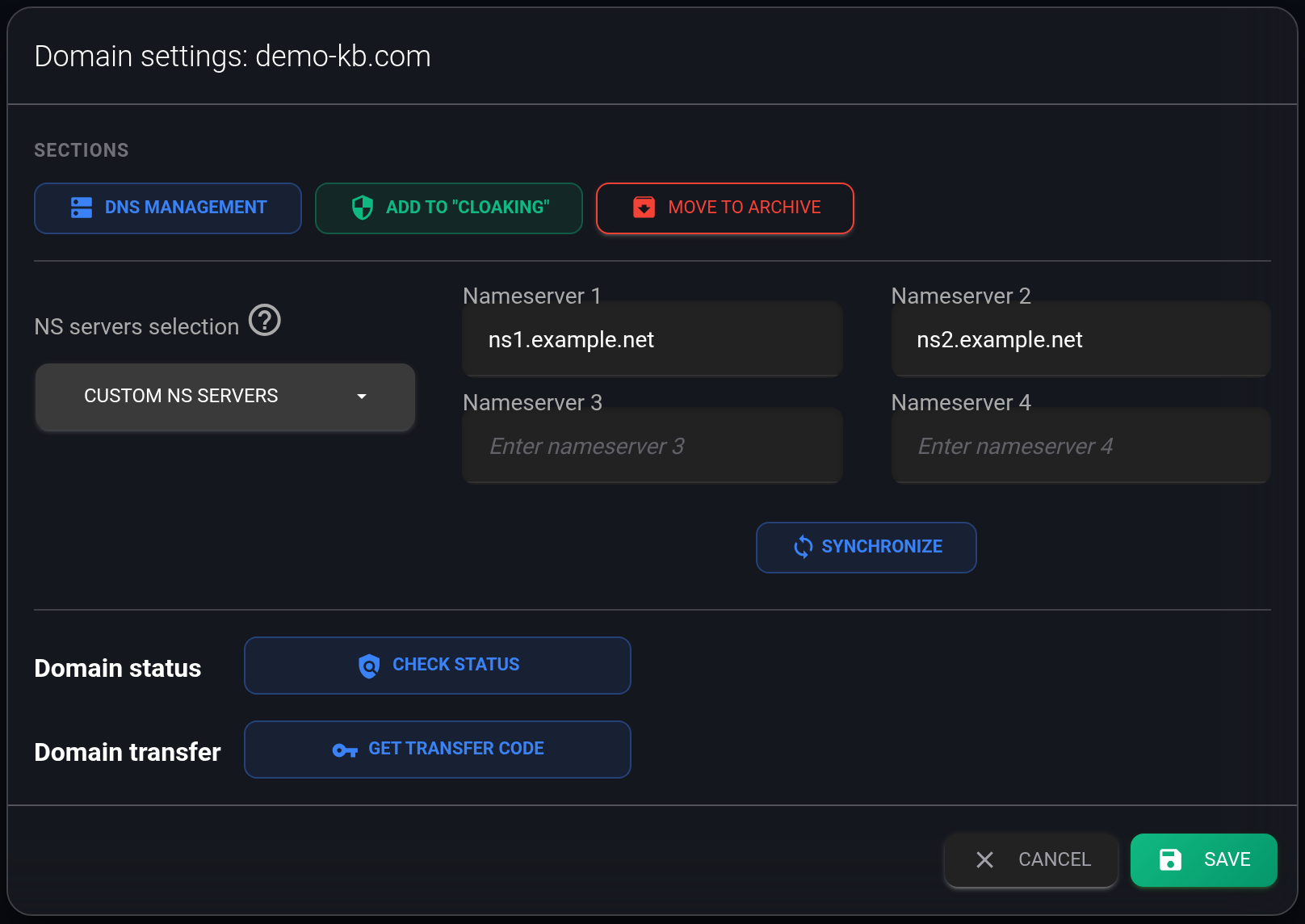
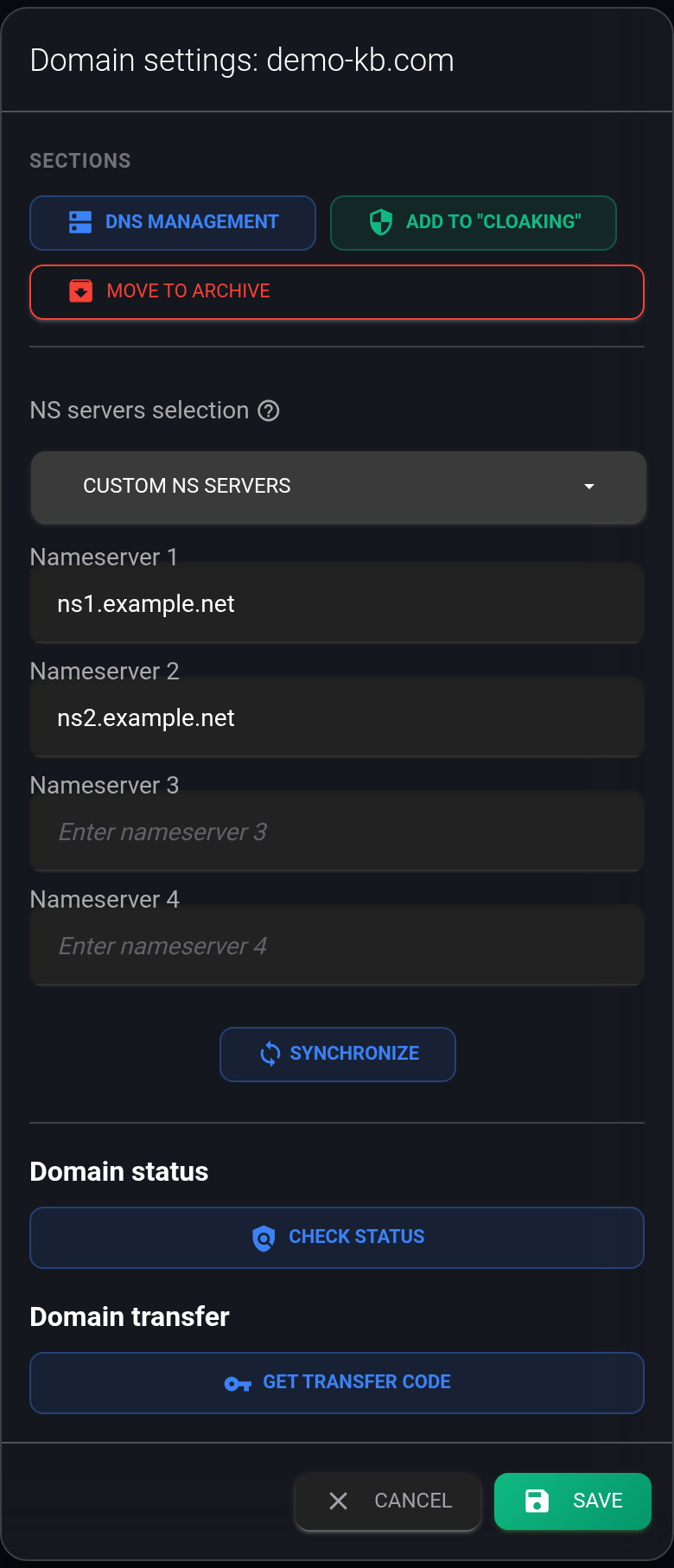
Example with two nameservers. Replace them with your provider’s addresses; do not enter example.net for a working domain.
- Check the selected option and all filled fields. Click “Save” at the bottom of the window and wait for the response. “Cancel” closes the window without saving the new selection.
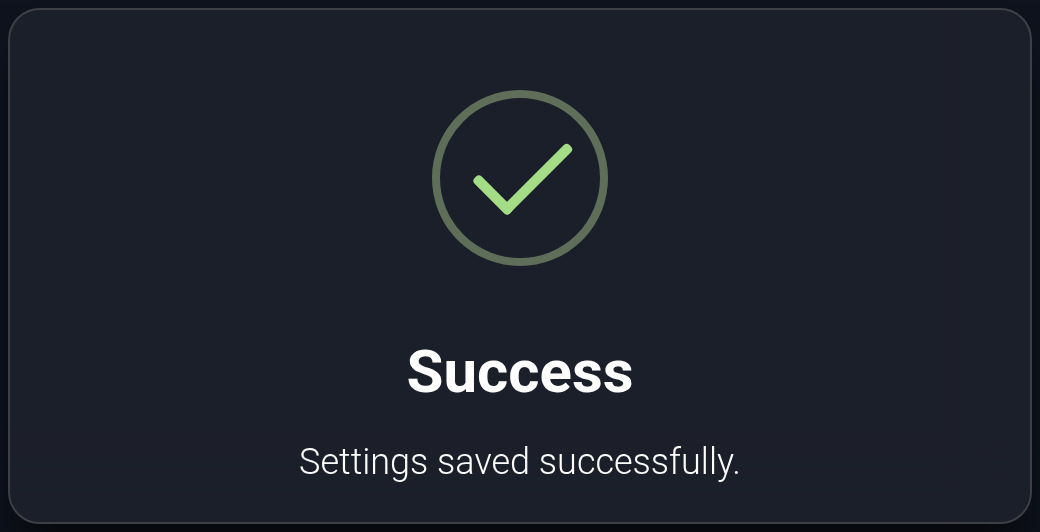
“Settings saved successfully” confirms that KEHR has saved your selection. Applying the nameservers at the registrar is a separate background operation. The message does not confirm that all visitors can already see the new settings.
If an error appears, read it and correct the indicated fields. After a connection error, reopen “Manage” and check the saved state first: the response may have been lost after saving. If the outcome is unclear, send support the domain, time, and error text.
Check the saved selection#
- When the list refreshes, look at “NS servers”: it shows the provider name, NSDrive, Cloudflare, or “Custom NS”. It is not a check of the nameservers currently used on the internet.
- Open “Manage” again. Check the saved option and the Nameserver addresses. Compare custom nameservers with those supplied by the external provider; for a managed option, check the assigned addresses after saving.
- Check the website and email. Changes take time to spread: KEHR’s saved settings and DNS responses seen by different users may differ temporarily.
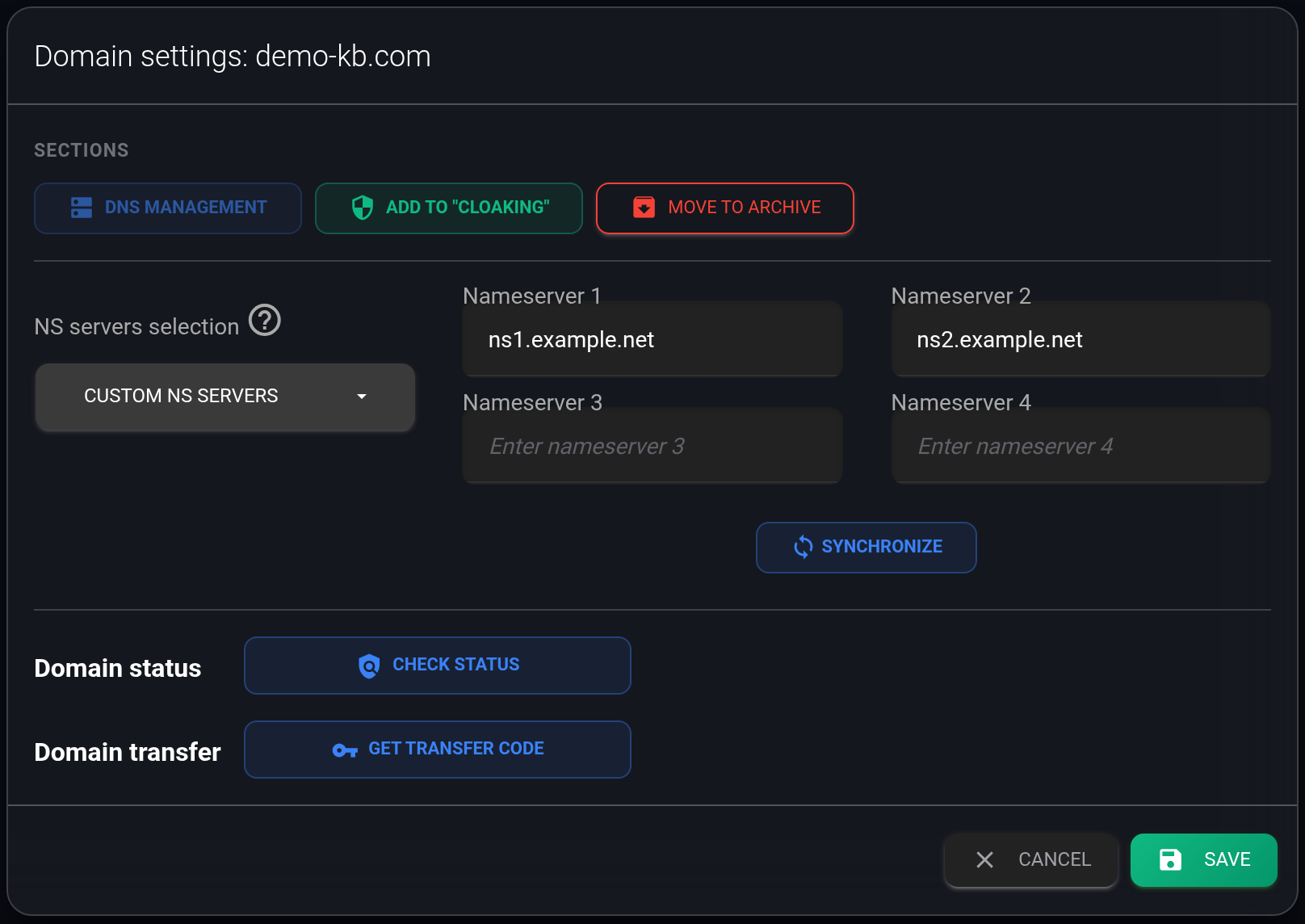
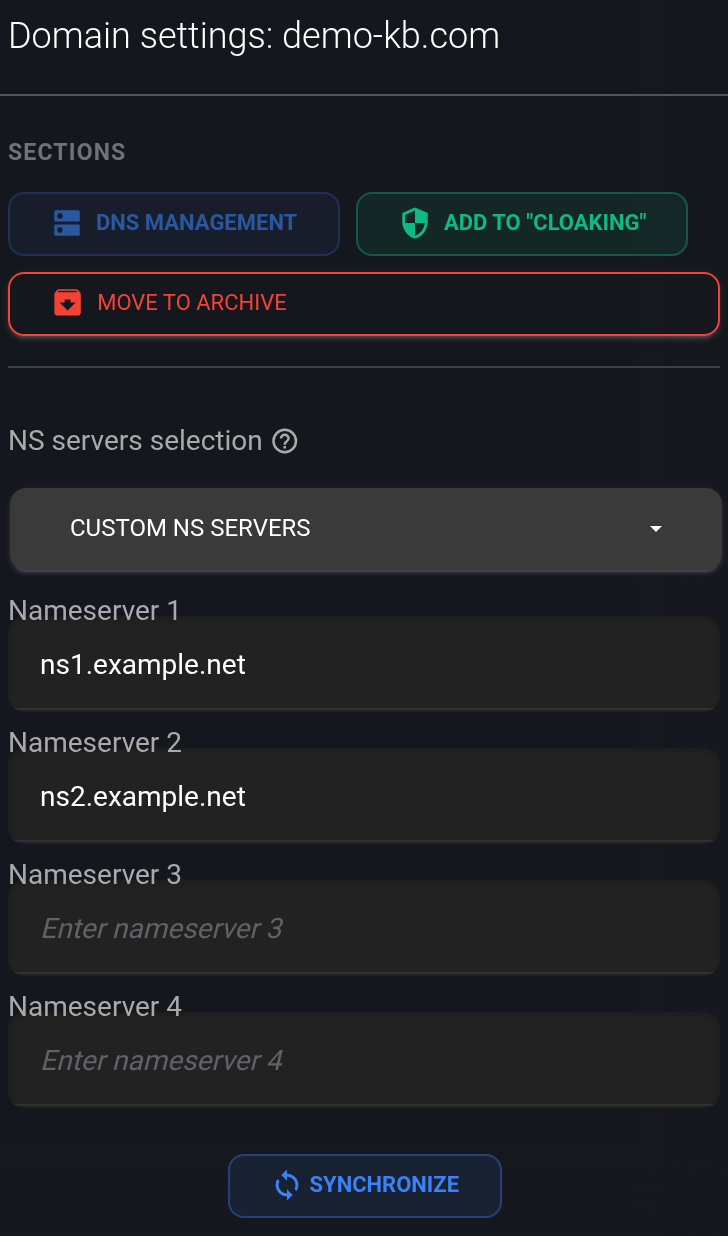
Settings reopened after saving custom nameservers. “DNS management” is disabled: edit the records at the external provider now.
With NSDrive or Cloudflare, use “DNS management” in “Manage” to edit records. A saved Cloudflare connection also provides the Cloudflare button. Until you save a new choice, these buttons still refer to the previous provider.
If the website or email stops working after the change#
- Reopen “Manage” and compare the nameservers with the addresses the provider assigned to this domain.
- At the new provider, compare the DNS records with your saved copy: the website address, subdomains, and MX and TXT records for email. Changing nameservers does not migrate these records.
- If the records are correct but the result remains unchanged, contact support with the domain, selected provider, new nameservers, change time, and exact problem. Mention DNSSEC if you use it.
When to use “Synchronize”#
“Synchronize” in “Manage” queues another attempt to send the saved nameservers to the registrar. Use it when the saved addresses are correct but need to be resent, for example on support’s advice. It does not save new values you have just typed into the fields, and it does not migrate DNS records.
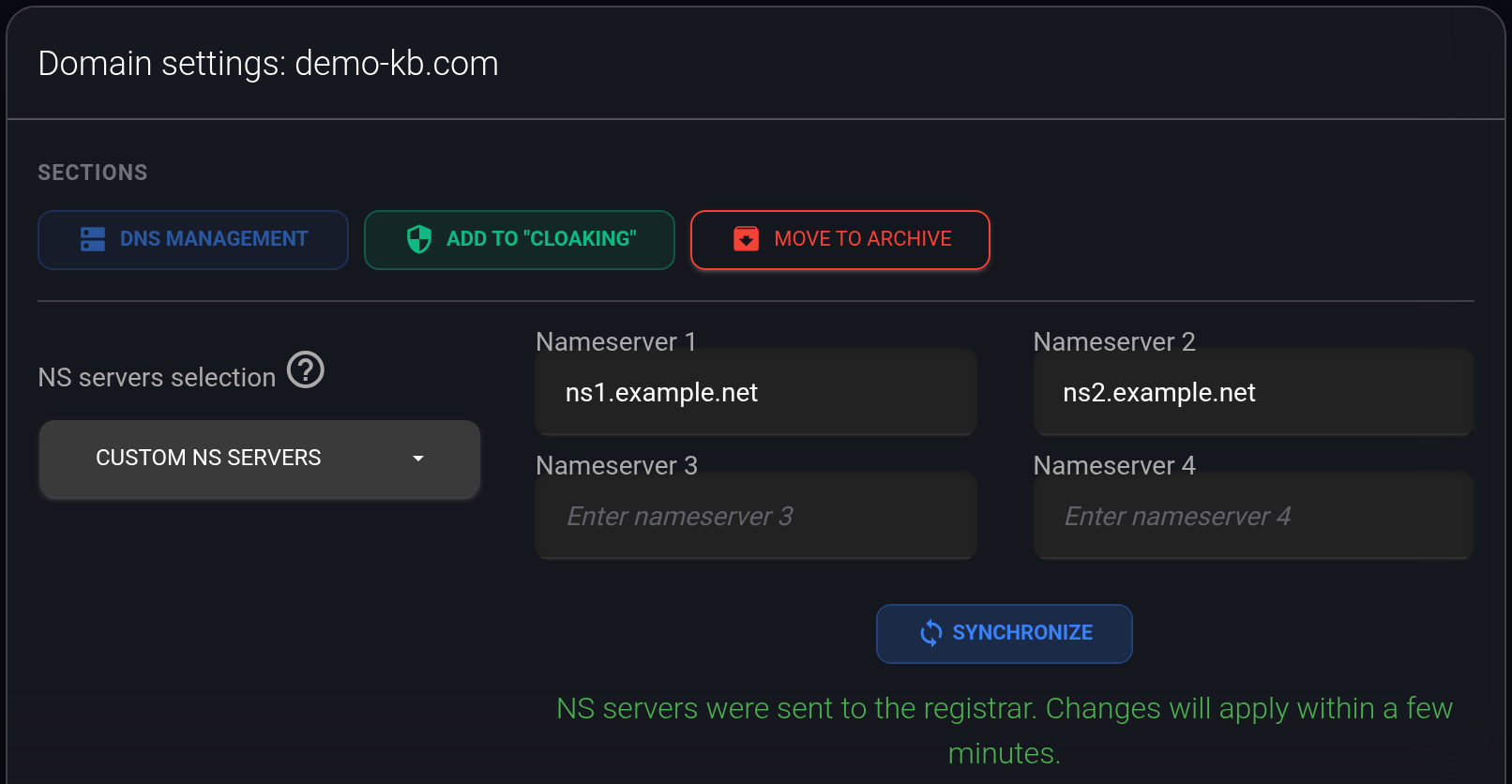
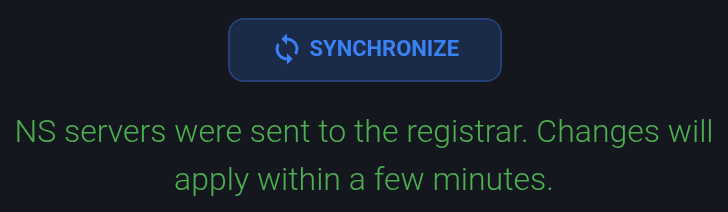
The sent message acknowledges the queued operation; it does not verify that the change has finished. The interface’s “within a few minutes” is not an exact deadline: processing and DNS updates can take longer. Synchronization is available once every 15 minutes; a limit message shows the remaining wait. Repeated clicks do not speed up the change.
This guide changes one existing domain. For future purchases, use the separate nameserver defaults for new domains; for several existing domains, see bulk nameserver changes.