The archive helps you hide domains you no longer need in the main list. It does not delete a domain or cancel its registration: the expiry date and DNS settings stay the same, and archiving does not refund the purchase.
Bulk actions let you archive, restore, or change settings for several domains at once. The examples below use two domains: demo-kb.com and demo-kb.net.
Archive or restore one name#
- Open “My domains”, find the domain, and click “Manage” in its row or card.
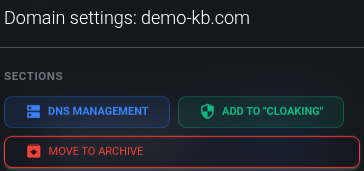
- At the top of the window, click “Move to archive”. This takes effect immediately, without a separate confirmation. When you return to the list, the domain will no longer appear among active domains.

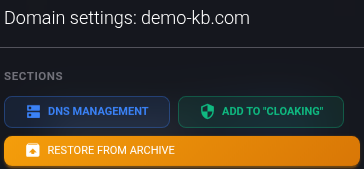
To bring that domain back, click “Archive” above the list, find it, open “Manage” again, and click “Restore from archive”. This also takes one click and returns you to the normal domain list.

“Active” shows domains that are not archived. Being in this list does not prove that registration succeeded or has not expired — check the status and expiry date.
Select several domains#
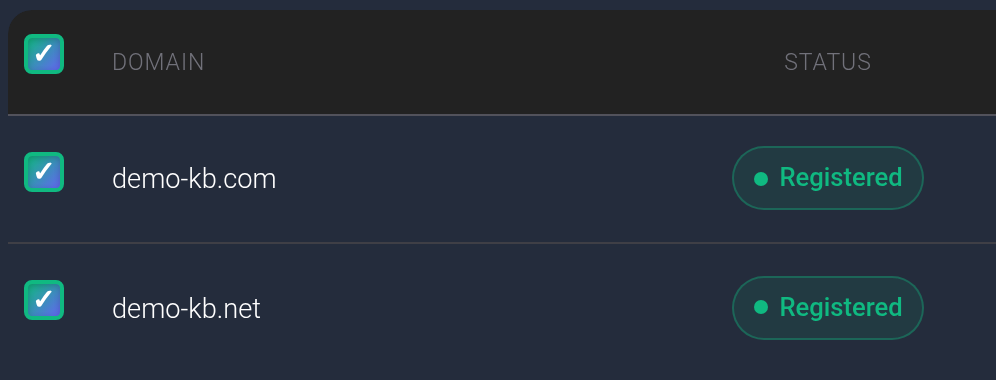
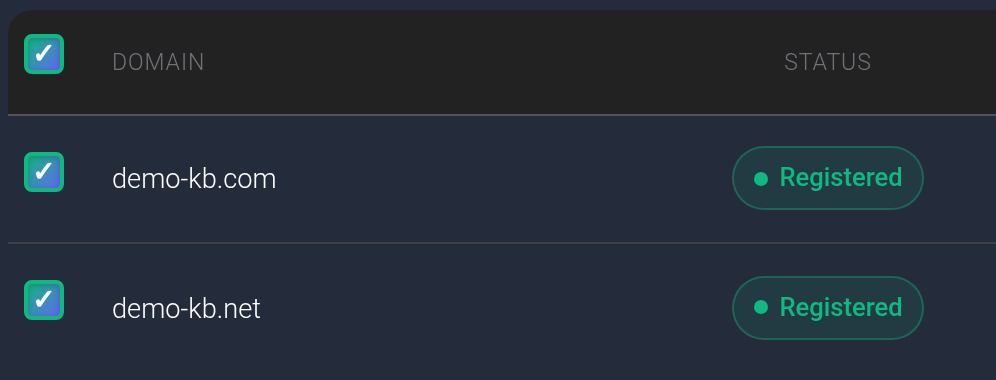
- In the active list, select the checkboxes next to the domains you need. On desktop, the checkbox in the table header selects rows on the current page, not every domain in your account.
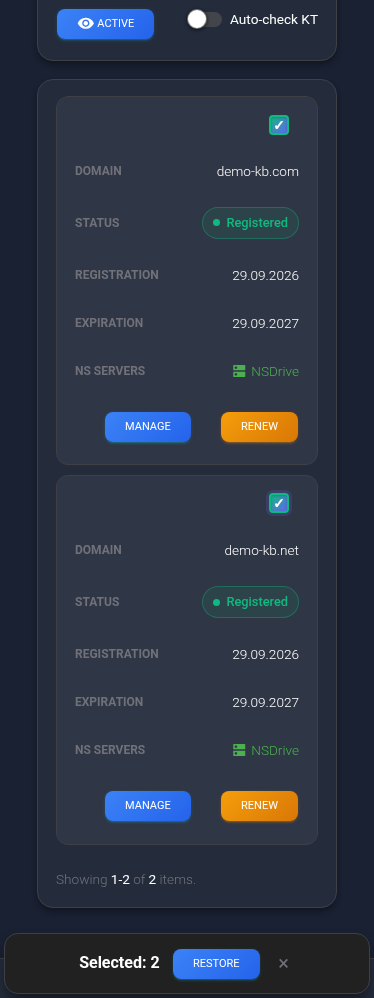
- Check the domain names and the count in the bottom bar. Two domains should show “Selected: 2”. The cross in the bar clears the selection.
- Choose “Archive”, “Change NS”, or “Change DNS”. Check the boxes again after changing a filter or page, or reloading the list — the previous selection is not retained.

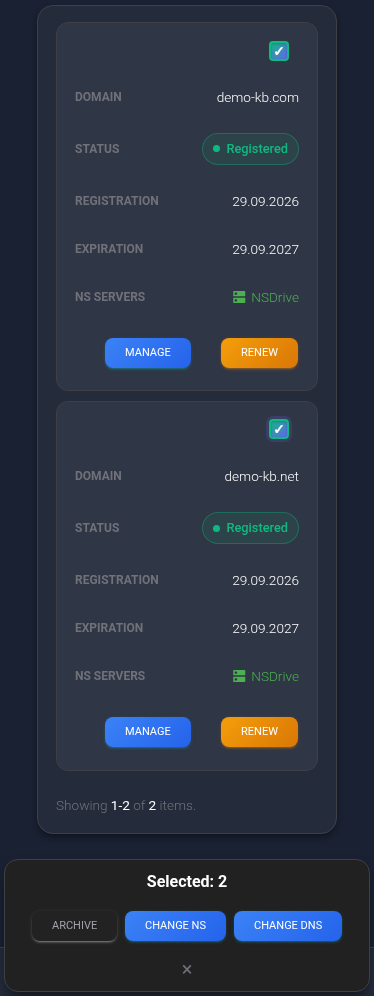
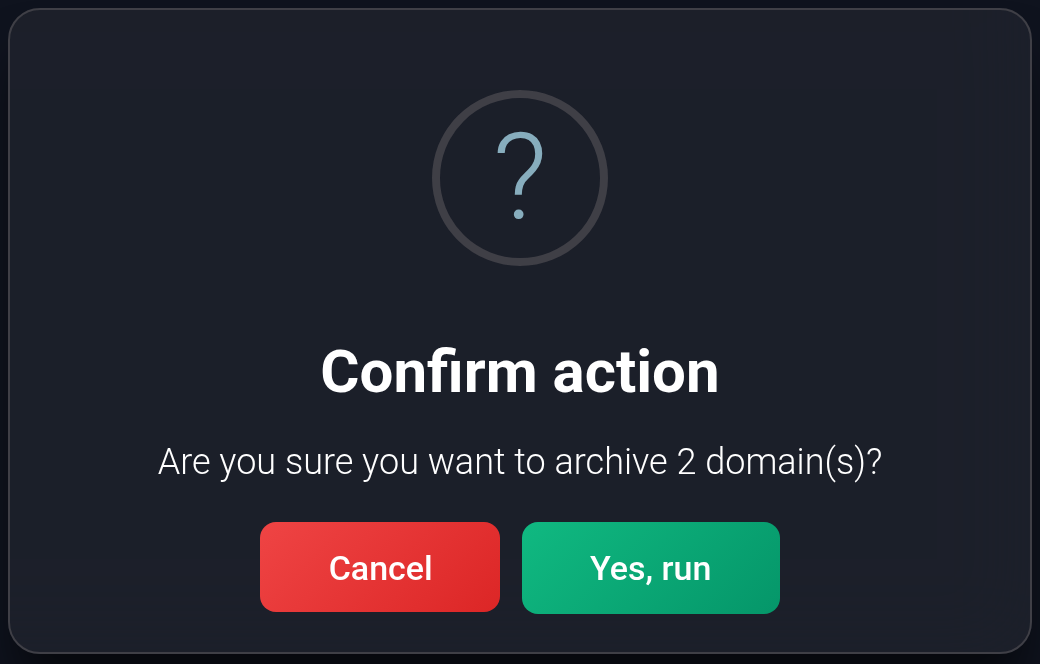
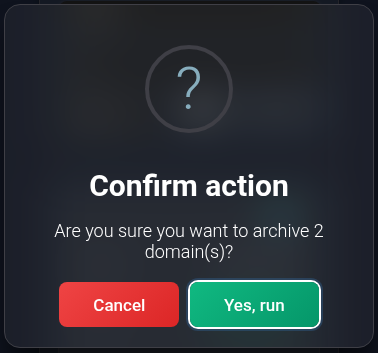
To archive the selected domains, click “Archive” in the bottom bar. Check the count again in the confirmation window and click “Yes, run”; “Cancel” closes it without changes. The list refreshes after the success message.
Restore several names#
- Click “Archive” above the list. If the domains are missing, check the search and filters.
- Select the required domains. The bottom bar will offer “Restore” instead of the NS and DNS actions.
- Click “Restore”, check the count, and confirm with “Yes, run”.
- After success, click “Active” and make sure the domains appear again. Restoring from the archive does not renew the registration or change DNS.


Change nameservers for several domains#
Nameservers (NS) identify the service that handles a domain’s DNS. Before changing them, obtain the nameservers from your hosting or DNS provider and prepare your website and email records there. Changing nameservers does not, by itself, mean the old records have been copied.
- Select the domains in the active list and click “Change NS”.
- Check the count in the form. For “Custom NS”, enter between two and four nameserver hostnames, such as
ns1.example.netandns2.example.net. These are examples: use your provider’s actual nameservers, not your website address or an IP address. - To connect managed DNS, choose “Cloudflare” or “NSDrive” instead. The custom nameserver fields will disappear, and the service will assign the selected provider’s nameservers.
- Check the settings and click “Start”. There is no additional confirmation after this button. Before starting, you can leave using “Cancel”.
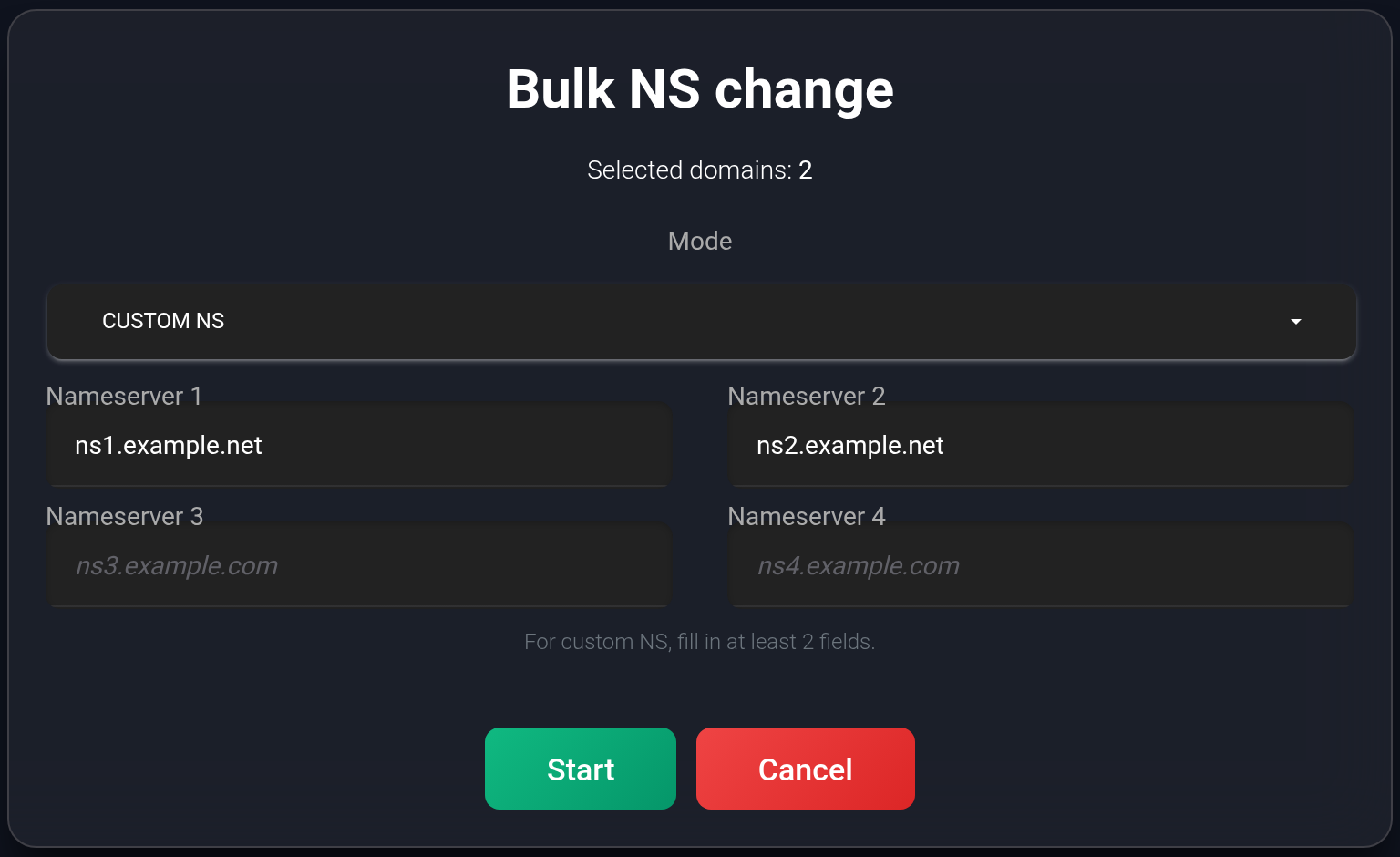
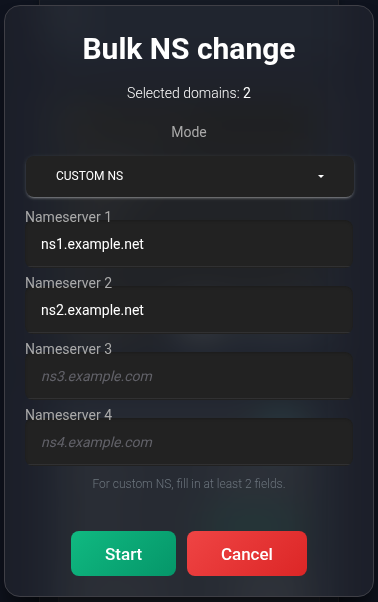
Every selected domain uses the same mode; for “Custom NS”, they receive the same list you entered. A managed provider assigns its nameservers to each domain individually. If the domains need different settings, work with separate groups. See choosing a DNS provider for more about the modes.
Change a DNS record for several domains#
All selected domains must use the same managed provider: either all NSDrive or all Cloudflare. The form will not open for a mixed selection or domains using custom nameservers. Separate the domains by provider; for custom nameservers, edit records in the relevant DNS service’s panel.
- Select the required domains and click “Change DNS”. Check the count and provider at the top of the form.
- Choose the record type and name. For example, type “A” with name
@sets the main domain’s IP address; namewwwrefers to thewwwsubdomain of each selected domain. - Enter the value supplied by your hosting provider. The screenshot uses
192.0.2.42as an example only, not an address for your website. The same value will be applied to every selected domain. - Set TTL — how long a DNS response is cached, in seconds. The default is
3600. For A, AAAA, or CNAME at the main domain, you can select “Also create www record”; enable it only if you also want to changewww. - Check the existing records, then click “Start”. If records with that type and name already exist, the operation changes all matching records; otherwise, it creates a record. There is no additional confirmation.
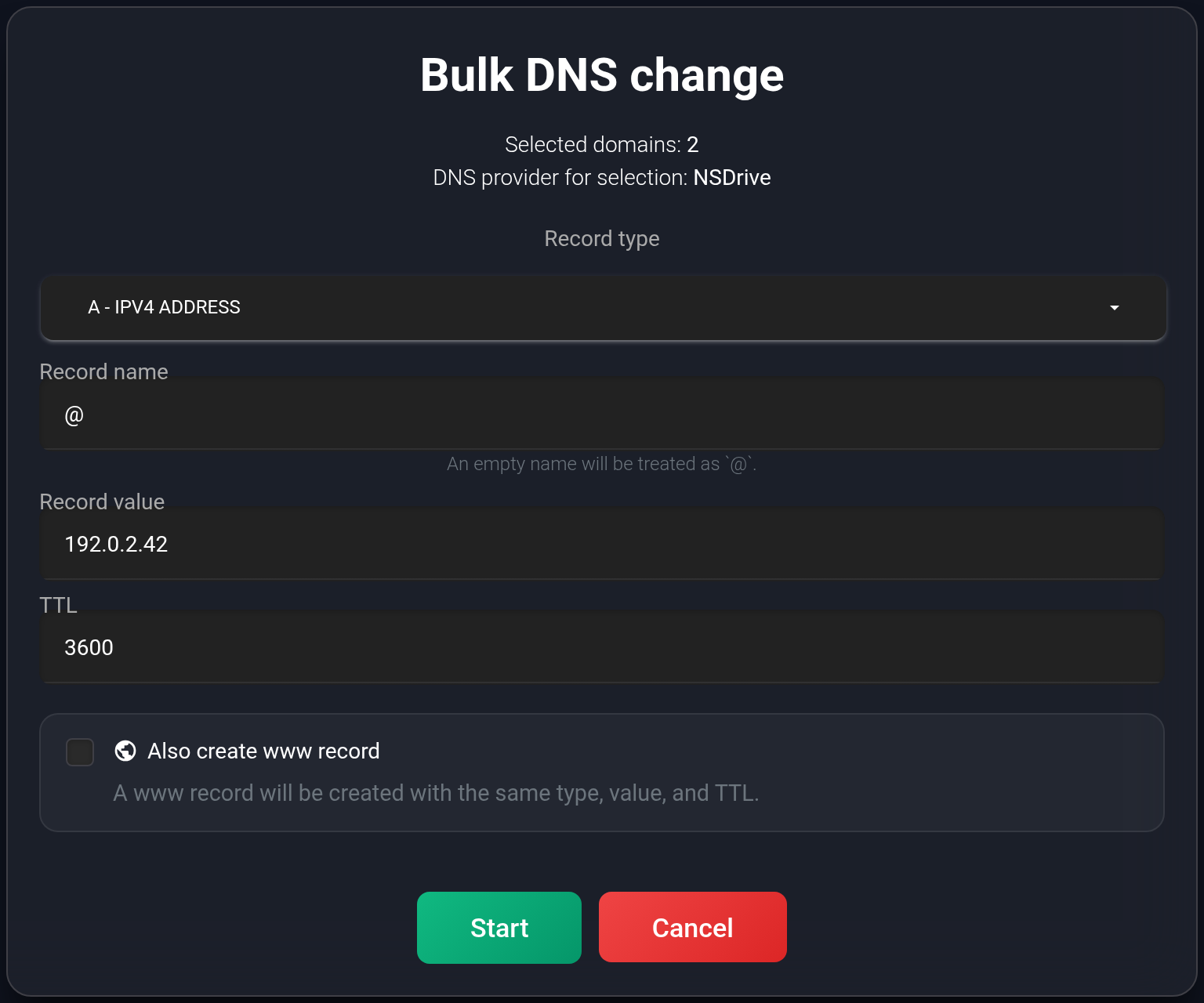
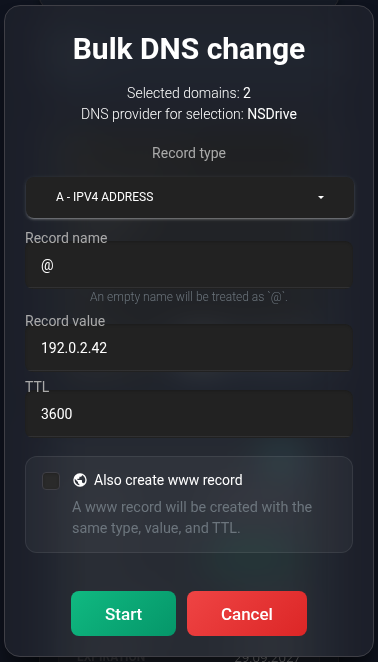
For Cloudflare, A, AAAA, and CNAME also offer proxying, enabled by default. MX and SRV have additional fields; this bulk form offers SRV only for NSDrive. If you are unsure about the type or value, work through managing DNS records for one domain before repeating the change in bulk.
Check the nameserver or DNS change results#
Starting opens a results window and adds an operation card above the list. Work continues in the background, and progress updates automatically. Closing the window or hiding the card does not cancel the operation.
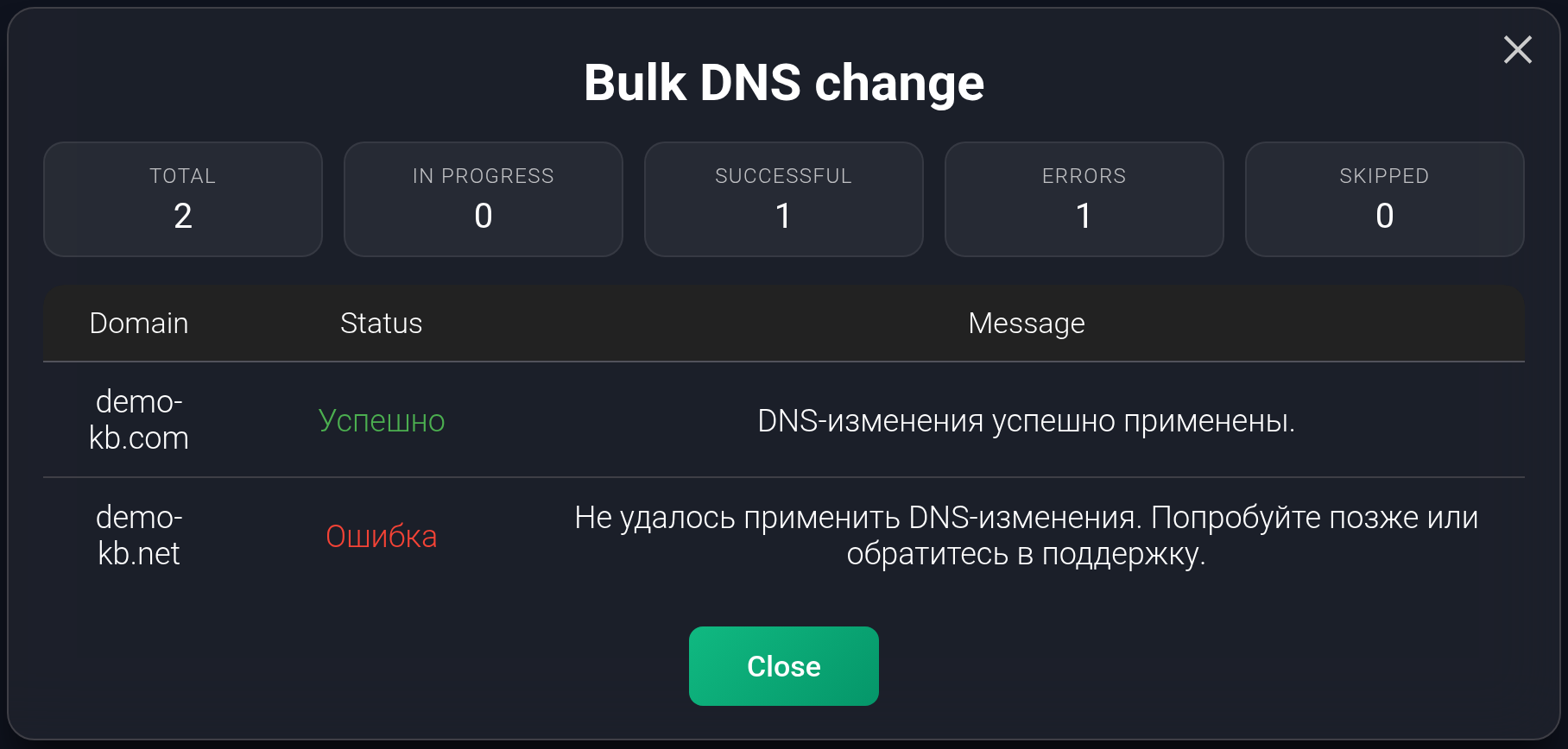
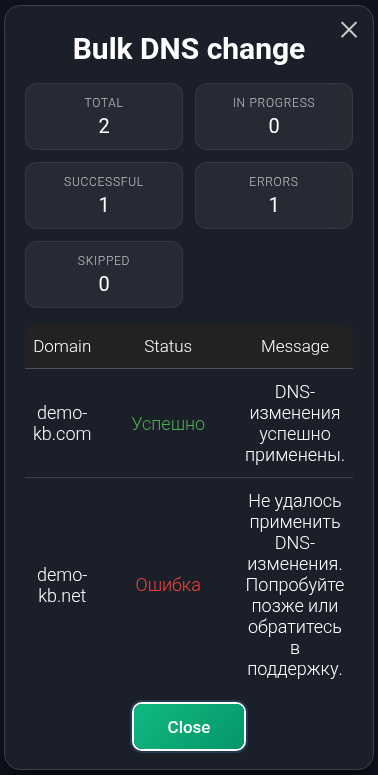
In this example, demo-kb.com was updated, while demo-kb.net failed. Its message asks you to try again later or contact support. Each domain has its own result.
Some result labels and messages currently remain in Russian in the English interface. “Завершено с ошибками” means “Completed with errors”. Read the individual statuses as follows:
- “В очереди” (queued), “В обработке” (processing), or “Повторная попытка” (retrying): there is no final result yet. Wait for completion; the service may retry a temporary failure automatically.
- “Успешно” (successful): the action completed for this domain. Open its settings to check the nameservers or DNS records. DNS changes may take additional time to become visible across the internet.
- “Ошибка” (error) or “Пропущено” (skipped): read the message for that particular domain. Resolve the stated cause and check the actual settings before trying again.
An error does not mean that nothing changed. Some domains may have succeeded; even within one domain, the main record might have changed while the additional www record failed. Check first, then repeat the action only for unresolved cases.
If the window disappears or the response is interrupted, first reload “My domains” and check the operation card and current settings. Do not blindly start the same bulk operation again. If the cause is unclear, send support the domain names, the action you chose, and the error message.