“Registrar” → “My Domains” contains records for domains you register through KEHR. Use it to check the outcome of a purchase and the registration period, open settings, or renew a domain. An address you have only added to a plan appears in the separate plan domain list: adding an address there does not purchase the domain name.
Find the domain#
- Enter the name or part of it in “Search domain…” and press Enter.
- If needed, choose a “Status” and a provider in the NS list. These lists apply immediately. Search and filters work together: a domain must match every selected condition.
- For a long list, use the pages below the table. The list with 50, 100 and other numbers controls the number of entries per page.

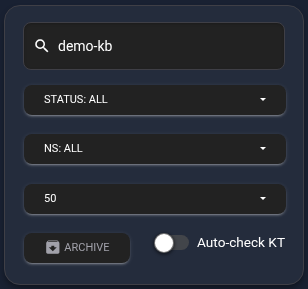
To clear all filters, including an expiration filter applied by a counter at the top, reopen “My Domains”.
“Archive” shows hidden records; “Active” returns to the regular list. After switching, apply search and filters again if needed. Here, “Active” means “outside the archive”, not “has a valid registration”.
Understand the status#
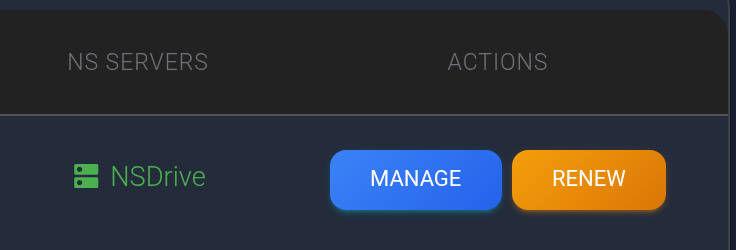
Check the domain’s status, registration date and expiration date. The “NS servers” field shows the assigned provider — NSDrive, Cloudflare or Custom NS — rather than the actual nameserver addresses.

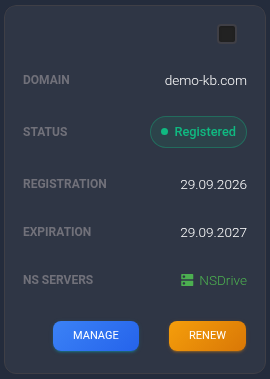
Training example: demo-kb.com is registered from 29 September 2026 to 29 September 2027 and uses NSDrive. Check these fields for your own domain.
The “Status” list offers four states:
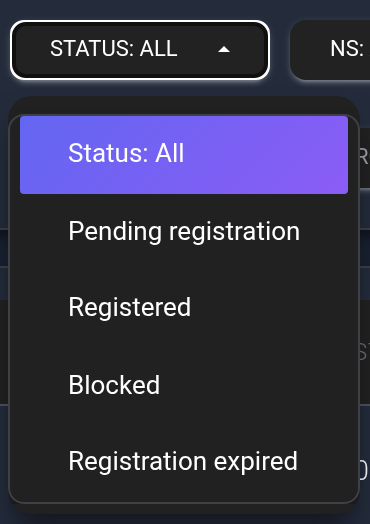
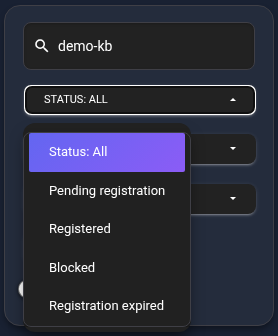
- “Pending registration”. The domain record has not been marked as registered yet. Refresh the page and check the order as described below. This status does not mean you need to pay again.
- “Registered”. Registration is marked as complete. Still check the expiration date: the status may not have changed yet after the registration expires.
- “Blocked”. Contact support with the domain name and displayed status. If an abuse report icon is present, open it and read the details. Changing DNS alone does not resolve the reason for a block.
- “Registration expired”. Check renewal availability using “Renew” as soon as possible. If renewal is unavailable, ask support whether restoration is possible. The presence of the button does not guarantee that the domain can still be renewed.
If you have just bought the domain#
A separate “Domain registration status” card may appear at the top after a purchase. It tracks the order, not the status of a row in the main list. While the order is being processed, the new domain may not be in the table yet.

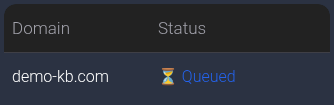
- “Queued” / “Processing” — wait for the result; the card refreshes automatically.
- “Completed” — the order has finished. Refresh “My Domains” and find the name in the main list.
- “Cancelled” — the order ended unsuccessfully. Check transaction history and contact support if the reason or the movement of funds is unclear. This label alone does not establish whether a refund occurred.
The card concerns a recent purchase in the current session and may disappear after completion. “Hide” only removes the card from view; it does not cancel the purchase. If the order appears stuck or the name is missing after completion, give support the domain and the order number from transaction history. Do not submit a duplicate purchase before finding out what happened.
Check the registration period#
A yellow expiration date warns that the end is approaching; a red date means it has already passed. A red date can appear beside “Registered”: check the date itself as well as the status label.

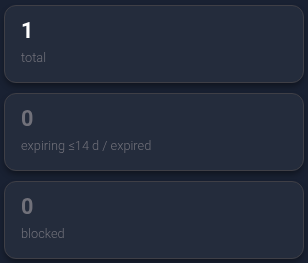
The counters at the top cover all domains outside the archive, not just your search results. Click “expiring ≤14 d / expired” to see upcoming and past expiration dates, or “blocked” for blocked records. These links replace previous filters. “total” returns to the full regular list; the counters are absent in the archive.
Choose an action#
- “Manage” in the row or card opens settings for that domain. For nameserver addresses and DNS records, see choosing a DNS provider and editing DNS records.
- “Renew” checks whether renewal is available and on what terms. Payment requires a separate confirmation — see the renewal guide.
Registration does not guarantee that a website works: DNS, hosting and the plan also affect it. Additional “KT”, abuse report and “M” indicators concern Google Safe Browsing checks, reports about the domain and monitoring. They do not replace the registration status; an abuse report icon may also represent the history of resolved reports. See monitoring, blocks and abuse reports.
If you still cannot find the domain#
- Reopen the regular list without filters and search for part of the name again.
- Check “Archive”. Moving a record there only hides it; it neither cancels registration nor extends the registration period. If needed, restore the record from the archive.
- For a recent purchase, check the order result. For an address added only to a plan, open plan domains: that is a separate list.
If the result is still unclear, contact KEHR support with the domain, order number if available, and the displayed status or error. Attach a screenshot of the problem.