DNS records connect a domain to a website, email, and other services. This guide covers NSDrive and Cloudflare connected through KEHR. With “Custom NS”, edit records in the external provider’s dashboard: KEHR’s editor does not manage that provider’s DNS.
Before making changes, obtain the exact settings from your hosting or email service and save the old values. If the required record already exists, edit it. Do not create a duplicate simply because the website is not working yet.
Add a record#
- Open “My domains” → “Manage” for the required name → “DNS management”. The domain must be registered and its DNS provider configured. If the button is unavailable, check the nameserver provider selection.
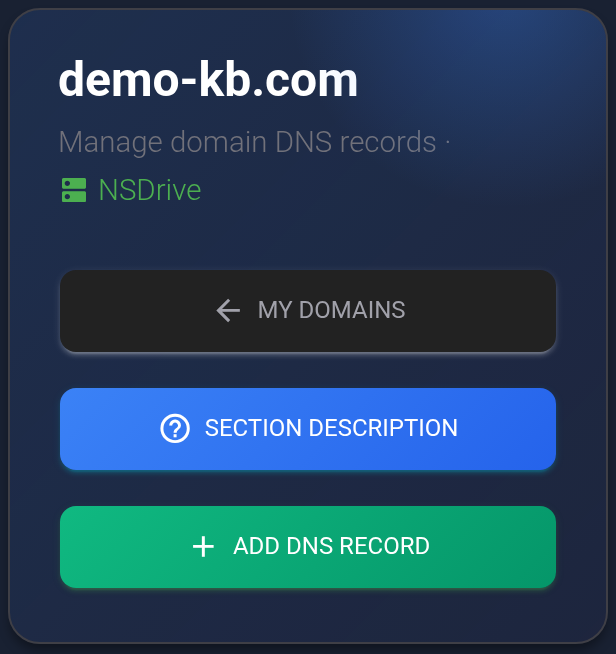
- If a “Section description” window opens when you enter the page, read it and click “Got it”. Then check the domain and provider at the top of the page and click “Add DNS record”.


- Choose the record type first. Changing it reloads the form and may reset values you have already entered. Use the type specified by the service you are connecting.
- A — an IPv4 server address, such as
192.0.2.10. - AAAA — an IPv6 server address, such as
2001:db8::10. - CNAME — another domain name, such as
target.example.net. - MX — a mail server name, such as
mail.example.net; its priority goes in a separate field. - TXT — text supplied by a service to verify a domain or configure email.
These addresses are examples. Use the values supplied by your service. Do not add https://, a page path, or a port to an A/AAAA value. CNAME and MX need a server name, not a page address.
- In “Record name”, enter
@for the domain itself or a short subdomain name such aswwwormail. The domain suffix is already shown on the right. For example,wwwunder demo-kb.com means www.demo-kb.com. - In “Record value”, copy the address or text supplied by the service. TTL is measured in seconds and controls how long a DNS response is cached. If there are no special requirements, use
3600, one hour, for the example below.
When creating a record, NSDrive raises TTL values below 3600 to 3600, even if the form suggests 360. Check the value in the list after saving. TTL is not a promise that the change will finish exactly after that interval.
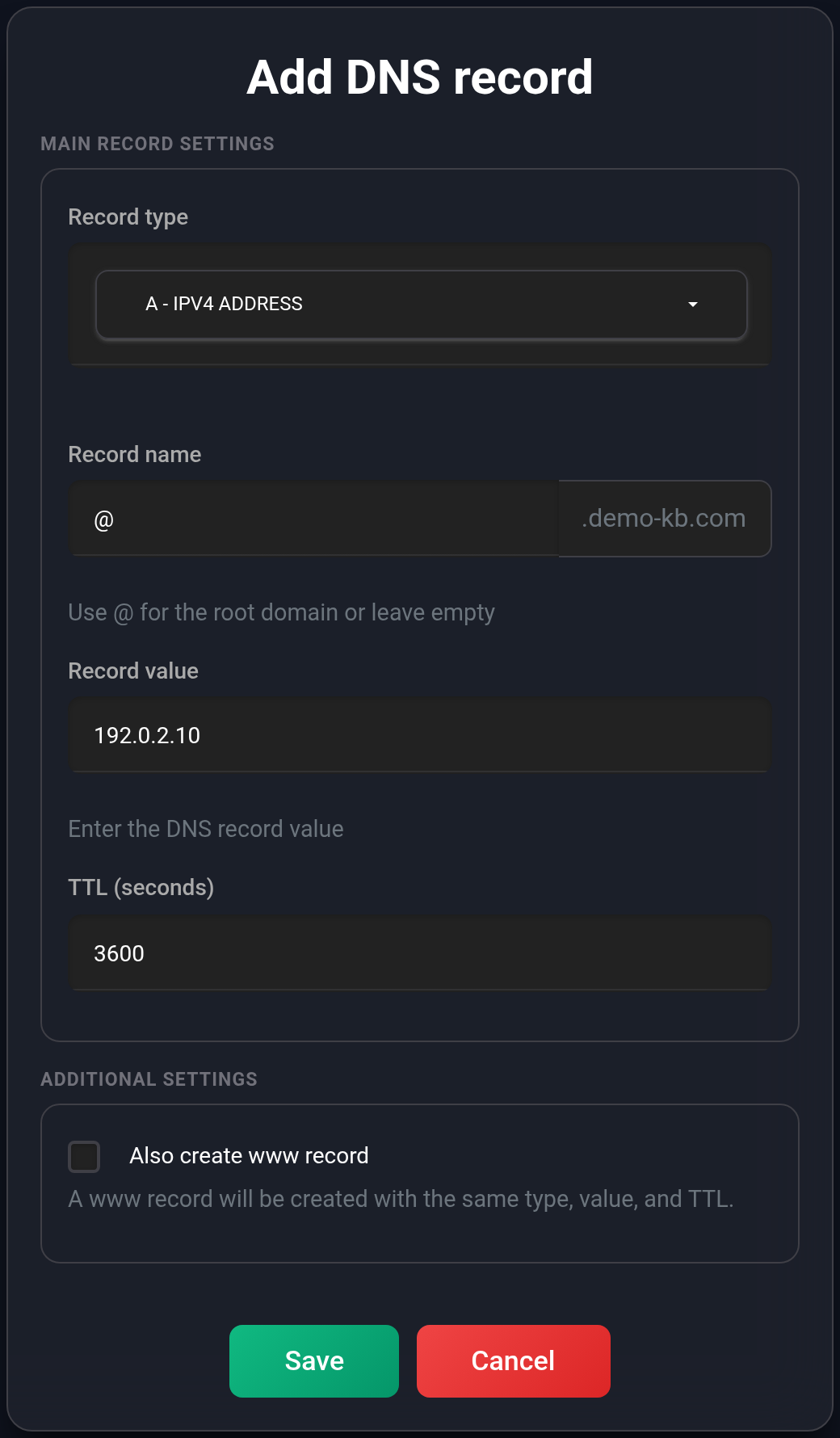
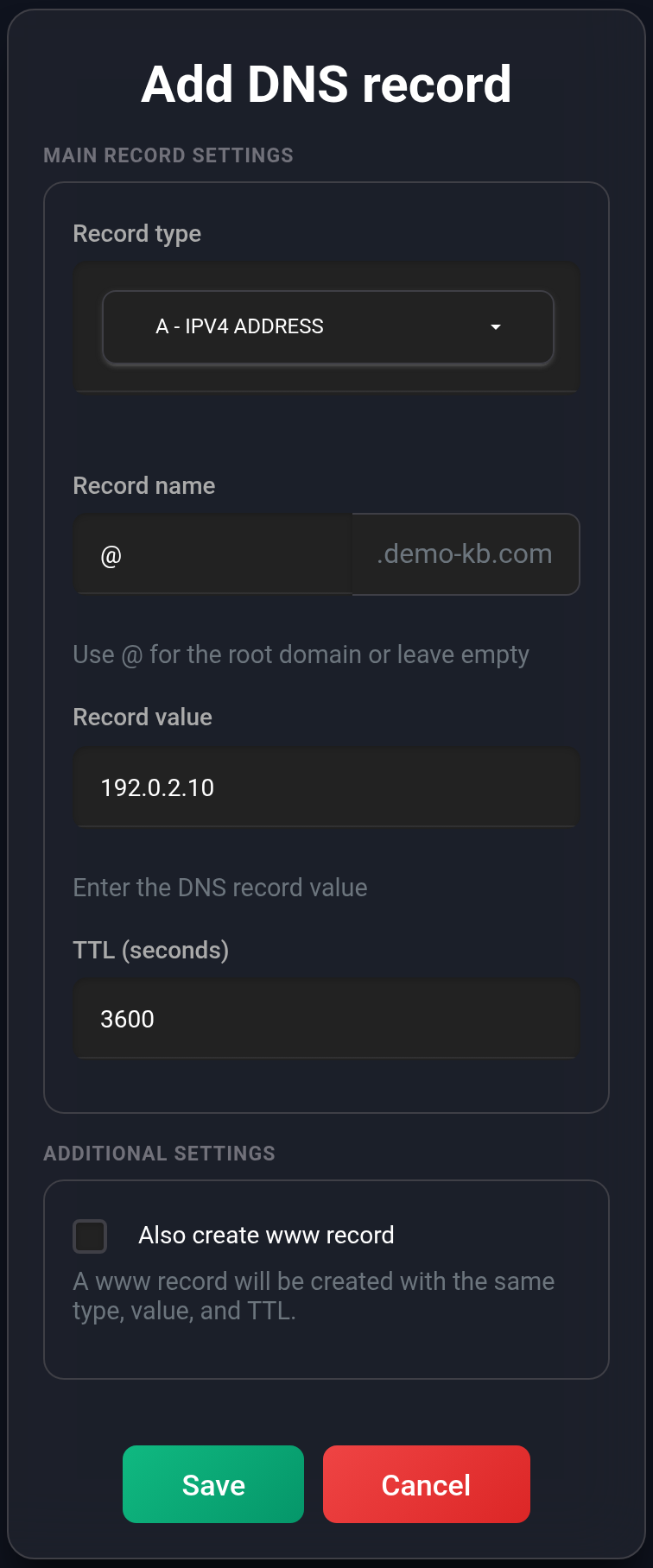
NSDrive example: A for the root domain, sample address 192.0.2.10, and TTL 3600. The additional www record is switched off.
- Check the additional options described below. Click “Save” at the bottom of the window and wait for the page to refresh. To leave without adding the record, click “Cancel”.
- Find the record in the list and compare its type, full name, value, and TTL with the values you entered.

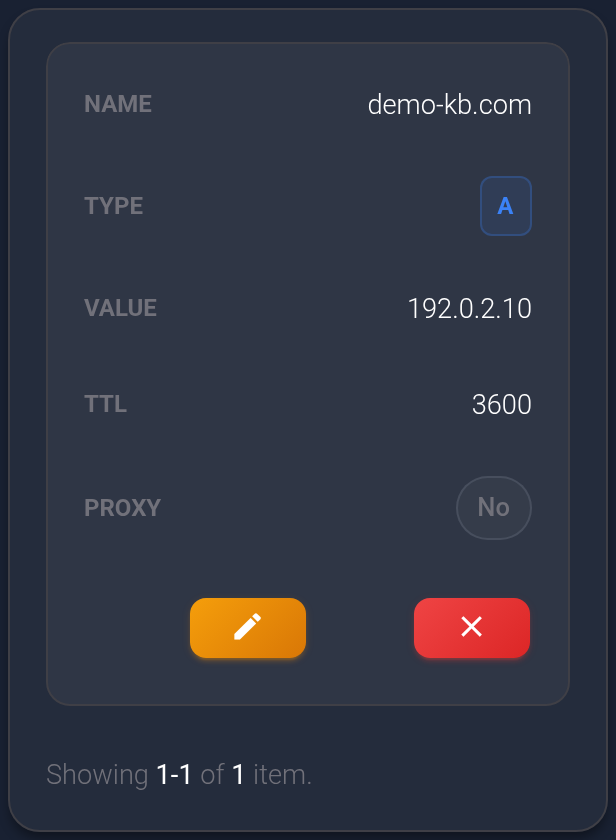
For Cloudflare, the new row first confirms that KEHR has saved the record: sending it to the provider happens in the background. NSDrive contacts the provider during saving. In either case, visitors may still receive an old cached DNS response.
Additional options#
The www record#
“Also create www record” appears when adding A, AAAA, or CNAME for the root domain (@). Enable it only if www needs the same type and value and the required record does not already exist. This creates two separate records: the root and www. Editing the root record later does not automatically update www.
After an error or unclear result, check both records before submitting again: the root record may have been saved even if adding www failed.
Email: MX and priority#
Select MX, enter the name and mail server address, and fill in “Priority” from your email service’s instructions. For example, enter mail.example.net as the value and 10 separately as the priority. Do not paste “10 mail.example.net” into the value field.
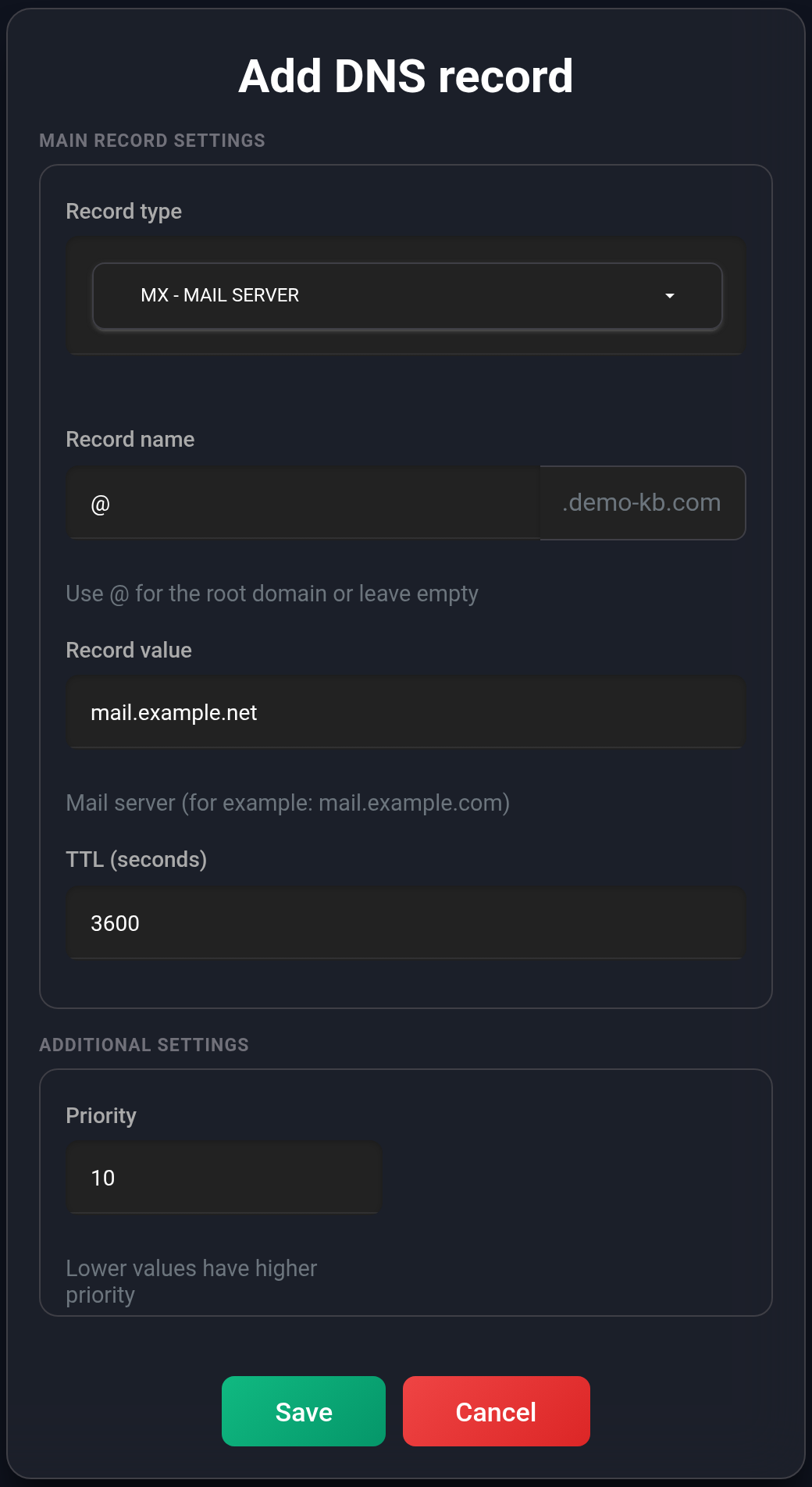
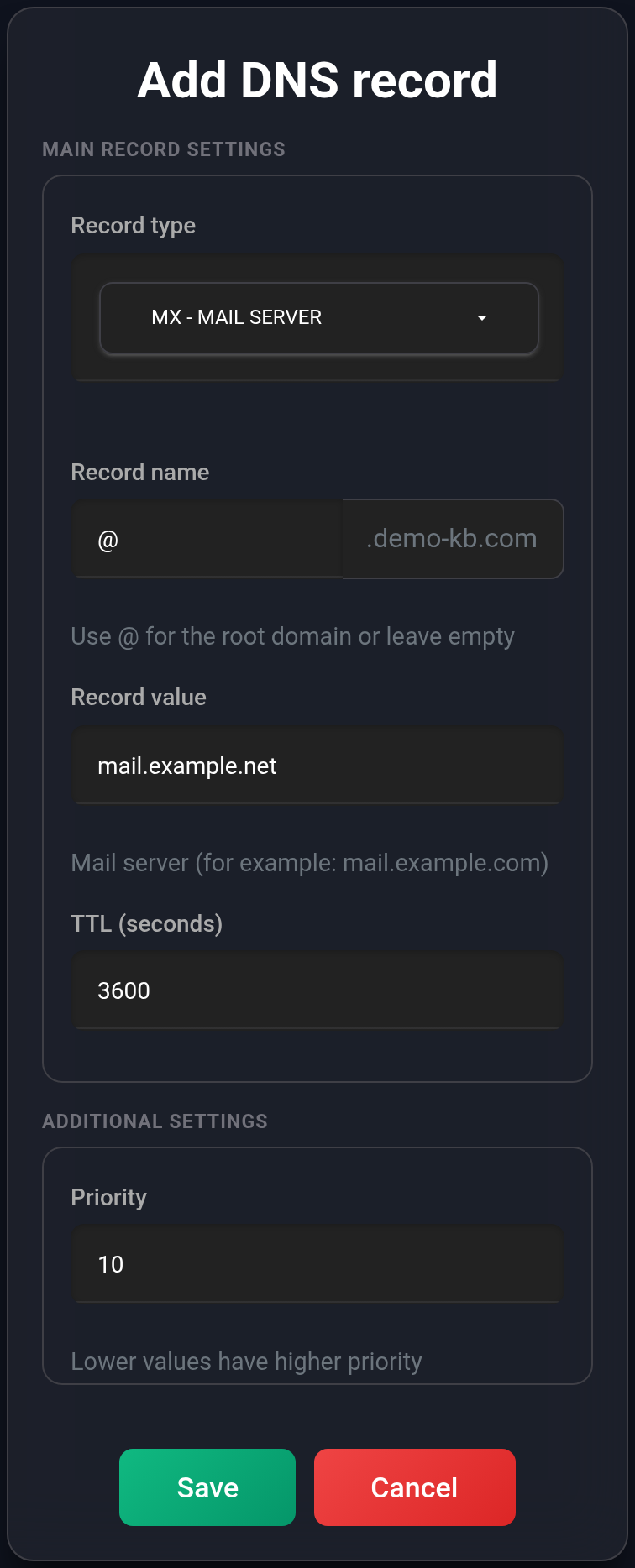
If the email service gives you several MX or TXT records, add them separately according to its instructions. Do not shorten a long TXT value that the form rejects: contact support about how to add it.
Cloudflare proxying#
Cloudflare provides a “Hide real IP (Cloudflare proxying)” checkbox for A, AAAA, and CNAME; it is enabled by default when adding a record. It routes web traffic through Cloudflare. NSDrive has no such option, and the checkbox is not shown for MX or TXT.
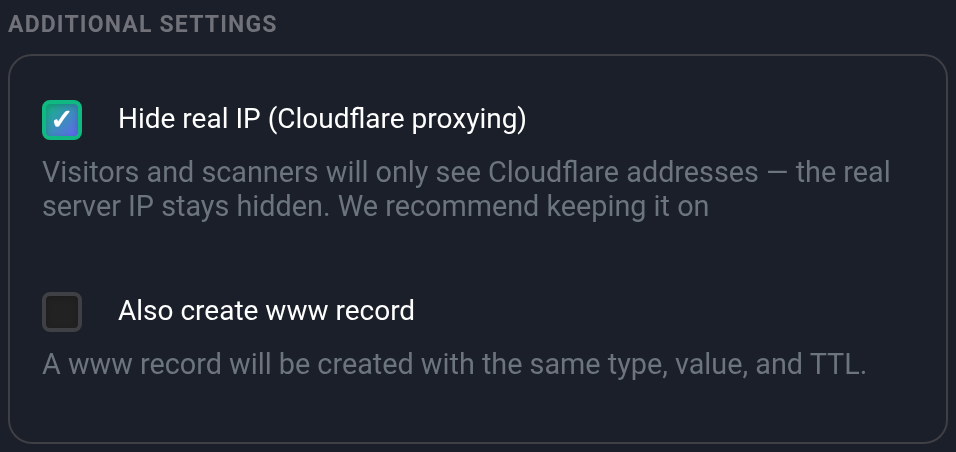
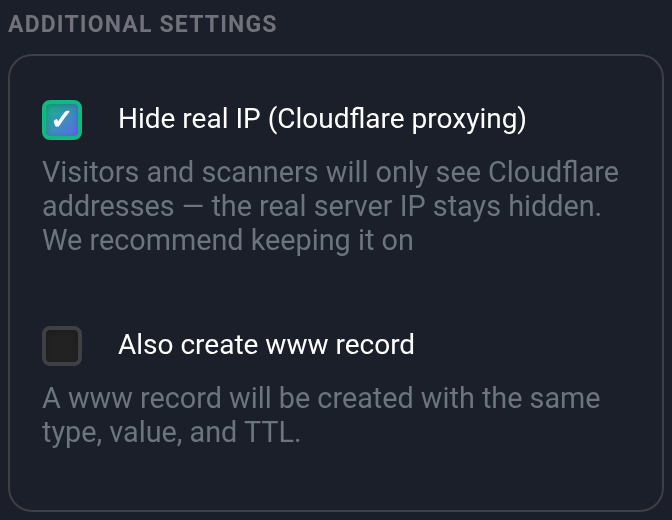
Additional options in the Cloudflare form. This is a different provider from NSDrive in the main example.
Follow the connected service’s requirements. Disable proxying for mail server names and verification records that need direct DNS. Cloudflare uses automatic TTL for proxied records; the number in KEHR’s form does not override that behavior. See the Cloudflare guide for more.
Edit an existing record#
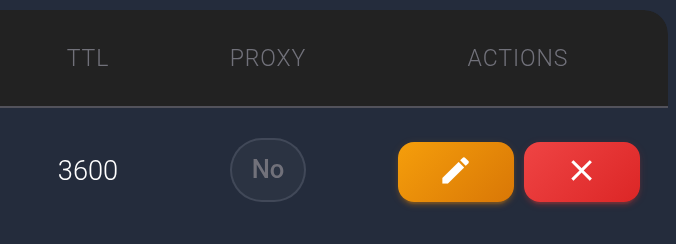
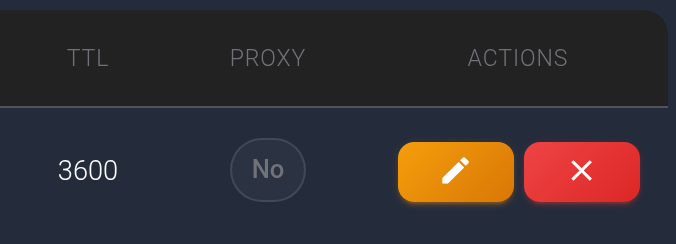
- Find the record by its name and type. Click the yellow pencil button in its row or card.
- Check the fields that open. The type is read-only in this form. Update the required value, TTL, or priority according to your service’s instructions, leaving the other fields unchanged.
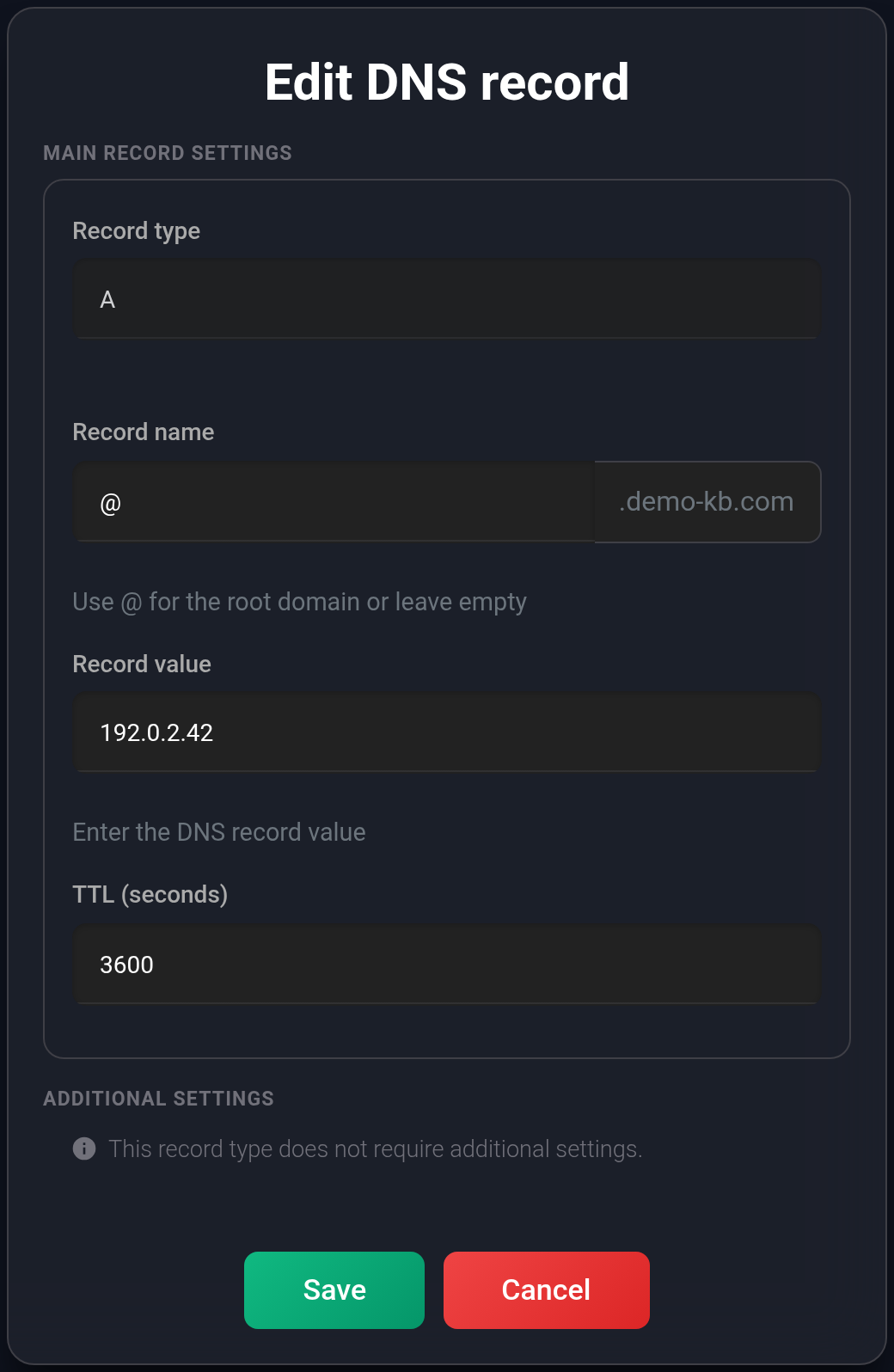
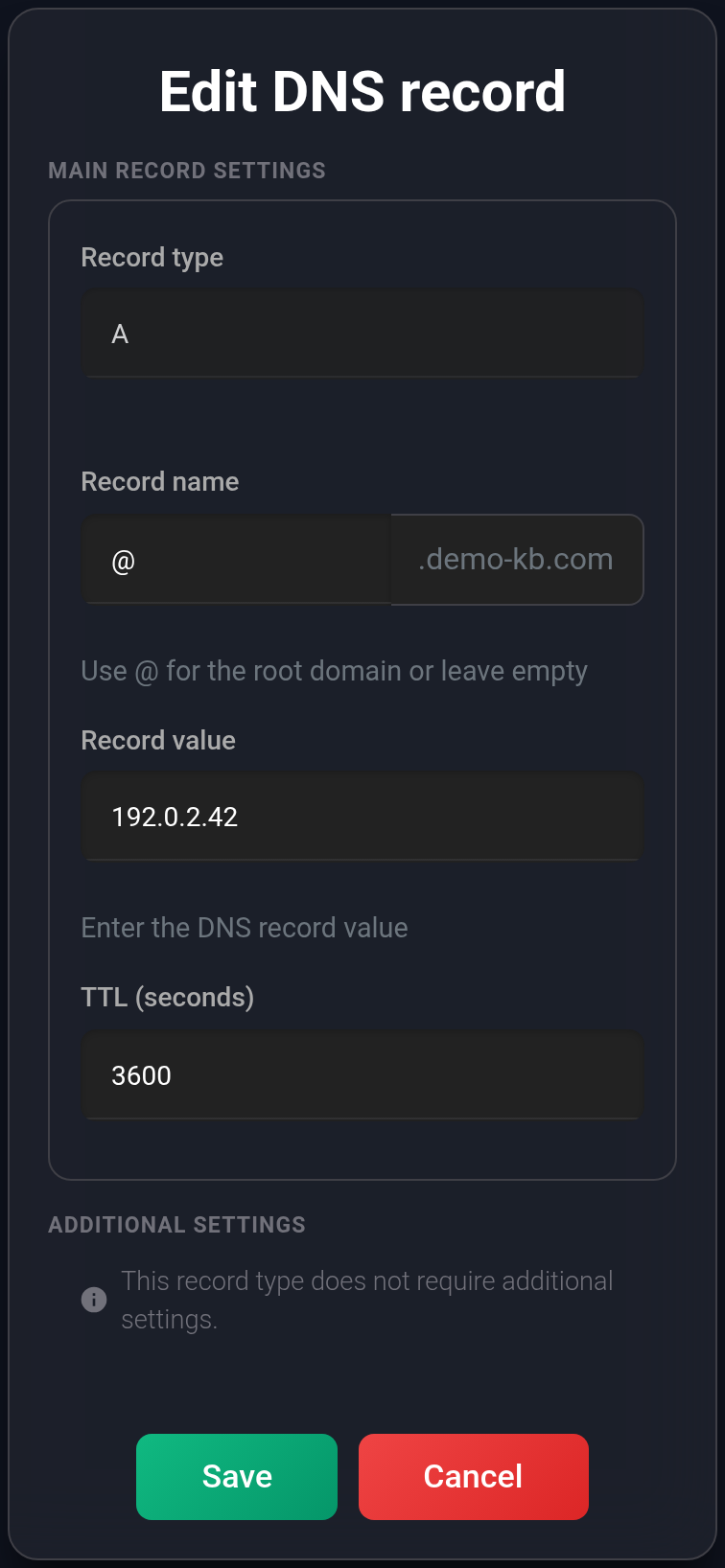
The example changes only the A record’s address: 192.0.2.10 → 192.0.2.42. The @ name and TTL 3600 stay the same.
- Click “Save” and wait for the page to refresh. Check the new value in the list. If the website uses both the root domain and www, check both records separately.

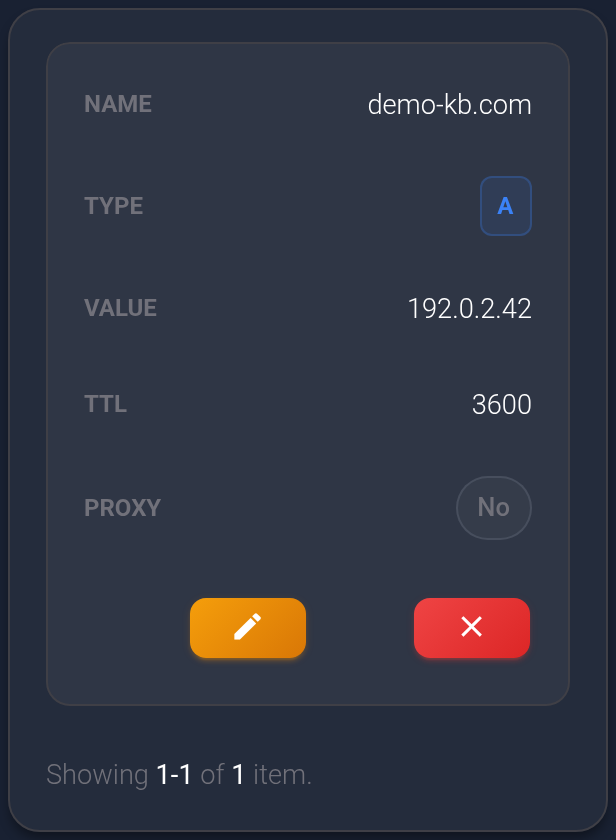
If you need a different type, use the creation form according to your service’s instructions. Do not add CNAME on top of an A/AAAA record with the same name or remove working records at random; ask support about the order of steps when replacing them.
Records marked “Auto” are associated with managed settings. Their value may be intentionally blank in the editor. Do not fill it just to remove an empty field, or change such a record before finding out what it is used for.
Delete an unnecessary record#
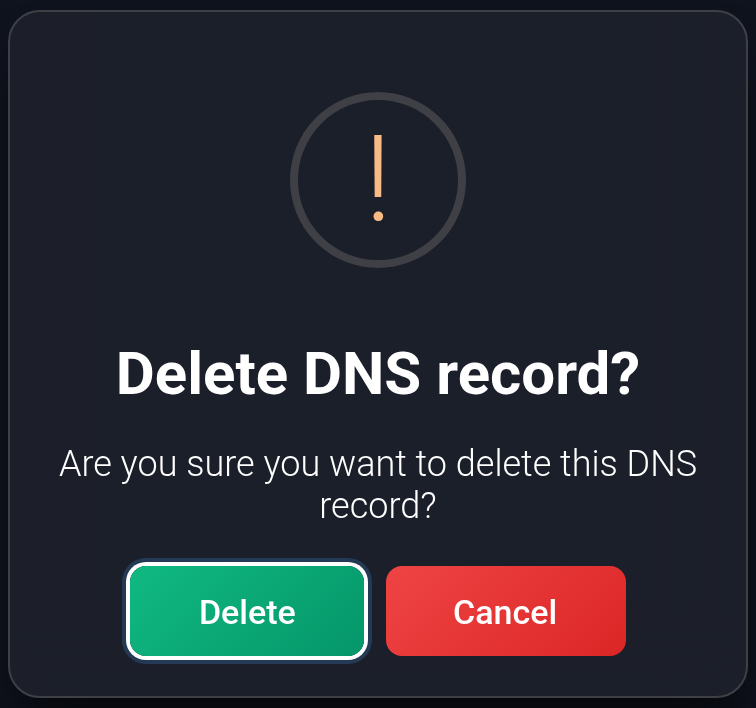
Save its settings first and make sure the website, email, or connected service no longer needs it. Click the red cross button next to the record. In the confirmation window, “Delete” proceeds and “Cancel” keeps the record.
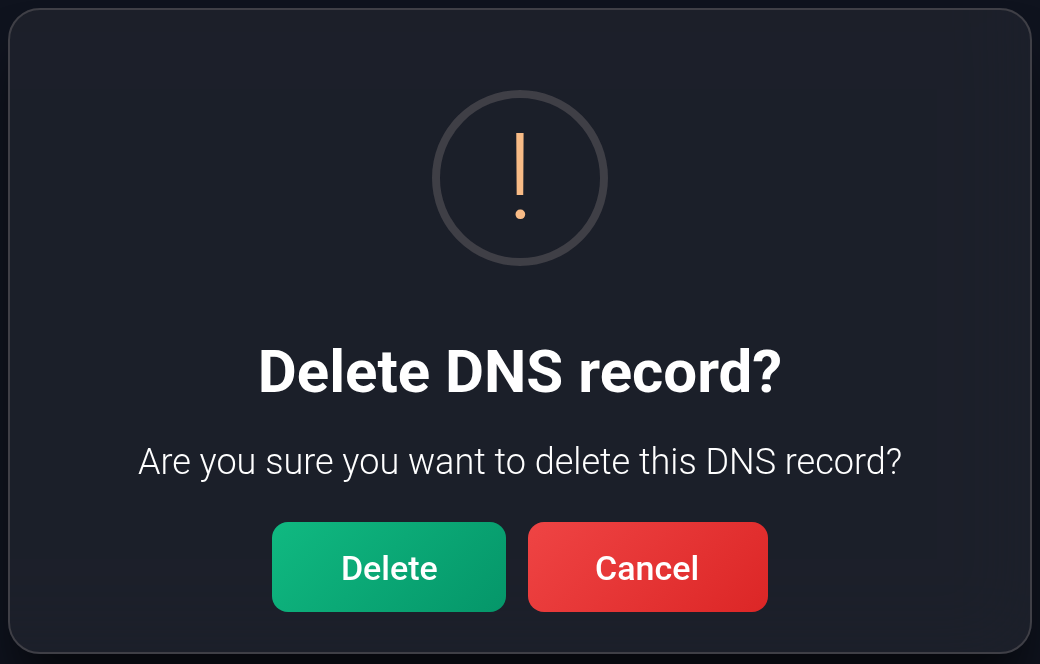
After a successful response, the row disappears. Check the list after refreshing the page. The editor has no undo-delete button: restoring the record requires adding it again with the saved settings.
If the record is saved but the website or email still does not work#
- Check the domain, type, name, and value. For MX, check the priority; for Cloudflare, check proxying. The root domain and www are different names.
- Make sure the domain actually uses this provider’s nameservers. KEHR’s saved selection alone does not prove that the registrar has applied them. With external nameservers, edit the records at the external provider.
- If the row is missing or unchanged, read any error that is shown. After a connection error or an unexpectedly closed form, check the list and reopen the record first. Do not blindly create a duplicate.
- For Cloudflare, a successful-save message does not confirm completion of the background submission. If the record remains “Not in Cloudflare” or “Drift detected”, send the details to support; “Synchronized” does not check the website or email service itself either.
- Allow DNS caches to refresh, then check the website or send and receive email. If the problem continues, send support the domain, provider, record name and type, change time, expected value, and error text or screenshot.
See also: choosing nameservers and Cloudflare settings.