This page controls HTTPS, visitor checks, and caching for one domain using Cloudflare through KEHR. These features apply to web requests that pass through Cloudflare. If a DNS record has proxying disabled, visitors connect directly to the hosting server. Check the website’s configuration and hosting certificate separately.
Open the page#
- Open “My domains” → “Manage” for the required registered domain → “Cloudflare”.
- Check the domain name at the top. Wait for the “HTTPS and TLS”, “Security”, and “Speed and delivery” groups to load.
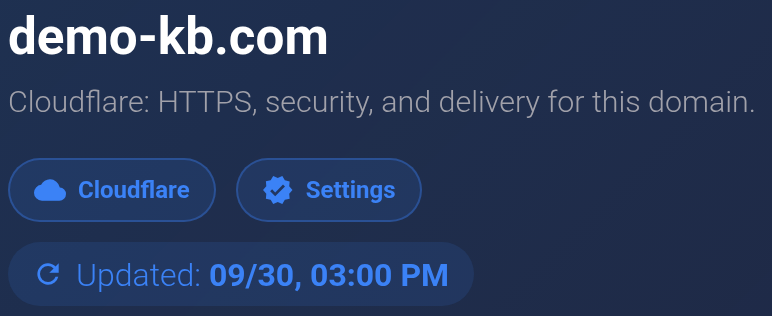
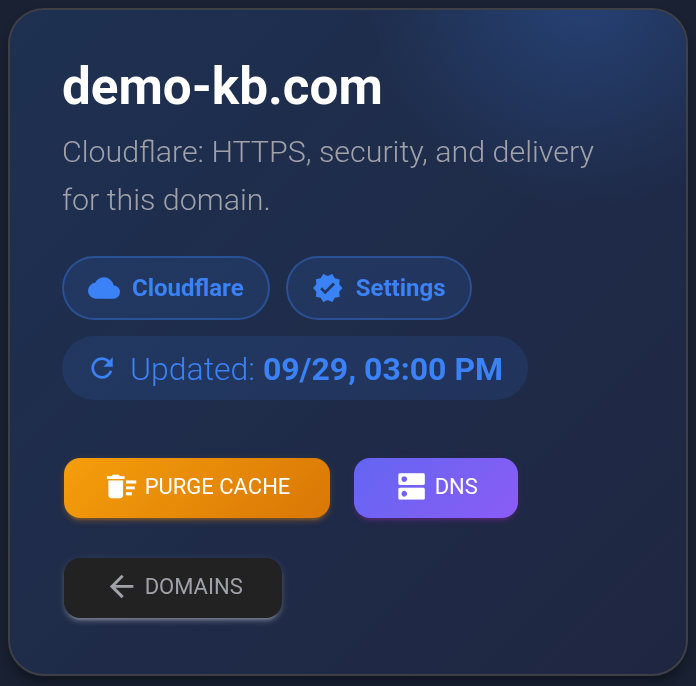
If the button is missing or settings do not load, check the DNS provider selection. KEHR’s managed Cloudflare and your own Cloudflare account are different ways of connecting a domain. Do not change nameservers just to make the button appear: prepare the website and email records first.
Understand the settings#
Each card shows a name, explanation, current value, and selection list. Choosing a new value immediately submits the change. There is no general “Save” button. Record the previous value before changing anything, and change one setting at a time.
Change one setting#
The example enables Always Use HTTPS to redirect visitors from an HTTP address to HTTPS. Follow it only if the website’s HTTPS and certificate are already configured. This is an example, not a required setting for every domain.
- Find Always Use HTTPS in “HTTPS and TLS”. Open the list beneath the current value and choose “Enabled”.
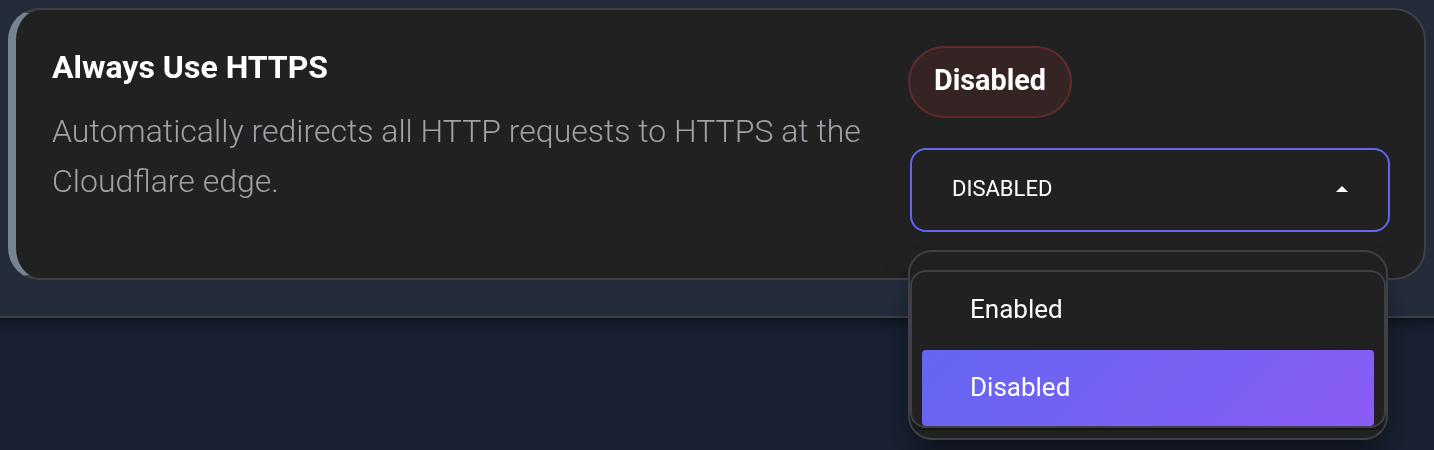
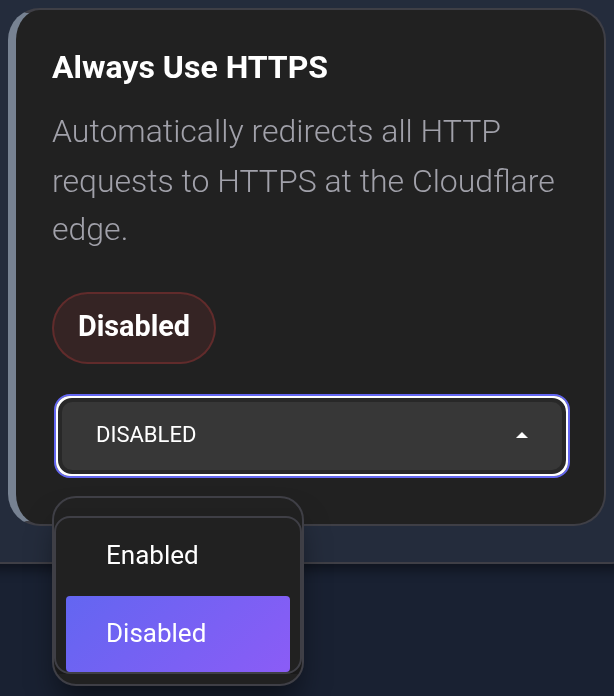
- Wait for the card to finish loading. The dashboard reads that group’s settings again; do not switch the field repeatedly.
- Check that the card now shows “Enabled”. Not every successful change produces a separate success message.
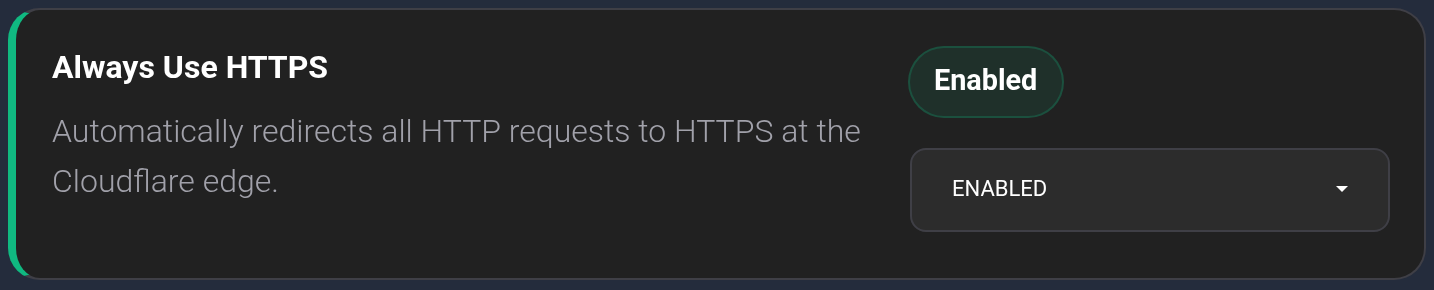
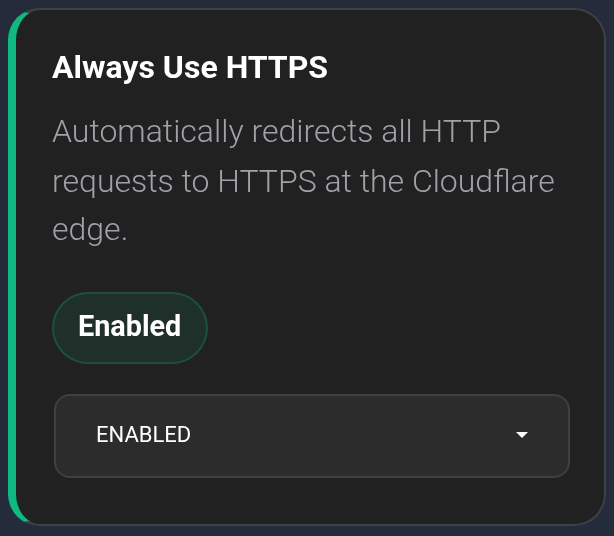
Some actions require confirmation first, such as selecting minimum TLS 1.2/1.3 or enabling Always Online. “Cancel” in that confirmation keeps the previous value. A warning shown after applying a change is not a request for permission: closing it does not undo the setting.
To restore the previous setting, select it again and wait for the response. After a connection error, first read the state again using “Updated” at the top: the change may have reached Cloudflare. Settings that cannot be changed may be hidden entirely; a missing card does not mean the feature is disabled.
HTTPS and TLS#
SSL/TLS mode controls the connection to the hosting server:
- Off — encryption is disabled.
- Flexible — encrypts visitor → Cloudflare traffic but uses HTTP to the hosting server. An HTTPS redirect on that server can cause a redirect loop.
- Full — uses HTTPS to the hosting server for HTTPS requests but does not validate its certificate.
- Full (Strict) — also requires a valid certificate that Cloudflare trusts and that matches the website’s name.
Before changing modes, ask your hosting provider which certificate is installed. Do not try to fix a certificate error by switching modes at random.
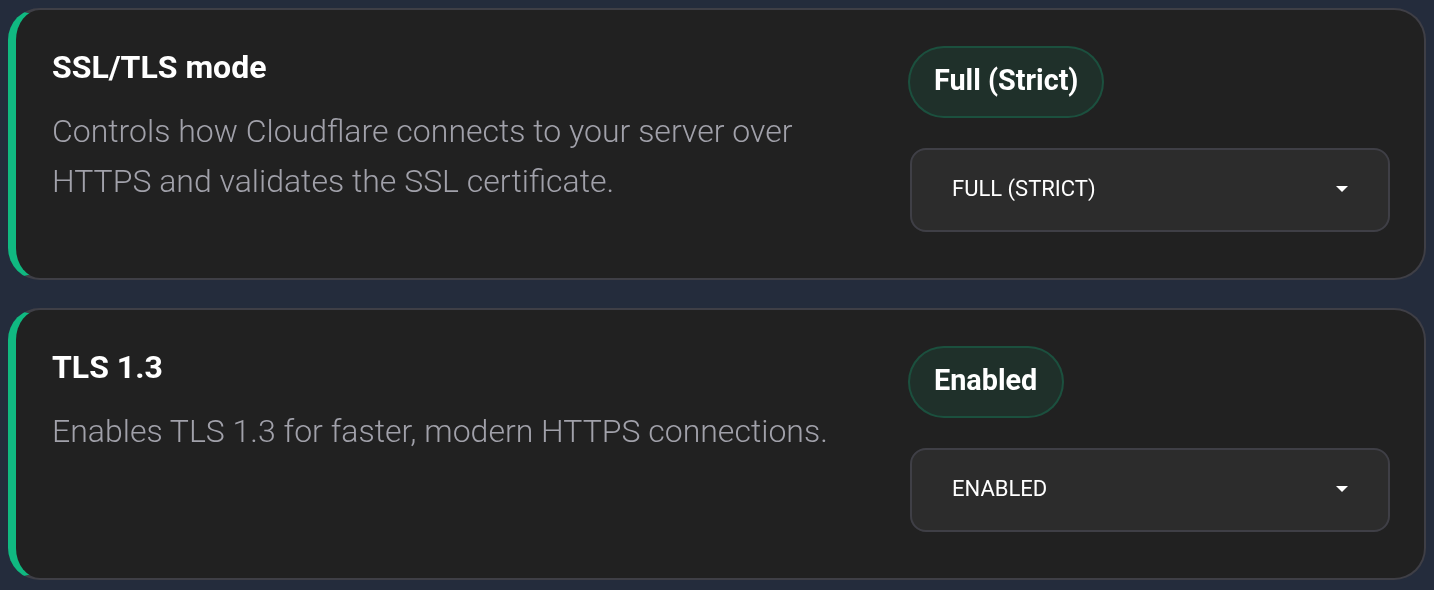
- TLS 1.3 allows a modern version of the visitor’s secure connection. Enabling it does not, by itself, prohibit older versions.
- Always Use HTTPS redirects HTTP requests to HTTPS. It does not install a certificate on the hosting server. KEHR prevents enabling it while SSL/TLS mode is Off.
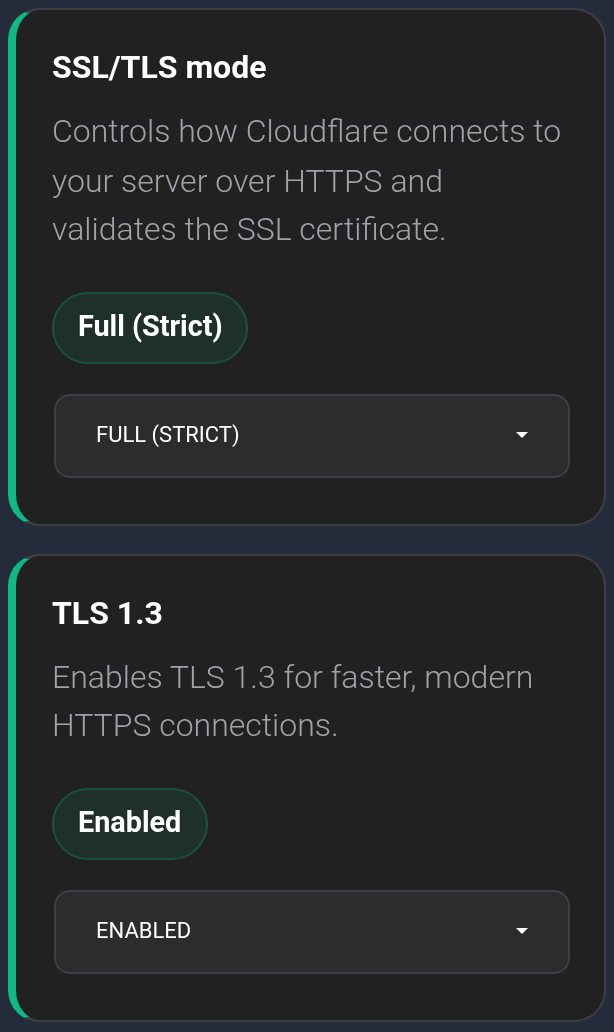
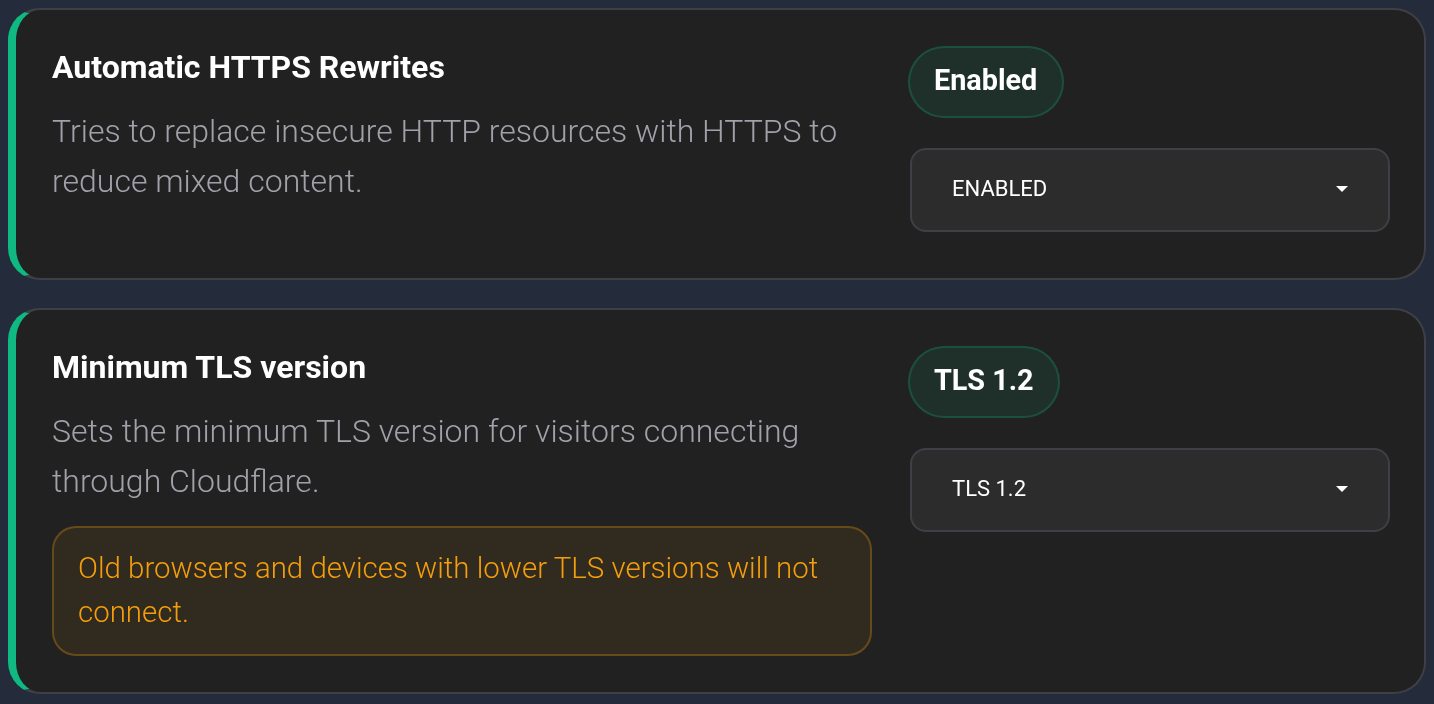
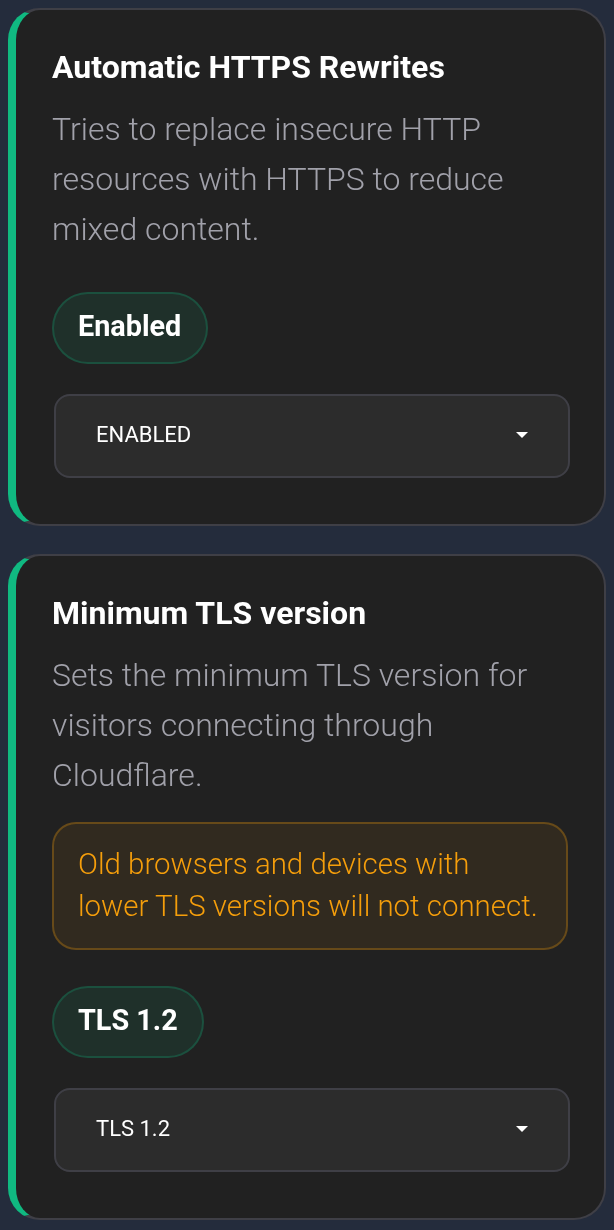
- Automatic HTTPS Rewrites helps replace some HTTP resource links within a page with HTTPS when the resource supports HTTPS. It does not fix every website error or replace configuring the website itself.
- Minimum TLS version sets the oldest visitor connections allowed. Raising it can prevent older browsers and devices from connecting; check compatibility before confirming.
Security#
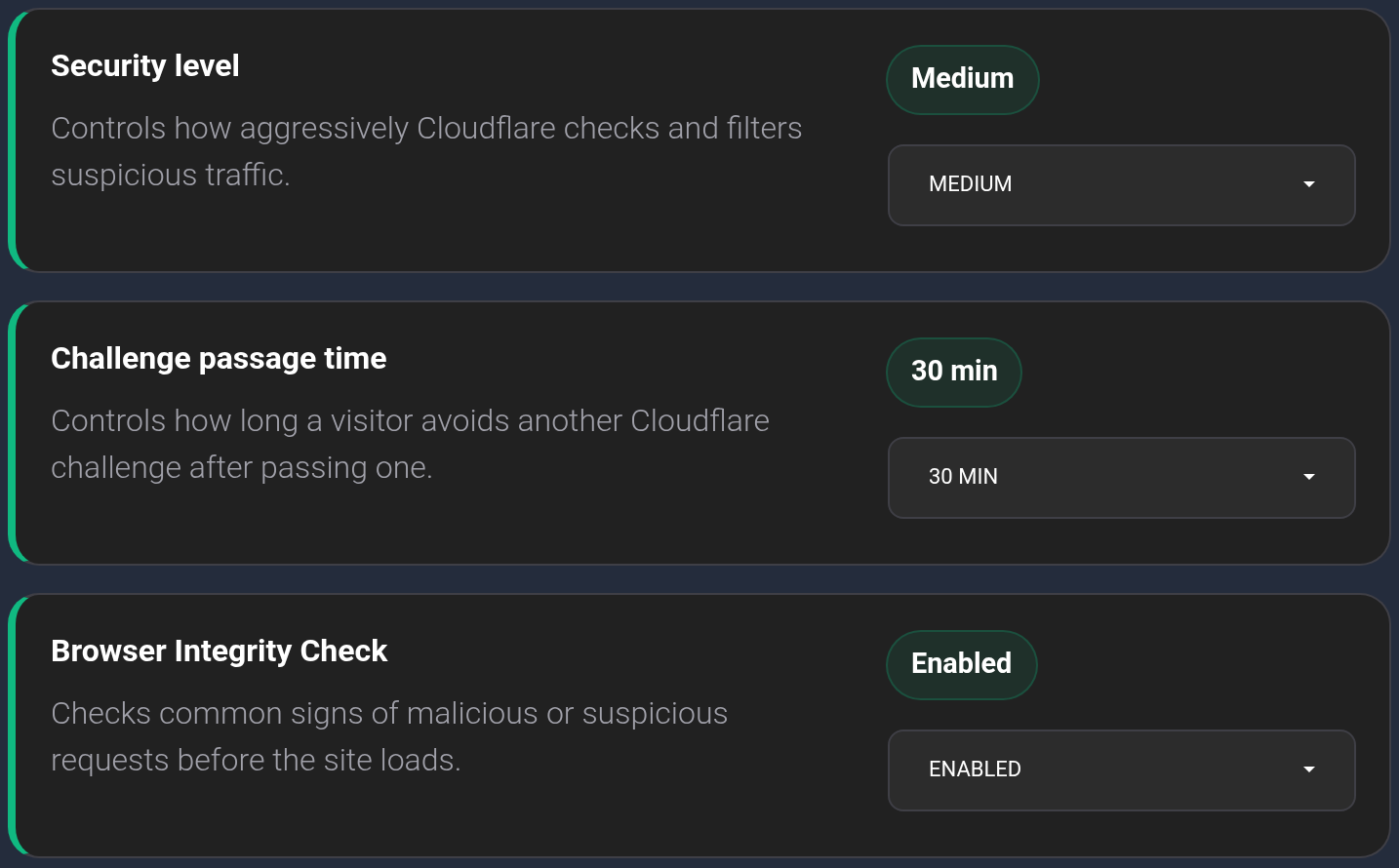
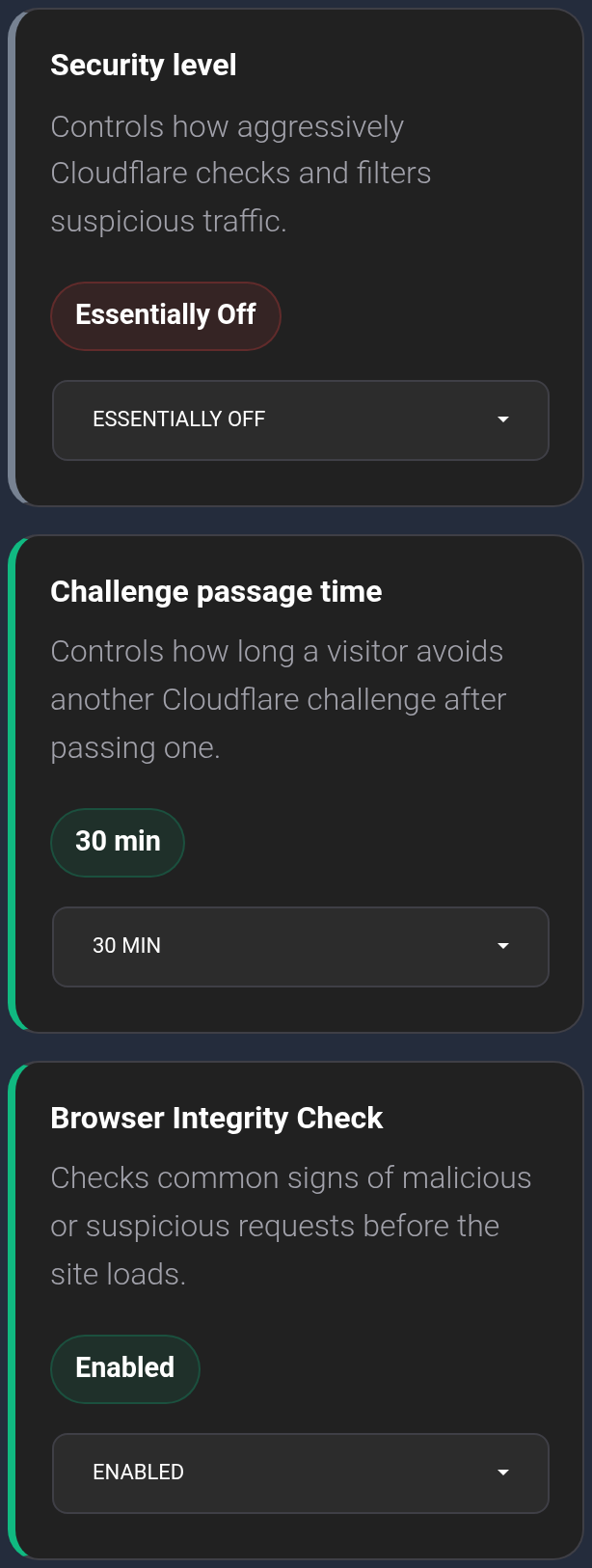
- Security level. KEHR still displays legacy labels such as Low, Medium, High, and Essentially Off. Do not interpret them as a current strictness scale or as disabling all protection. In current Cloudflare behavior, this setting controls Under Attack mode. That mode is for a website under attack: the additional challenge can interfere with ordinary visitors and API traffic. Do not enable it simply “for more security”; coordinate the response to an attack with support.
- Challenge passage time sets how long the browser can reuse the result of certain completed Cloudflare challenges. It does not guarantee that all further checks disappear: other security rules can still apply separately.
- Browser Integrity Check checks signs of suspicious requests, including their headers. If an application or integration has trouble, tell support which request fails rather than disabling protection at random.
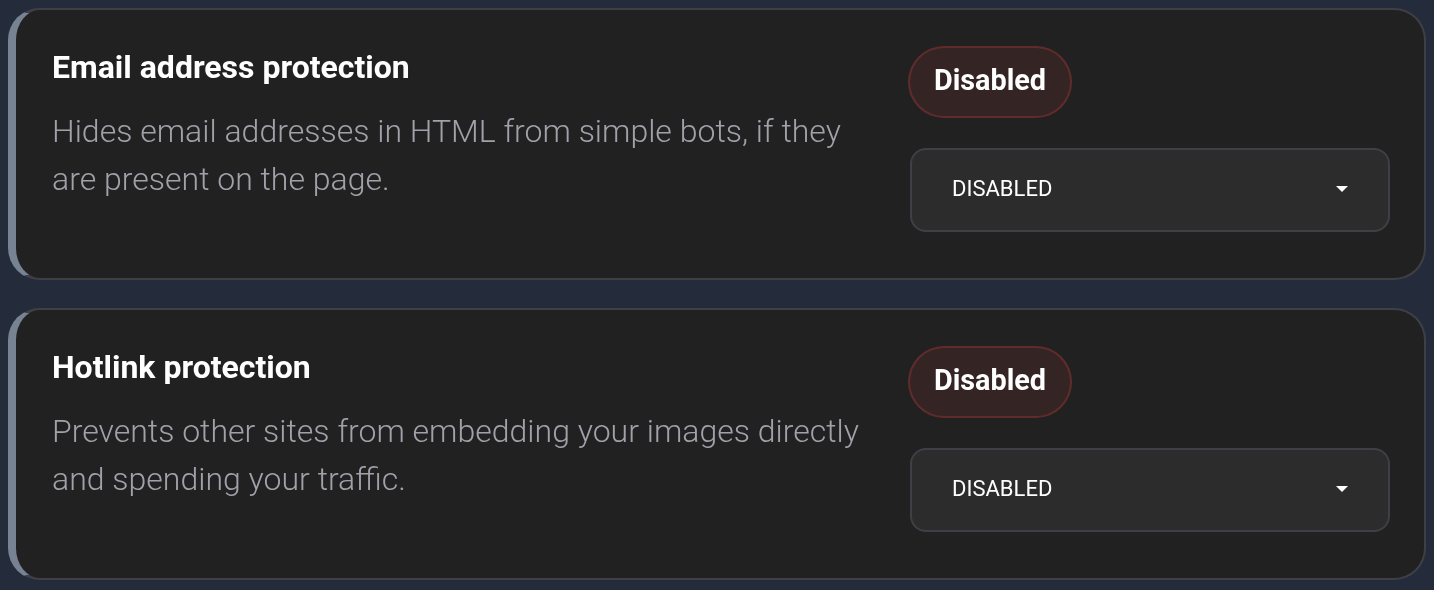
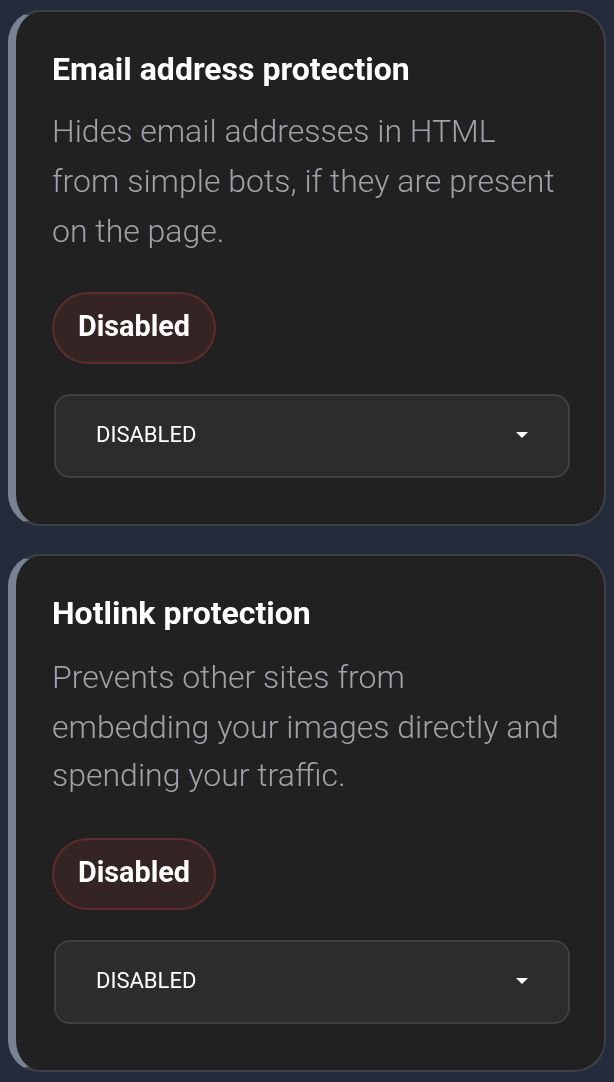
- Email address protection makes it harder for simple bots to collect email addresses published on pages. It does not configure a mailbox or protect incoming messages. After enabling it, check email links and related website scripts.
- Hotlink protection limits certain images from loading when embedded on other websites. It can affect wanted posts and previews; it does not prevent copying all files.
Speed and delivery#
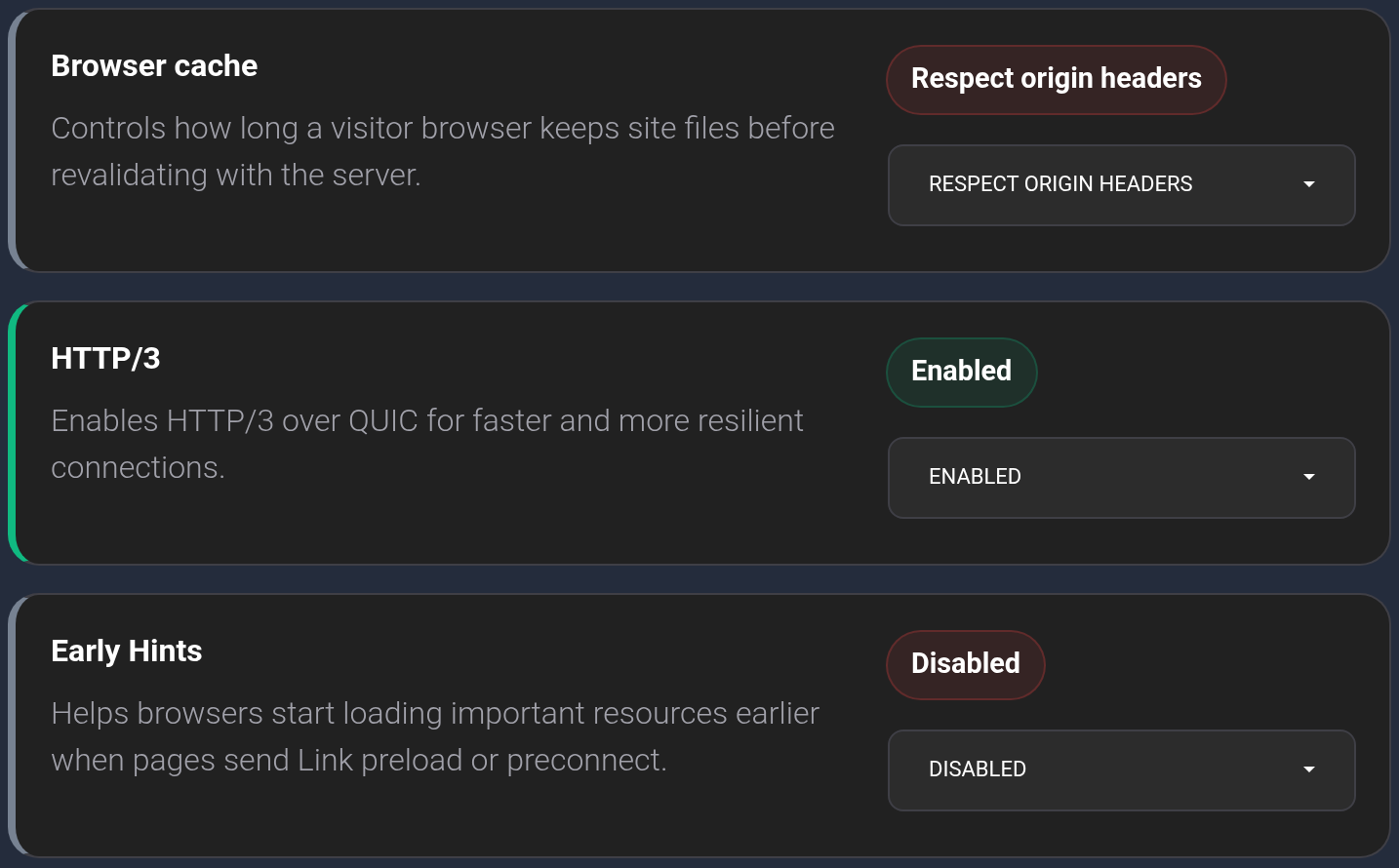
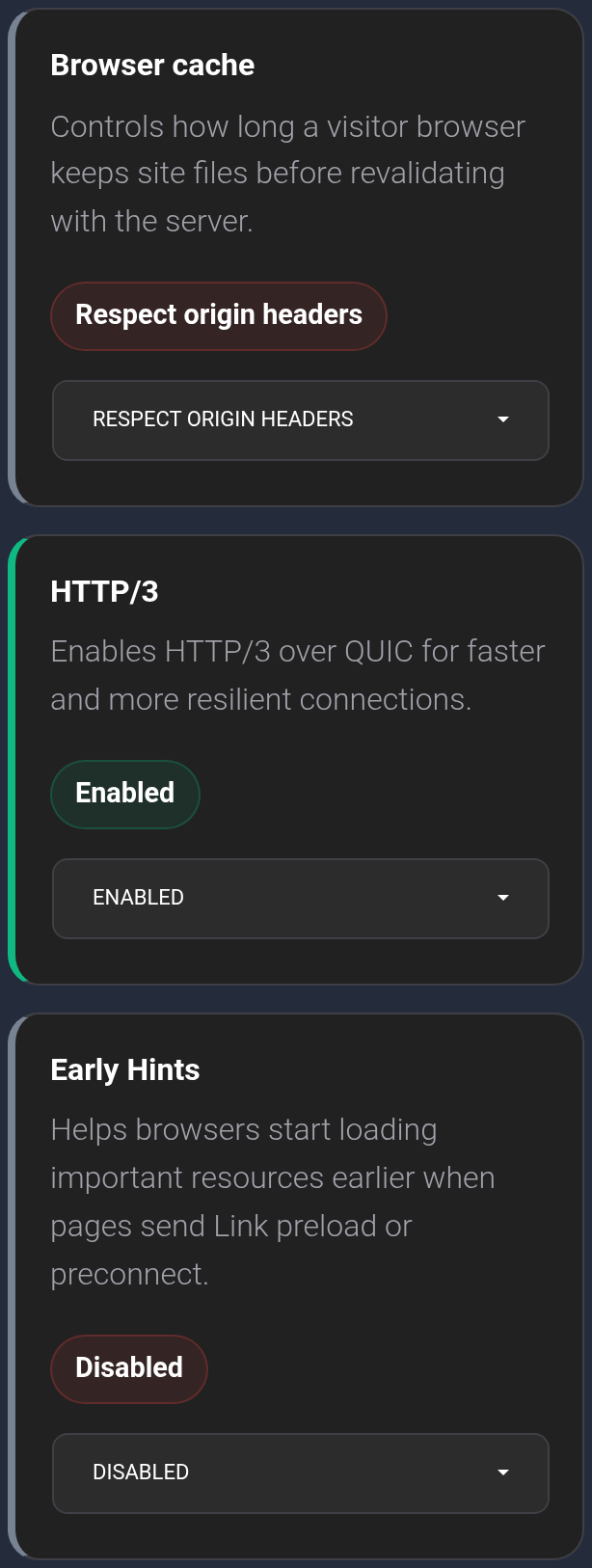
- Browser cache affects how long visitors keep website files. “Respect origin headers” follows the hosting server’s instructions; a fixed period can delay visitors receiving new files. Purging Cloudflare does not remove a copy already stored in a browser.
- HTTP/3 allows this protocol for compatible browsers. It does not guarantee a speed improvement for every website.
- Early Hints helps resources start loading sooner when the website sends suitable hints. Enabling it may have no noticeable effect without website support.
Brotli: Cloudflare has deprecated the old setting. A missing card does not mean compression is disabled; the legacy switch is not a reliable way to verify compression. See the Cloudflare change.
- IP Geolocation tells the website the visitor’s country as estimated from their IP address. The website must use that information itself; this is not the person’s precise location.
- Always Online may show an archived public page when hosting is unavailable. It does not replace a working website, forms, or signed-in account pages. Read the confirmation before enabling it: it also describes sharing the hostname and popular URLs with Internet Archive.
- Development Mode temporarily bypasses Cloudflare’s cache while you check changes, normally for three hours. It does not purge that cache, the browser cache, or the website’s own cache. When bypassing ends, an old cached copy may be used again; purge separately if needed.
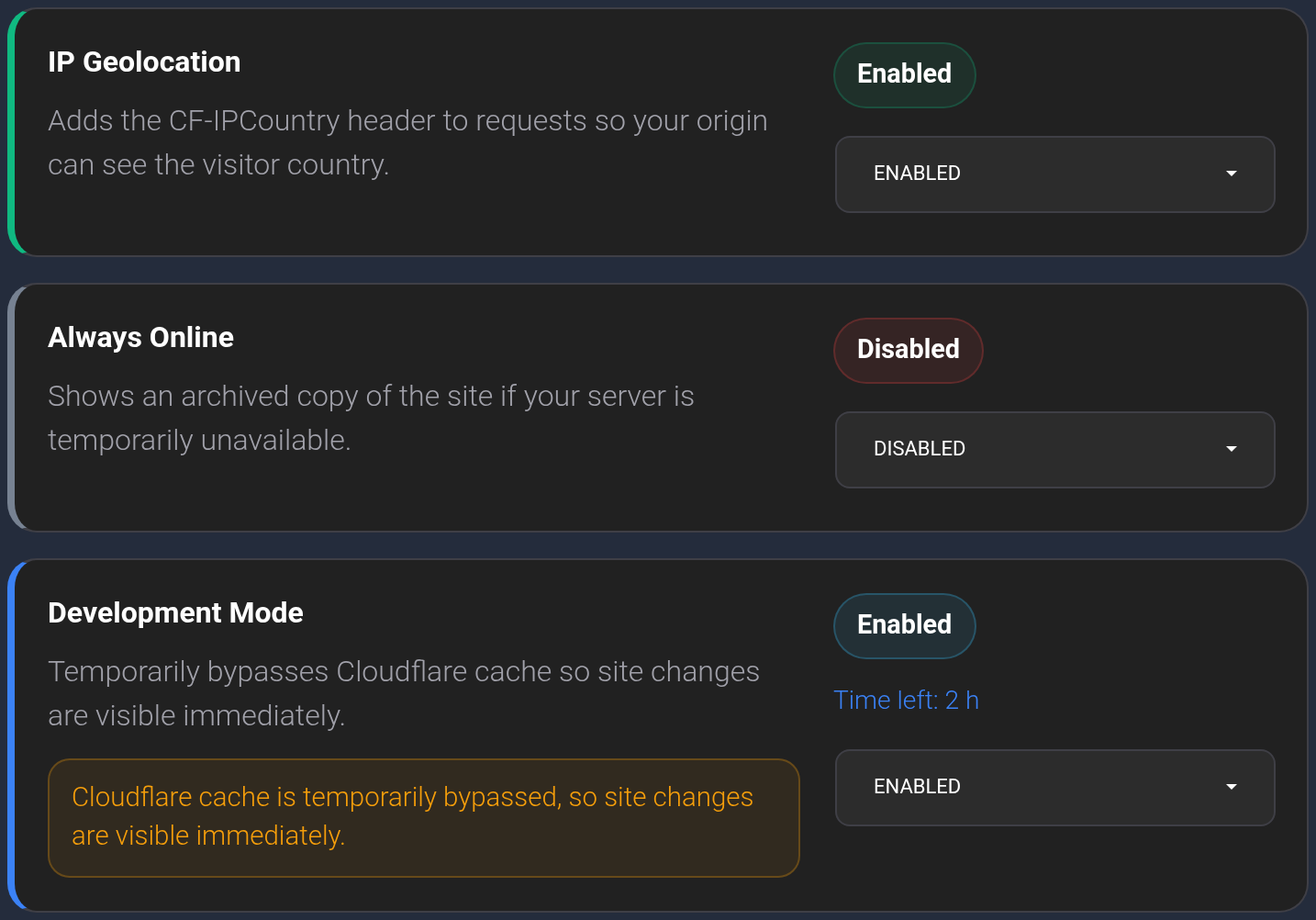
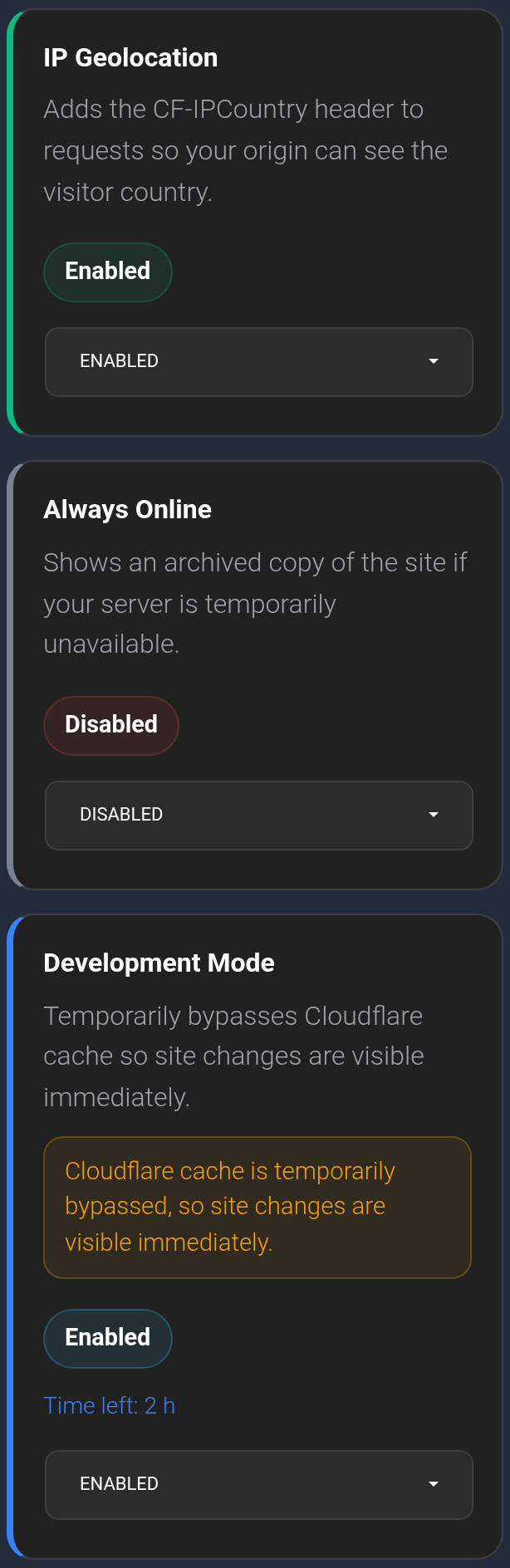
Development Mode is already enabled in this example. The time left reflects the state that was read; refresh the data at the top for an updated value.
Save and verify#
The button with a refresh icon and an “Updated” date reads Cloudflare settings again. It does not save a form, purge files, or check whether the website works. After a change, open the relevant website page and check the affected action: HTTPS, signing in, submitting a form, or loading an image.
Purge Cloudflare’s cache#
- Check the domain name at the top and click “Purge cache”.
- Read the confirmation. The operation purges the whole Cloudflare cache for this domain. Click “Purge cache” to proceed or “Cancel” to leave it unchanged.
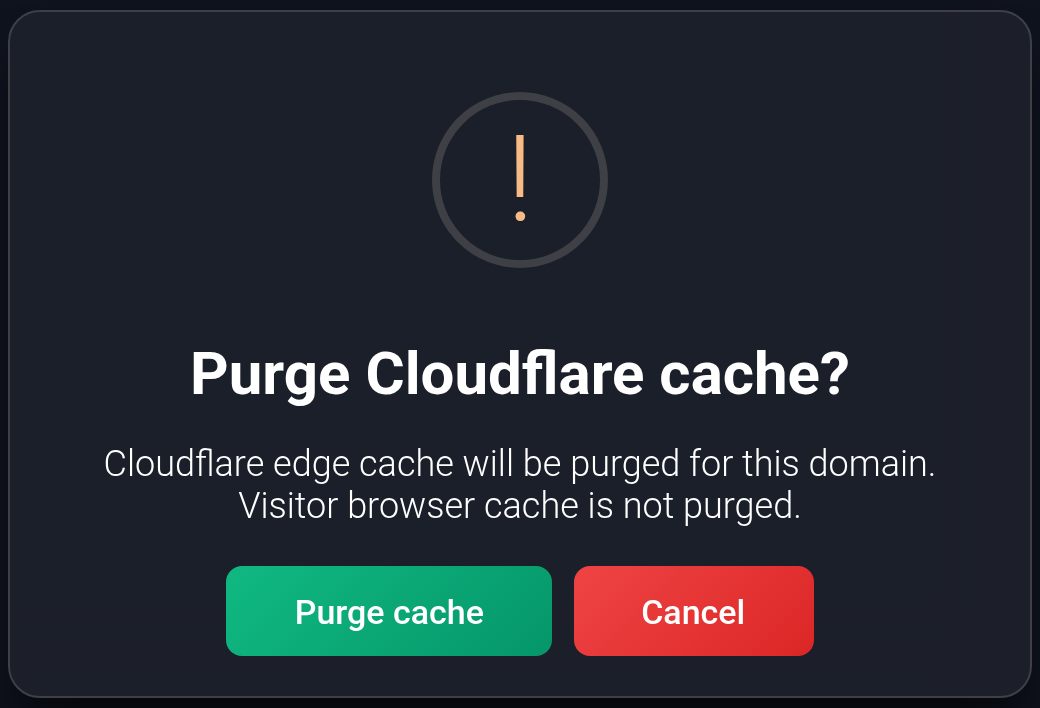
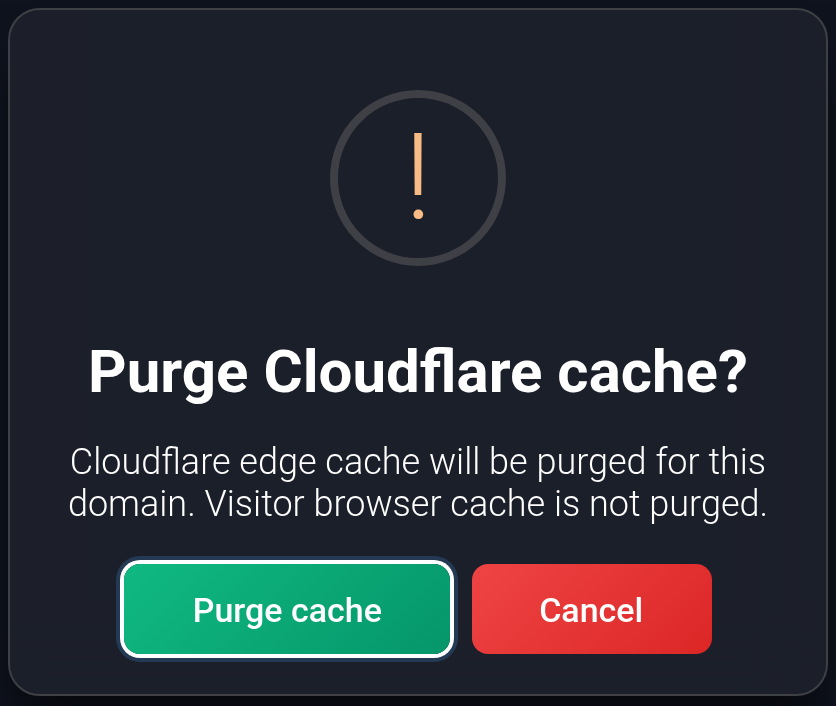
- Wait for the result. “Cache purged” appears with a reminder that visitor browser caches have not been purged. The warning symbol refers to that reminder and does not, by itself, indicate a purge failure.
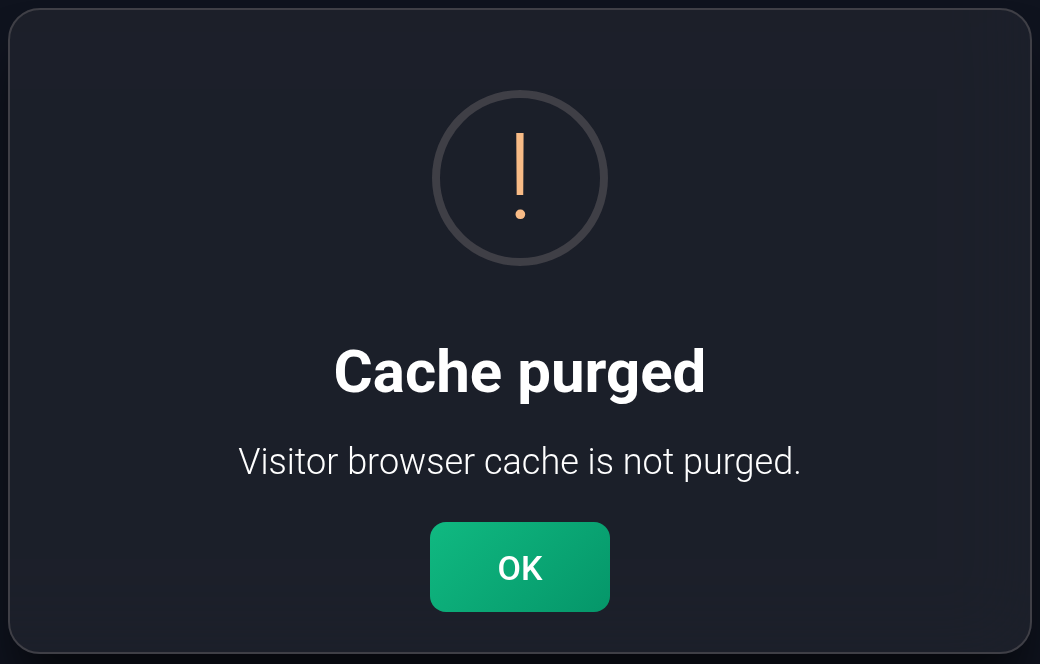
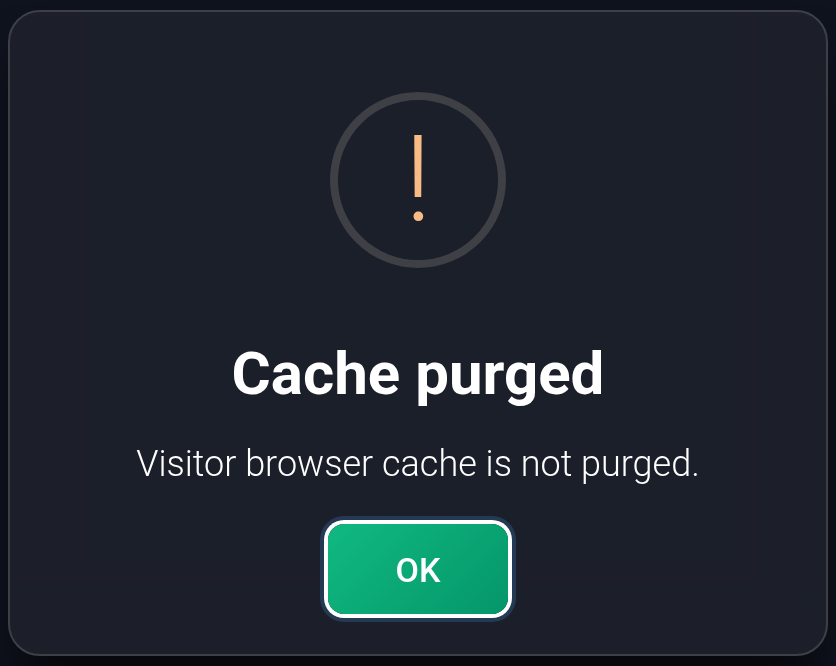
Check the page again, using a new private browser window if necessary. Caching on the hosting server or in the website’s content management system is handled separately. Do not purge repeatedly: the operation is rate-limited, and Cloudflare needs to fetch files from the hosting server again afterward.
If a setting did not change#
Read the error, wait for the current operation to finish, and refresh the data. If a group has a “Retry” button, use it after a pause. When the result is uncertain, check the current value before deciding whether to submit again. If the problem continues, send support the domain, field name, previous and selected values, time, and error text or screenshot.
See also: DNS records and proxying and choosing nameservers.