Adding a site to KEHR links it to a traffic-processing plan and opens YourShield setup. It does not activate protection yet, purchase a domain, or change DNS. You need your own working website and access to its files on your hosting account.
You need an active plan that supports TDS — traffic processing. The plan must have available capacity for a new domain. If you are unsure about your hosting, first read the PHP protection features and requirements. This guide uses the example example.com and plan #101; substitute your own details.
Add a site#
Open the connection form#
Open “Connected sites” in the dashboard menu. On the “Site protection” page, expand “Connect a site”. If the list is empty, the form is already open.
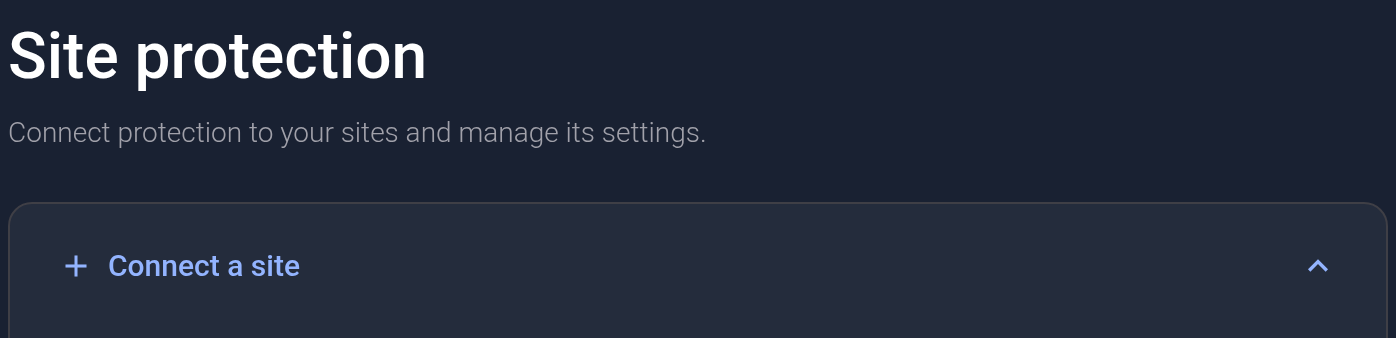
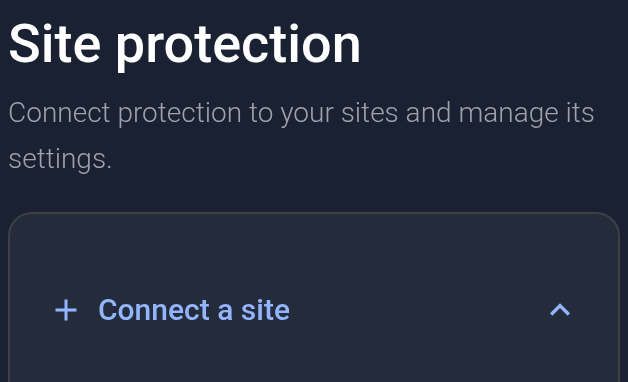
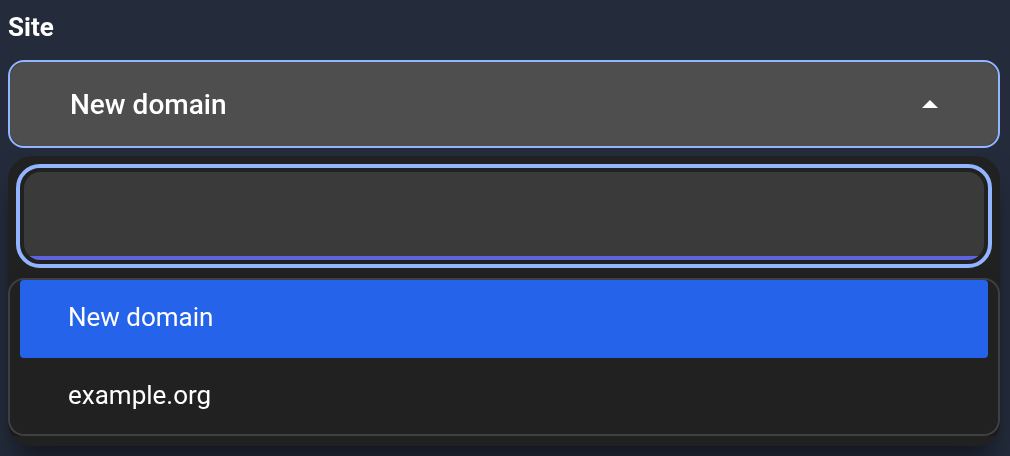
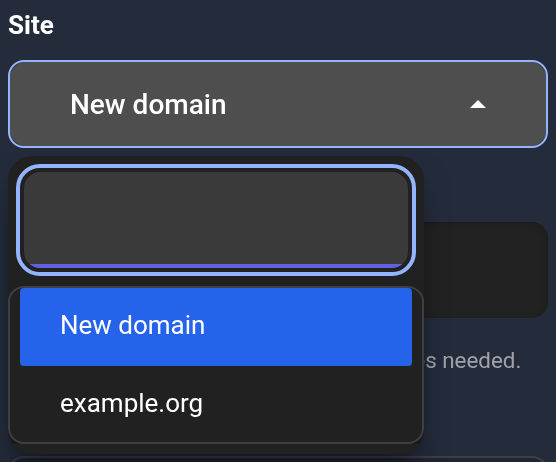
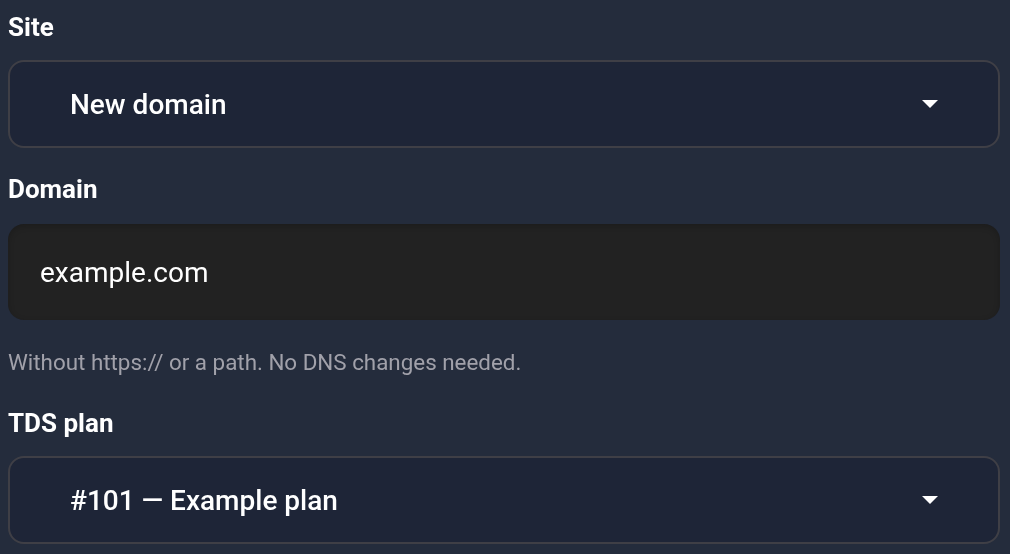
In “Site”, select an existing domain if it is available in the list. It uses the plan it already belongs to. If the required name is missing, choose “New domain”. In the screenshot, example.org is another available domain; our example adds example.com.
Enter the domain and choose a plan#
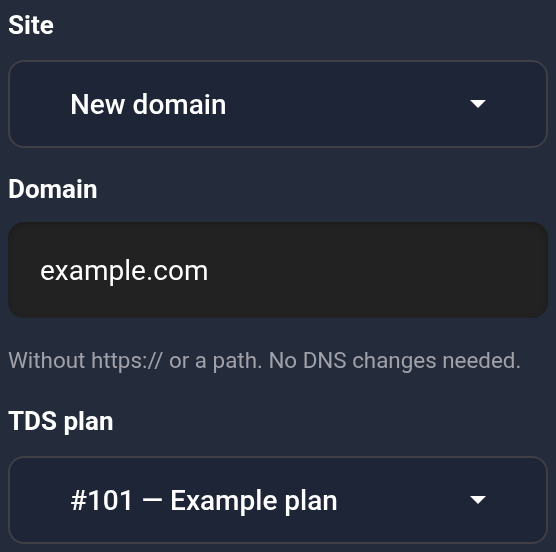
- After selecting “New domain”, enter only
example.comin “Domain”. Do not addhttps://, a port, a page path, or*.. - In “TDS plan”, choose the required active plan. This example uses #101 — Example plan. If no plans are available, check TDS support, active status, and available capacity.
Check the addresses and connect the site#
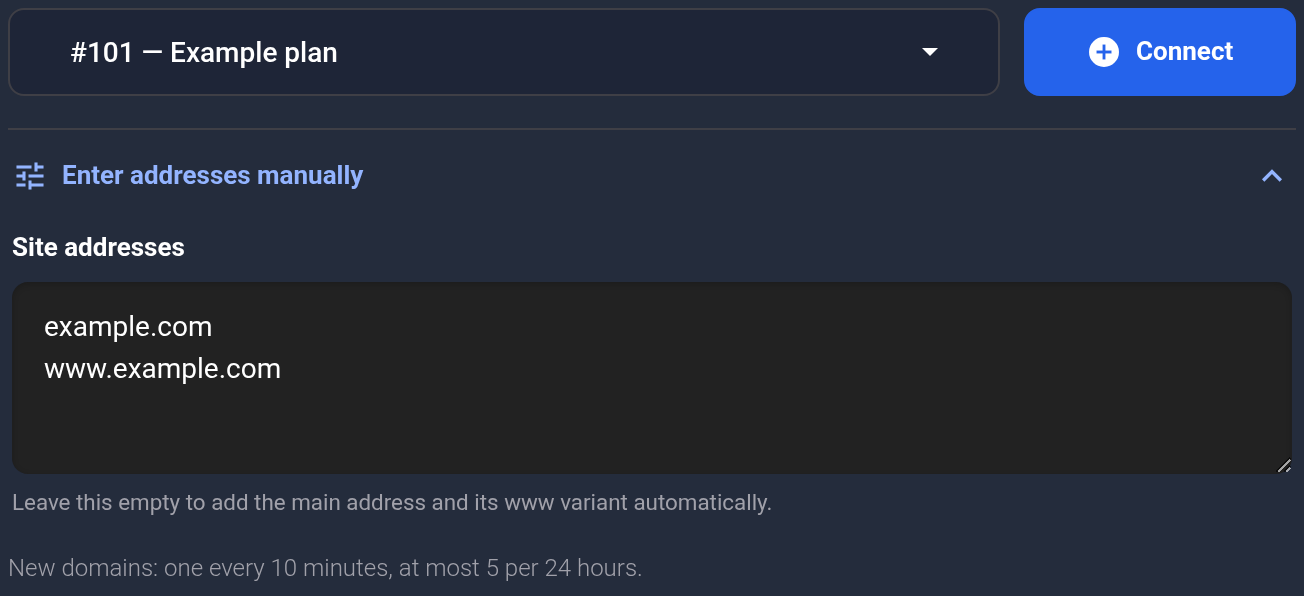
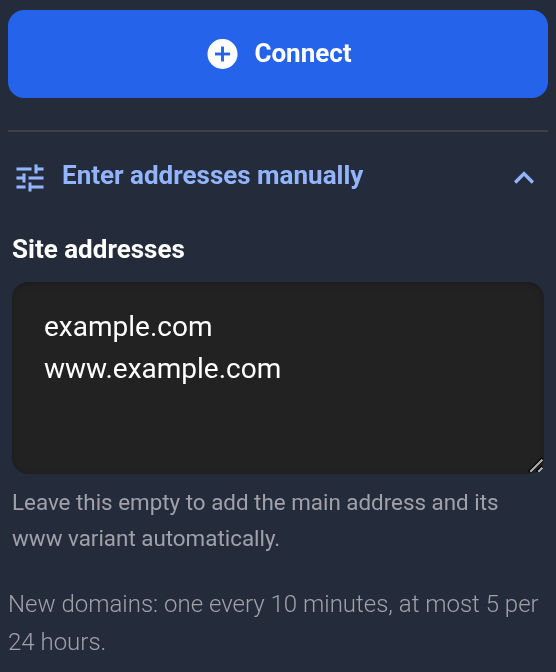
If visitors open the site both with and without www, include both names. Expand “Enter addresses manually” and enter one name per line:
example.com
www.example.com
When creating a site for the main domain example.com, you can leave this field empty to add those two names automatically. A manual list specifies exactly the addresses you enter. Do not add unrelated domains: only the selected domain and its subdomains are allowed.
Click “Connect” once and wait for the next page. If an error appears, correct the details instead of repeatedly submitting the same form.
After a successful addition, the dashboard opens setup, where you can get your personal ZIP and code. If setup reports a problem, first return to “Connected sites” and check for the card: you do not need to recreate a site that has already been added.
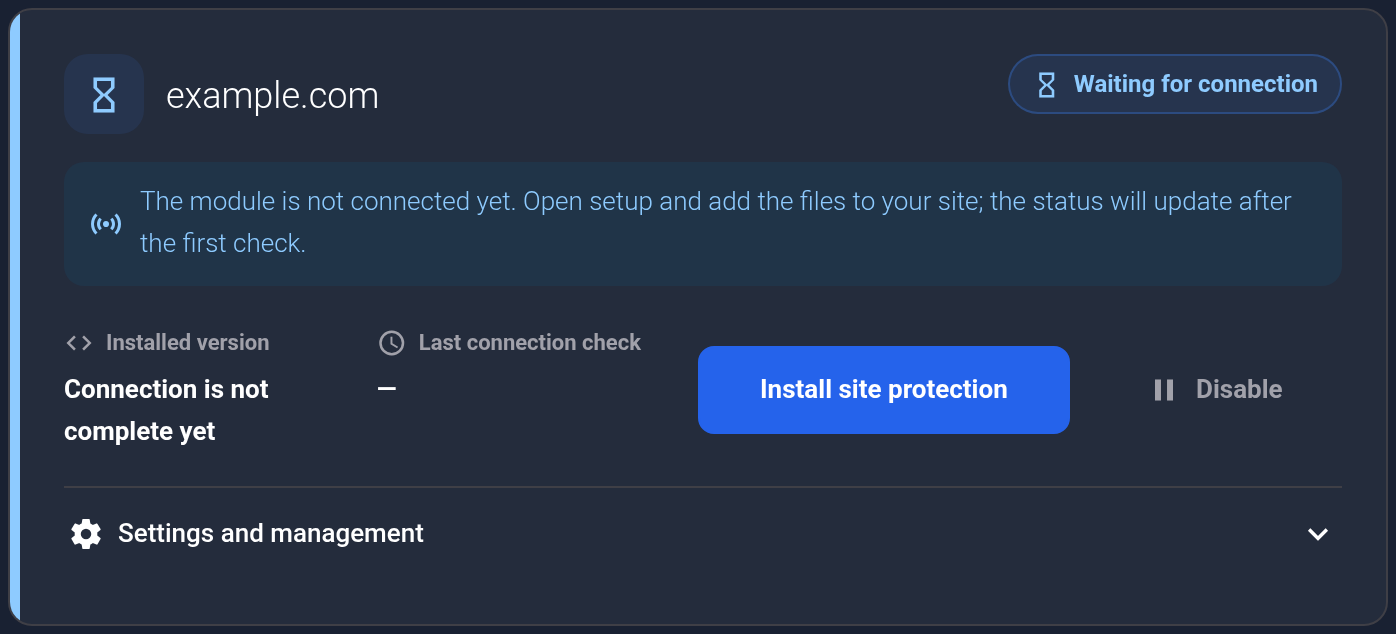
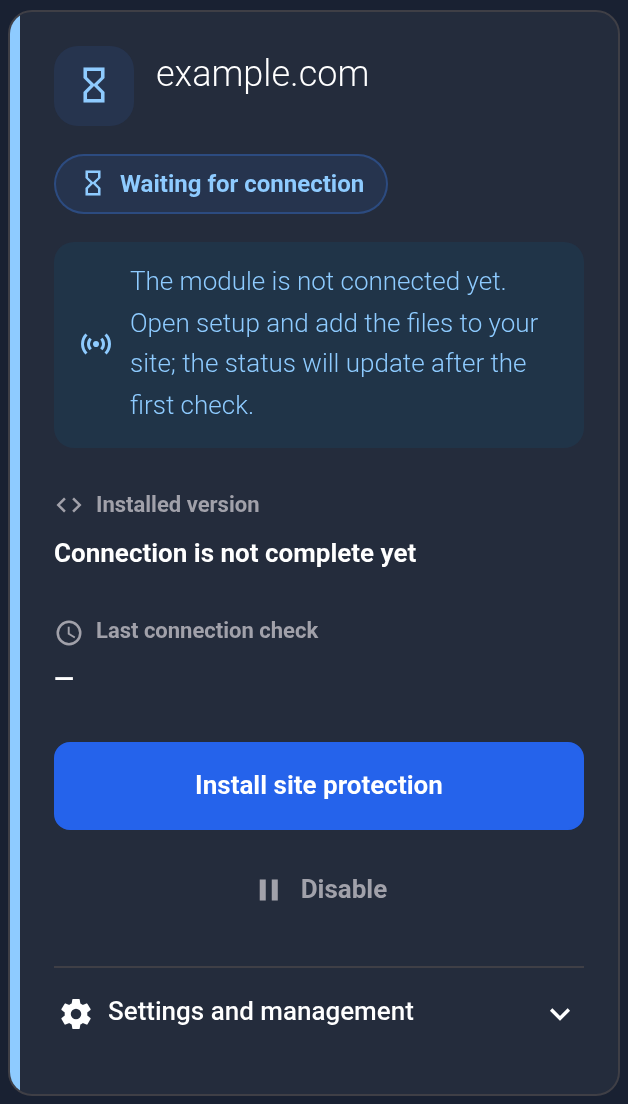
The example.com card can show “Waiting for connection” or “Connecting” until the module is installed and checks in. This example shows “Waiting for connection”. The “Install site protection” button returns to setup. A card alone does not confirm that protection is working.
Check or correct the addresses#
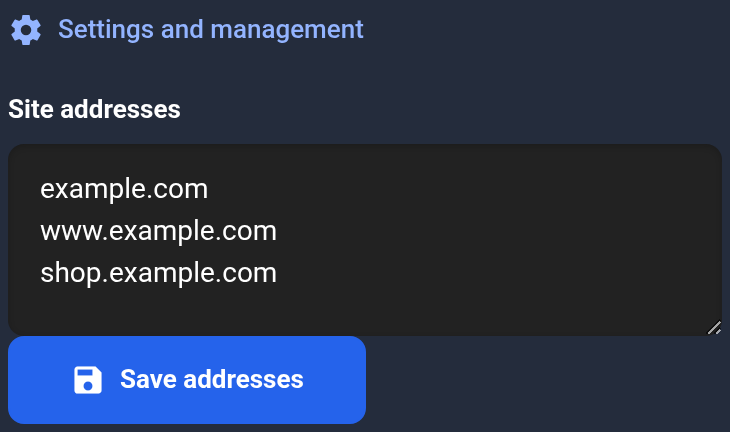
Expand “Settings and management” on the required site's card. In “Site addresses”, list the names visitors actually use for this site. For example, to add a shop on a subdomain, save this list:
example.com
www.example.com
shop.example.com- One line contains one name. Enter domains without a protocol, page path, or IP address.
- Only the card's main domain and its subdomains are allowed. A different main domain needs a separate card.
- Keep between one and twenty addresses. An entirely empty list is rejected when editing.
*.example.compermits the main domain and all its subdomains. Use it only if you need that broad permission;shop.example.comis sufficient for one shop.
Click “Save addresses”. The adjacent disable, remove, and code-change actions are not needed to edit addresses.
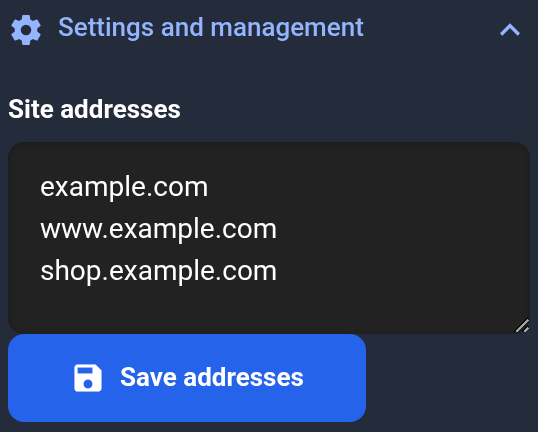
Wait for “The site addresses were saved.” Then refresh the page, reopen settings on the same card, and compare the list with yours. If an error appears, do not assume the changes were saved.


This list permits hostnames for protection setup. It does not create subdomains, configure DNS, or move website files. After changing addresses, check protection on each required address. If the wizard reports a hostname error, follow its instructions for obtaining current connection details.
If the form rejects your details#
- No plan is available: check active status, TDS support, and available capacity. Select an existing domain from the list.
- The site is already added: find its card and continue setup or correct its addresses in settings.
- An address is invalid: leave only the domain name. Check that it belongs to this card's domain and that the list is not empty.
- A new-domain cooldown applies: the form shows the limit — one new domain every 10 minutes and at most five per 24 hours. Wait for the restriction to expire.
- “Needs attention” appears after an operation: read the card's instructions and repeat the indicated action. If the state does not change, give support the domain, plan number, operation time, and error text without keys or setup codes.