After installation, check two results: protection is active on your hosting, and the pages you need actually pass through it. “Working” in KEHR confirms contact with the module; it does not list protected pages.
Start after installing the module and choosing an integration method. The screenshots use the example site example.com: substitute your own domain. They illustrate interface states.
Check the wizard result#
After “Connect protection”, wait for the “Result” screen. Your next action depends on its message.
“Protection is connected”#
The selected integration passed the wizard checks. Read “Protection coverage”: it describes the scope of the selected method, not a list of every tested address. Then click “Open site” and check your pages as described below.
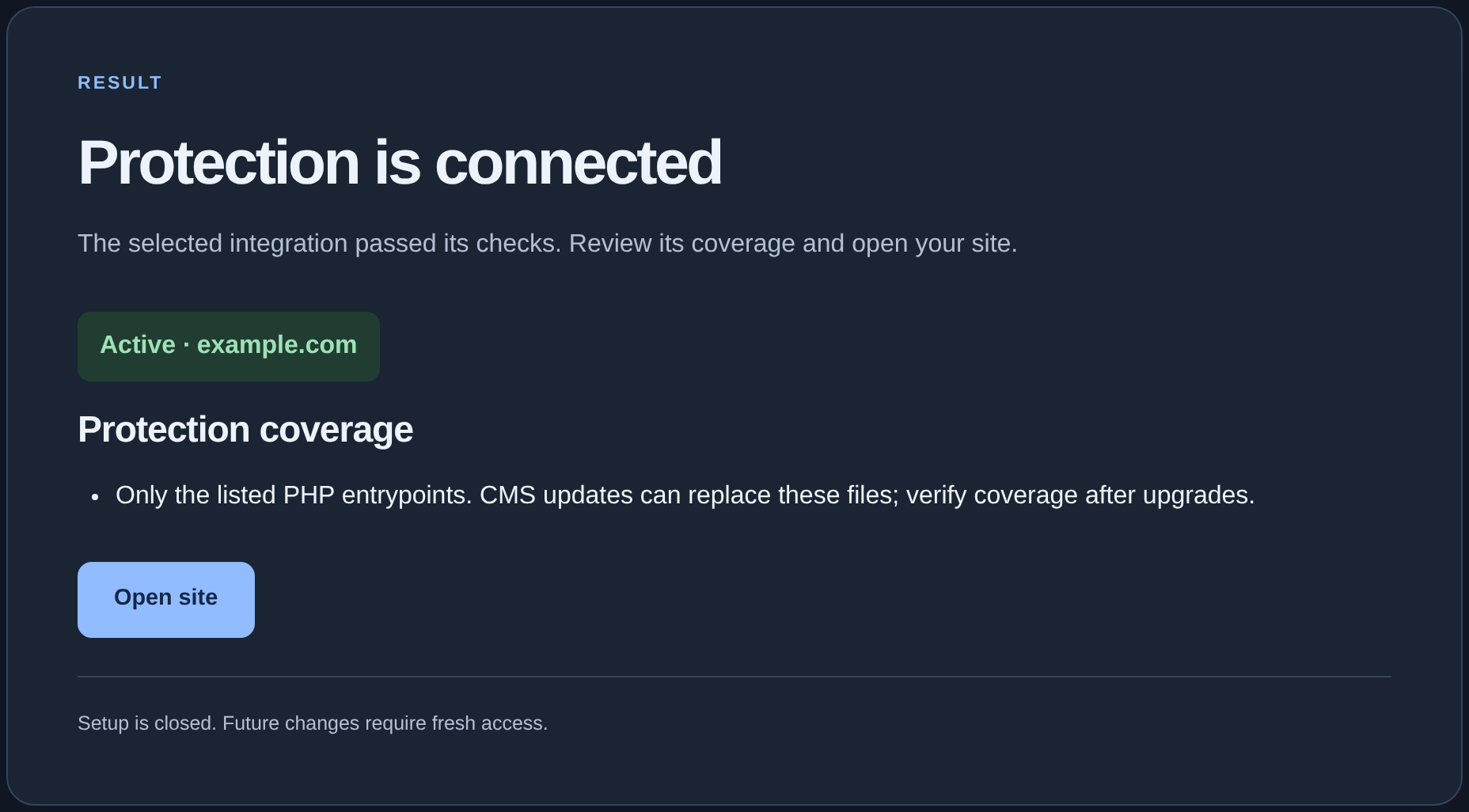
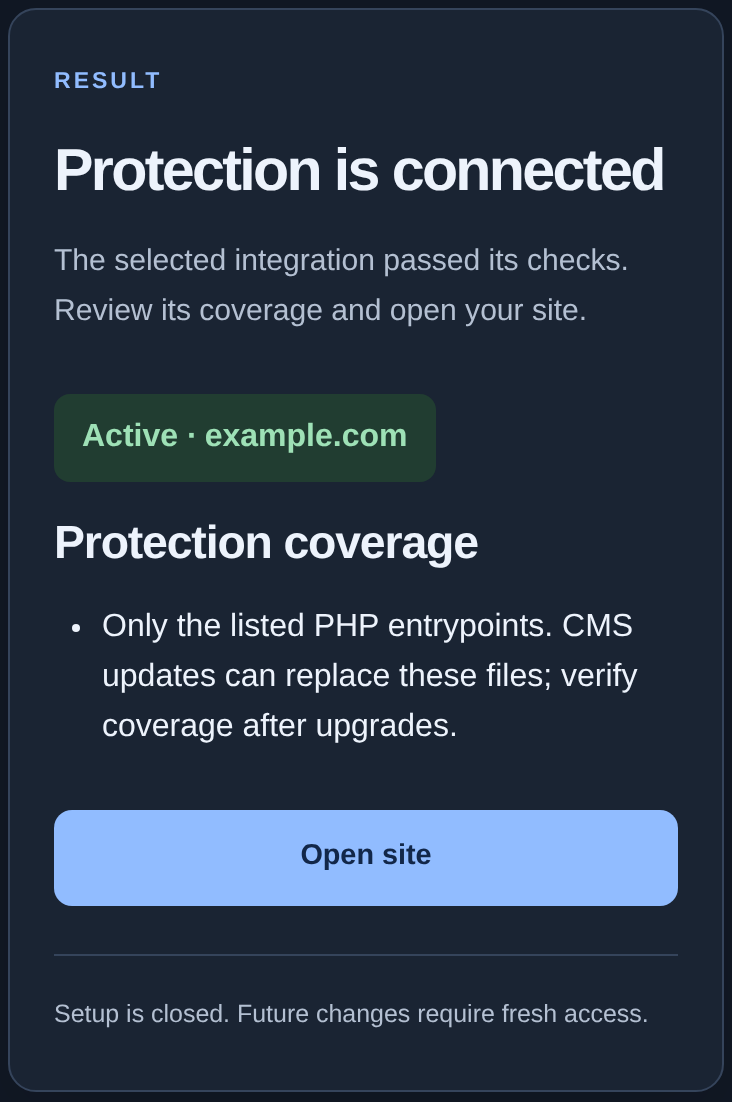
The example uses selected PHP entrypoints. The warning means protection covers the listed files; updating your website software may replace them, so check the integration again after an update.
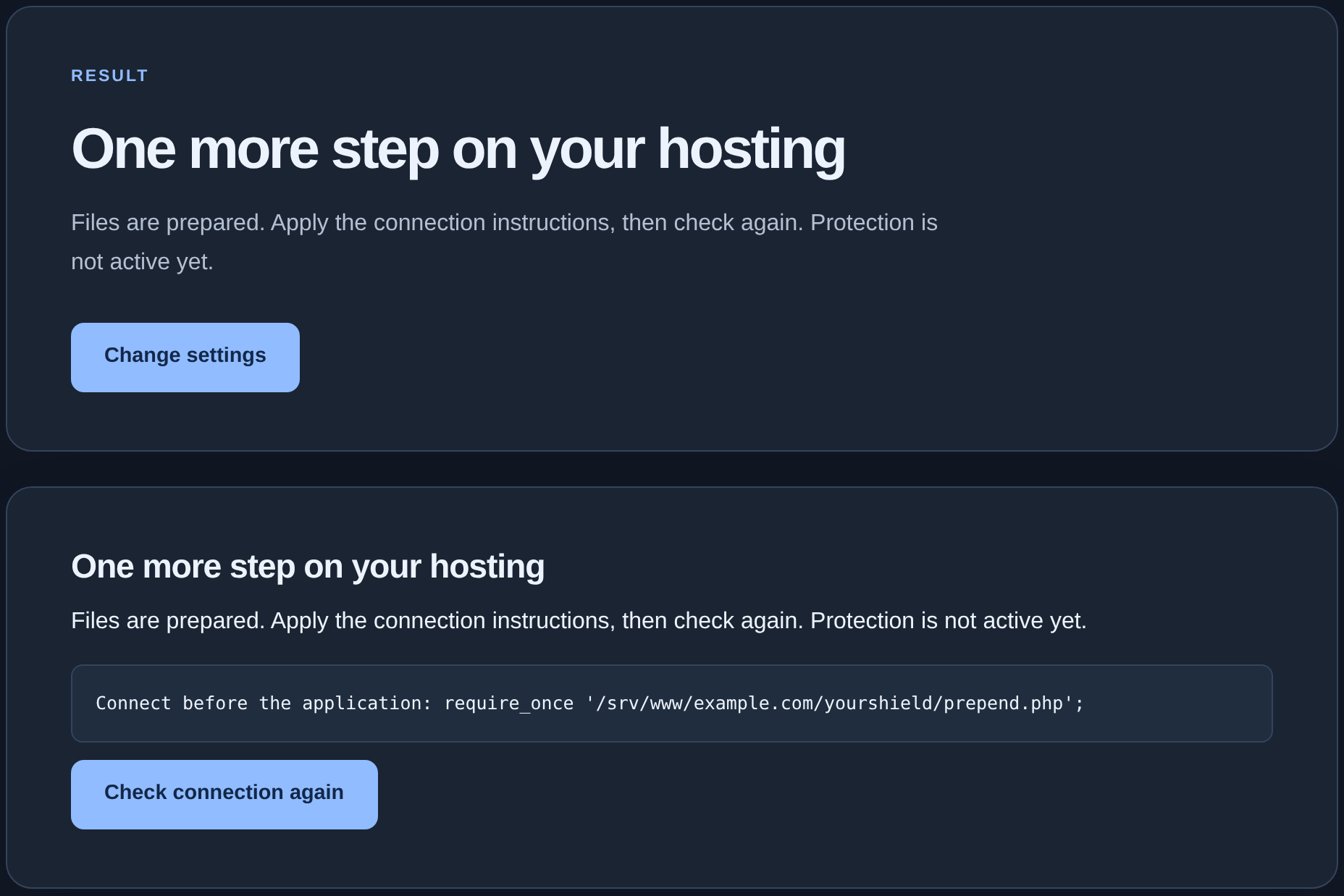
“One more step on your hosting”#
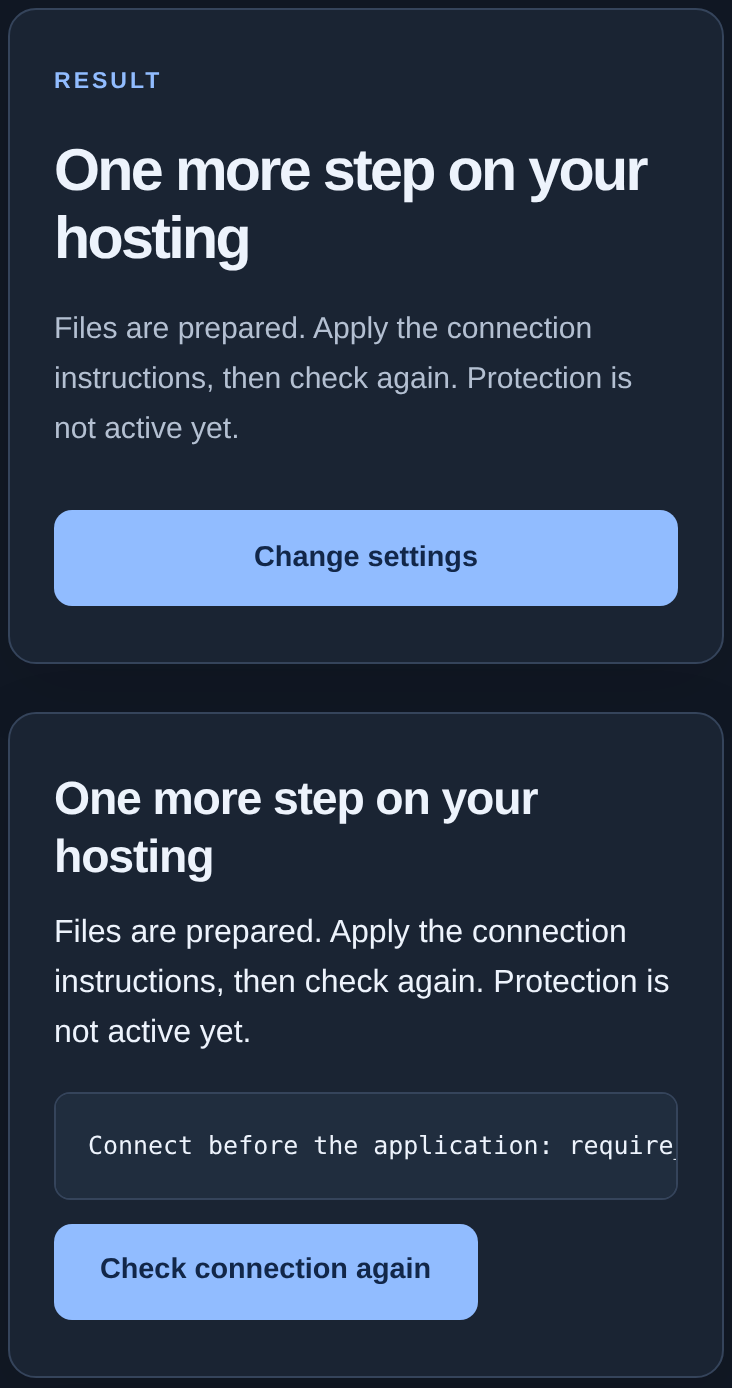
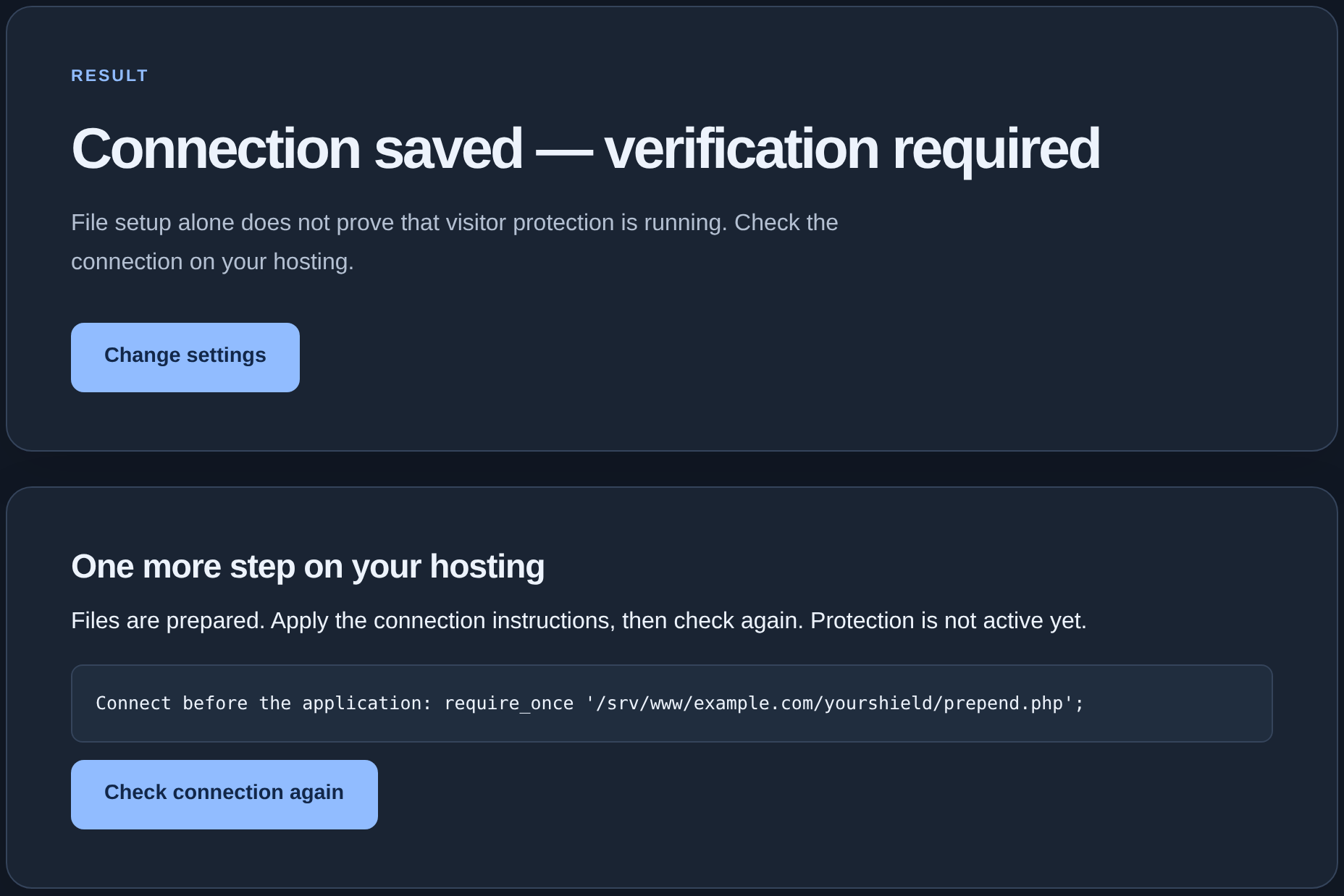
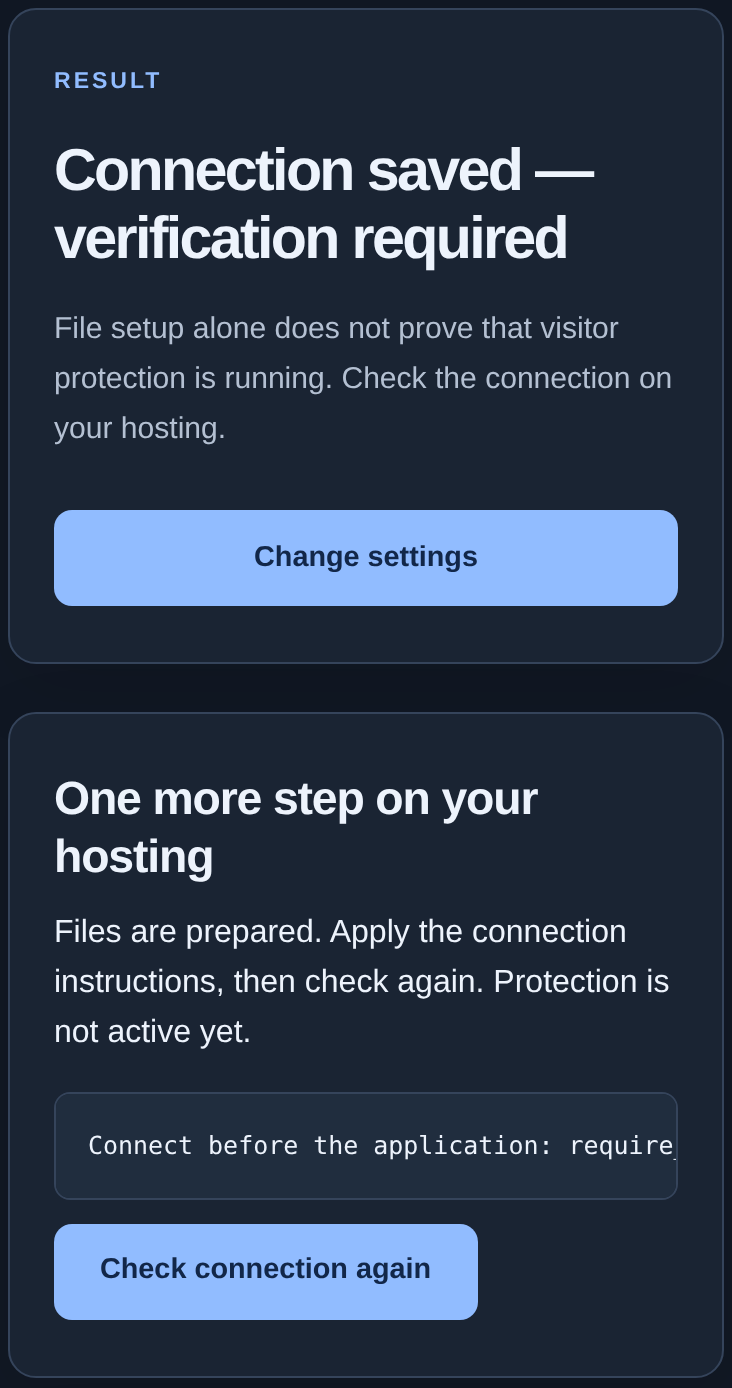
Protection is not active yet. Give the displayed instructions to your hosting administrator, or follow them if you understand which file to change. The path in the screenshot is an example, not a path to copy into your website. When the step is complete, click “Check connection again” and wait for the result.
“Connection saved — verification required”#
Writing files does not prove that protection works. Read the instructions below the result; complete any remaining hosting step first. Click “Check connection again” in that panel. Setup is complete once the result says “Protection is connected”.
Compare the status in KEHR#
- Return to “Connected sites” and find your domain card.
- Read the status, “Installed version” and “Last connection check”. Refresh the page after completing the wizard.
- For “Working”, continue with the address checks below. For another state, use the table.
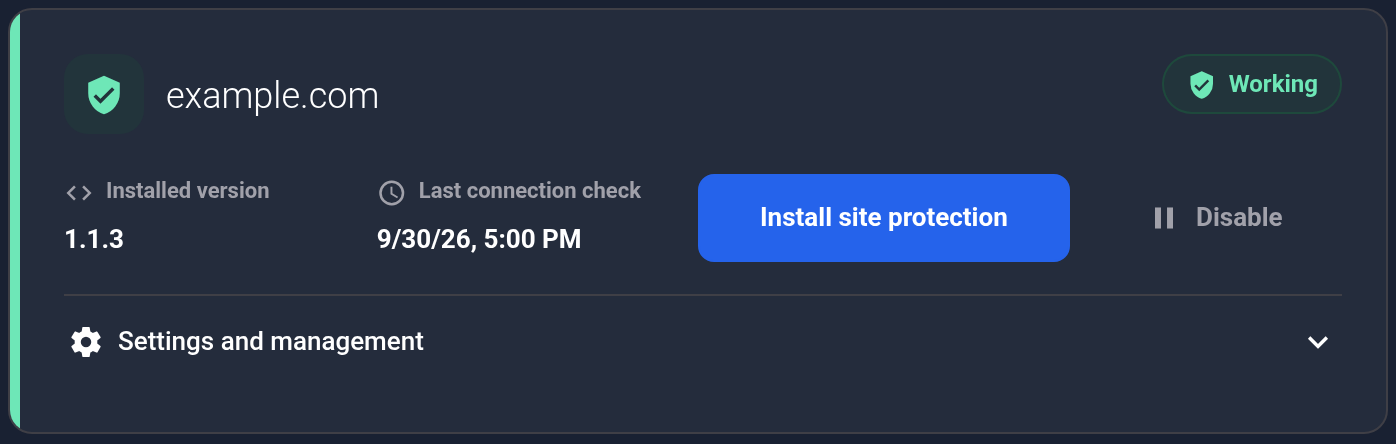
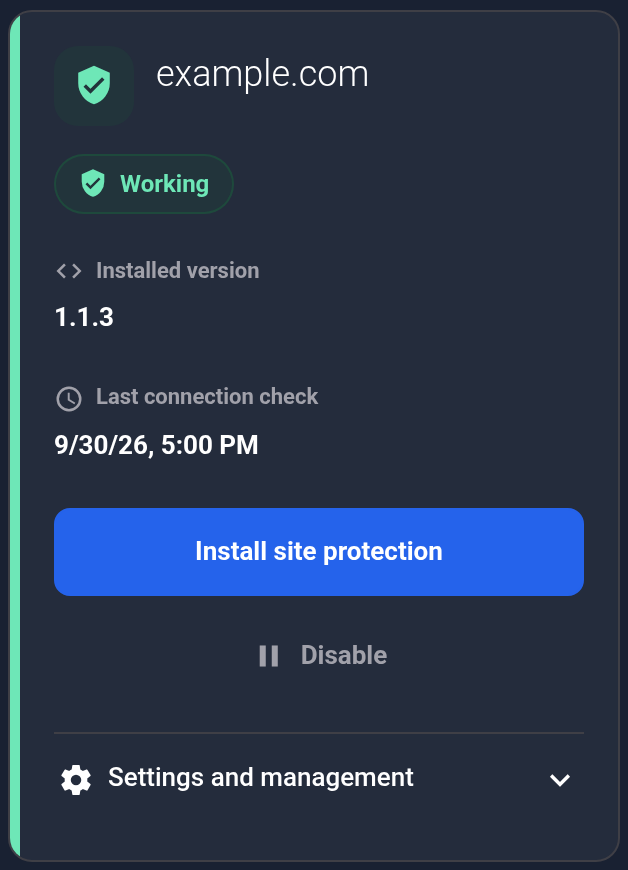
The “Install site protection” button remains available after setup. Its presence does not mean protection is disabled.
| State | What to do |
|---|---|
| Working | The module contacted KEHR recently. Check coverage of your important pages. |
| Waiting for connection | There has been no first contact. Complete installation and the wizard check. |
| Connecting | Connection is not complete yet. Refresh the page; if the state persists, check the wizard messages and connection troubleshooting. |
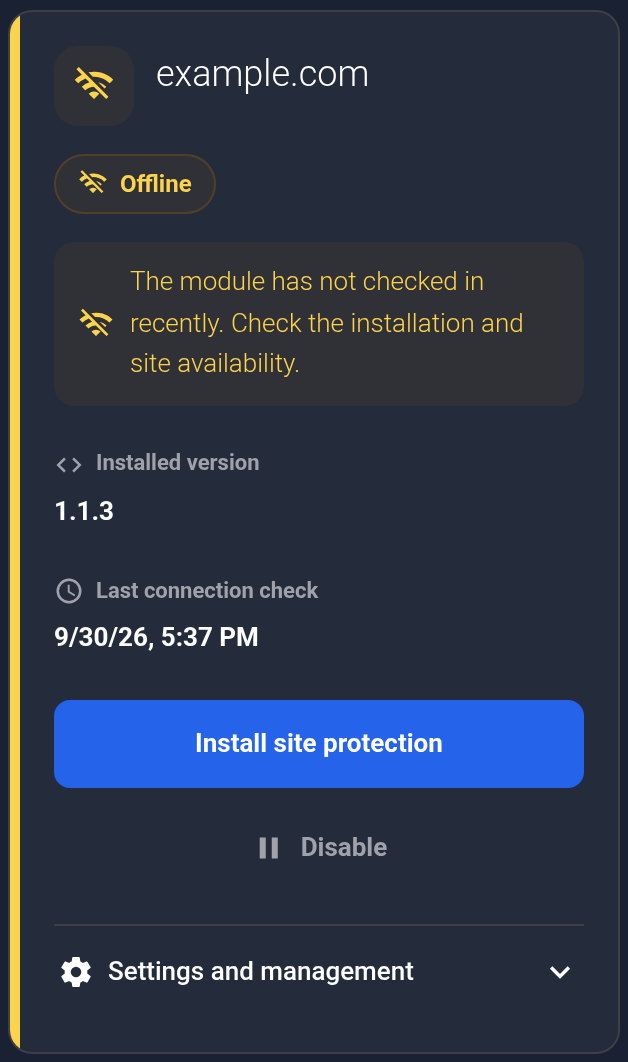
| Offline | No recent contact with the module. Check website availability, module files and the wizard message. |
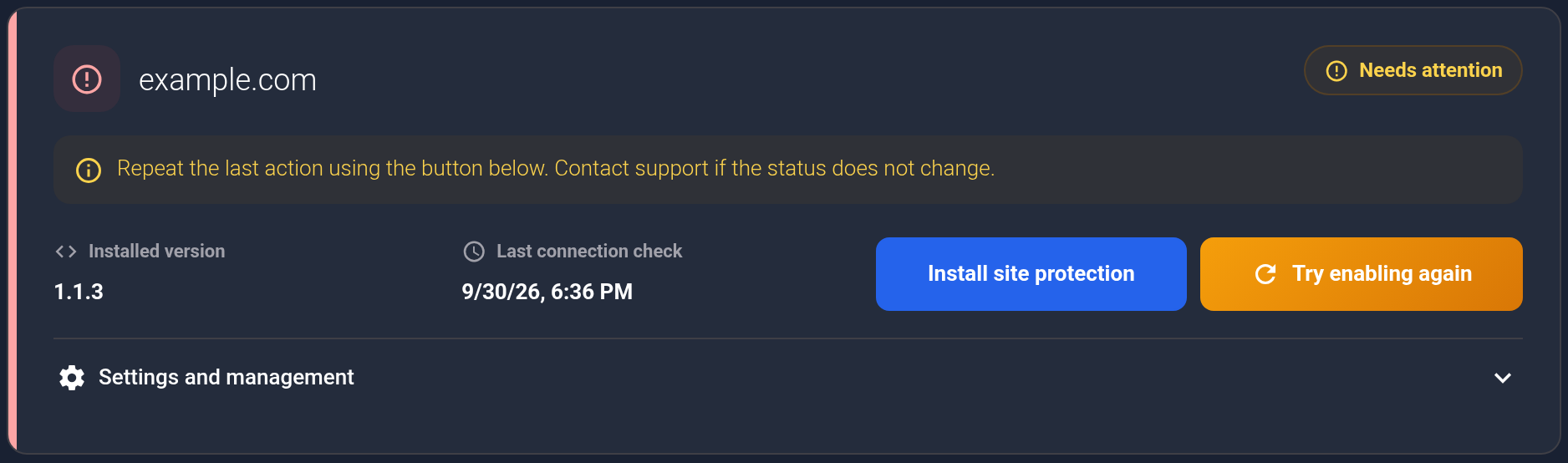
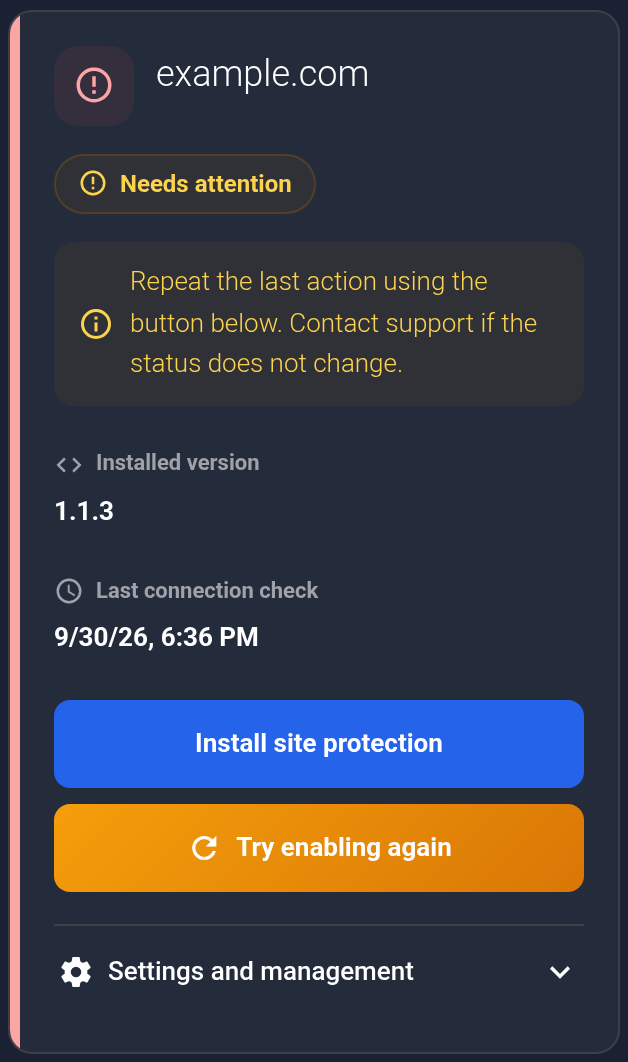
| Needs attention | Read the guidance and repeat the last action using the card button. Contact support if the state does not change. |
| Disabled | Protection is disabled. Follow the module management guide to enable it again. |
“Offline”: the last check time helps establish when contact stopped. The status does not identify the cause; follow the troubleshooting guide.
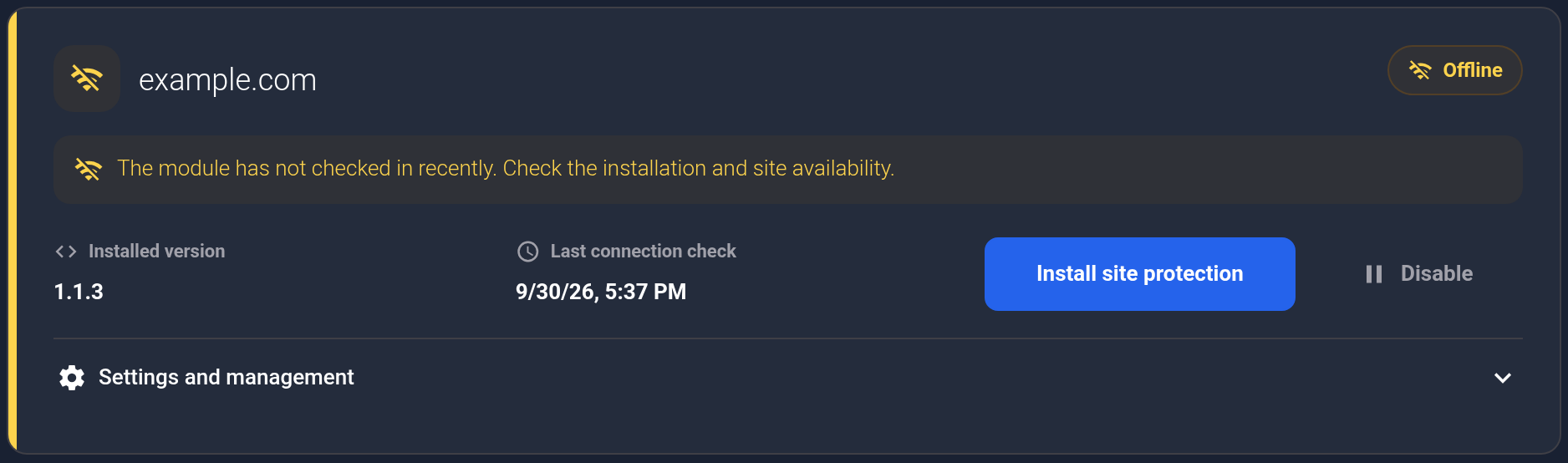
“Needs attention”: this example offers “Try enabling again”. After one attempt, refresh the page. If the error repeats, send support the domain, time and message; do not keep toggling protection.
Check your pages#
- List your important addresses. For example:
https://example.com/, an actual nested page on your website andhttps://www.example.com/if you use www. Substitute your own addresses; their domains must be in the allowed address list. - Open every address in a browser. Check that the expected text, images and styling load, and that links work. Check important forms with a safe action that does not create a real purchase or payment.
- Compare those pages with “Protection coverage”. For separate PHP scripts, static pages and cached pages, ask your administrator to confirm that the selected integration covers every required path. Simply opening a page proves availability, not that its requests pass through protection.
The visitor check does not have to appear on every visit: the wizard can remember a previously verified browser. The absence of a visible check alone does not mean protection is off.
For a proxy, CDN or cache, follow the guide for that setup. Repeat the checks after updating the module or website software. If a problem remains, send support the domain, exact page address, time and error text, without a connection code or secret keys.