File updates and removal happen on your hosting; site card management happens in KEHR. These are separate actions. Before making changes, prepare a website backup and make sure you know how to restore it.
“Maintenance” is in the installer on your domain, at the address used during setup, for example https://example.com/ys-install.php. It requires authorized management access. The wizard closes after successful initial setup. The initial code and a new ZIP alone do not open maintenance for an active module. If the installer is closed, ask your hosting administrator or support how to obtain management access; do not replace working module files just to open a form.
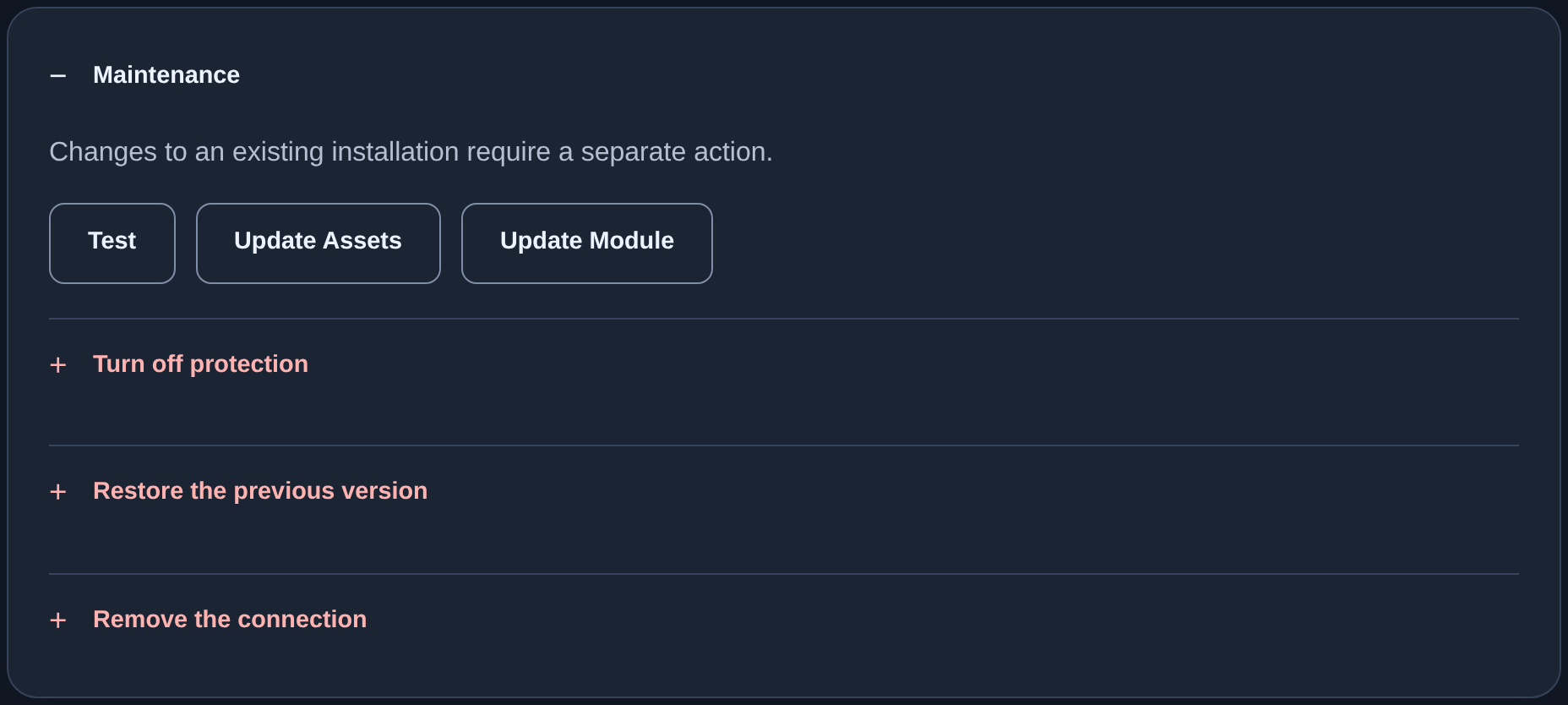
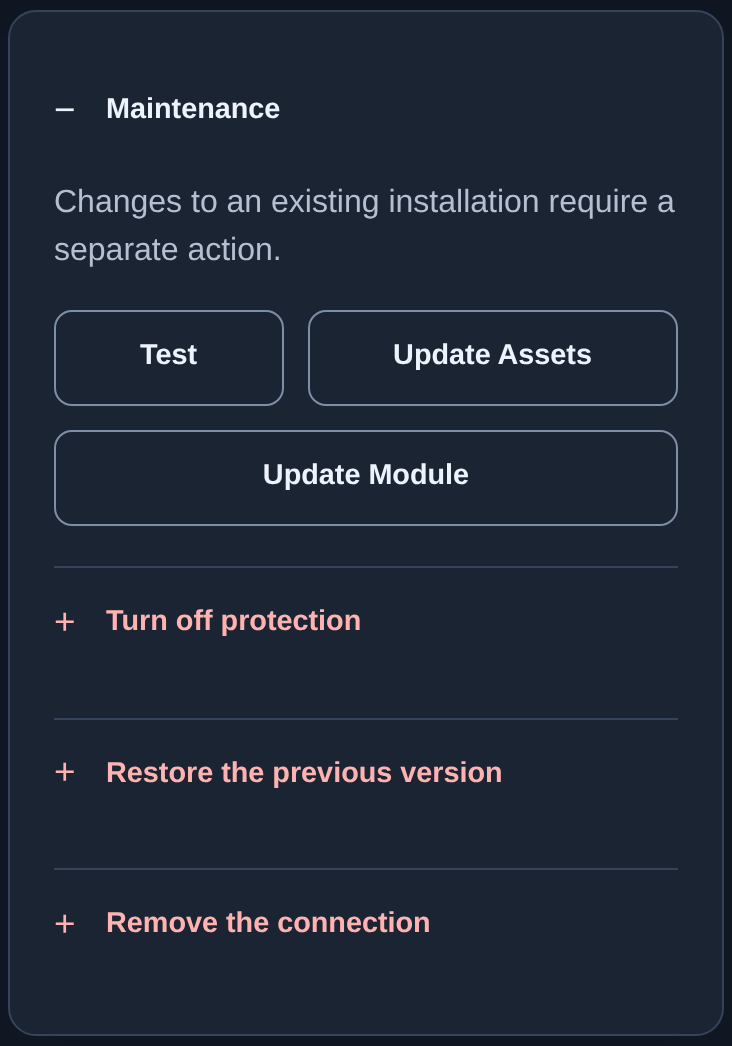
The screenshots show an example website and maintenance available to an authorized administrator. If you do not have this panel, resolve access first.
Update the module#
- Open your website’s installer and expand “Maintenance”.
- Choose “Update Assets” for visitor check styling and verification files, or “Update Module” for the PHP module itself. Assets are supporting files for the check page, not your website content.
- Click the appropriate button and wait for its result; do not start another operation at the same time.
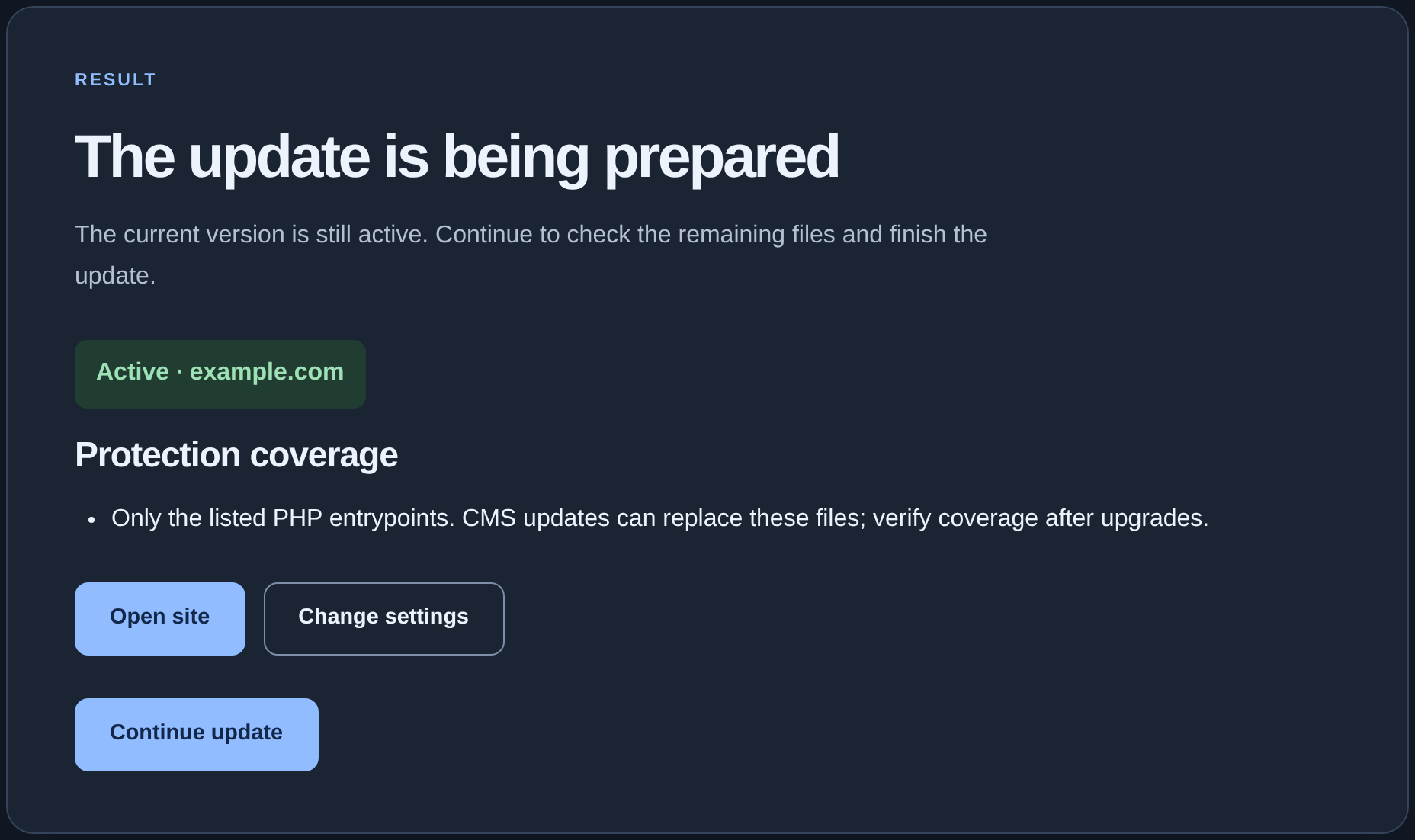
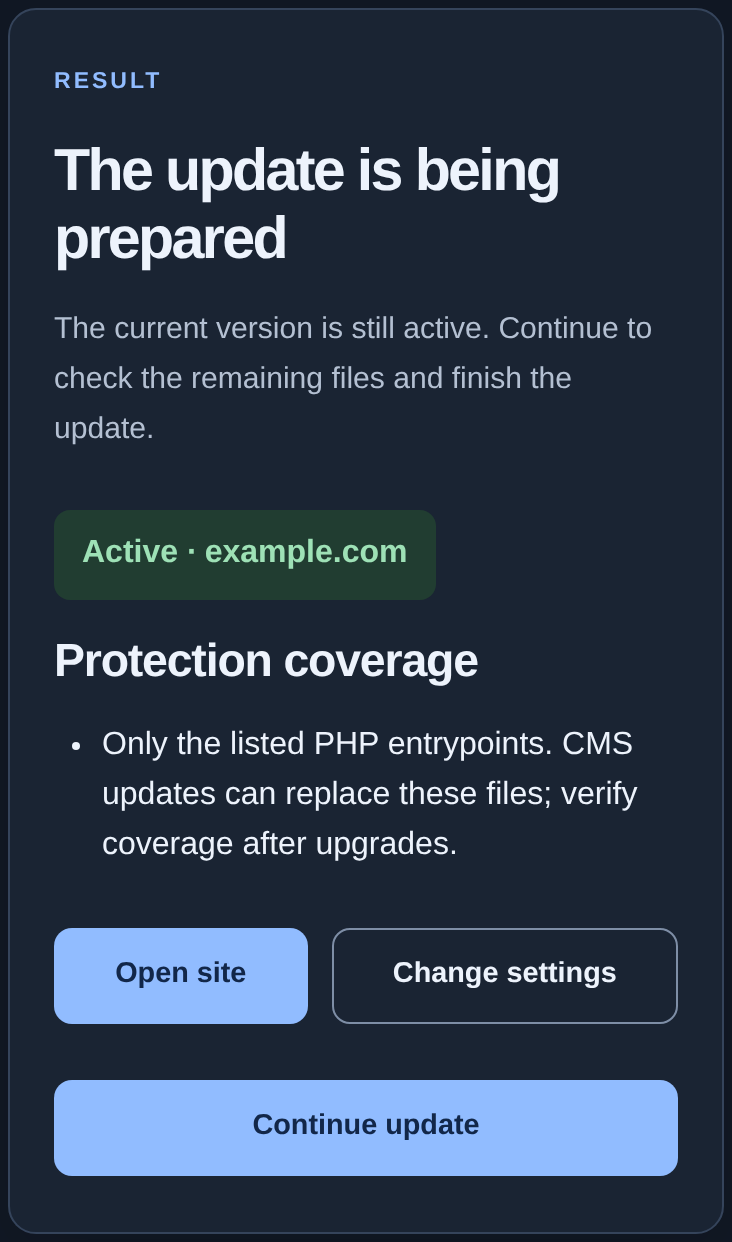
If “The update is being prepared” appears, the current version remains active and preparation is not complete. Click “Continue update” and wait for the final result. For an error, read “Details” and follow troubleshooting; clicking the button alone does not prove a successful update.
Open your normal website pages and repeat the connection and coverage checks. Refresh the KEHR card and read “Installed version”. An Assets update does not have to change the PHP module version; a module already up to date may also keep its version.
If your connection secret may have been exposed#
“Create a new connection code” in the site card replaces the permanent site secret. The old secret stops working, and the hosting module does not automatically receive the new value. This is separate from the initial installation code for a personal ZIP.
- Before replacing it, arrange with your hosting administrator how to update the secret in the current module. You need access to its settings, a backup, and the ability to check your website immediately after the replacement. If the wizard is closed, ask support for the maintenance procedure first; the initial code and another ZIP download do not open it.
- When your administrator is ready, in KEHR open “Connected sites” → your domain card → “Settings and management” → “Create a new connection code”. Read the confirmation: the current code will stop working. Confirm once.
- Keep the new connection details from the screen in a secure place and give them to your administrator through a safe channel. They must update “Site secret” in the existing module configuration. Compare the domain and connection settings with the same screen; do not replace module files with an arbitrary new ZIP.
- After the update, repeat the connection and coverage checks on normal pages, refresh the KEHR card, and check its last contact time. If communication is not restored, follow connection troubleshooting.
If you suspect exposure and cannot update the module yourself, contact support immediately. Until both sides are updated, the module with the old secret may lose communication; do not treat the replacement alone as completed protection. Do not send the secret to a public chat or include it in screenshots.
Temporarily disable protection#
In the KEHR dashboard#
- Open “Connected sites”, find your domain and click “Disable”.
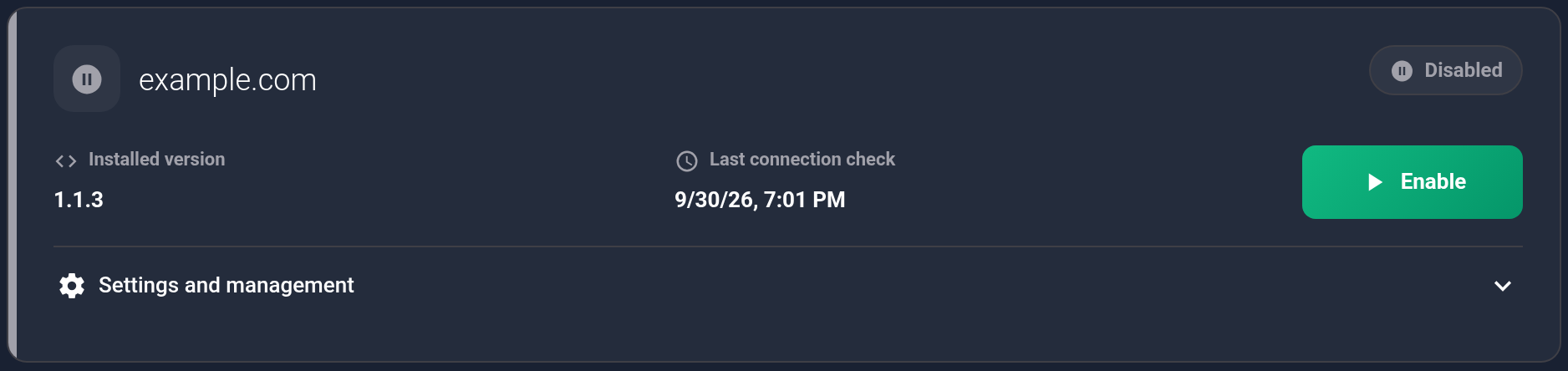
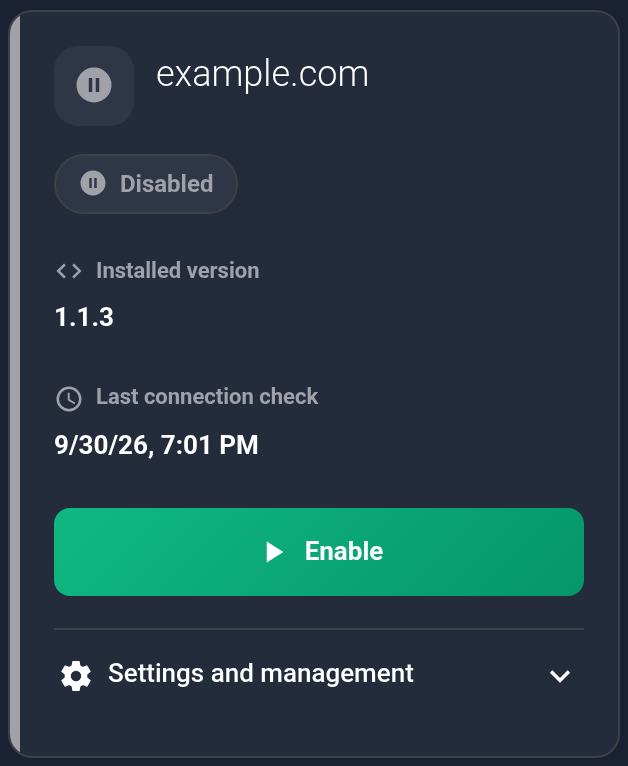
- Confirm in the dialog. Once the action finishes, refresh the page and check that the card says “Disabled”.
- Open the website and check that it works. The dashboard action does not remove PHP files from your hosting.
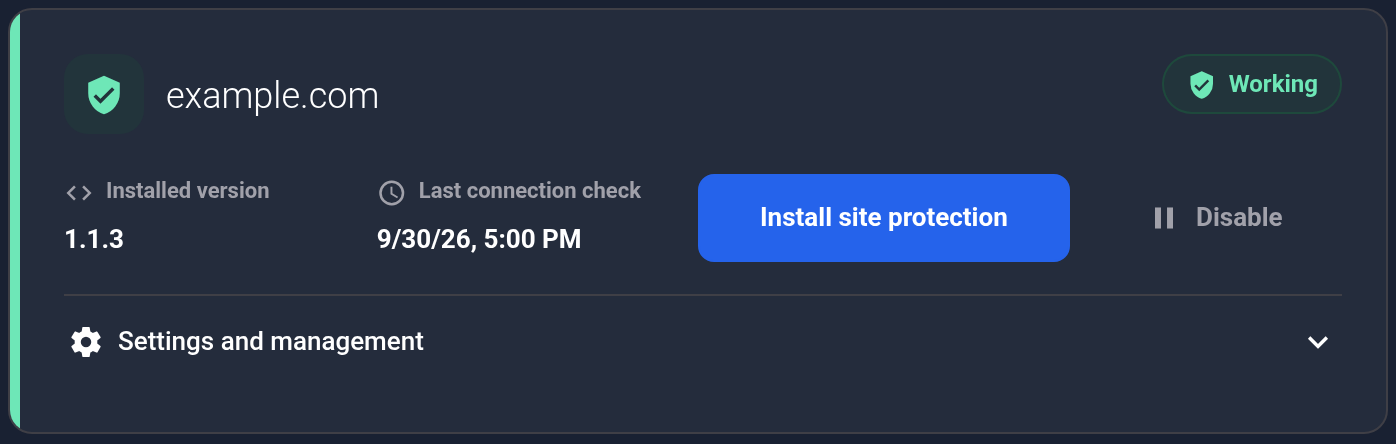
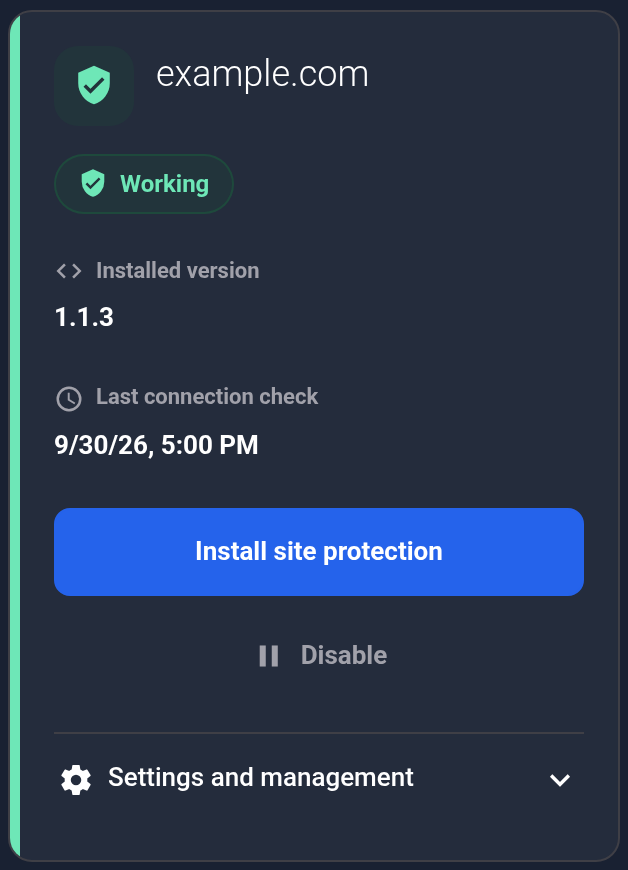
To enable the dashboard connection again, click “Enable” on the disabled card. Wait for its state to update; follow any error guidance. Then follow the page verification checklist.
On your hosting#
For local disabling, open “Maintenance” → “Turn off protection”. Read the confirmation, select the checkbox and click “Turn off protection”. Wait for the result and check your website. The integration files remain in place.

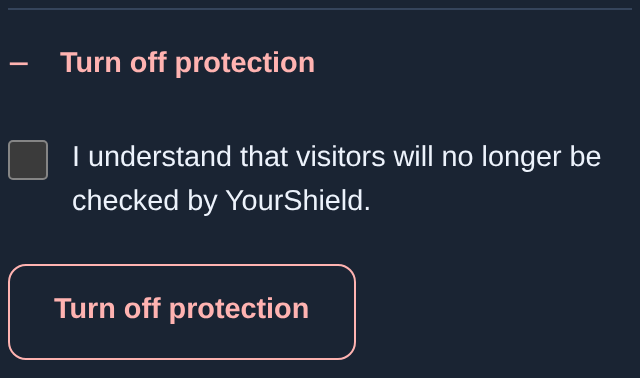
To resume local protection, use your authorized wizard access, review the previous integration method and click “Connect protection” again. Wait for “Protection is connected”. If you also disabled the card, enable it in KEHR. “Test” in maintenance may enable local protection after a successful check: do not click it if you intend to keep the module disabled.
Restore the previous version#
- If the problem began after a module update, expand “Maintenance” → “Restore the previous version”.
- Read the confirmation, select the checkbox and click “Restore previous version”.
- Wait for the result, open the website and check coverage again.

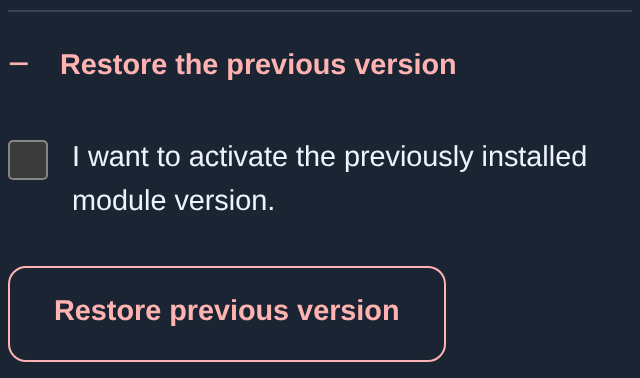
Rollback requires a suitable previous version retained on your hosting. The presence of the button does not guarantee that one exists. If the wizard says no previous version is available or rollback is refused, contact support. This restores the module version, not your entire website backup; do not substitute an arbitrary old ZIP.
Completely remove the connection#
- First, on your hosting, open “Maintenance” → “Remove the connection”. Select the checkbox, click the red “Remove connection” button and wait for its result.
- Ask your administrator to remove any manually added rules and integrations. Do not delete the module folder while the website still references its files: that can break page loading.
- Open the usual website pages and confirm that they work without the YourShield integration. If cleanup reports an error, resolve it with your administrator first.

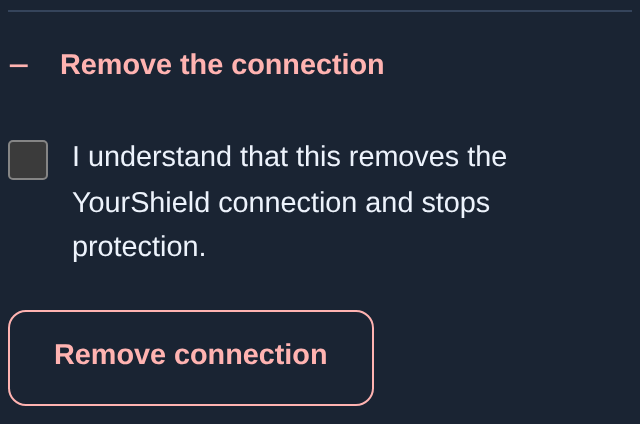
Then in KEHR open “Connected sites” → your domain card → “Settings and management” → “Remove connection”. Confirm in the dialog and refresh: the card should disappear. If there is an error, read its message instead of creating a replacement record.
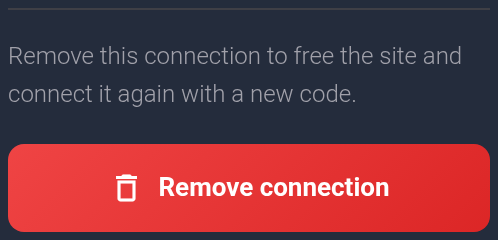
Deleting the KEHR record does not remove hosting files. The installer removes integrations it knows about and clears managed data; your administrator checks additional hosting changes. If installer access is lost, ask them to disconnect the integration and restore the website backup if necessary.