The personal ZIP contains YourShield files for one specific site. A one-time code unlocks the installation wizard on your hosting. First add the site to KEHR, prepare access to its files, and check the hosting requirements.
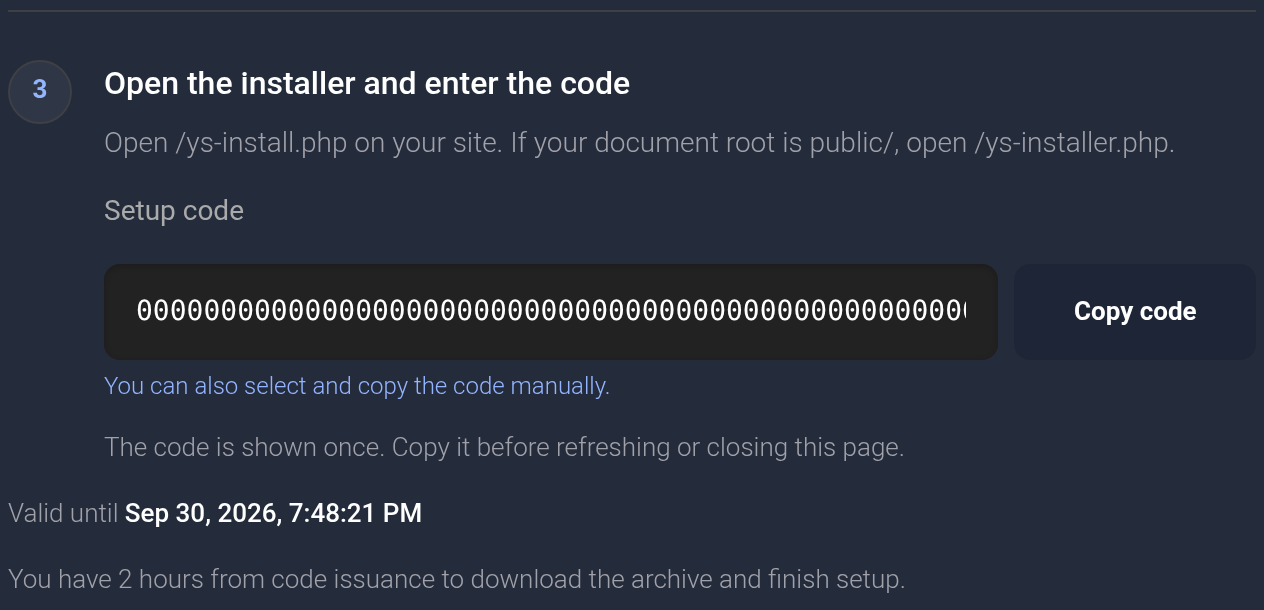
You have two hours from code issuance to download the archive and finish installation. The code is shown once: copy it before refreshing or closing the page. The ZIP and code must come from the same package for the same site. This guide uses example.com; the all-zero code in the screenshot is a nonworking example.
Get the archive and code in KEHR#
Open setup for the required site#
- Open “Connected sites” in the dashboard.
- Find your domain's card and click “Install site protection”.
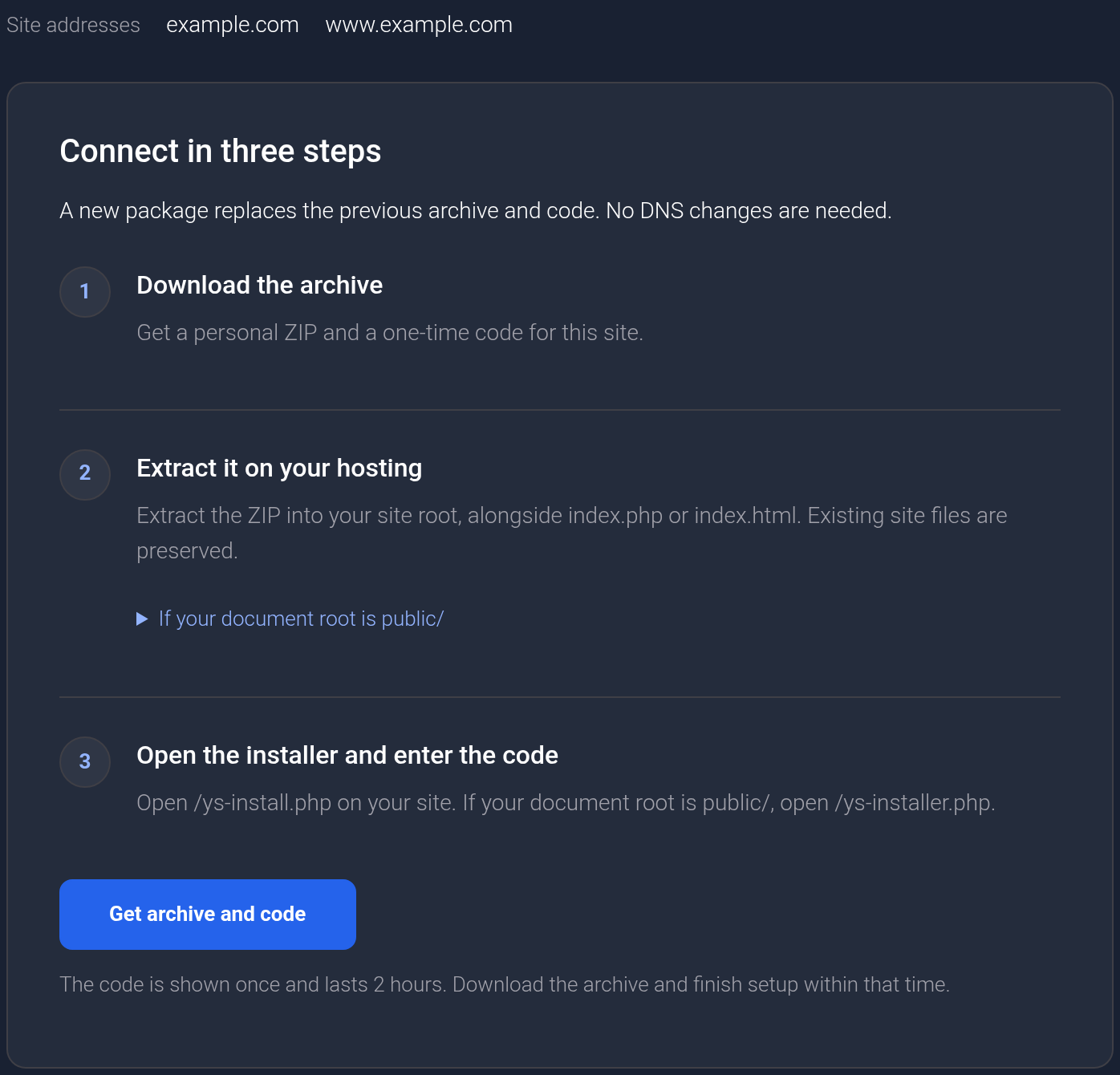
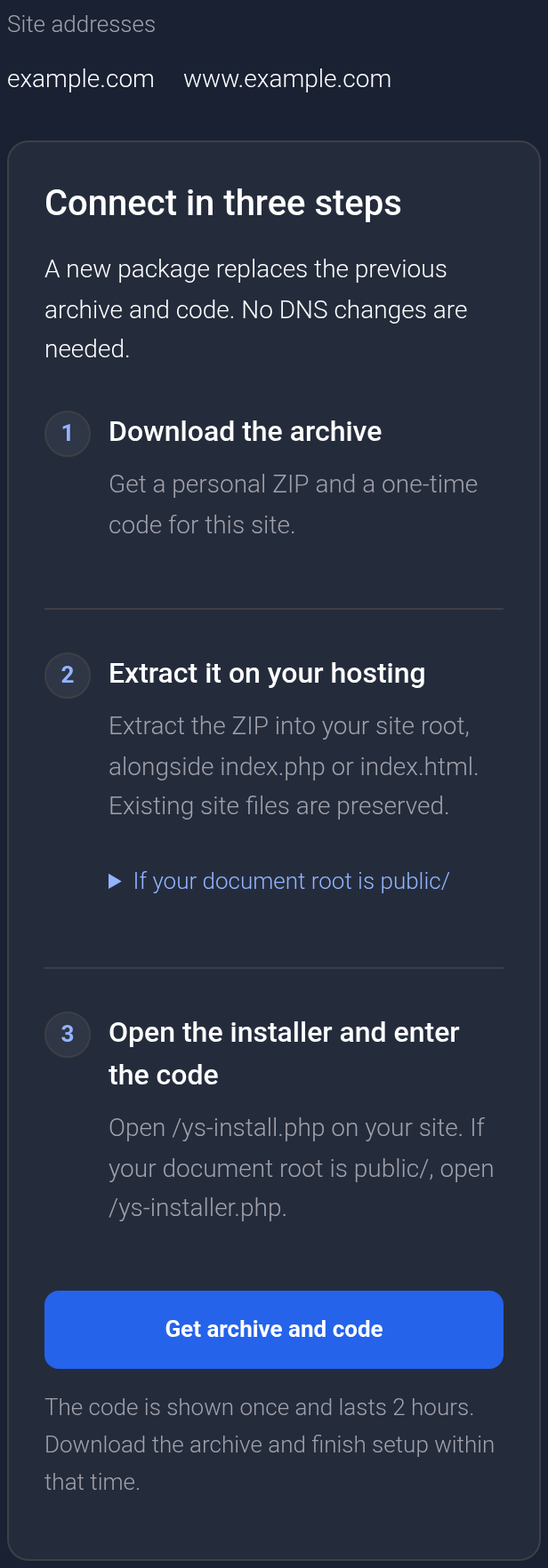
- Compare “Site addresses” on the setup page with your domain. If they are wrong, return to the correct card.
- Under “Connect in three steps”, click “Get archive and code”.
Download the ZIP and copy the code#
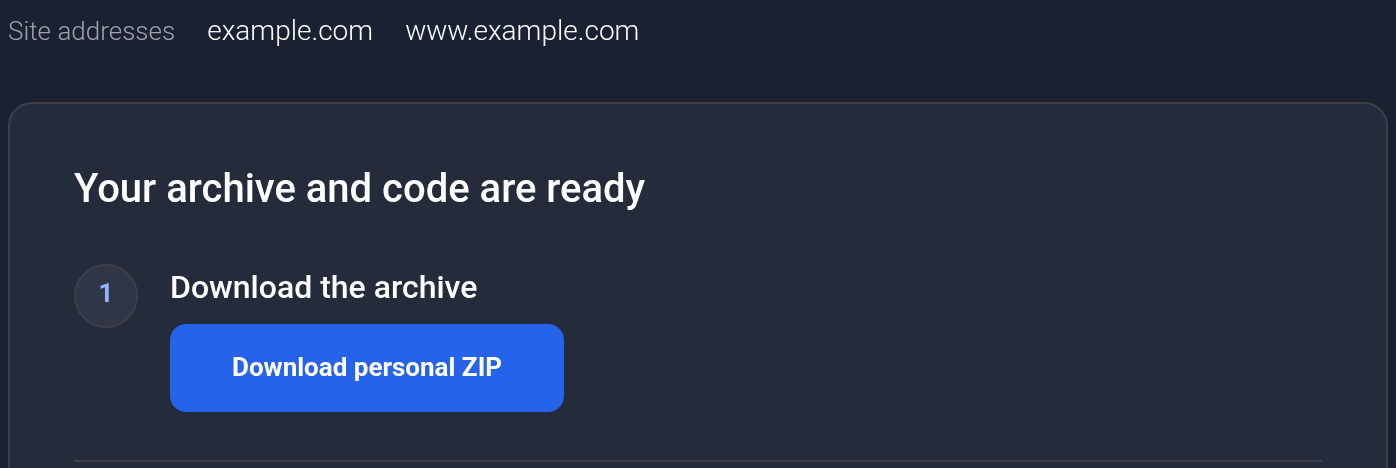
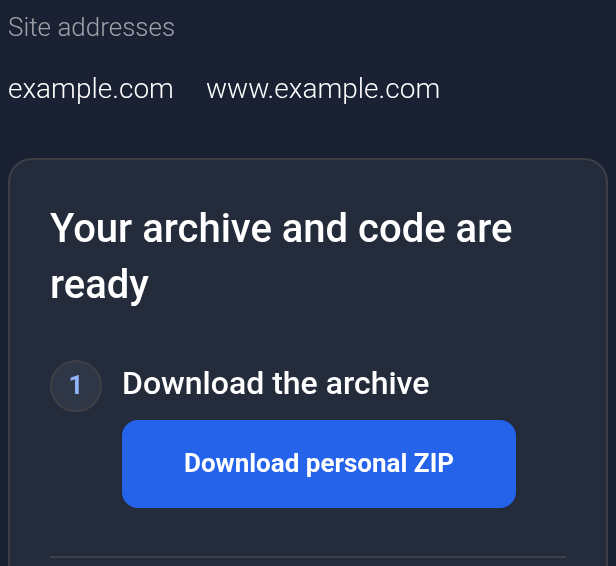
After issuance, “Your archive and code are ready” appears. Click “Download personal ZIP” and check your browser's downloads for the archive. Keep this page open without refreshing until you have downloaded the ZIP and copied the code.
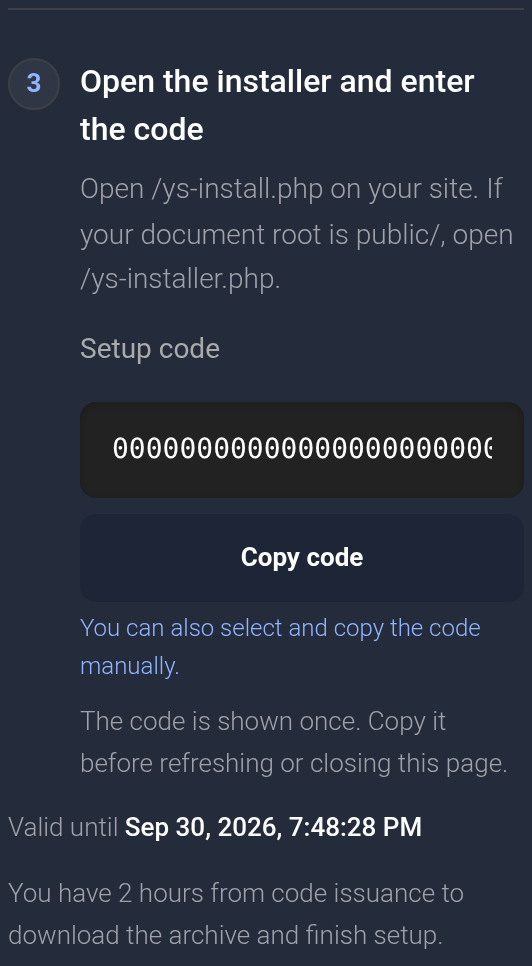
In the third step, click “Copy code”. If the browser blocks automatic copying, select the entire code field and copy it manually. Note “Valid until”: you must finish installation by that time. Keep the code temporarily in a private place; do not share it in messages or screenshots.
Issuing a new package invalidates the previous ZIP and code. Download the new archive and use the new code together. Reopening the page does not restore the previously displayed code.
Upload the files to your hosting#
Your hosting is the server that stores your website files. Open its file manager and back up the files before changing them. If you do not know which directory serves your domain, ask your site administrator or hosting support to identify it.
Conventional site#
Upload the ZIP to the directory containing index.php or index.html and extract its contents directly there. The yourshield/ directory and ys-install.php file should be alongside the site's main file. Do not leave them inside an extra directory named after the archive, and preserve existing site files.
site-directory/
  index.php
  ys-install.php
  yourshield/
Open https://example.com/ys-install.php in your browser, replacing the domain with yours.
Project with a public/ directory#
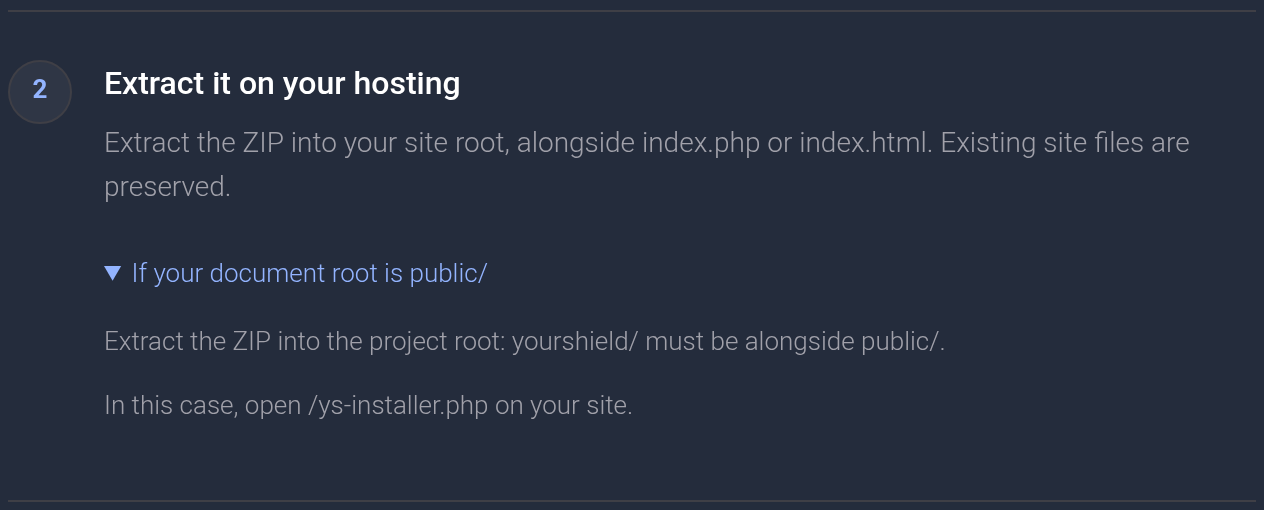
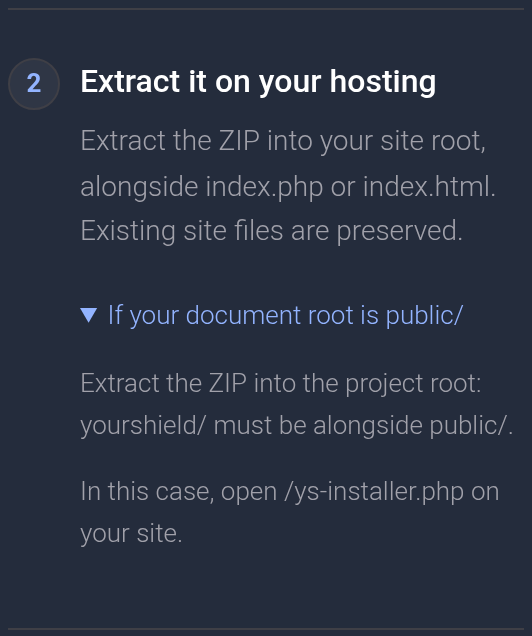
If your domain is served from public/, extract the ZIP into the project root, one level above that directory. This places yourshield/ alongside public/ and the archive's ys-installer.php file inside public/.
project-directory/
  yourshield/
  public/
    index.php
    ys-installer.php
In this case, open https://example.com/ys-installer.php. Do not add /public/ to the browser address if it already serves as your site's root. The same instructions expand under “If your document root is public/” in KEHR.
Open the wizard#
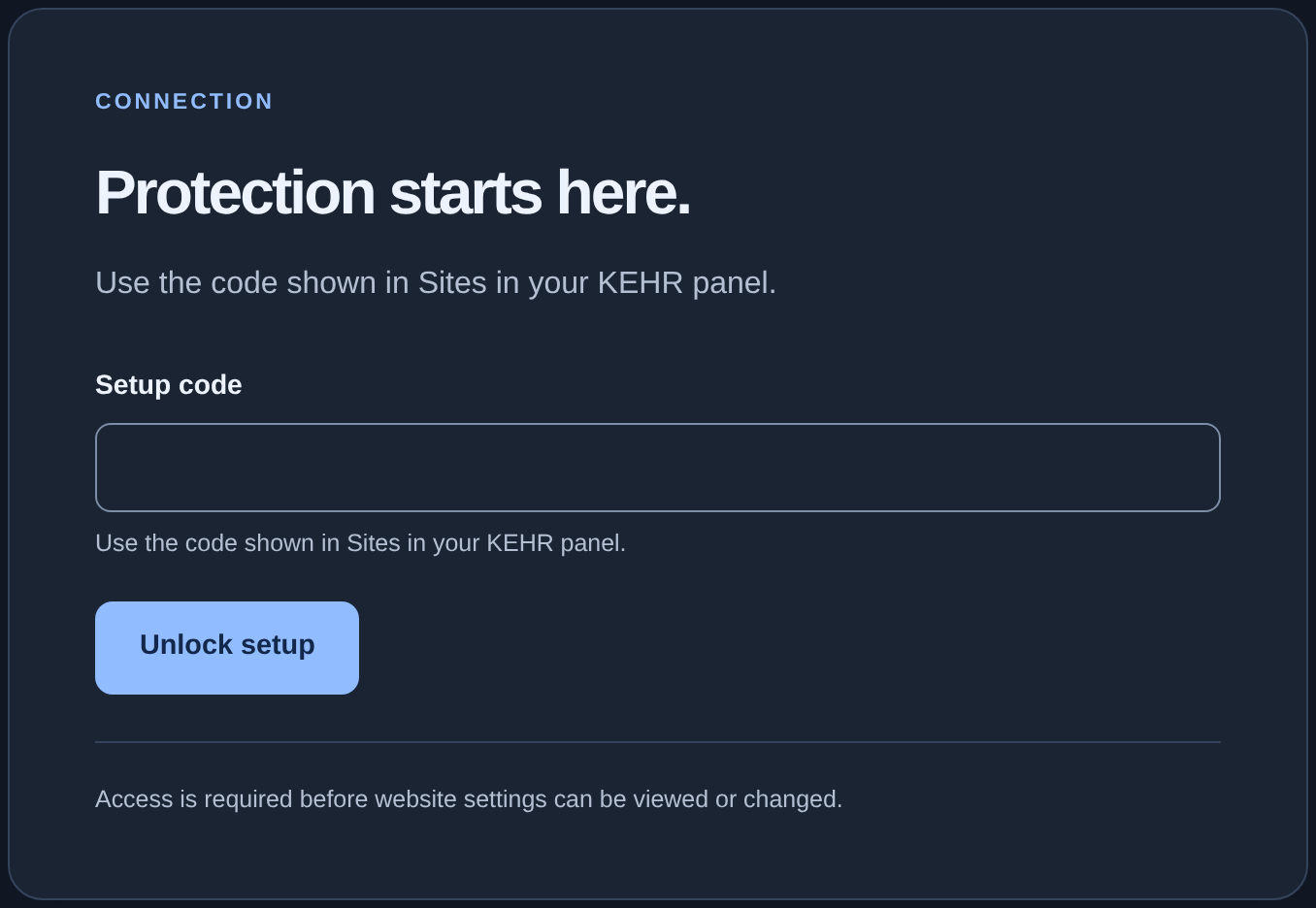
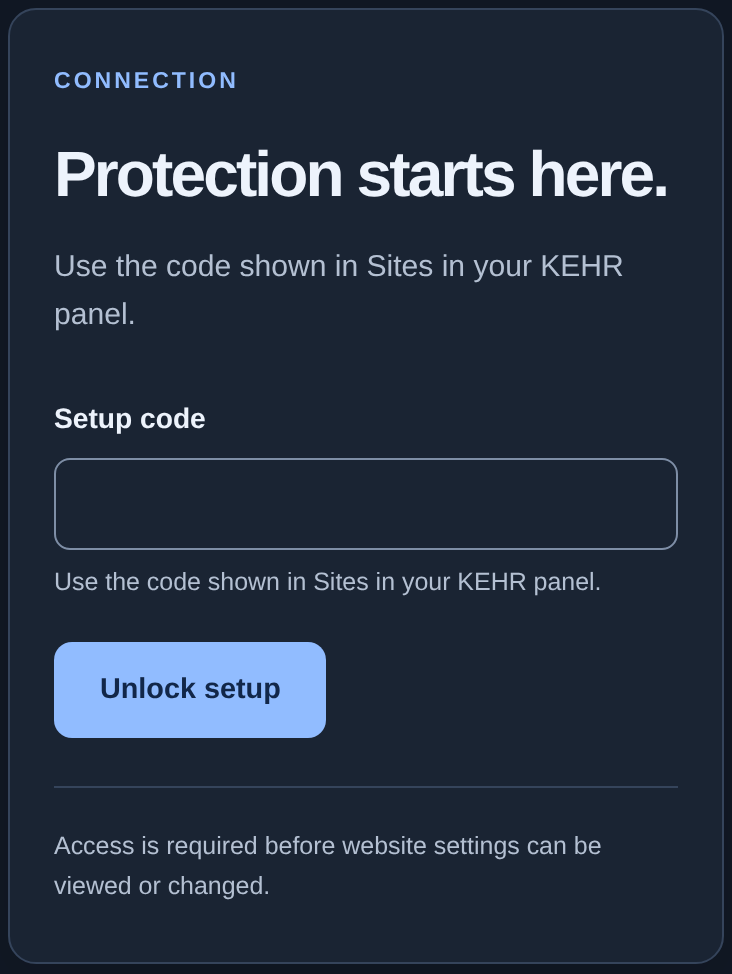
Your domain opens the YourShield wizard with a “Setup code” field. Paste the entire code from the package you extracted and click “Unlock setup”. Do not enter your KEHR account password or the persistent connection code from site settings.
After unlocking, check the name under “Your website”. It is example.com in this example. If the name is unexpected, stop and compare the card, archive, and browser address. “Your connection details are ready” means that the personal package supplied the required details; you normally do not need to expand and edit them manually.
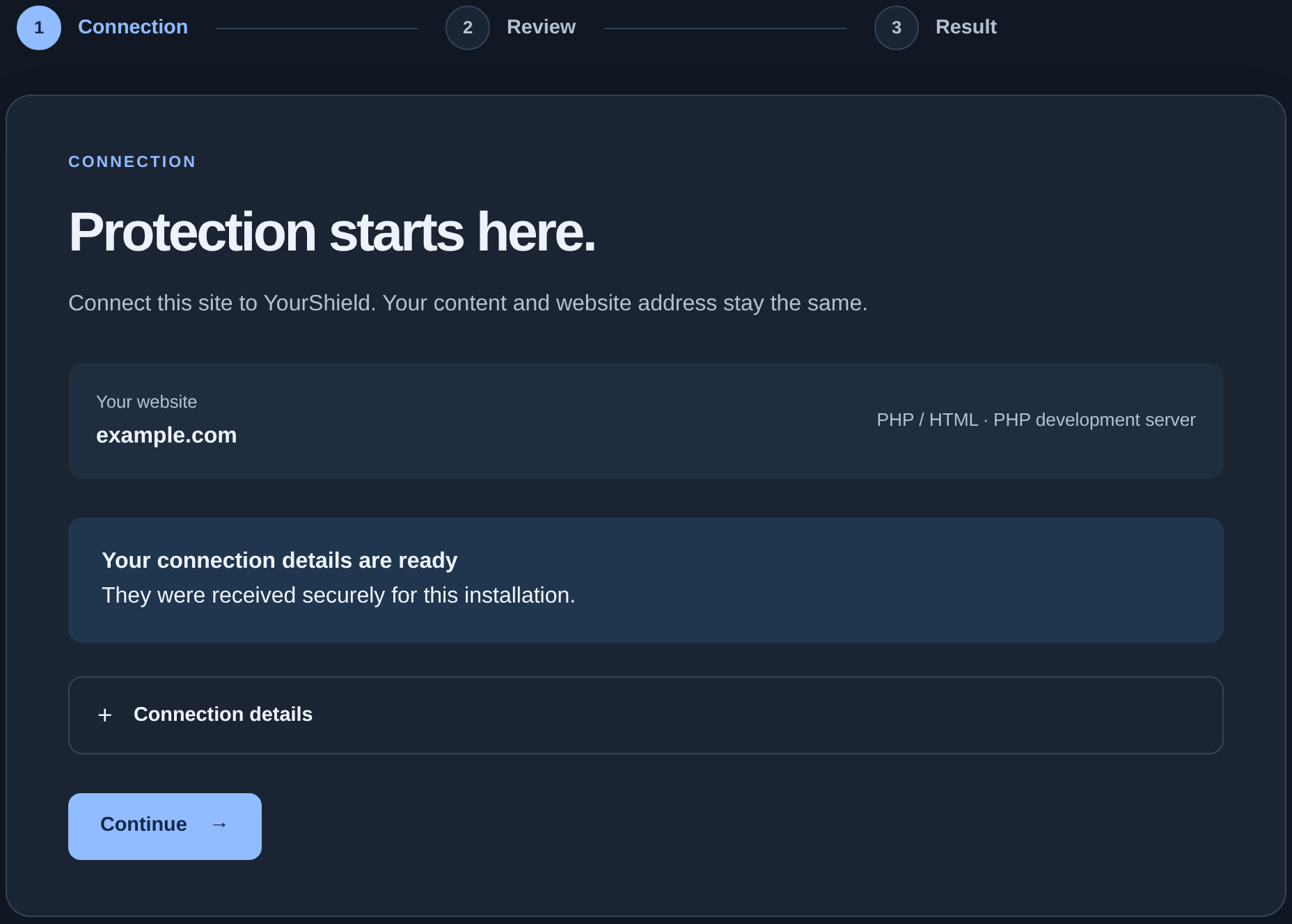
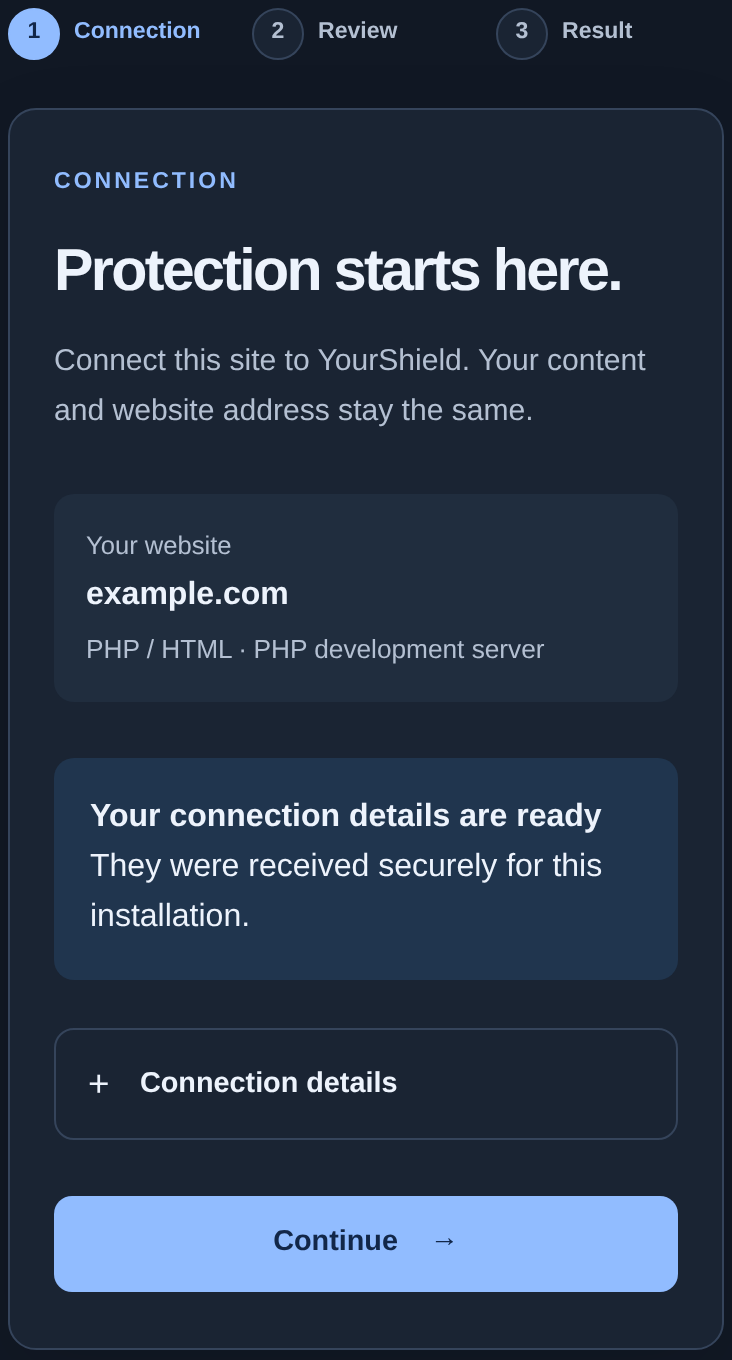
Continue with choosing a connection method. An unlocked wizard does not confirm active protection: verify it after installation.
If the code is rejected#
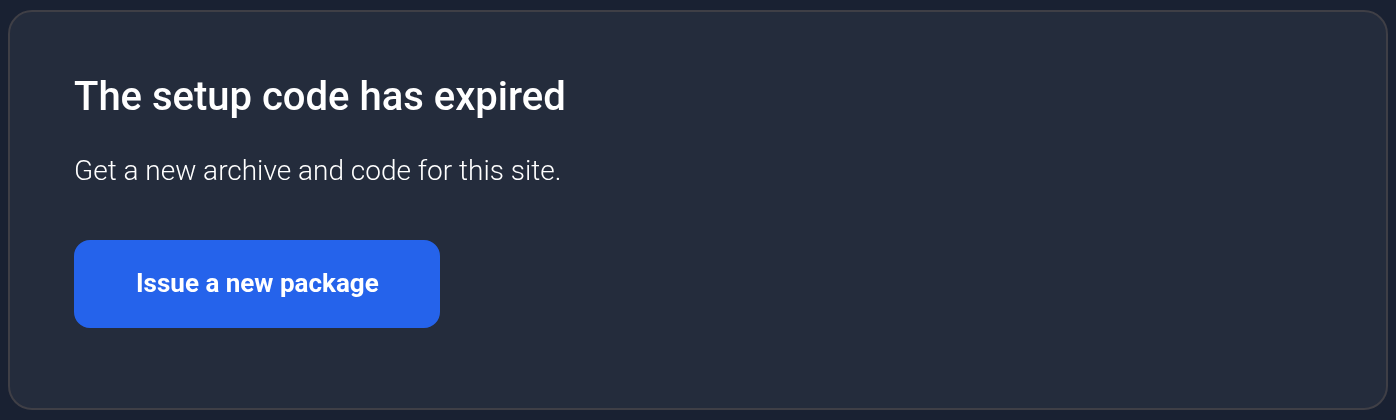
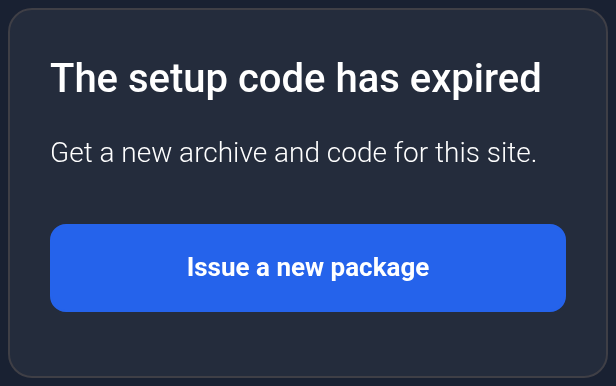
- The code expired or was lost: issue a new package from the same card's setup page. On a page displaying an issued code, expand “Need a new archive and code?”. If “The setup code has expired” appears, click “Issue a new package”.
- The package was reissued: download and upload the new ZIP along with the new code. A new code does not match an old archive.
- The site is wrong: compare the dashboard domain, installer address, and selected ZIP. Check the allowed addresses, including the
wwwvariant. - The code was copied incompletely: copy the entire field without adding spaces or line breaks. Avoid repeatedly submitting the same incorrect value.
- The wizard does not open: check the extraction directory and filename against the two examples above, then use connection troubleshooting.
If KEHR reports “Setup package unavailable”, check that the site and plan are active, then try issuing a package again. For protection that is already installed, use the update guide.