The connection method determines where YourShield checks visitors before showing a page. Start with “Automatic”: the wizard selects a method based on your site and hosting capabilities. You still need to check the result and important pages; selecting a method does not mean the entire site is protected.
This guide starts after extracting your personal ZIP and entering the code. The screenshots use example.com. Prepare a website backup before file changes; involve your administrator if the hosting or site has a custom setup.
Standard installation#
Proceed to review#
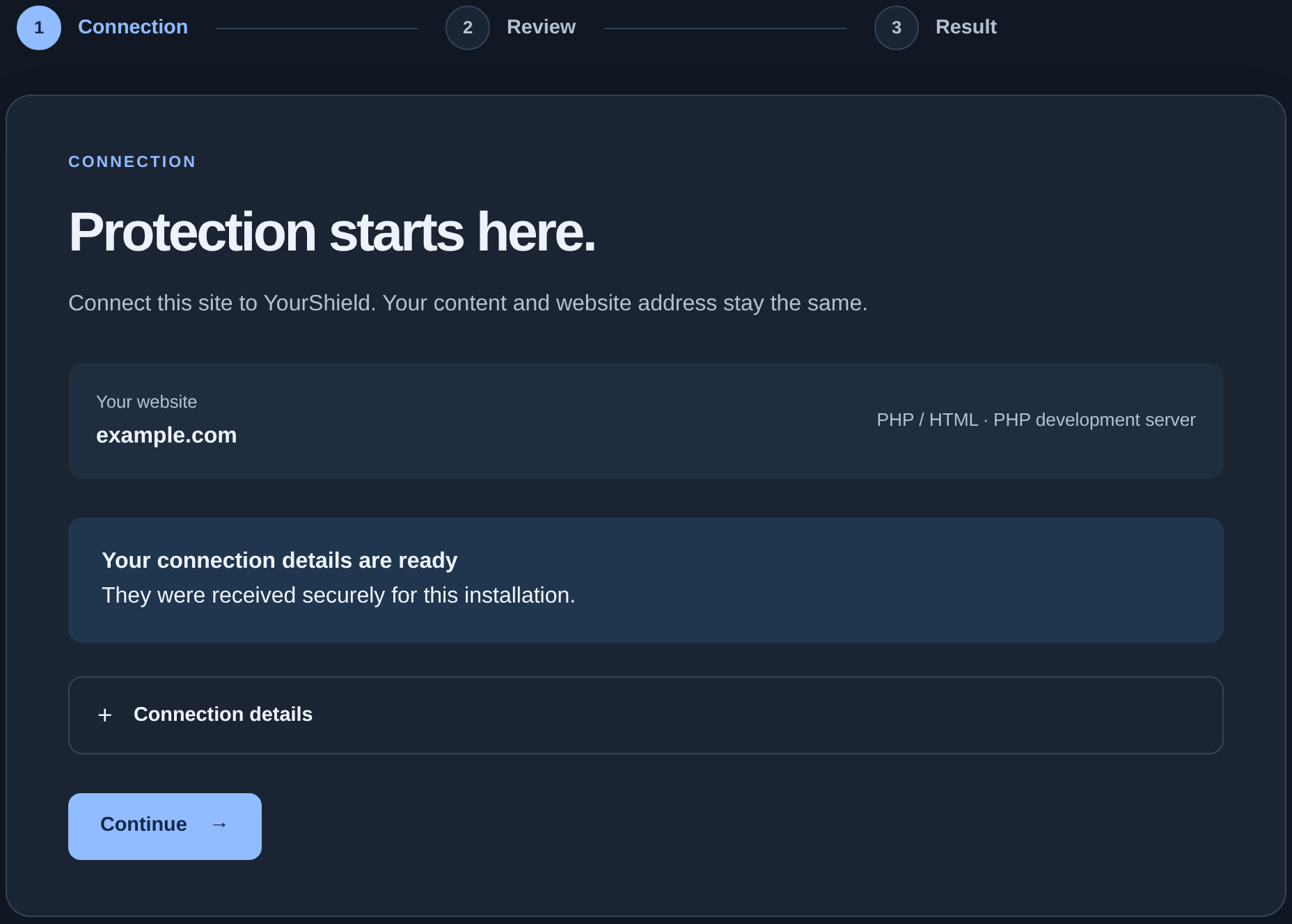
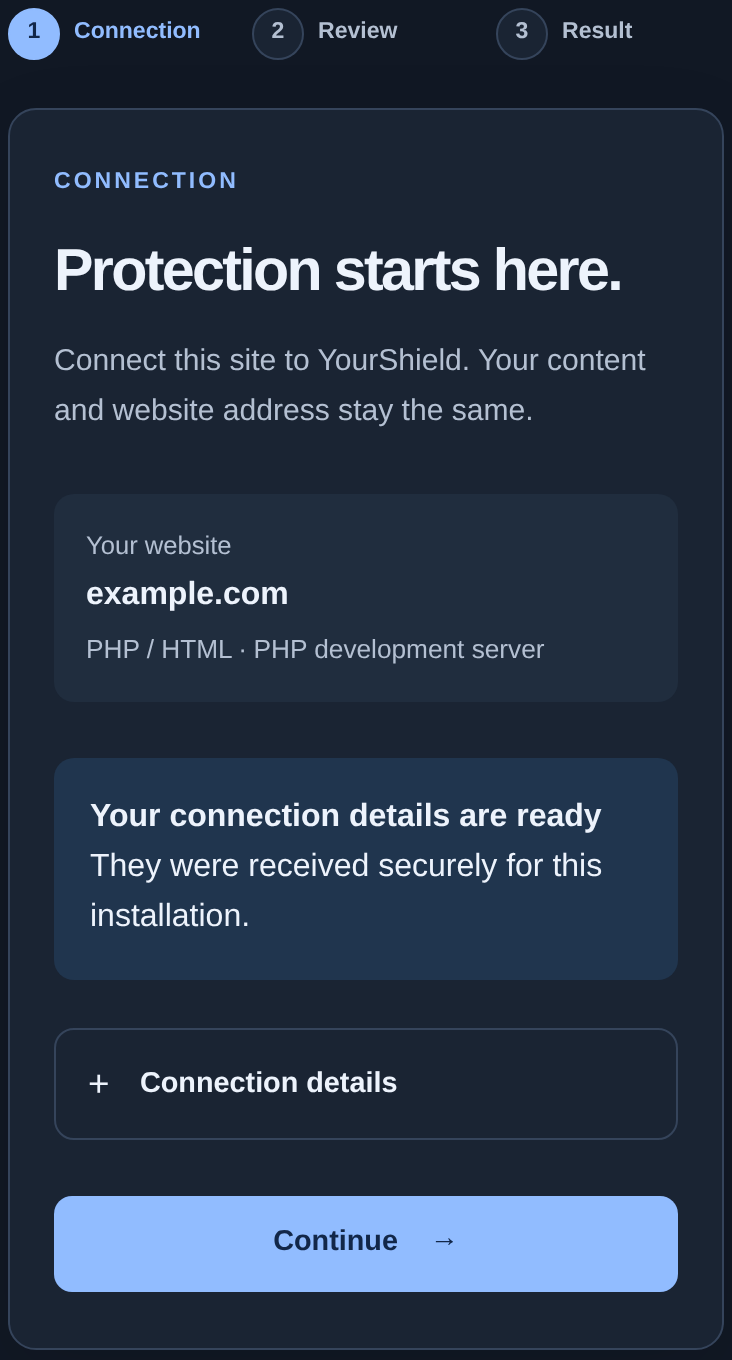
At “Connection”, check the name under “Your website”. “Your connection details are ready” means the personal package supplied the necessary details. You normally do not need to enter them manually. Click “Continue”.
The “Review” step opens with a “Connect protection” button. You can keep the default values for a conventional site. There is no need to expand every setting just to install protection.
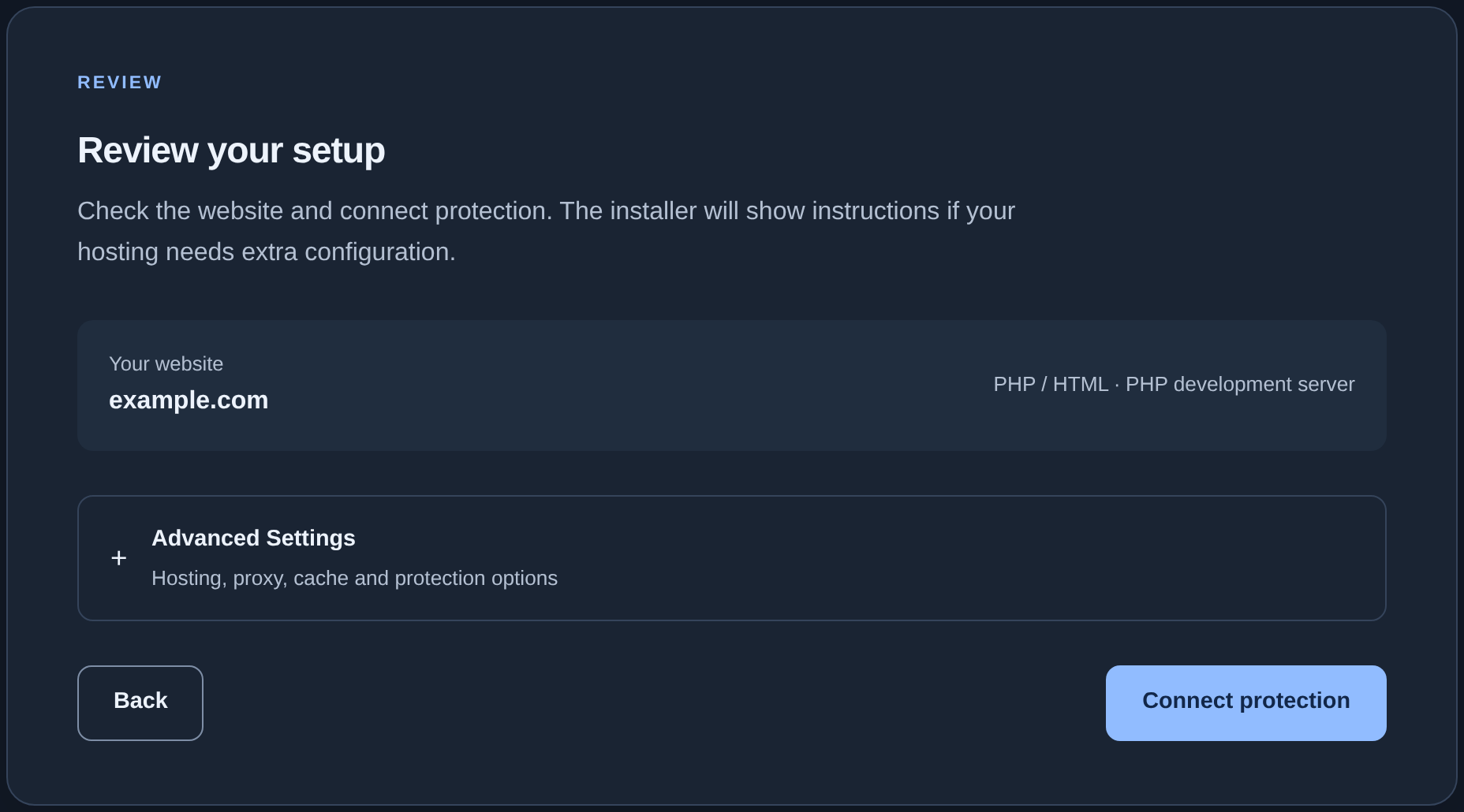
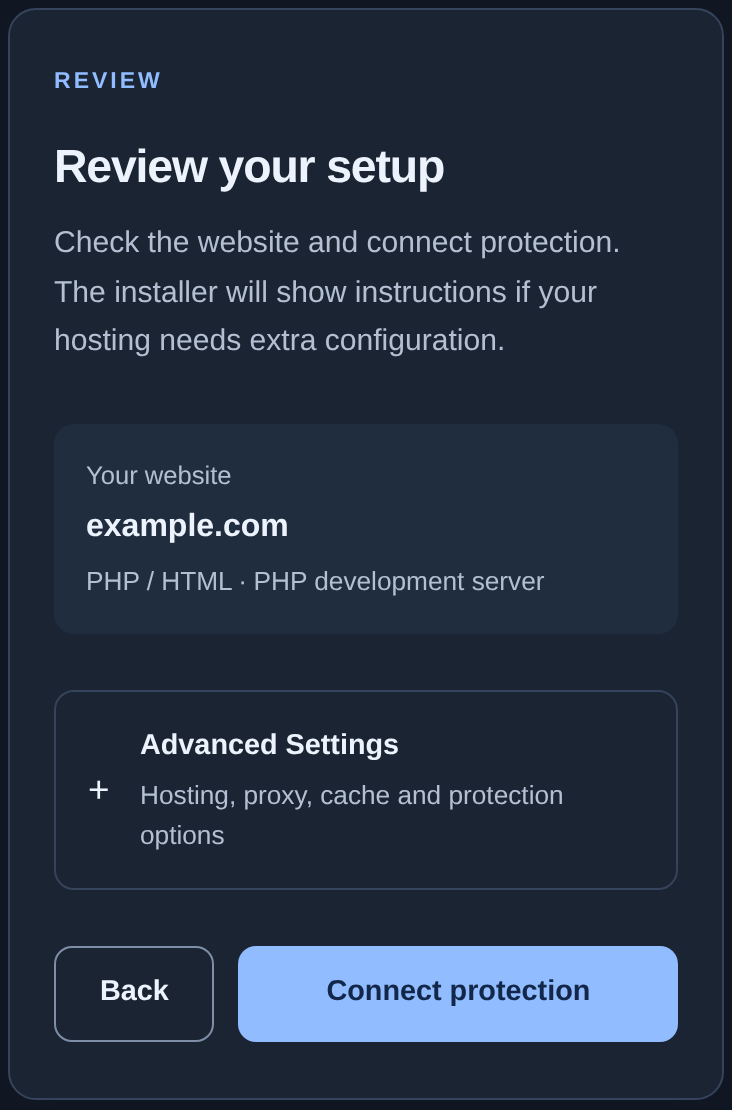
If you need to review advanced fields#
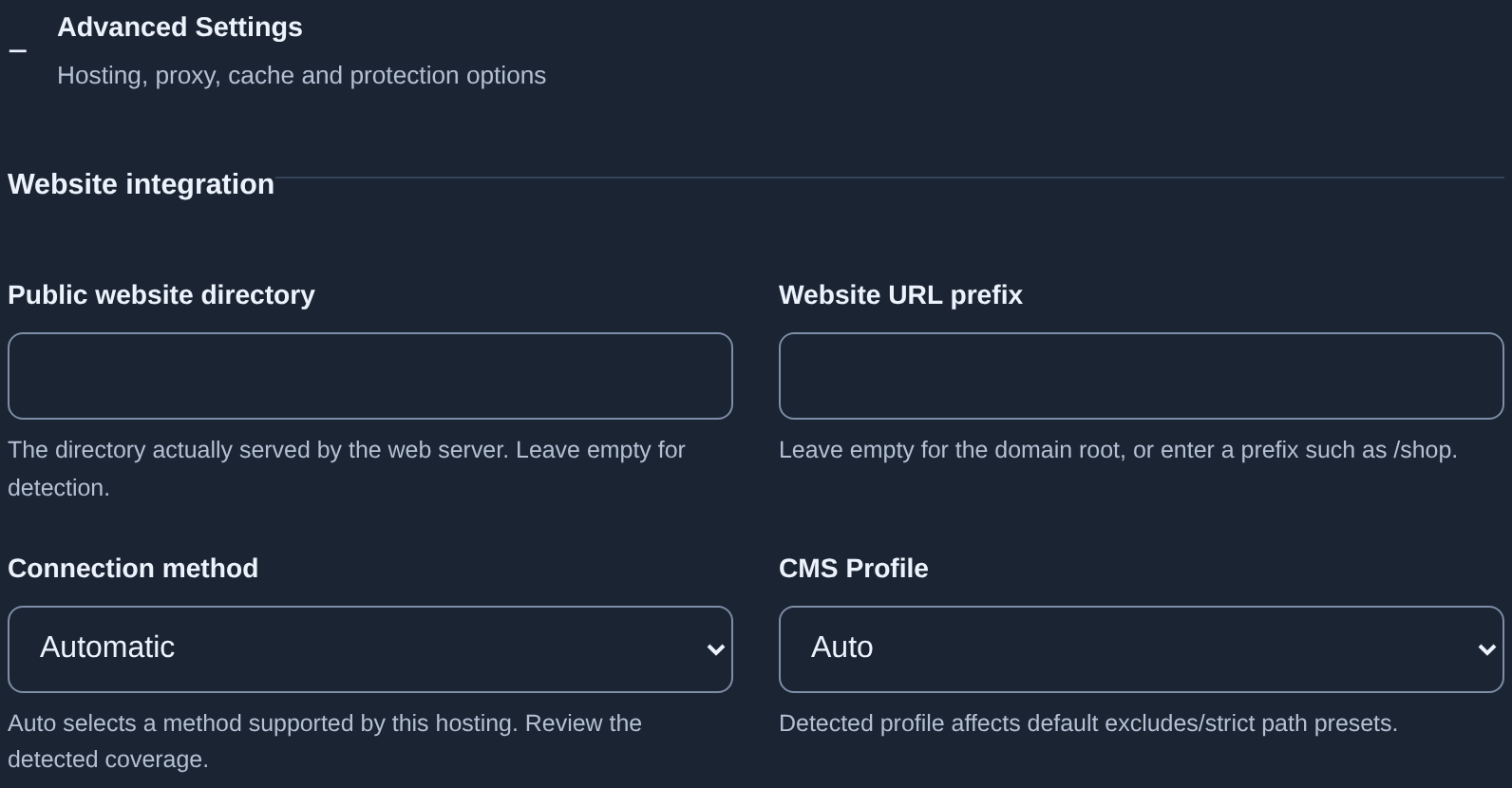
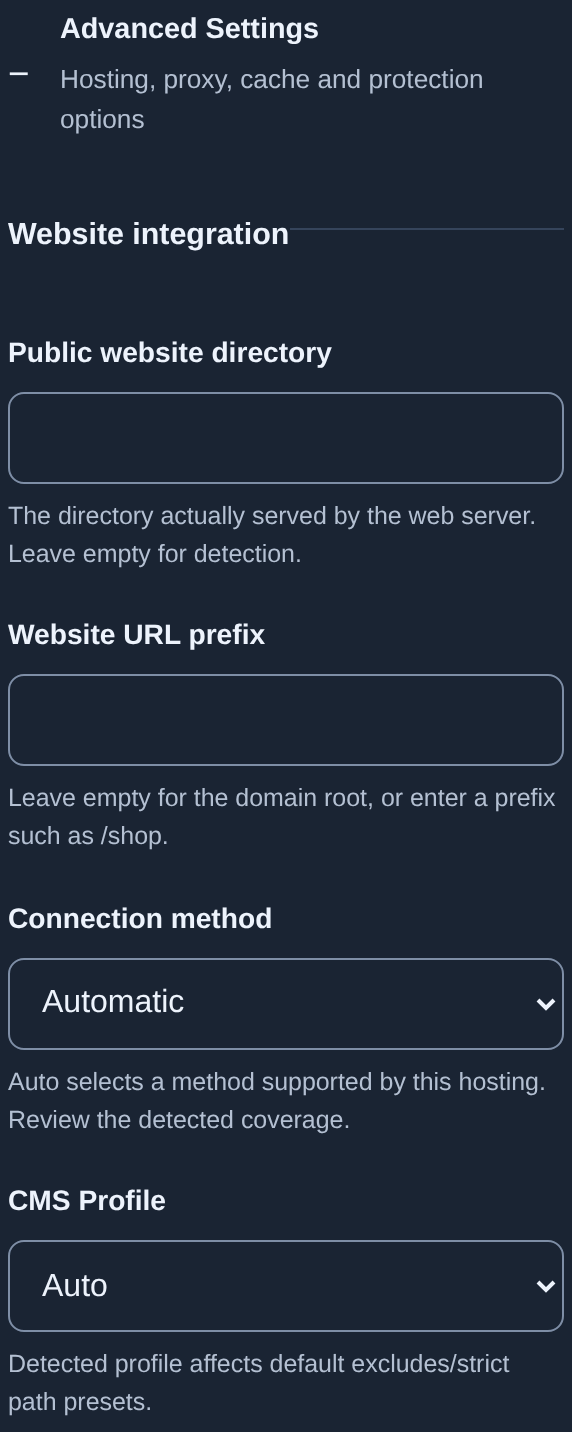
Expand “Advanced Settings” and find “Website integration”. Change values according to your actual site setup:
- Public website directory: the hosting directory that serves pages to visitors. An empty field lets the wizard detect it automatically. Use an exact path if your administrator supplies one; do not enter a domain or page URL.
- Website URL prefix: leave it empty for a site at the domain root.
/shopapplies when the entire connected site occupies that subdirectory and opens atexample.com/shop/. A single shop page within a conventional site does not itself require that prefix. - Connection method: keep “Automatic” unless your administrator recommends a specific method.
- CMS Profile: keep “Auto”. A CMS is a content management system, such as WordPress. The profile affects path settings and exclusions, so choose it to match your site.
“Runtime Environment” normally stays “Auto”, and “Entrypoints” stays empty to detect the entry files automatically. Adjust other cache, update, or protection options only when needed. For a site behind Cloudflare or another intermediary, use the separate CDN and caching guide.
Connect and read the result#
Click “Connect protection” once and wait for a response. The wizard checks the environment and connection. Keep the page open and avoid submitting the form again during the operation.
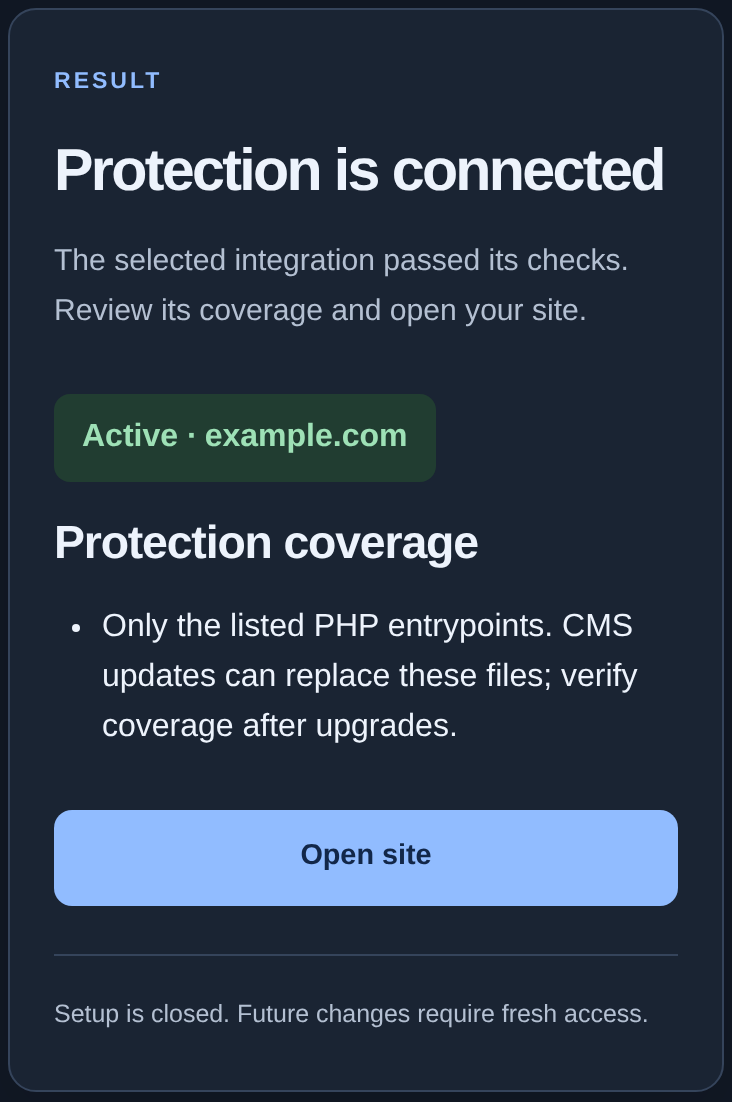
If “Protection is connected” appears, read “Protection coverage”. It describes the selected method's scope. For example, protecting selected PHP entry files does not mean another independent file outside that list is checked too.
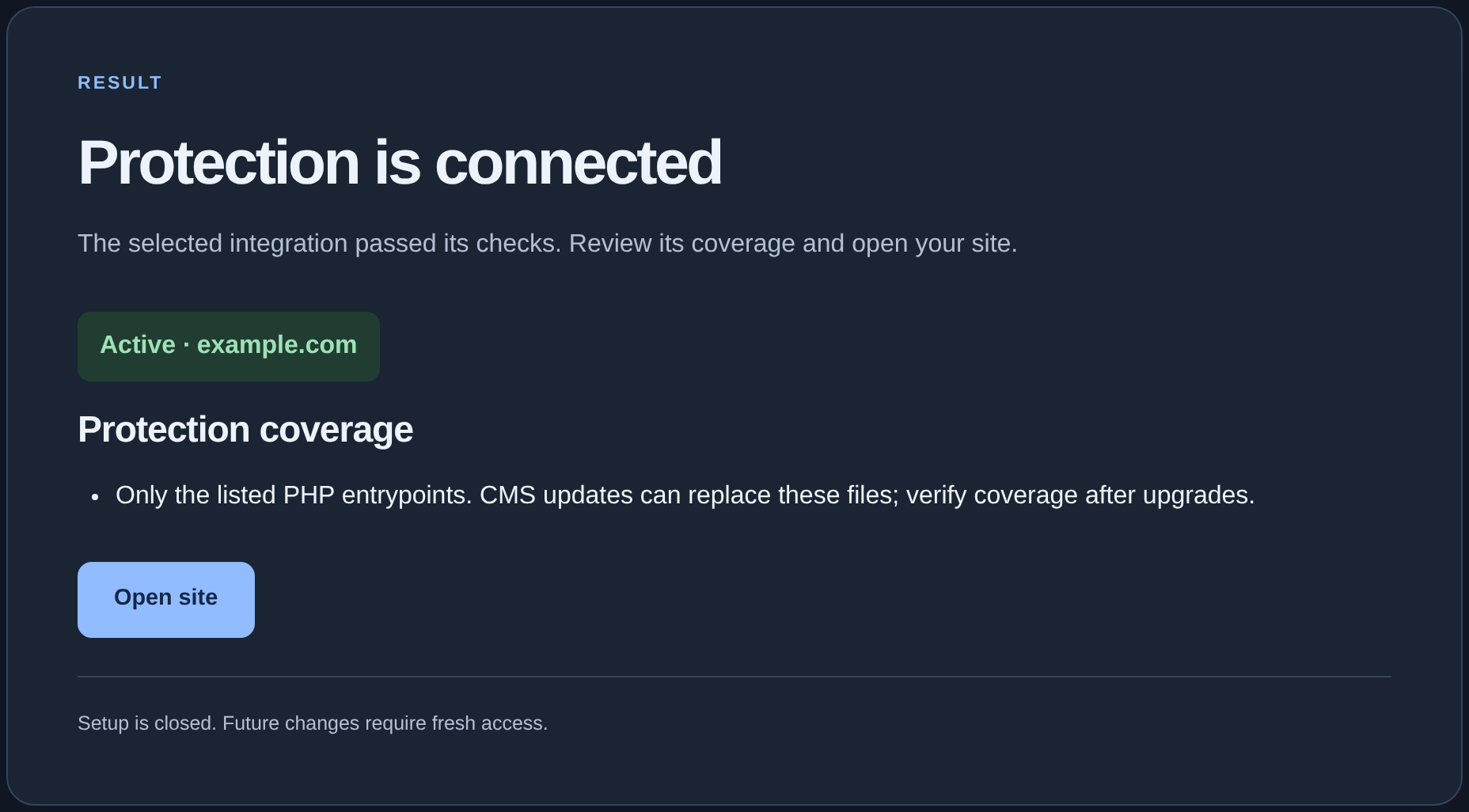
Then verify protection on important pages, forms, and required site addresses. A cached page may bypass PHP; the CDN and caching guide explains this separately.
If the automatic method does not work#
Read the wizard's message and give it to the person who manages your hosting. They can help choose a method below. Avoid switching methods at random: each has a different scope.
| Method | When to use it and what to check |
|---|---|
| Before every PHP request | The hosting can run protection before PHP. Covers PHP in the configured directory; static files and cache require separate checks. |
| Selected PHP entrypoints | The files that start your site are known, such as index.php. Covers requests through them; check those files again after CMS updates. |
| Static HTML gateway | The site consists of HTML pages. They must pass through the protection gateway; some hosting setups require an administrator to configure routing. |
| Manual integration | A developer connects protection before starting the application. Covers requests reaching that point; verify all required pages. |
Example for selected PHP entry files#
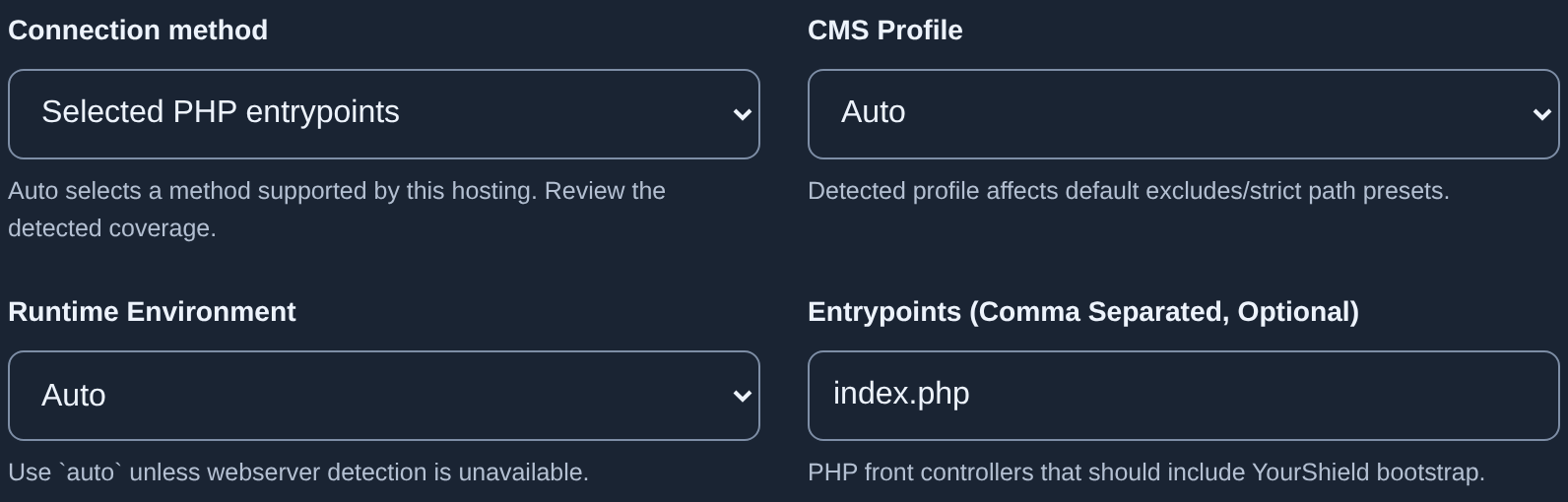
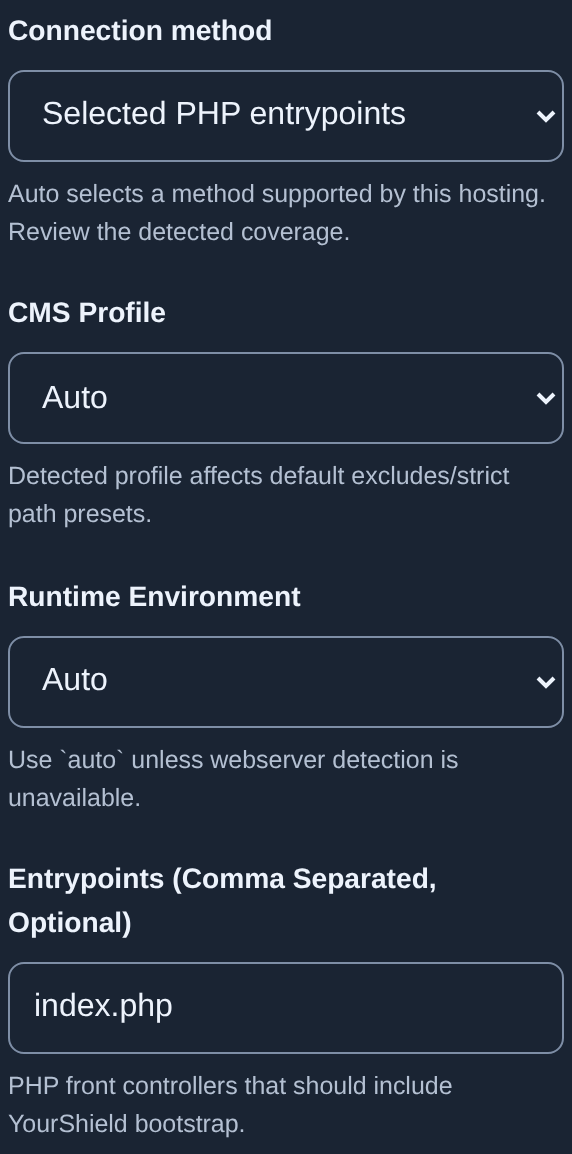
The screenshot selects “Selected PHP entrypoints” and enters index.php in “Entrypoints”. This is an example for a site with that entry file. A project with public/ may use public/index.php. Have your administrator confirm your actual site files; enter multiple names separated by commas. Do not enter URLs or indiscriminately list every PHP file.
When one more hosting step is needed#
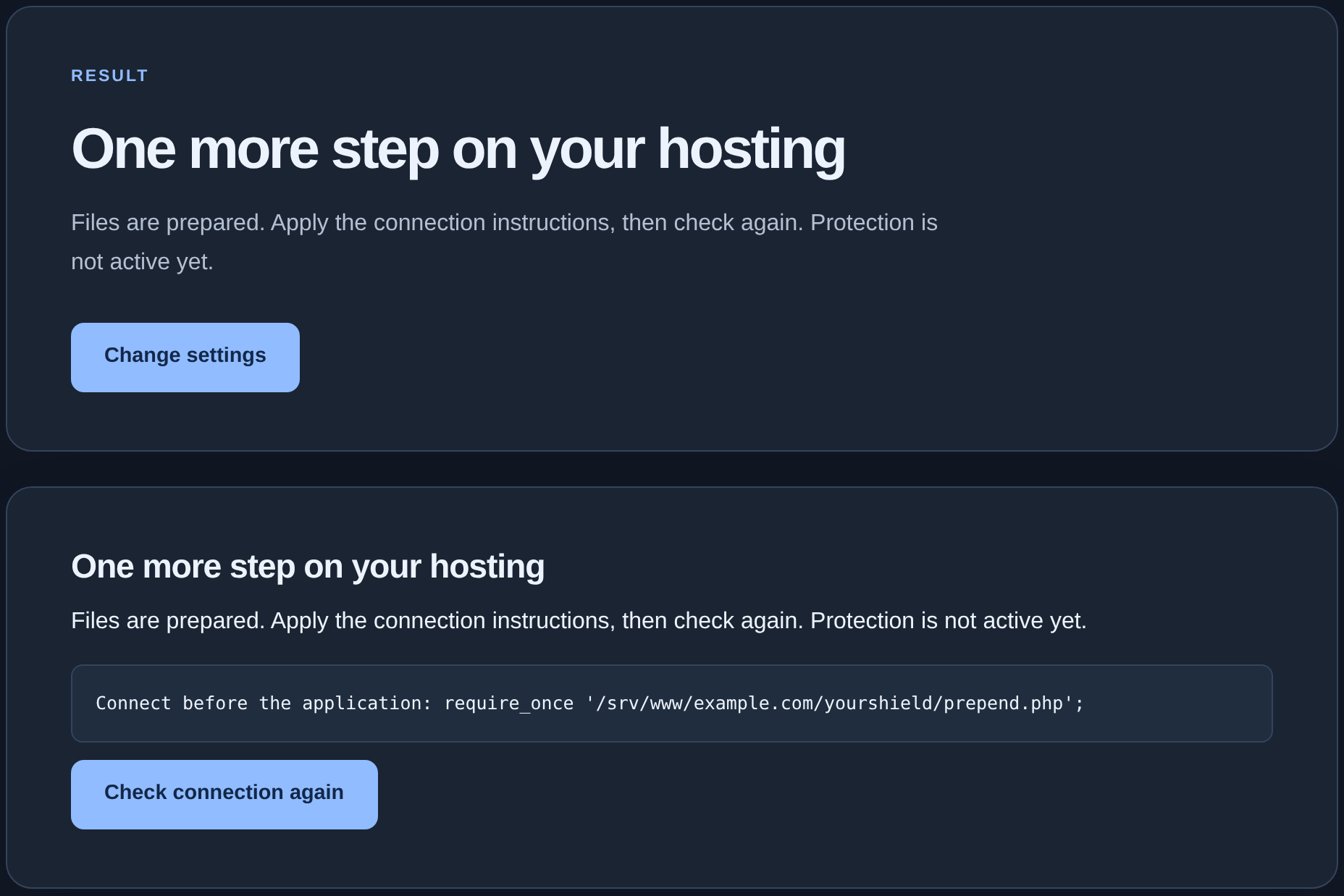
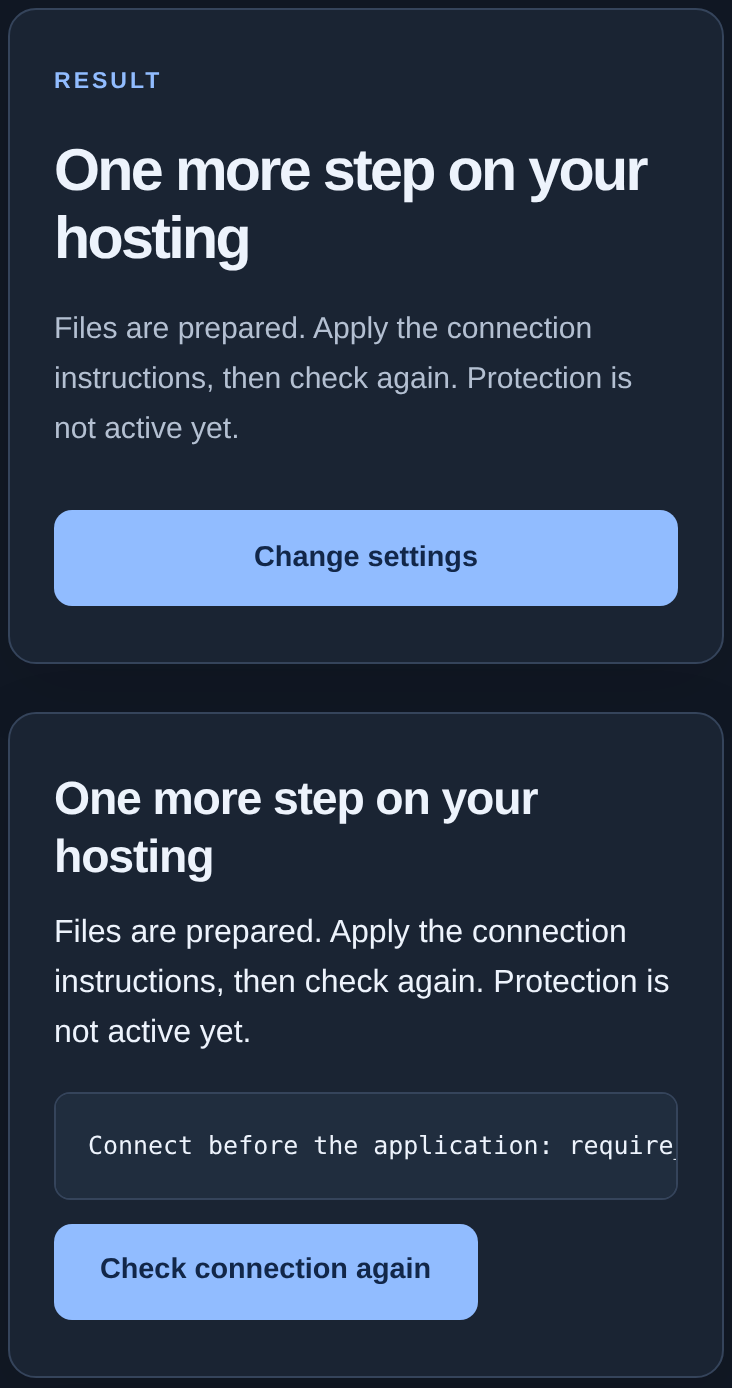
“One more step on your hosting” means the files are prepared but protection is not active yet. Give your administrator the instructions below that message. For example, a require_once line asks them to connect protection before starting the application. The screenshot's path is illustrative: follow the instructions generated for your own site.
After the administrator completes those steps, click “Check connection again” and wait for the new result. If an error remains, open “Technical details” and use connection troubleshooting. To change protection that is already running, use the maintenance guide.