A CDN speeds up your website by storing copies closer to visitors. A proxy is an intermediary before your hosting. A page cache stores a ready-made response. If that response is returned without running the protected PHP code, YourShield does not receive the request and cannot check the visitor.
There are two separate tasks: identify the visitor address correctly behind a proxy, and route the required pages through protection. “Proxy / CDN” settings help with the first task; they do not disable a cache of ready-made pages.
If your site uses a CDN or proxy#
- Ask your hosting administrator which provider sits in front of the website and whether full-page caching is enabled. If there is no proxy, you do not need to enable trust in one.
- During installation, go to “Review” in the wizard, open “Advanced Settings” and find “Proxy / CDN”. For an installed module, ask about maintenance access: the initial code does not open settings for an active module after successful setup.
- After agreeing the configuration with your administrator, enable “Enable Trusted Proxy Mode”, select the actual service in “Trusted Proxy CDN” and keep “Auto-load CDN IP ranges” enabled to obtain its ranges. The list includes Cloudflare, CloudFront and Fastly. The screenshot selects Cloudflare as an example, not as a setting for every website.
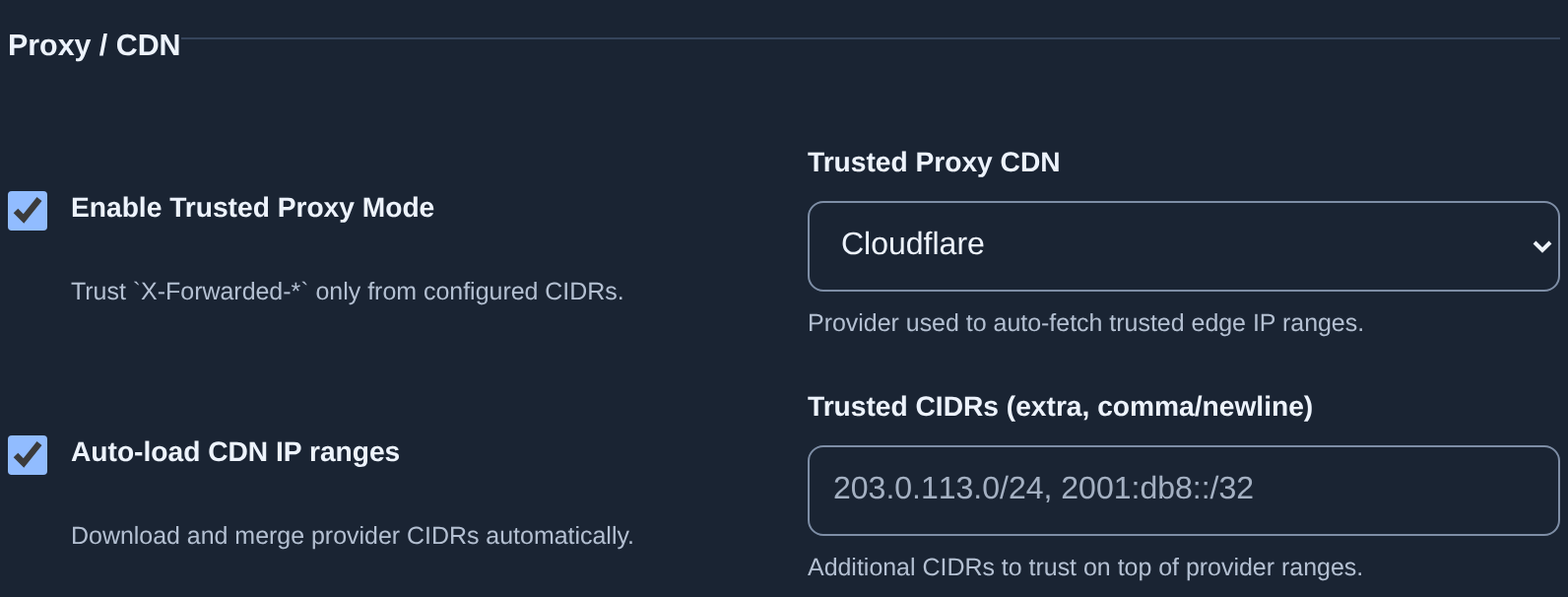
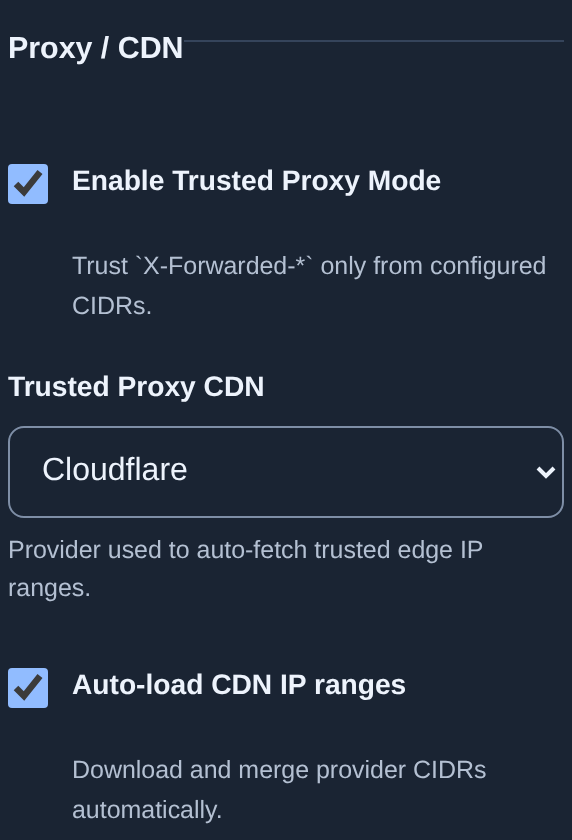
Trusted proxy means trusting information supplied by a known intermediary. An IP is a network address; CIDR notation describes a range of addresses. Auto-loading obtains the selected provider’s ranges when settings are applied. If loading fails, do not bypass the error by trusting all addresses.
If your provider is not listed, or another proxy sits in the chain, ask your administrator to configure “Trusted CIDRs”, “Client IP header” and “Proto header”. A header is a service field in a request: these fields carry the original visitor address and HTTP/HTTPS scheme. Their values must match your proxy chain; the form examples are not a substitute for hosting configuration.
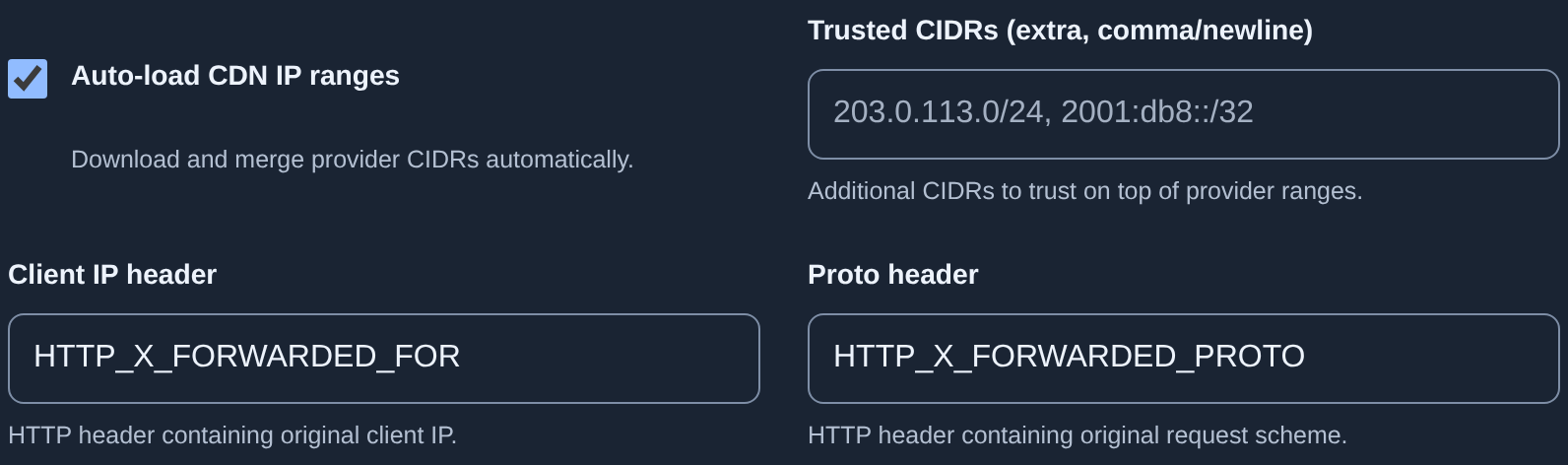
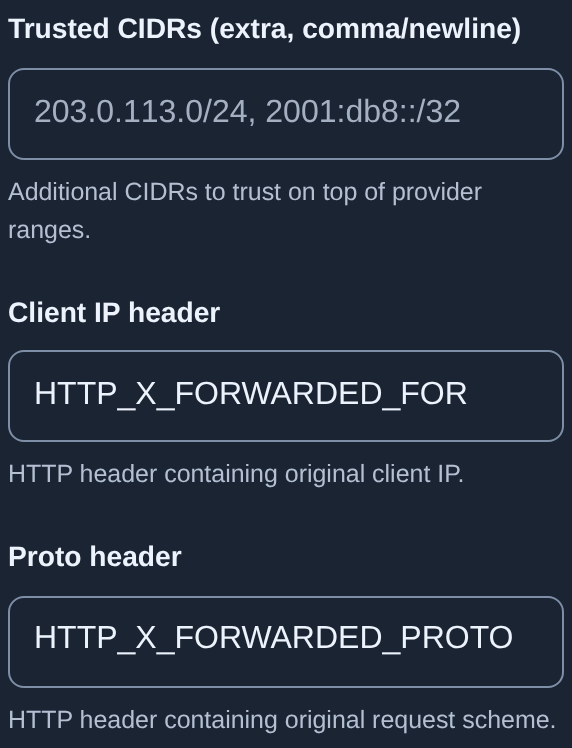
Do not copy example ranges from the screenshot or trust every IP. The module must accept this information only from configured trusted servers. After applying settings, wait for the wizard check result.
If pages are served from a cache#
Ask your administrator to check the home page, nested pages and previously cached addresses separately. Pages requiring visitor checks must route requests through protected PHP code or through separately configured protection at the CDN/web server layer. Choosing a provider in this wizard does not enable that second option.
Clearing the cache once does not fix a bypass: the next ready-made copy may again be returned without running the module. Agree a permanent rule for the required pages. The wizard’s “Cache and storage” section concerns the module’s own data, not your CDN’s full-page cache.
For static HTML pages, “Static HTML gateway” is available; see integration methods. Your hosting administrator configures routing. An ordinary page load does not prove protection coverage.
How to check that setup is complete#
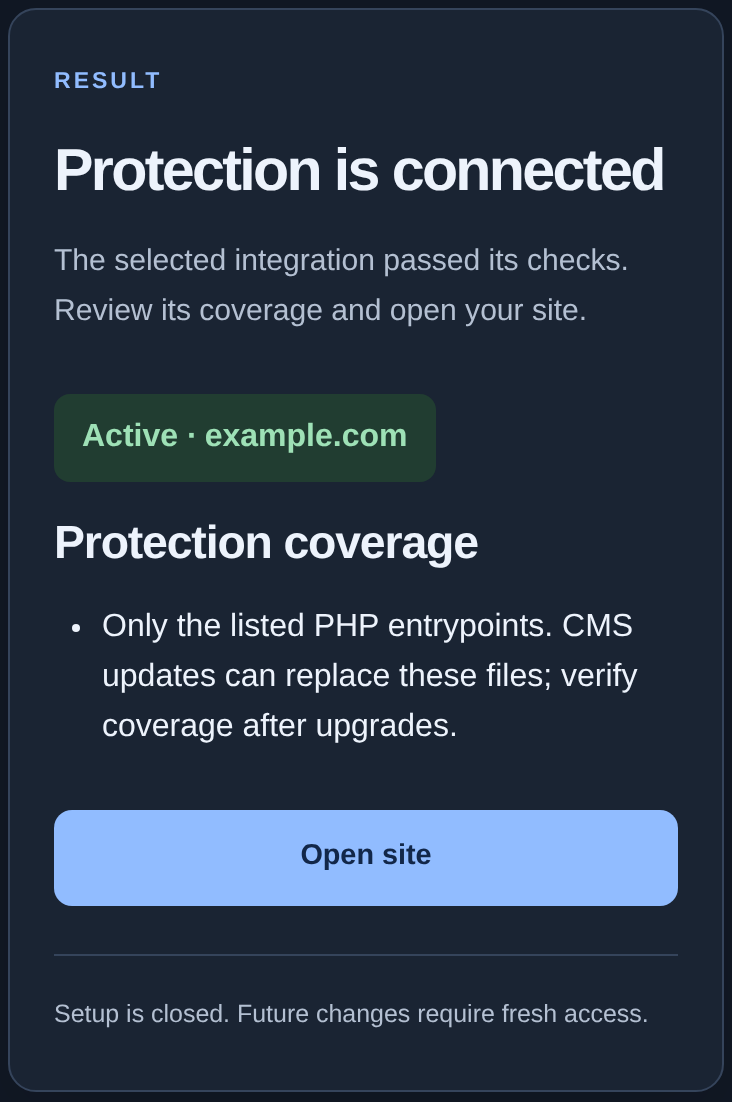
- Wait for “Protection is connected” in the wizard and read “Protection coverage”. The screenshot uses selected PHP entrypoints; your method may have a different description.
- Open the website’s usual addresses, including a nested page, a previously cached page and www if you use it. Check that text, images and links work.
- Ask your administrator to confirm that the required addresses pass through the selected protection and that the original visitor IP is identified correctly behind your proxy.
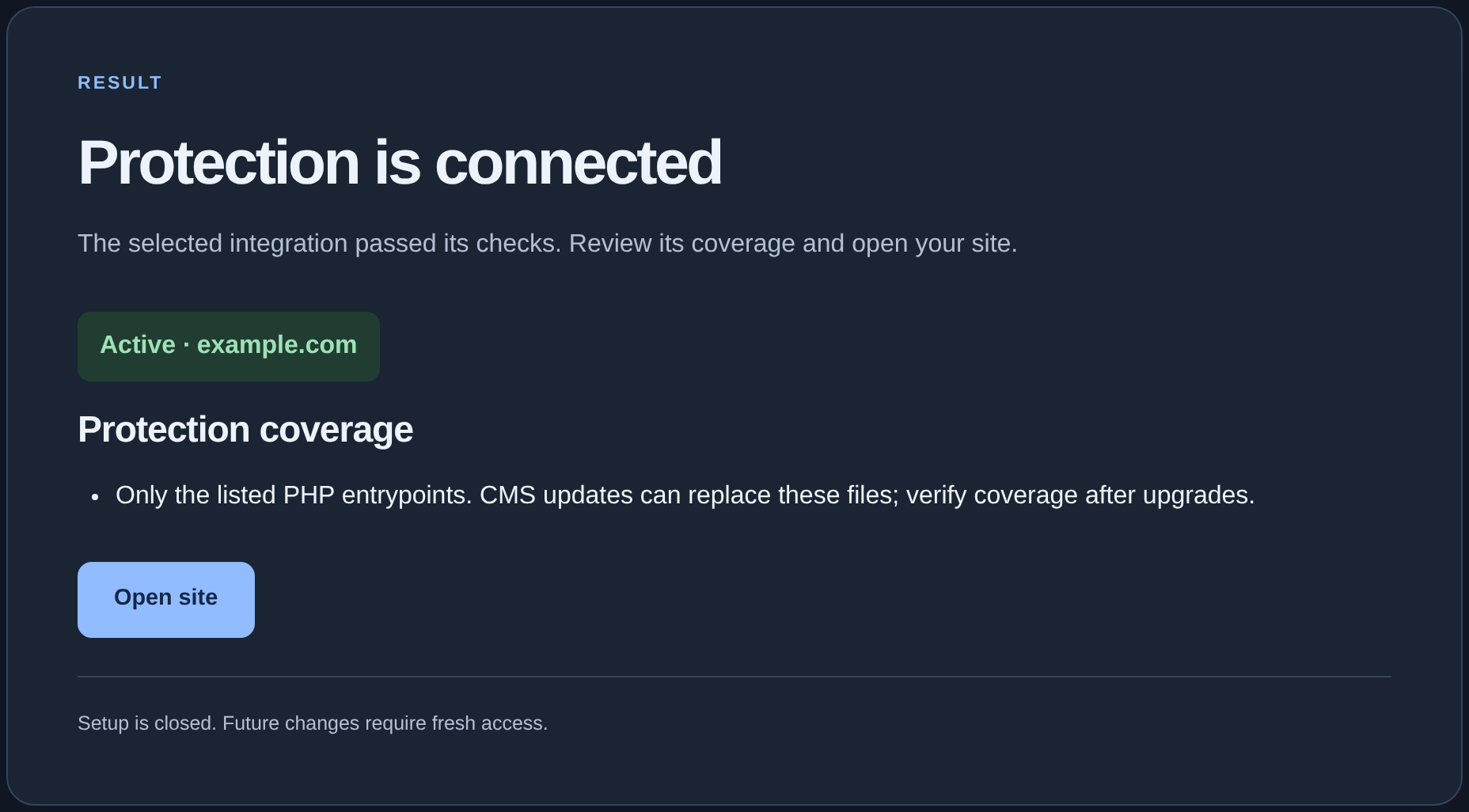
The full checklist is in “How to verify that protection is active”. “Working” in KEHR confirms recent contact, not coverage of cached pages. If a check fails, keep its message and follow connection troubleshooting.