YourShield helps check requests from visitors to your website. It runs on your hosting account, where your website files are stored. First connect the site in KEHR, then install the module on your hosting. You do not need to change DNS or transfer your domain.
The screenshots use the example site example.com. Your domain and hosting details will differ.
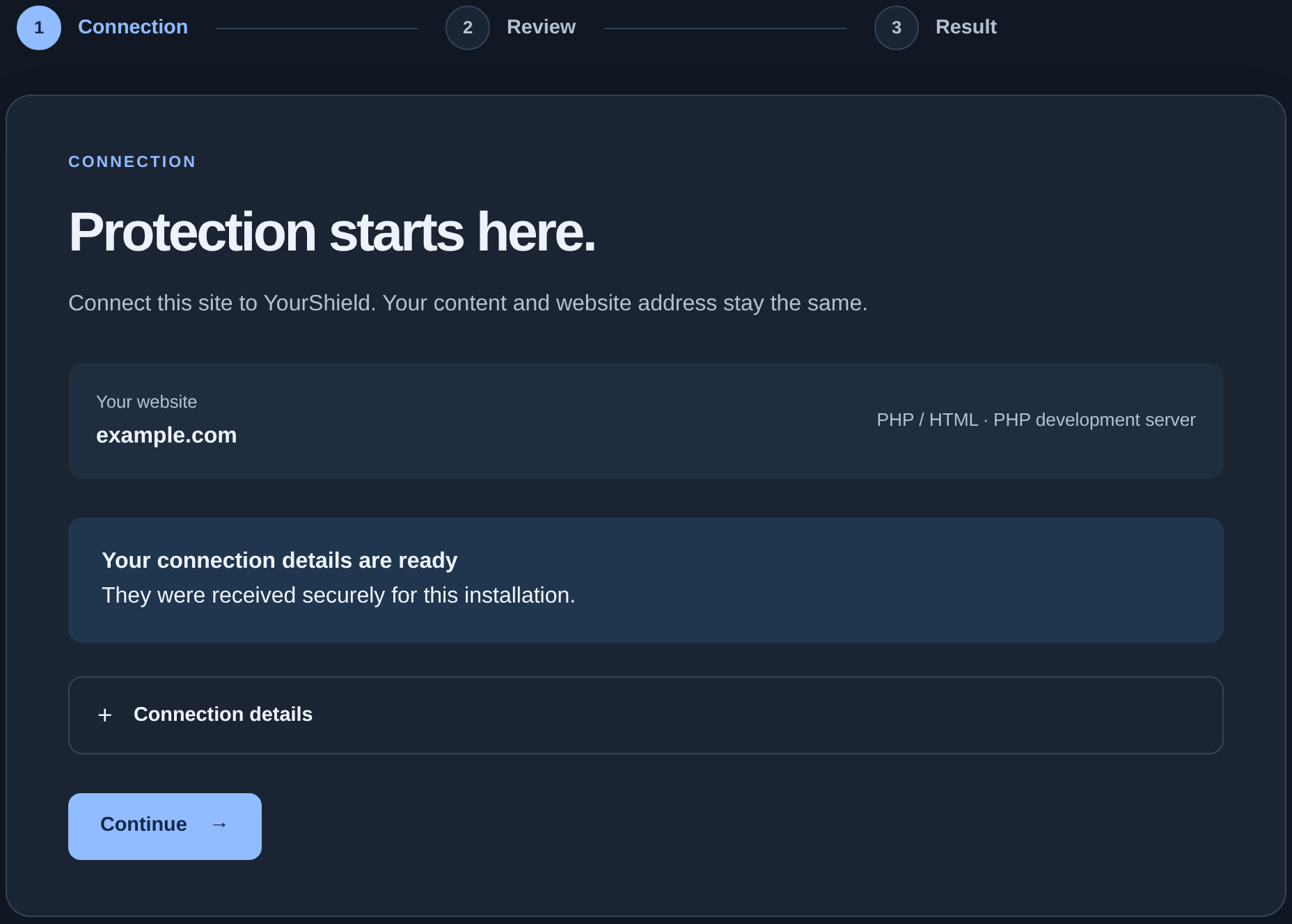
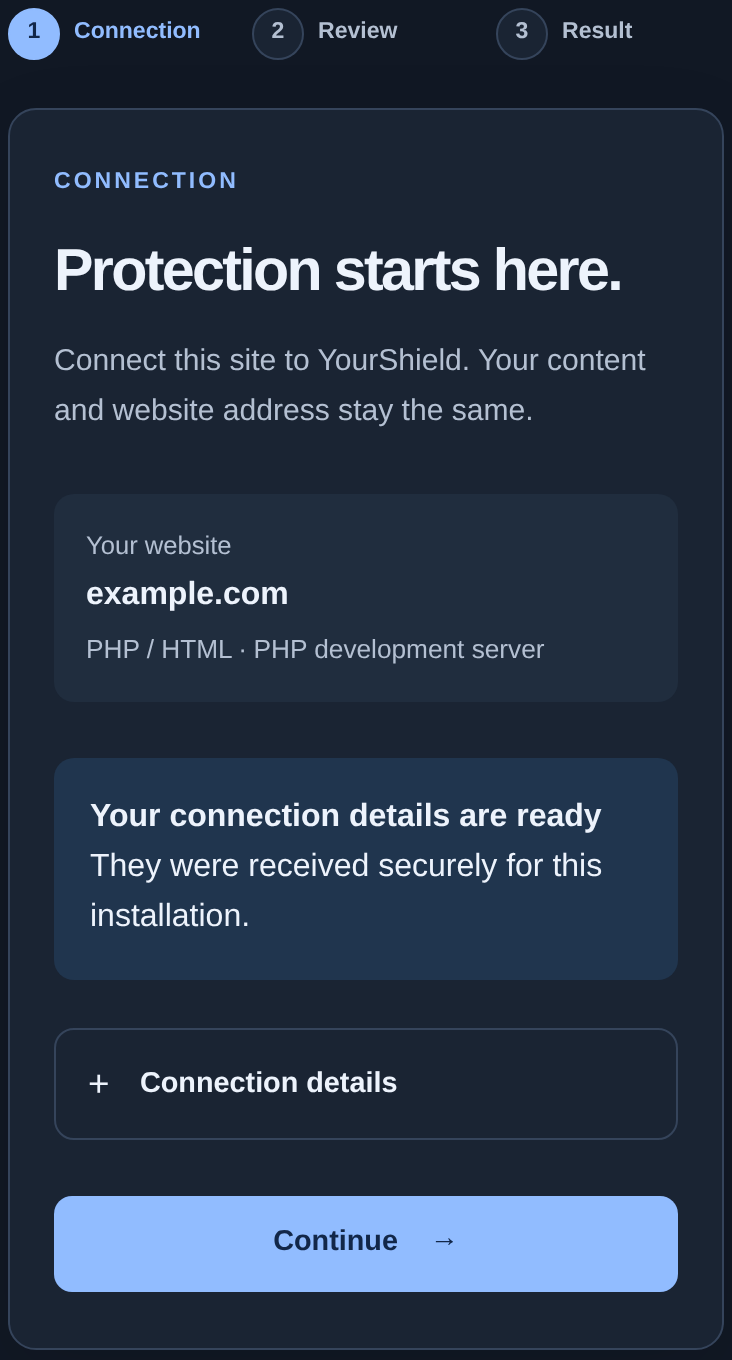
What happens after installation#
When a visitor opens a page that runs through the connected PHP code, the module receives a decision based on your site rules: allow the visitor, show a challenge or another page, or restrict access. PHP is the language used by many websites and content management systems. You do not need to write code yourself if the installer can connect the module automatically.
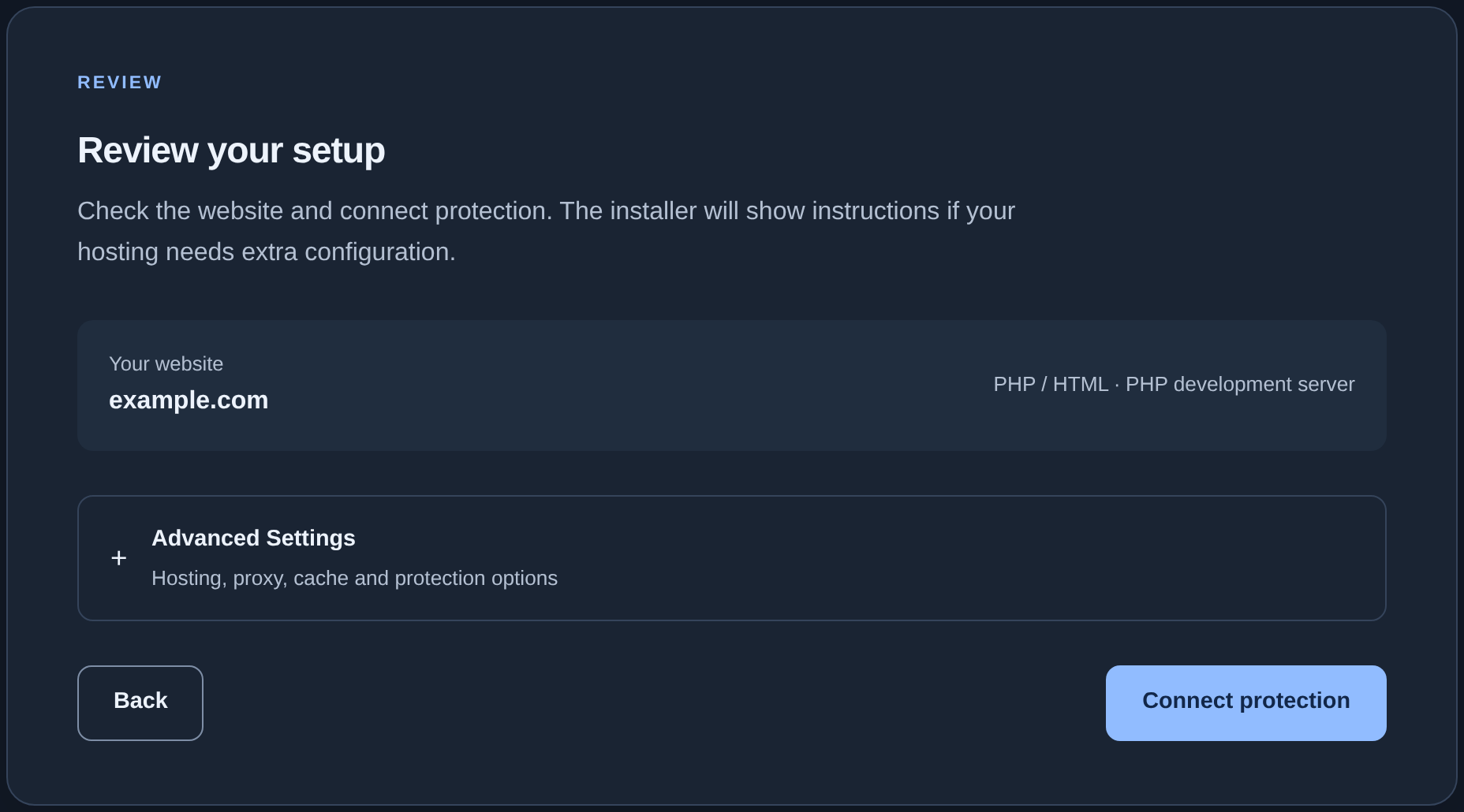
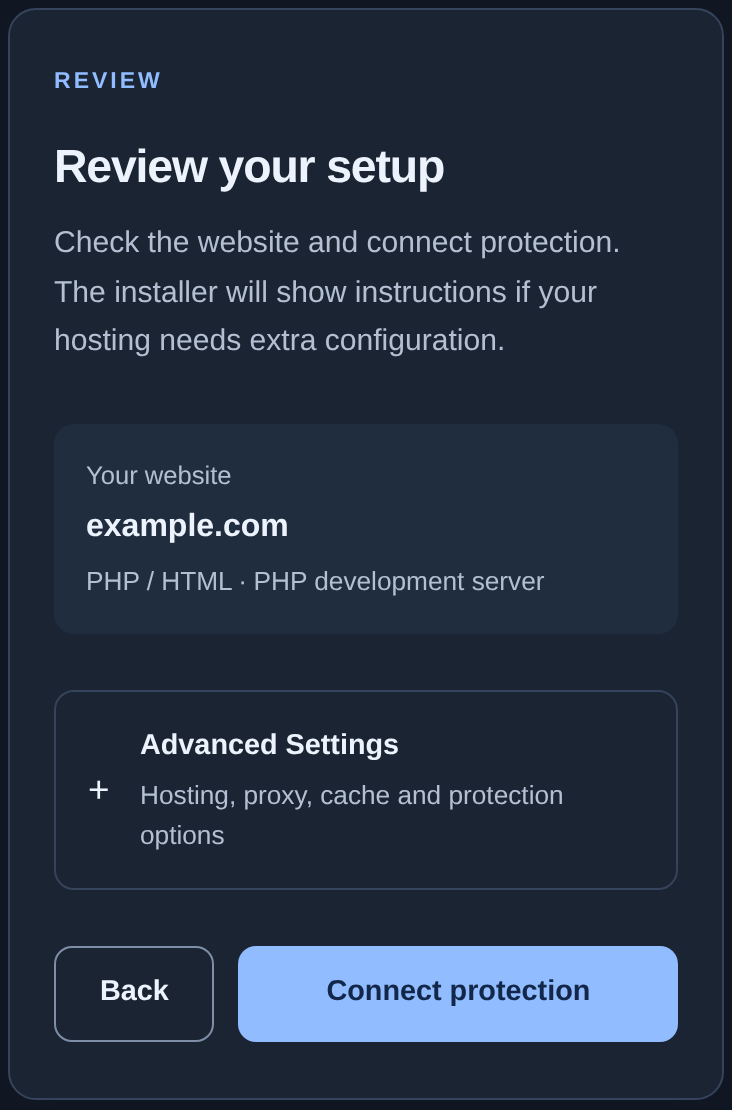
The module filters visitor requests. It does not scan website files for malicious code or replace updates to the website itself.
What you need#
- An active plan that supports connecting a site.
- Access to the website files on your hosting account, or help from the person who maintains the site.
- Your hosting must provide PHP 8.0 or later and the cURL extension. If you do not know where to check this, ask your hosting support team.
Start by adding your site. The next dashboard screen will guide you through obtaining a personal archive and code.
Which pages may remain outside protection#
The module checks only requests that actually reach the connected PHP code. If your hosting or CDN (a service that speeds up website delivery) serves a cached page, the module may not run. The same applies to ordinary files such as images. For an HTML website without PHP pages, the wizard offers a separate connection method.
Individual paths can also be excluded by protection settings or presets for your website software. Check the specific pages you need to protect.
After installation, read the “Protection coverage” section in the wizard. It explains which requests the selected method can cover; it does not list every address that has been tested. The screenshot uses the method for selected PHP entrypoints. The warning below the heading means that you must check coverage again after updating your website software.
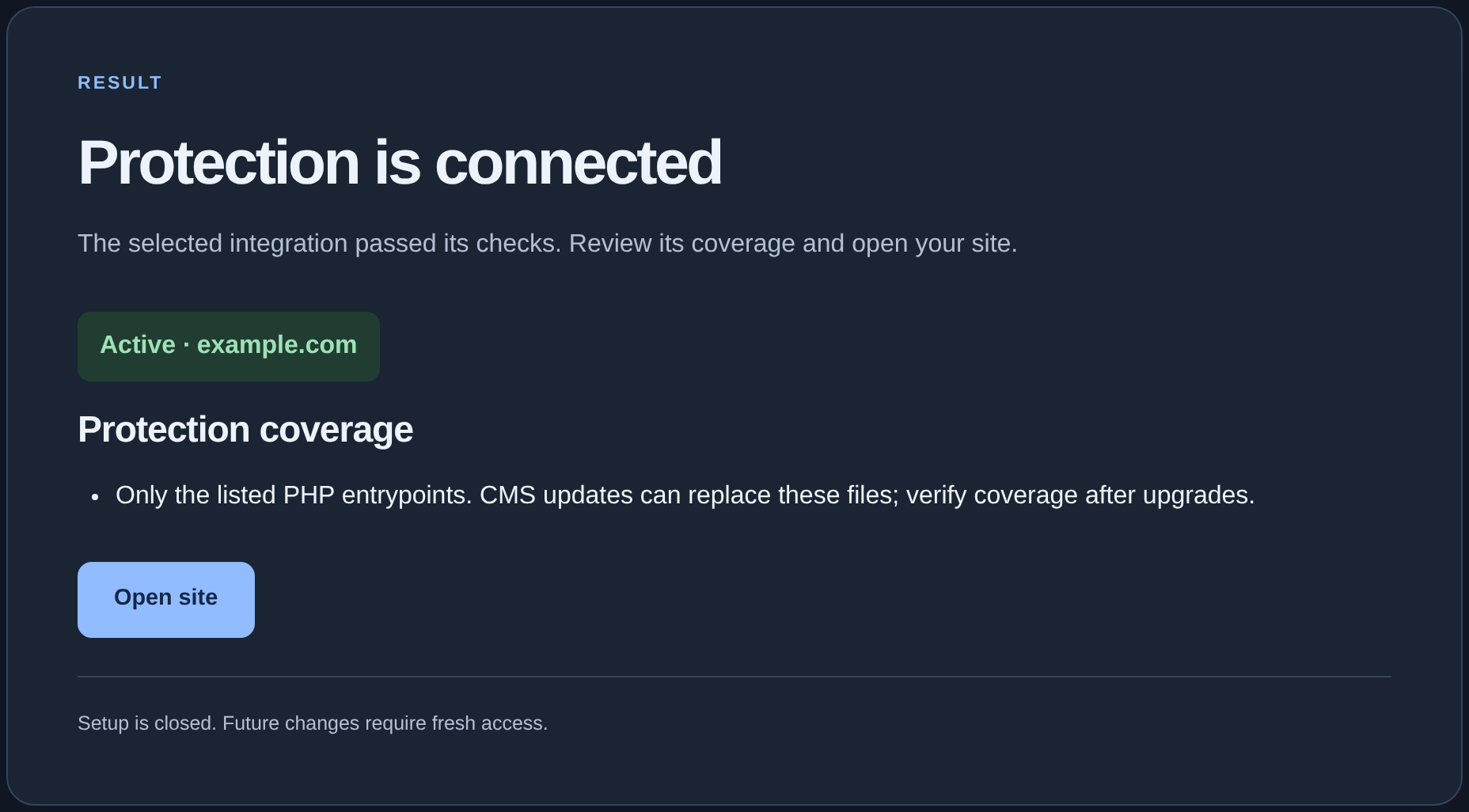
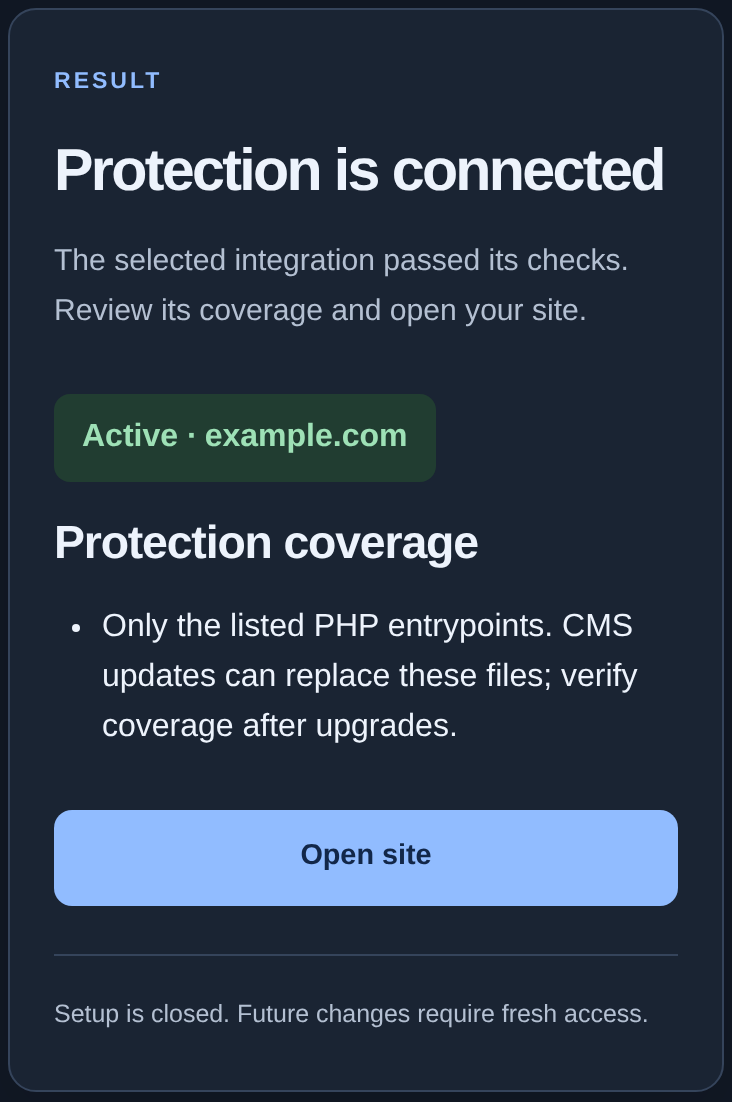
Check your important addresses separately. The “Working” status in the dashboard means the module has checked in recently; it does not prove that every page is protected. The “Install site protection” button remains on the card so you can reopen setup. Its presence alone does not mean the module is disabled.
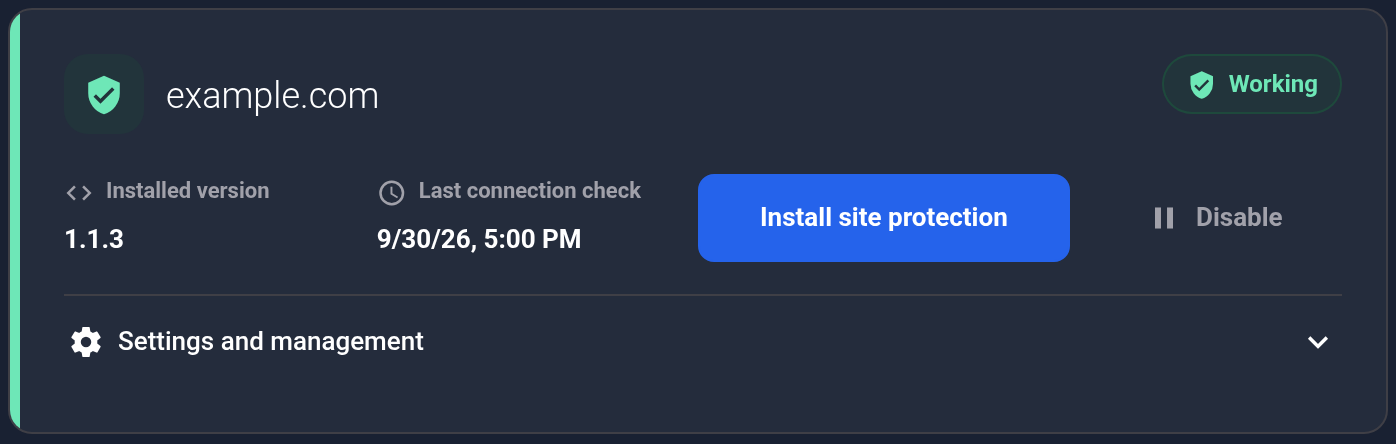
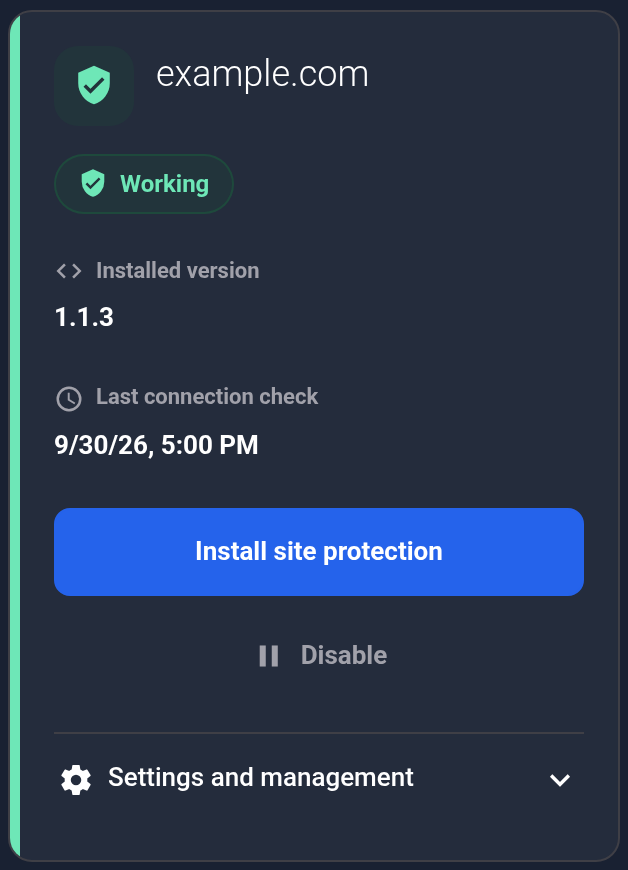
For a step-by-step check, see “How to verify that protection is active”. If you use a CDN or page caching, also read the CDN and cache guide.