Start with the wizard’s exact message: similar-looking problems may involve the address, access, hosting settings or the connection to KEHR. Do not consider initial setup complete until the result says “Protection is connected”.
The installer does not open#
- Confirm that you opened your own domain and extracted the package, rather than merely uploading a ZIP to hosting.
- For a conventional website, extract the files alongside
index.phporindex.html; the wizard address ishttps://example.com/ys-install.php. - For a project with a separate
public/directory, extract the files into the project root alongside it; usehttps://example.com/ys-installer.php, without/public/in the address. Substitute your domain. File layout examples are in the installation guide.
For “page not found”, ask your hosting administrator to verify the required file’s location. If HTTPS or the website itself is unavailable, fix domain availability and the certificate first. If the PHP file downloads instead of opening a page, ask hosting support to check PHP execution for the website.
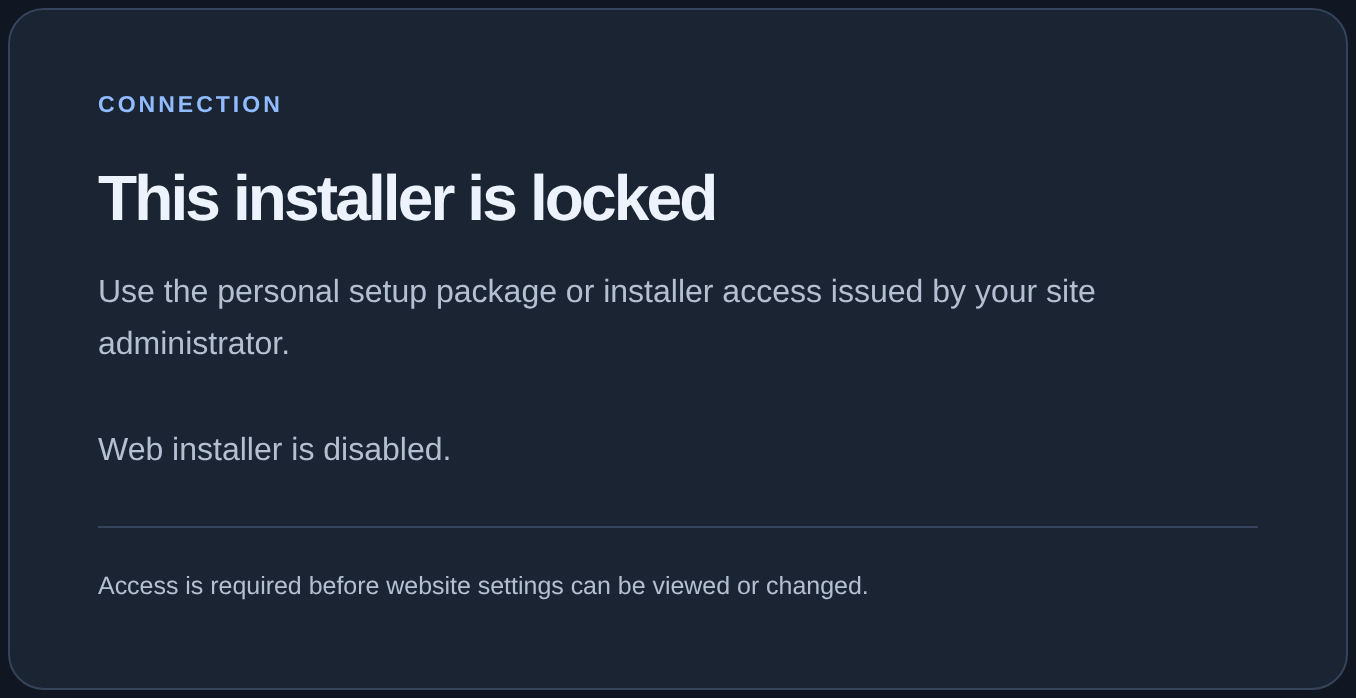
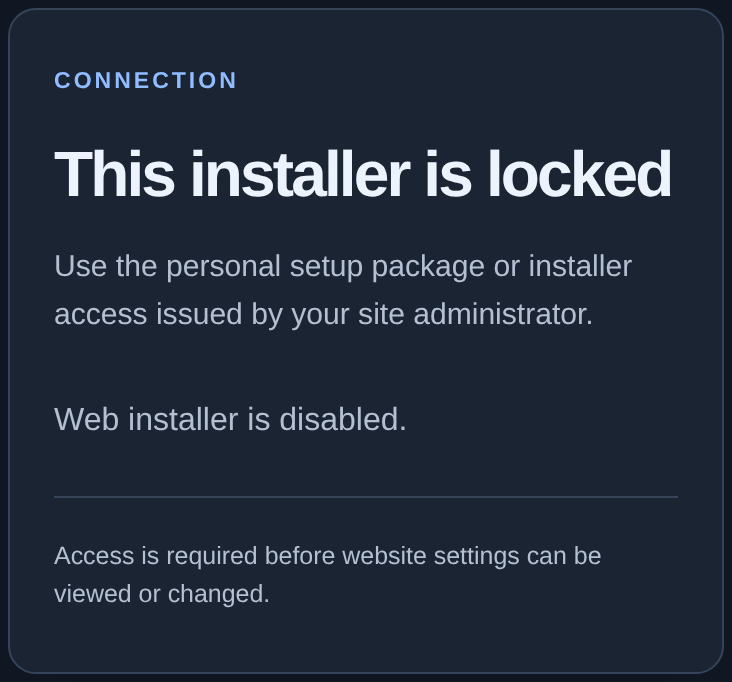
“This installer is locked” is a separate state. This is expected after successful initial setup: initial access closes. A new ZIP alone does not open maintenance for an active module. For changes, follow the maintenance guide and arrange access with your administrator or support. During first setup, check that you are using the package for the correct website.
The code is rejected#
“The setup code could not be accepted” does not confirm a successful connection. The field remains on the page so you can correct the input.
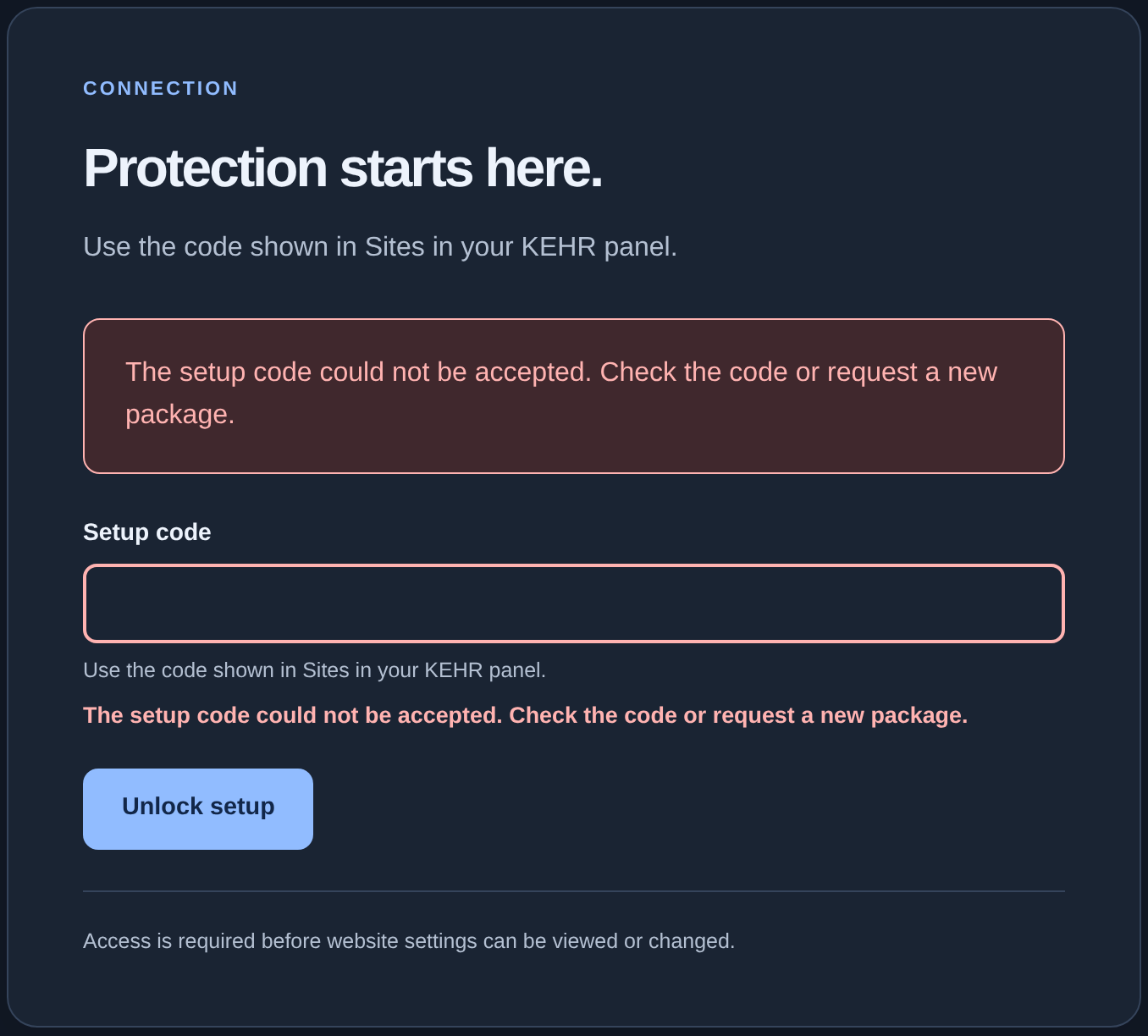
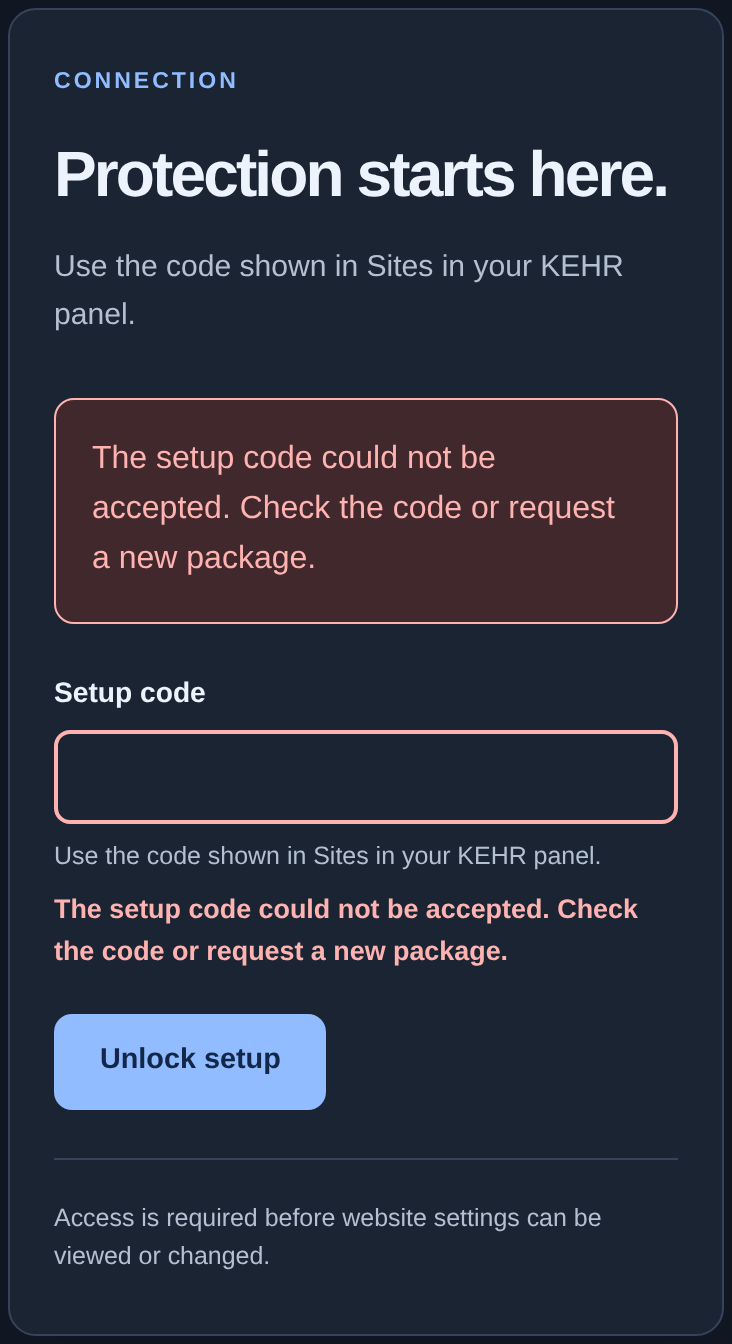
- Compare the domain, the selected website in “Connected sites” and the package extracted on hosting. The code must belong to that package and website. The wizard refers to this dashboard section as “Sites”.
- Copy the complete code without adding spaces. Use a new code with its matching new ZIP; a code from another website or a superseded package will not work.
- Check the expiry: the package lasts two hours and setup must finish within that time. If the code is lost, expired or superseded, obtain a new matching pair following the guide. For an active module, this does not replace maintenance access.
Do not guess codes or send them in a support request. If a fresh matching pair is rejected, keep the error text and contact support.
The wizard failed its checks#
- Expand “Technical details” at the bottom of the wizard and locate the unsuccessful check. Send hosting support its name and explanation, not only the general error.
- Ask them to check PHP for this website: it requires PHP 8.0 or later and the cURL extension for network requests. The screenshot shows these conditions passing; it illustrates where to find checks, not a failure.
- For a file reading or writing error, ask your administrator to check permissions only for the named directory and selected integration method. Do not make the entire website writable.
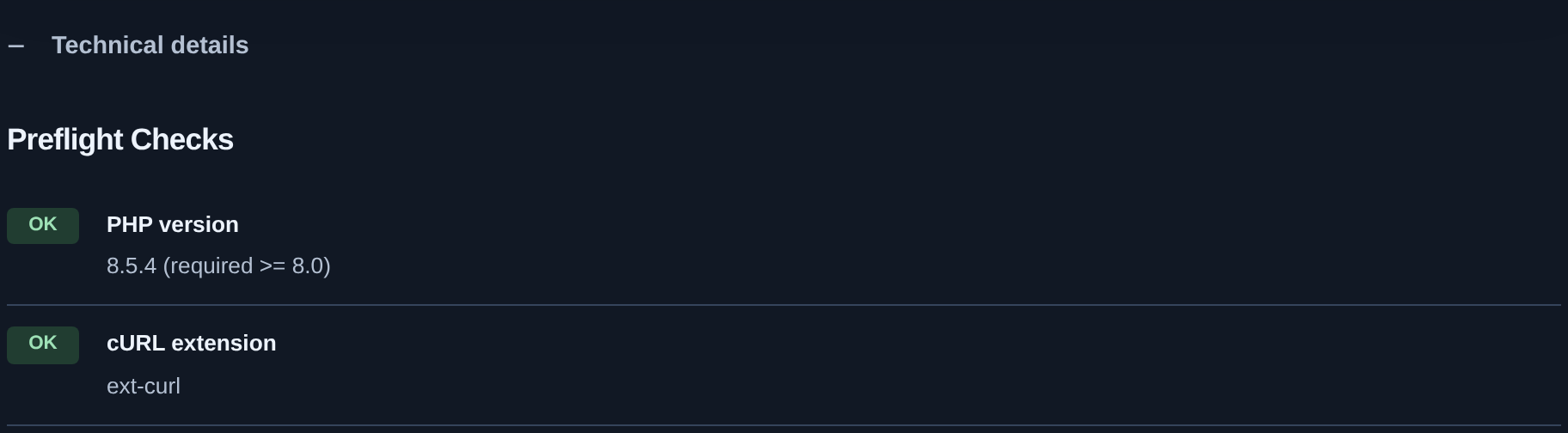
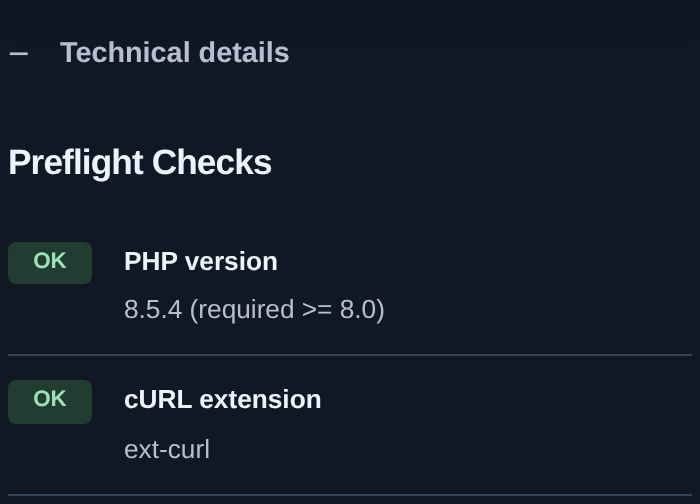
PHP version shows the PHP version; cURL extension checks the network extension; readable means a file can be read, and writable means writing is allowed. These requirements apply to the module on your hosting. For a method issue, follow the integration method guide.
A connection error or one more hosting step#
A connection error#
Check your plan is active and verify the allowed website addresses in KEHR. For a message about HTTPS, certificates, networking or a timeout, ask hosting support to check outbound connections and website availability. Do not disable certificate verification. Behind a proxy or CDN, follow the separate guide.
“One more step on your hosting”#
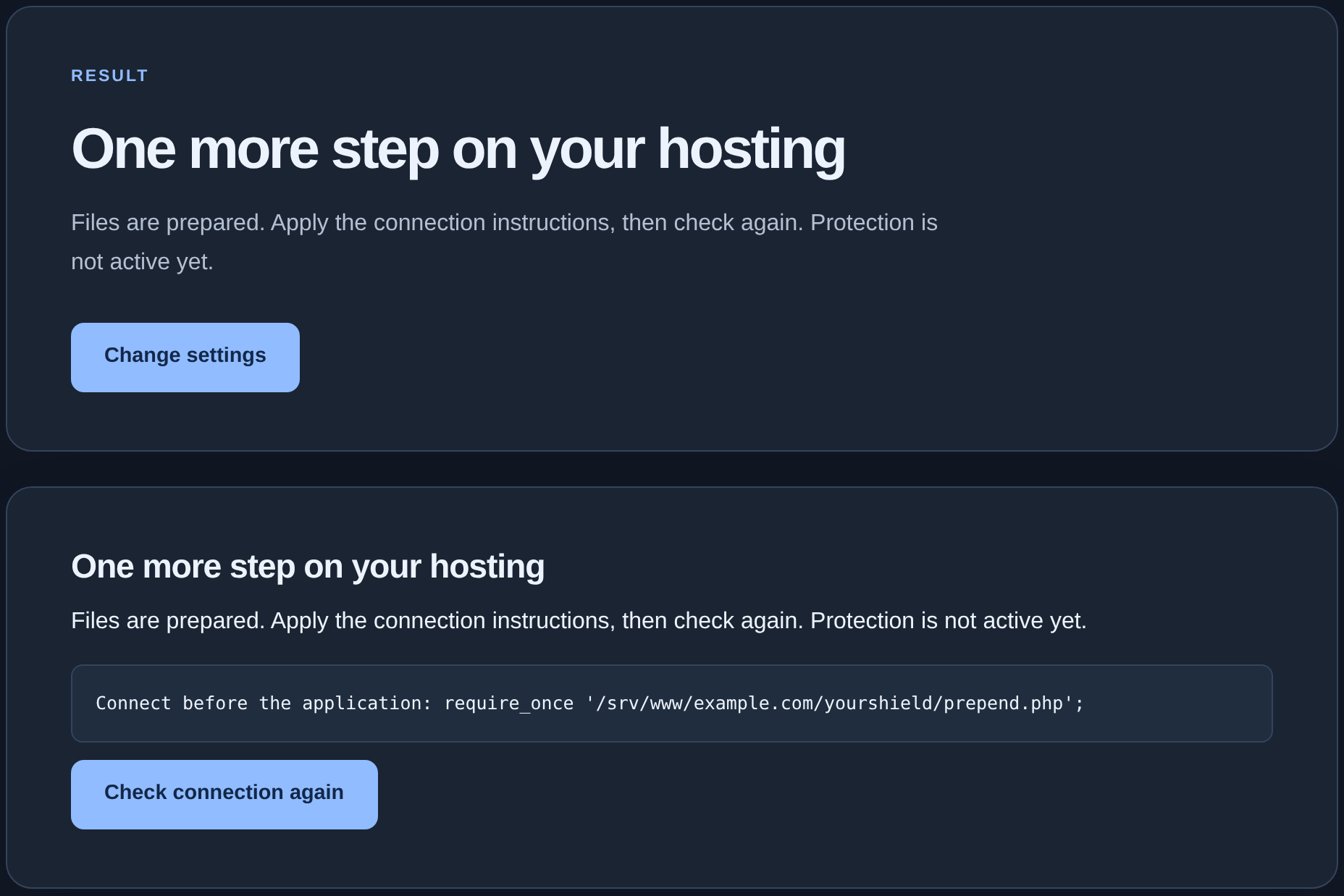
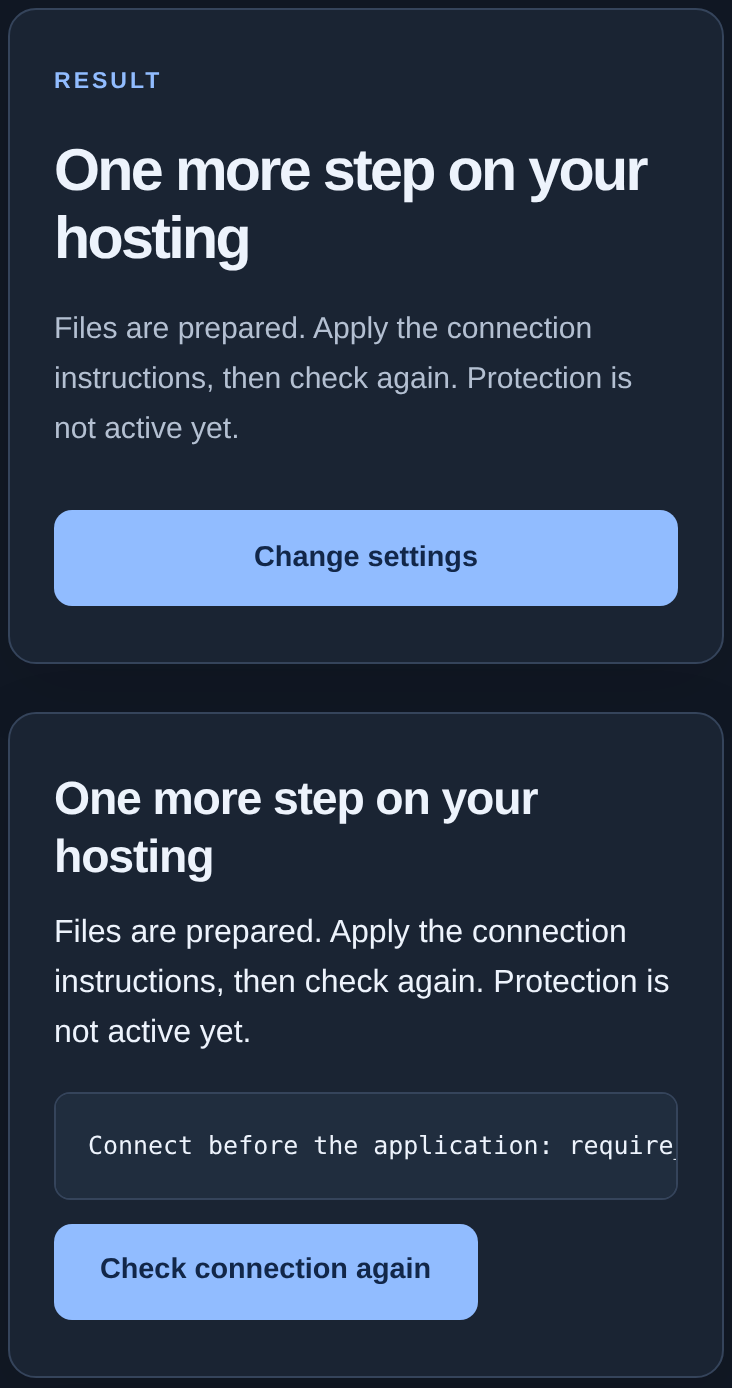
The files are prepared but protection is not active yet. Give your administrator the instructions below the message. The screenshot uses an example path; your website needs its actual path. Once the step is complete, click “Check connection again” and wait for “Protection is connected”. If the message remains, keep the details instead of extracting the package again.
If you need help#
Include the domain and wizard page address, setup step, exact error text, time, PHP version and actions already tried. Say whether this is first setup or maintenance of an existing module. Hide setup codes, keys and personal details before sending a screenshot.
After fixing the issue, repeat the activation and important page checks. “Working” on the KEHR card confirms contact with the module, not protection of every page on your website.