A plan gives you access to visitor routing for a set period: you connect your domains and choose where visitors should go. Buying a plan does not register a domain or connect it automatically.
This guide is for a new plan. To add time to an existing one, use Renew on that plan's card. Names, amounts, and dates in the screenshots are examples; check your dashboard for current terms.
Choose and buy a plan#
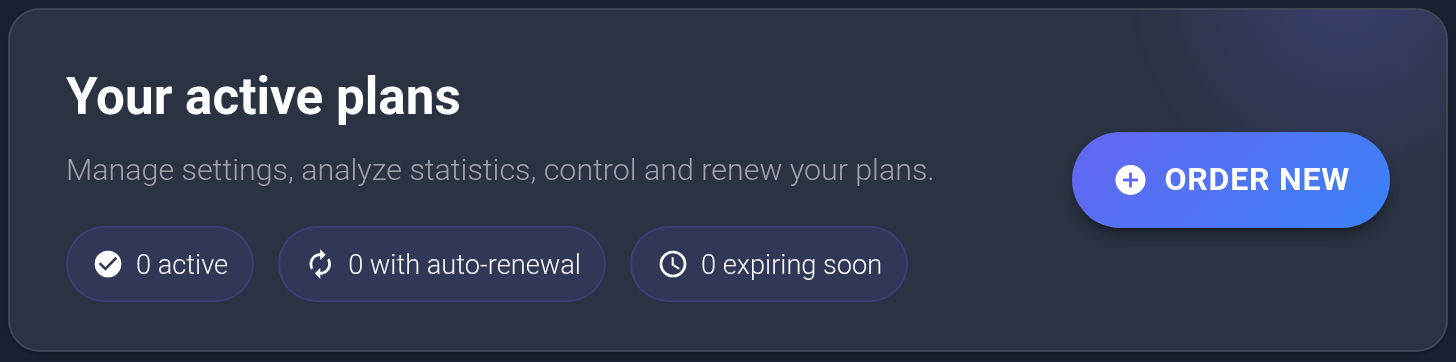
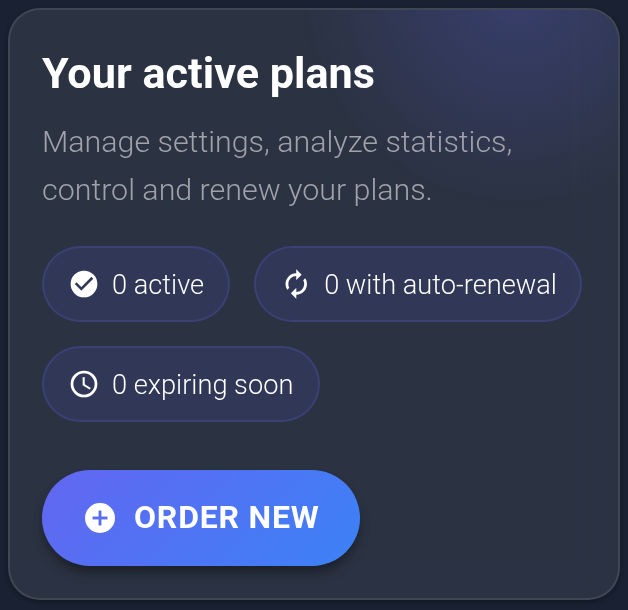
- Open “Plans” and click “Order new”. If you have no plans yet, “Choose plan” in the empty list also works. This opens the “Plans” purchase page.
Compare the offers#
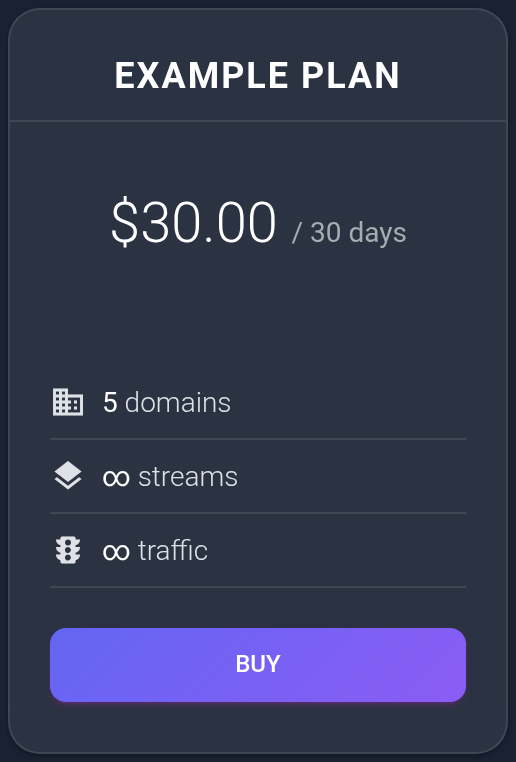
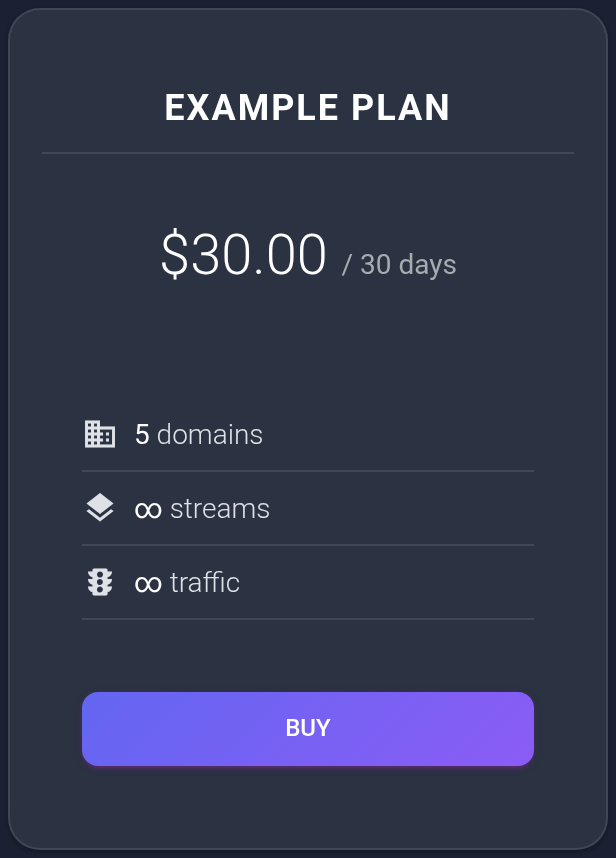
- Check the name, price, currency, and duration of the offer. For example, a price for 30 days covers that whole period, not one day. When comparing plans of different durations, do not compare only the large price number.
- Check the domain count on that card: it is the limit for connected domains, not a number of domains that will be registered for you. “Streams” are incoming links for visitors; “traffic” refers to their visits. Feature descriptions appear below the cards.
Payment is taken from your account balance. If there are insufficient funds, top up your balance and wait for the credit, then open the required plan again. If you applied a promo code, check that the selected offer's price includes the discount.
Confirm the purchase#
- Click “Buy” on the card. In “Confirm purchase”, check the plan name, price, and currency. The notice means this creates a new service and charges your balance. It does not renew an existing plan.
- If you selected the wrong offer or the price is not suitable, click “Cancel”. Opening this confirmation alone does not make a purchase.
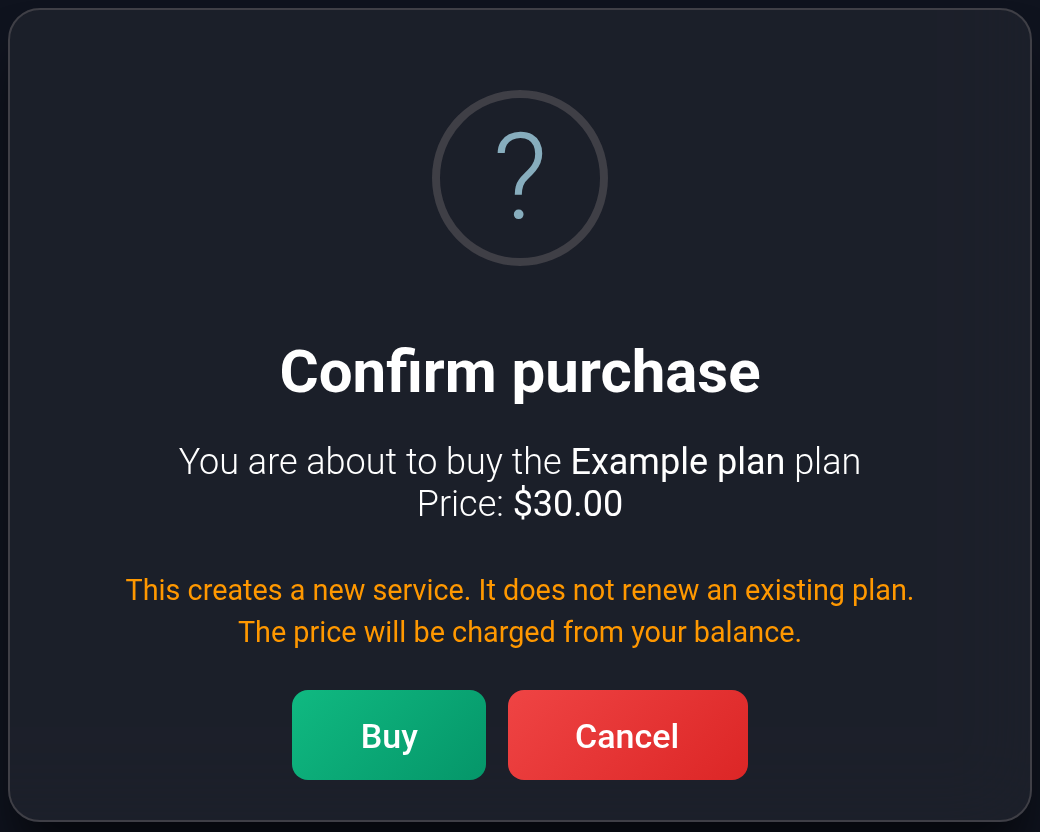
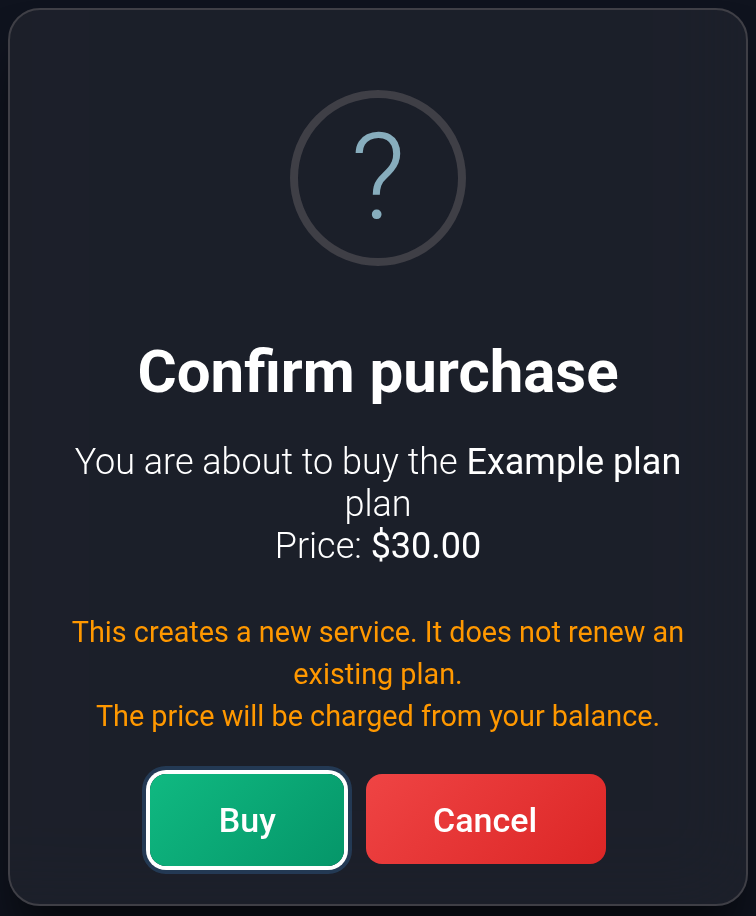
- If everything is correct, click “Buy” in the confirmation once and wait for the result page. Do not reopen the purchase link or repeat the action because loading is slow until you have checked the result below.
Check the result#
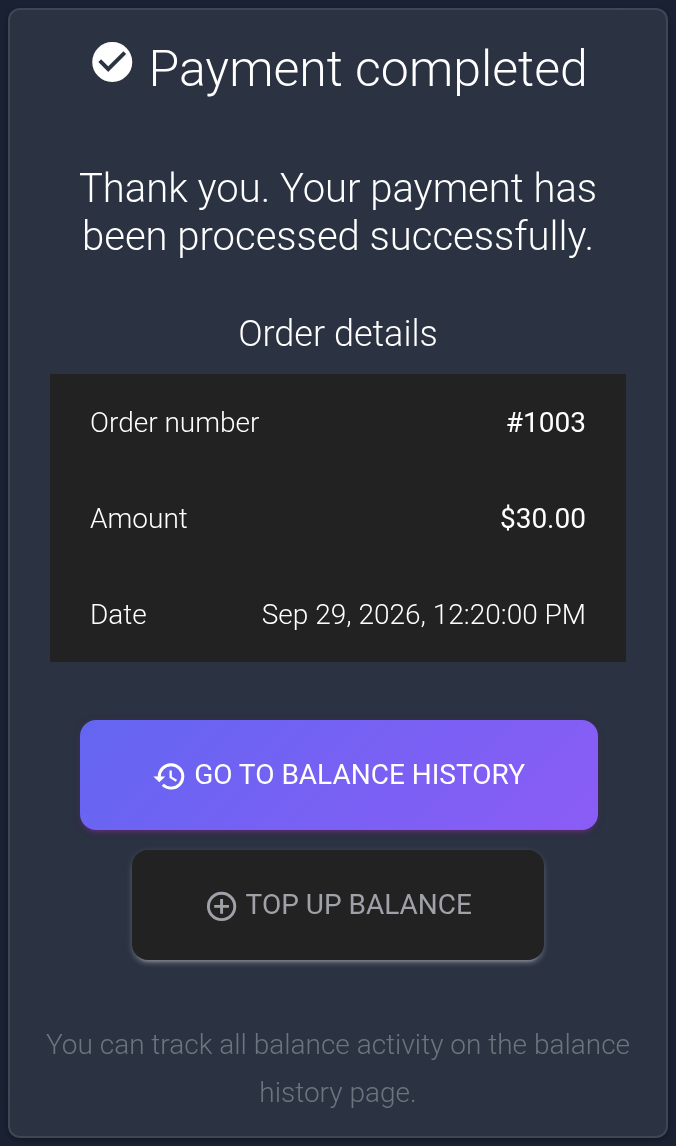
- A successful purchase opens “Payment completed”, showing the order number, amount, and date. “Go to balance history” opens your payment history; to see the plan itself, open “Plans” separately through the dashboard menu.
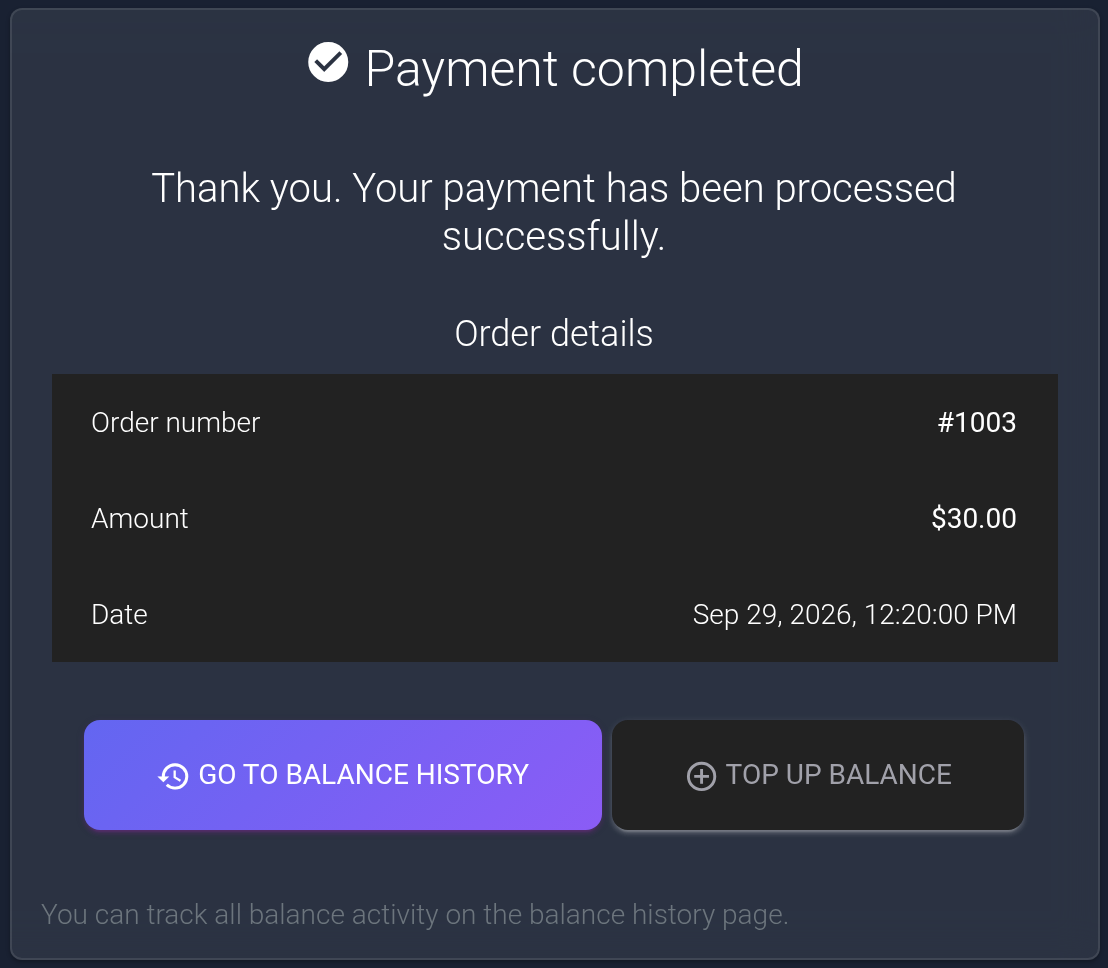
- Find the new card and check its name, # number, “Active” status, and “Paid until” date. The # on the card is the plan number; find the order number on the payment page or in balance history. A new paid plan's period starts after purchase, not when you connect its first domain.

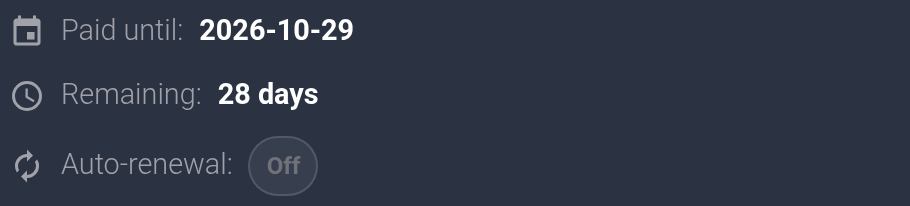
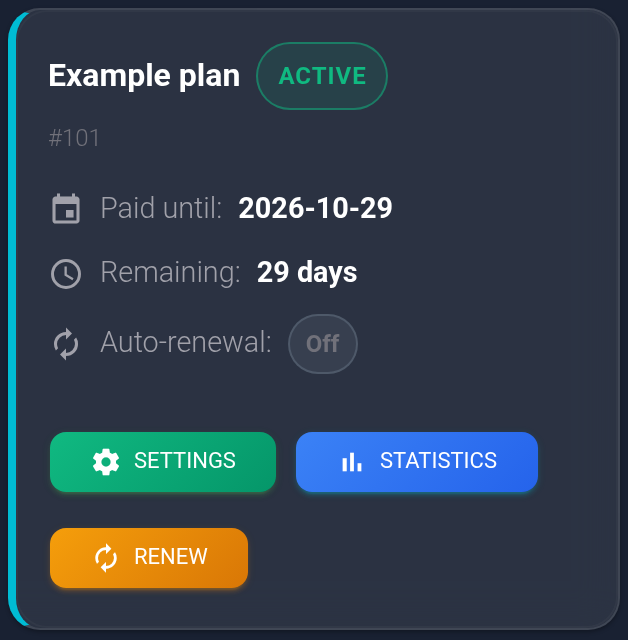
The “Auto-renewal” line shows whether future automatic renewal is enabled; “Active” alone does not mean it is on. See the renewal guide for how it works and where to configure it.
Click “Settings” to connect a domain and configure visitor-routing rules. An active card confirms the plan's state; check that your domain and redirects work after configuring them.
If the purchase did not complete#
- A payment error appears. Read the reason. If funds are insufficient, top up and wait for the credit; before trying again, check Plans and your balance history.
- The page stopped loading or closed. Open Plans and history through the menu without reopening the purchase link. A new active card and payment record help establish the result.
- A charge exists but there is no active plan, you see “Pending”, or the error is unclear. Do not buy another plan to fix it. Contact support with the plan name, order or plan number if available, amount, time, and error text or screenshot.