Renewal adds time to an existing plan. Its ID, connected domains, and settings remain in place. Clicking “Buy” in the catalog creates a new service; renew an existing plan from its own card.
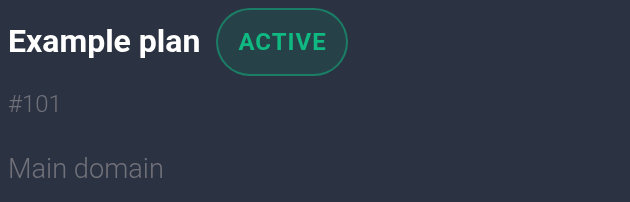
This guide covers a paid visitor-routing plan. Domain registration has a separate renewal. The screenshots use example plan #101 with the comment “Main domain”; 30 USD for 30 days and the dates are examples.
Renew manually#
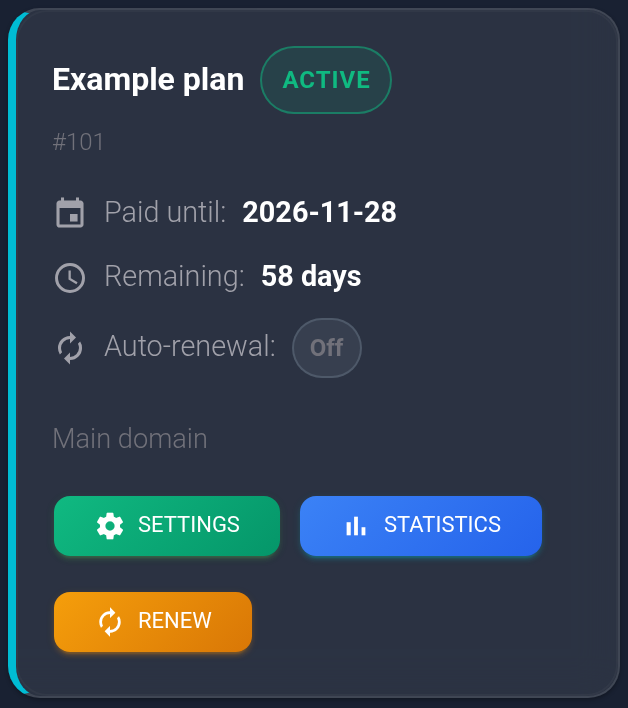
- Open “Plans”. Find the required card by the number after # and your comment. Note its “Paid until” date: you will check that date again after renewal.
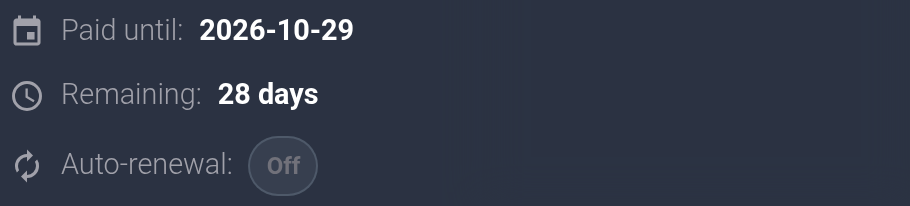
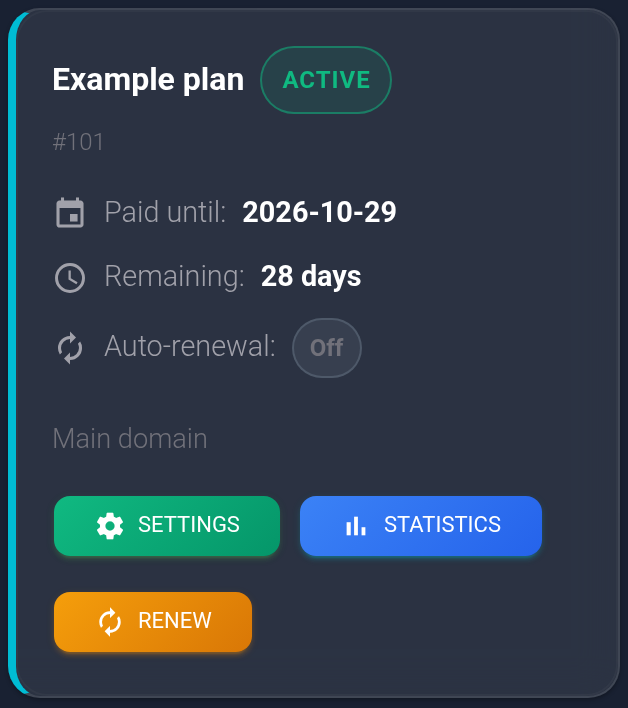
Before paying, check your package's price, currency, and duration. If the package is still on the plan purchase page, check the offer with the same name. If it is an older plan, it is missing from the catalog, or the terms are unclear, ask support to confirm the cost before you pay. A discount for a new purchase may not apply to renewal. Do not substitute the price of another similar package.
Payment comes from your account balance. If you do not have enough funds, top up the balance and wait for the funds to arrive first. For this guide, prepare the full renewal amount in advance.
- Click “Renew” on the required card. Opening the confirmation does not pay for the plan.
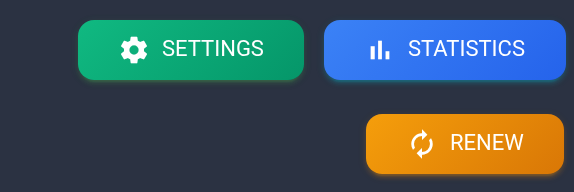
Confirm the payment#
- Read the “Confirm” dialog. It warns about a balance charge but does not display the specific amount or duration. If you have not checked the cost or opened the wrong card, click “Cancel”.
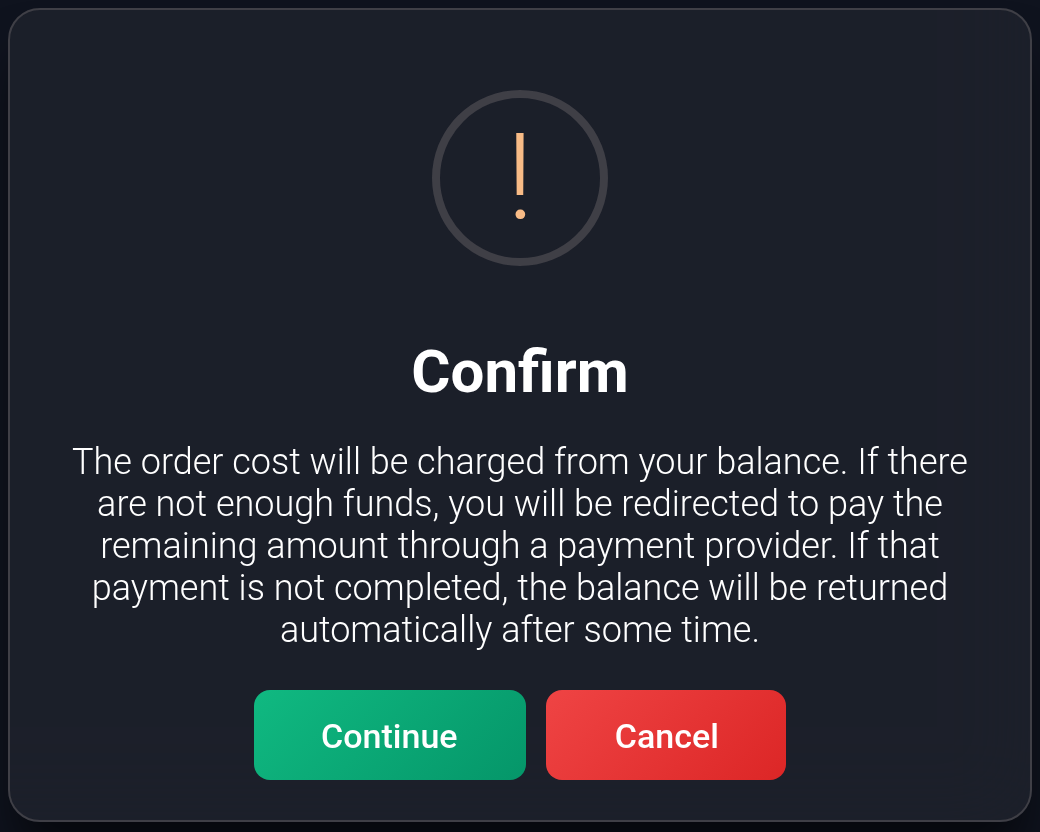
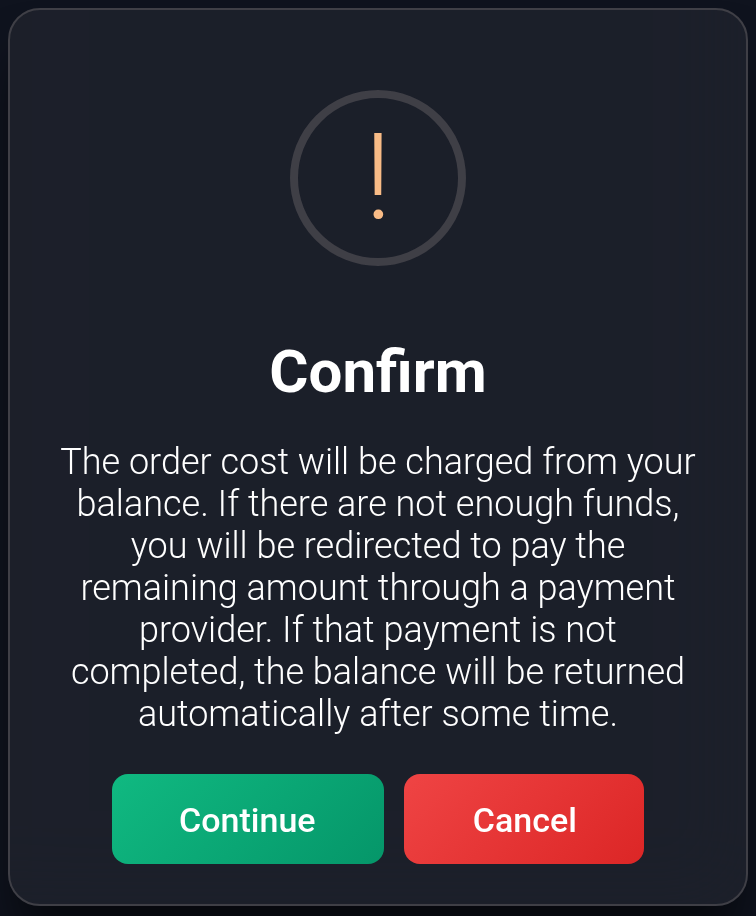
- If everything is correct and your balance has enough funds, click “Continue” once. Wait for the result. If the page stalls or the result is unclear, check the expiry date and transaction history before submitting another payment.
Check the new expiry date#
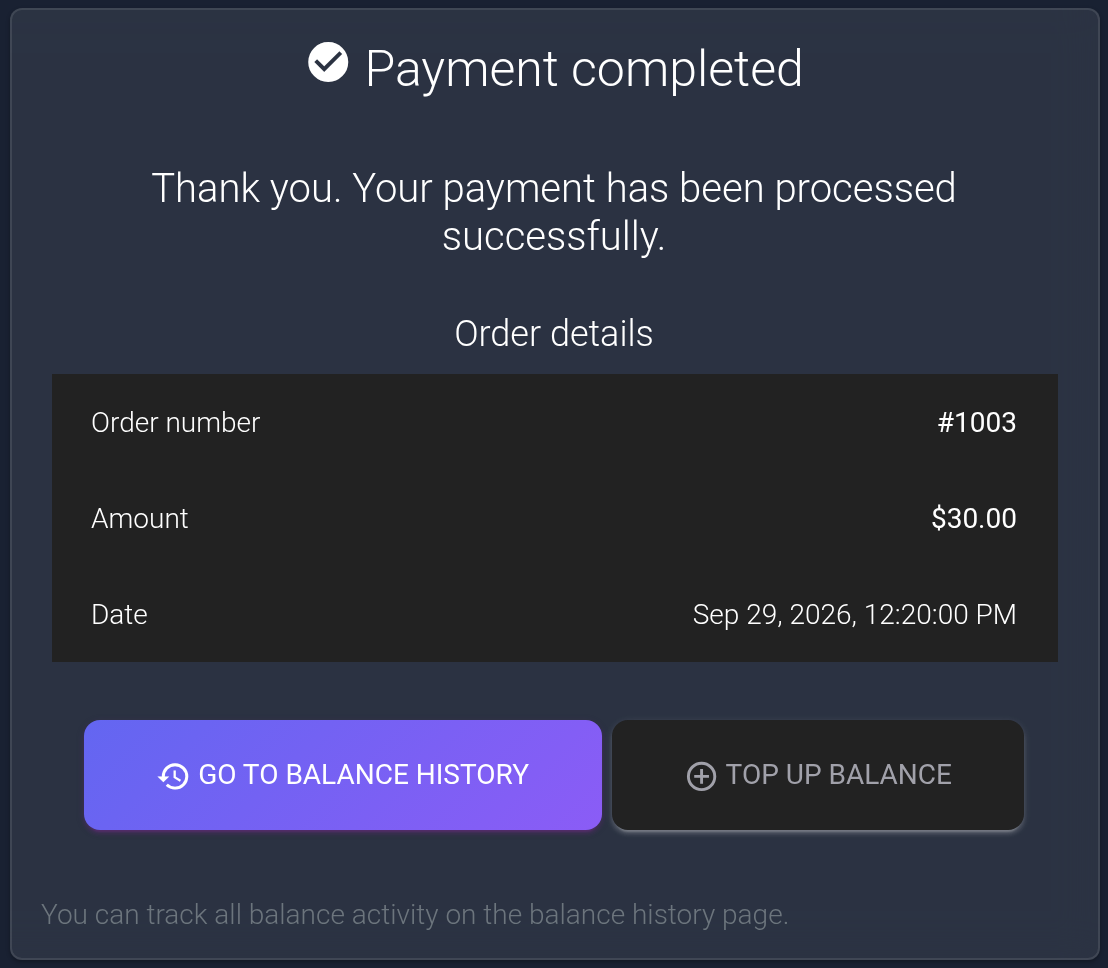
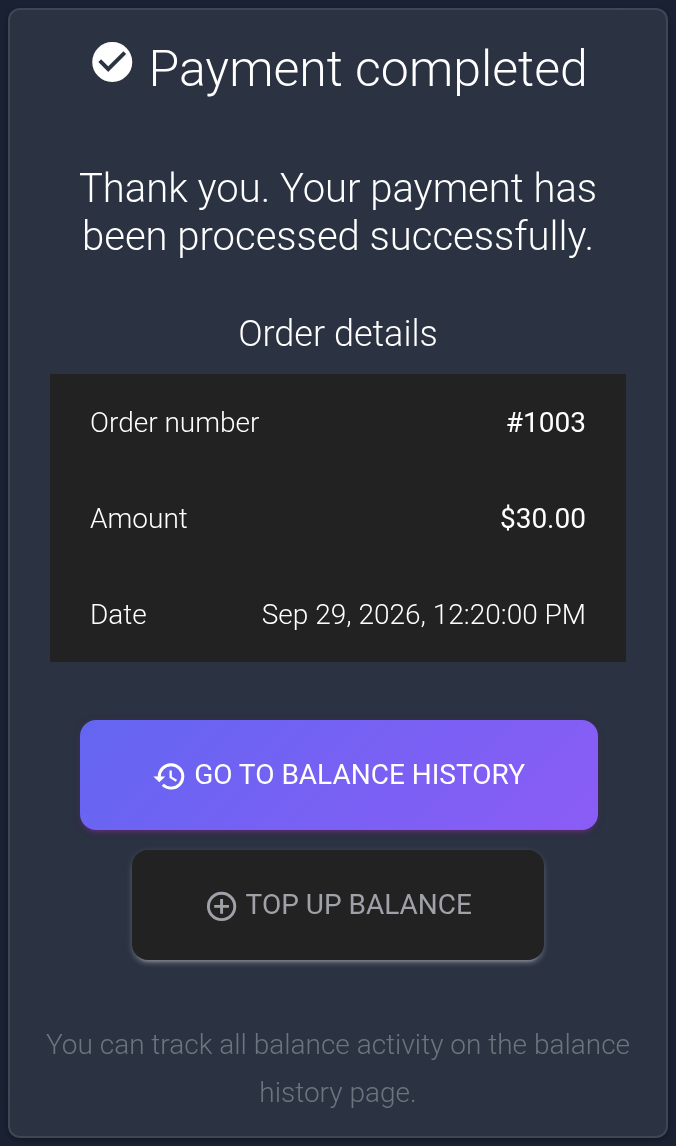
- After successful payment, the result page shows the order number, amount, and date. Note the order number for support. It is #1003 in the example, which is different from plan ID #101.
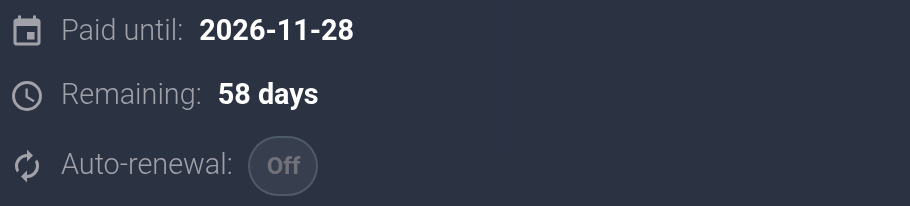
- Return to “Plans” and refresh the list. On the same #101 card, check “Active” and the new “Paid until” date. The example adds 30 days to the current expiry: 2026-10-29 becomes 2026-11-28. A payment message alone does not confirm the plan's new expiry date.
If the plan is already inactive#
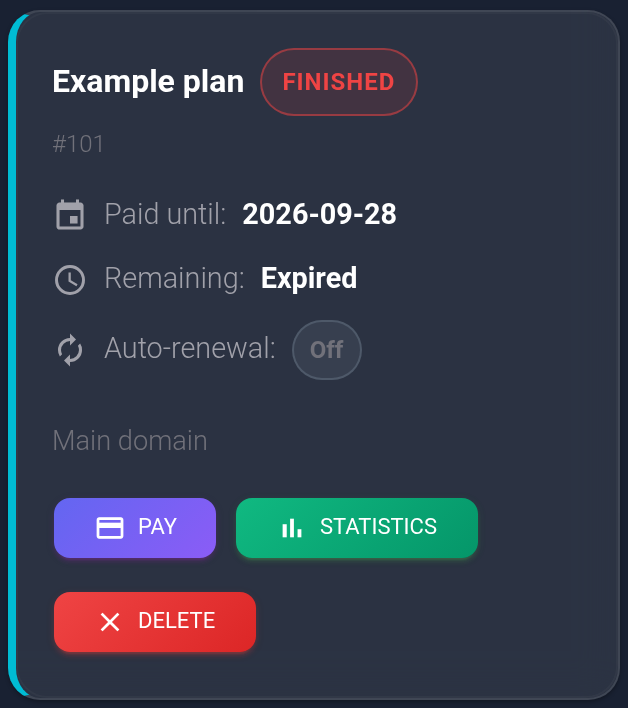
Find the same plan ID under “Archive and pending”. A paid plan may have a “Pay” button instead of “Renew”. Check the terms and balance, confirm the payment, and check the status and expiry again. The confirmation text may differ from the screenshot above. For an inactive service, the new period starts at payment rather than its previous expiry date.
Enable auto-renewal#
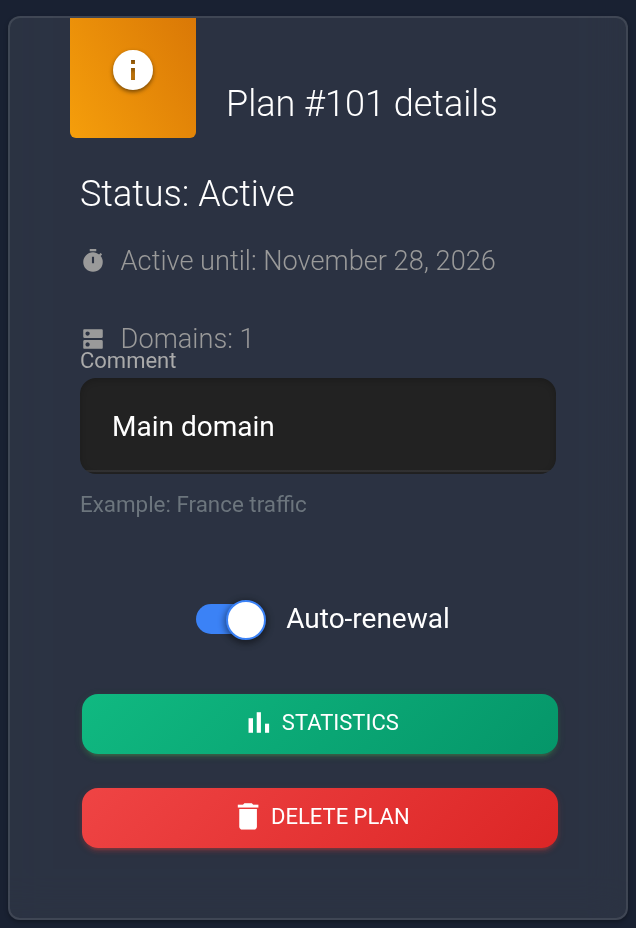
- Click “Settings” on the active plan card. In the first section, “Plan #… details”, check that the plan ID is correct.
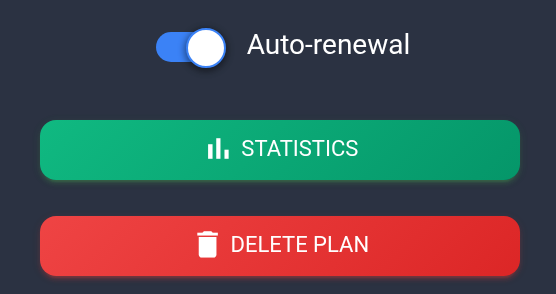
- Turn on “Auto-renewal”. Wait for “Auto-renewal settings changed”.
- Reopen the settings or refresh the page. The switch must still be on. The screenshot shows the saved on state after reopening; the plan list labels this state “On”.
Top up before the plan expires. Auto-renewal uses your account balance, so it must cover the full period when payment is attempted. Insufficient funds can interrupt the service. An enabled switch does not confirm a future payment: check the new expiry date and transaction history after the previous period ends.
To stop future automatic charges, turn off the same switch and check that it stays off after refreshing. This does not shorten the period you have already paid for.
If the expiry date did not change#
- The payment result is unclear. Refresh the plan list and check transaction history around the attempt time. Another payment can extend the plan again and charge your balance again.
- You were charged, but the date is unchanged. Do not pay again. Send support the plan ID, order ID from history, attempt time, and error text. Do not send an API key, password, or one-time codes.
- There is no charge. Check the available balance and the status of this exact service. Correct the reported error, then retry once. Contact support if the cause is unclear or no payment button is available.
- Auto-renewal was not saved. Check the plan ID and reopen its settings. If the switch returns to off or an error appears, send support the error text and service ID.