A template stores a target URL: the address of the page you want a visitor to reach. It can also contain a title, description, and image for a link preview. Creating a template does not assign it to a domain or stream; assignment is a separate step in the plan settings.
You need an active plan to use the library. Check your destination page first by opening its complete URL in a browser. This guide uses the example URL https://example.com/go and template #501; use your own values.
Create a template#
- Open the “Template library”.
- Click “Create templates”. The “Create template” side panel opens.

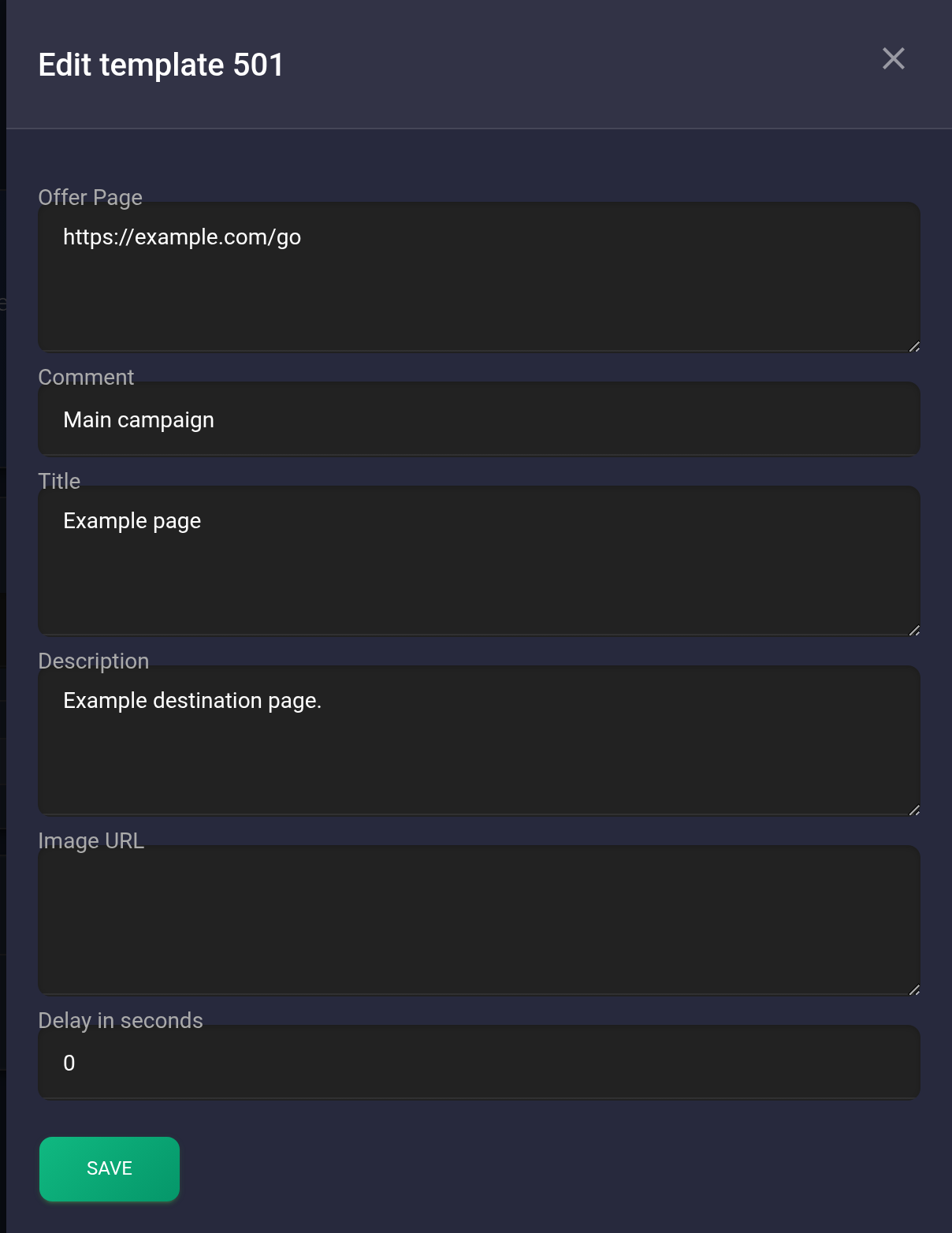
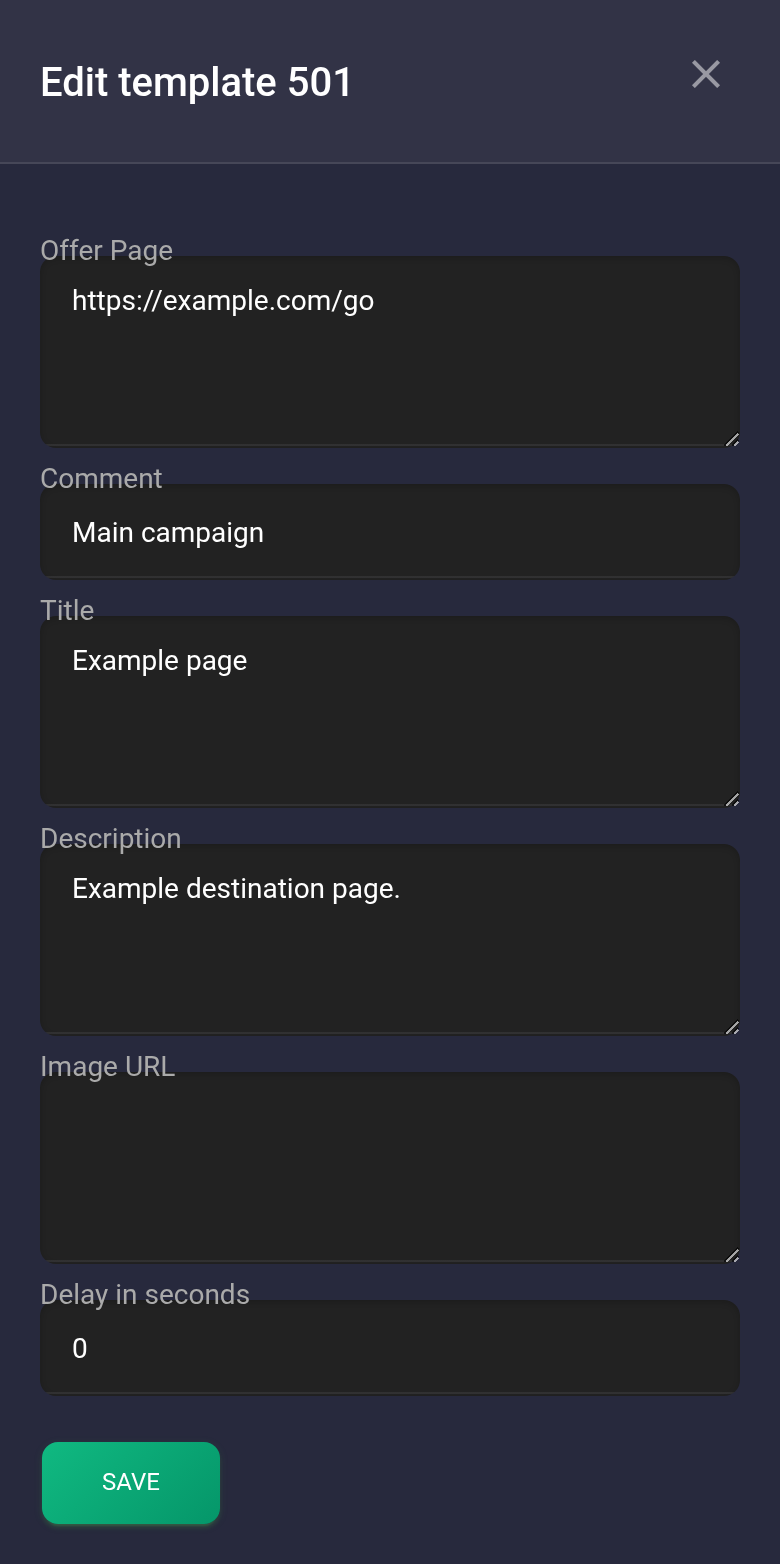
- In Offer Page, enter the complete target URL including https://, for example https://example.com/go. For your first template, use one URL on one line.
- In “Comment”, enter a recognizable name, such as “Main campaign”. Use it to find the template and select it in settings. Visitors do not see this comment.
Complete the other fields only if needed:
- “Title” and “Description” are the link preview text. The example uses “Example page” and “Example destination page”.
- “Image URL” is the direct address of an accessible image, not a page containing it. You can leave it blank, as in the screenshot.
- “Delay in seconds” is the wait before a redirect for redirect methods that support it. Use 0 for this simple example. A “302 redirect” does not use this delay.
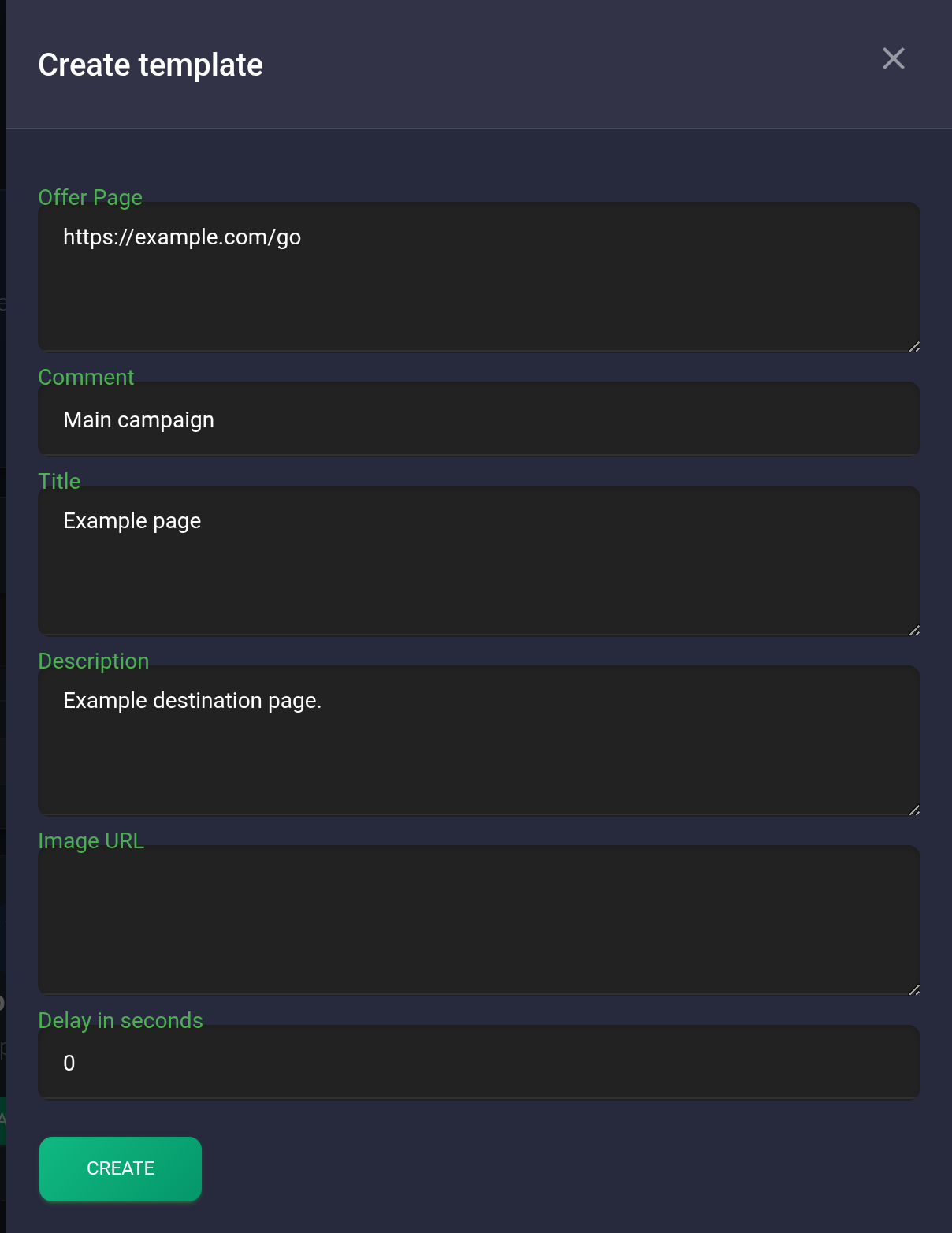
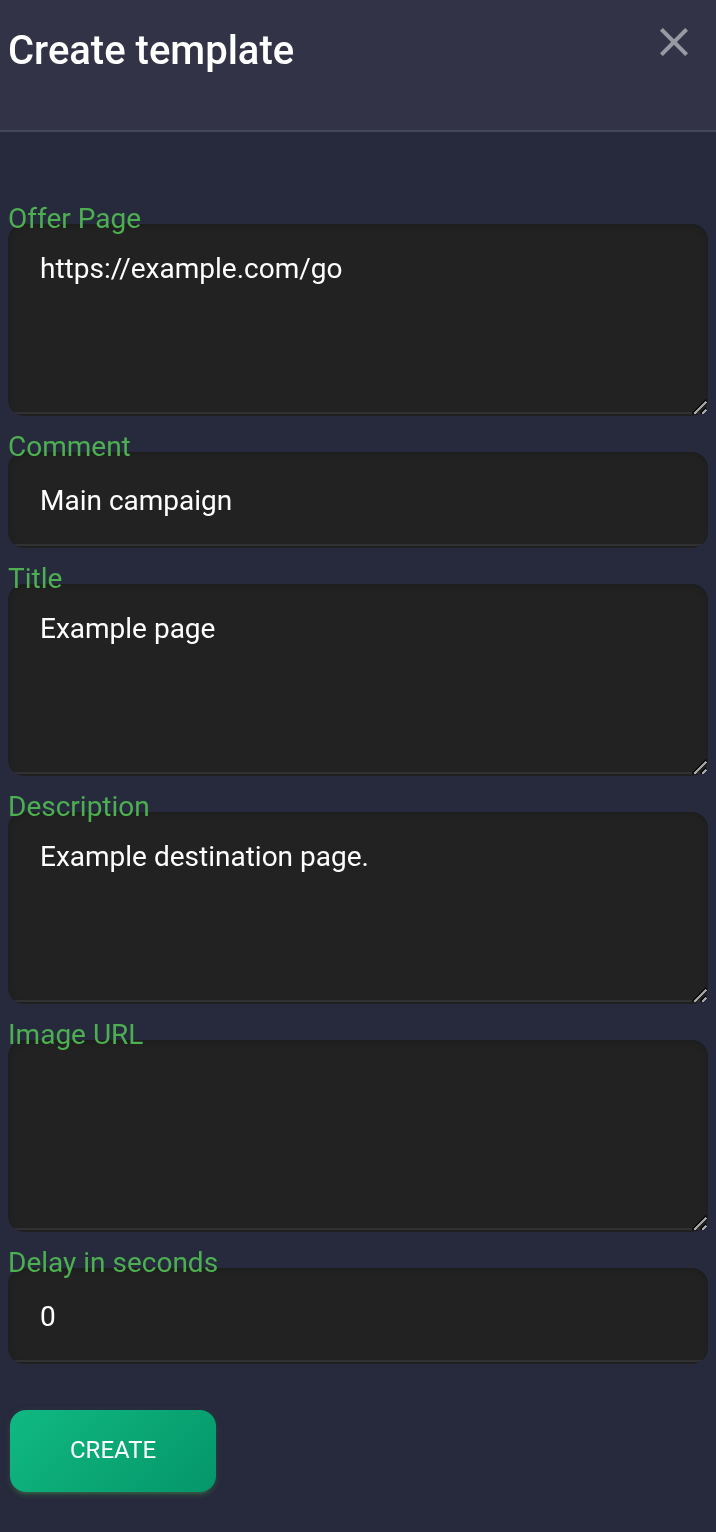
- Click “Create” once. On success, the panel closes, a creation message appears, and the library refreshes. If the form displays an error, correct the indicated field and save again.
Multiple templates and multiple variants are different. Each new line in Offer Page creates a separate template. A batch can succeed partially, so check the cards already created before submitting it again. The | character separates variants within one template for randomization; do not add it to this simple example. Use the library's “Guide and syntax” button for details.
Check and assign the template#
- Find the new card by its comment or URL. If it is missing, click “Reset” to clear filters. Note the number after ID: #: 501 in the example.
- Click the down arrow, “Show details”, at the bottom of the card. Check the target URL, title, description, image, and delay. Clicking an empty area of the card only selects it for bulk actions.
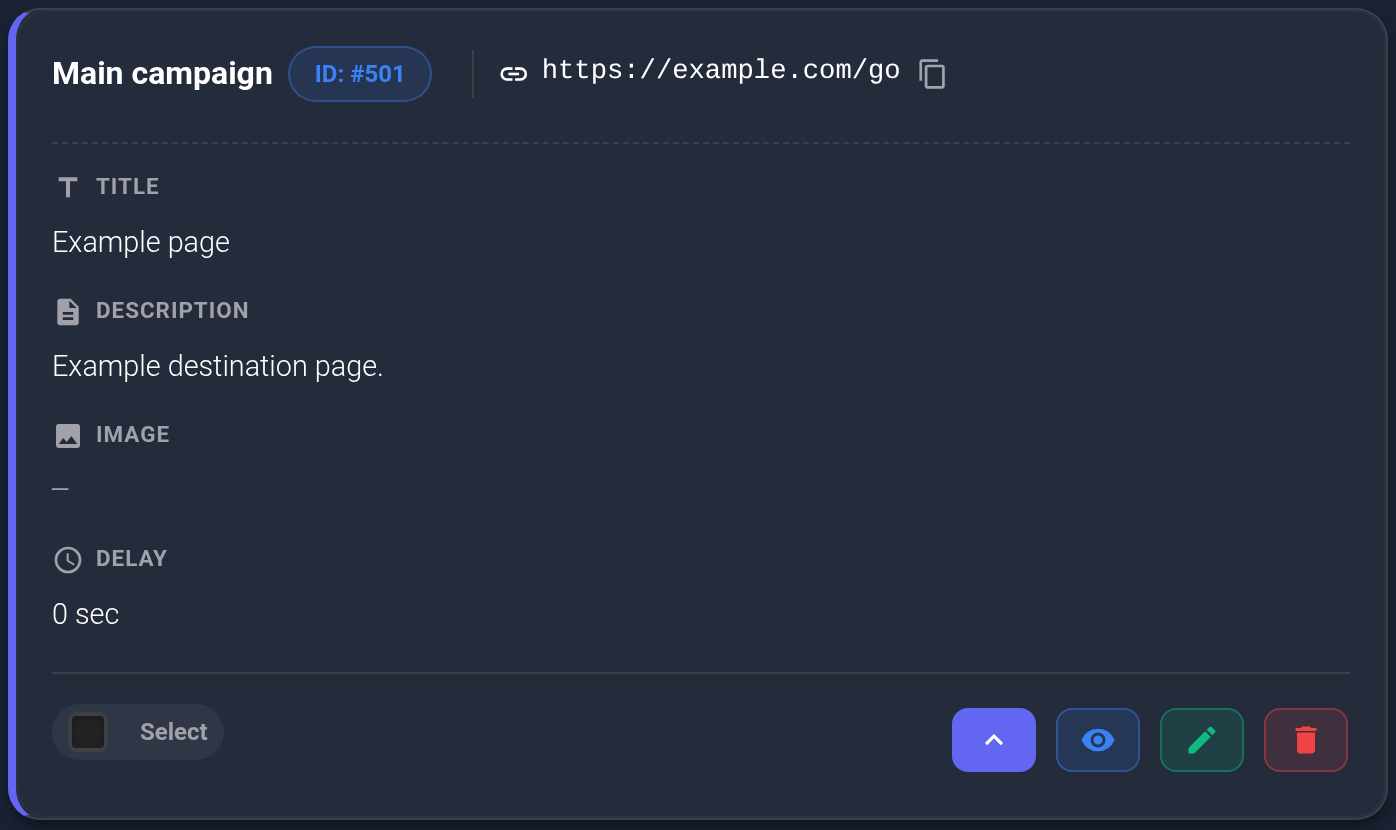
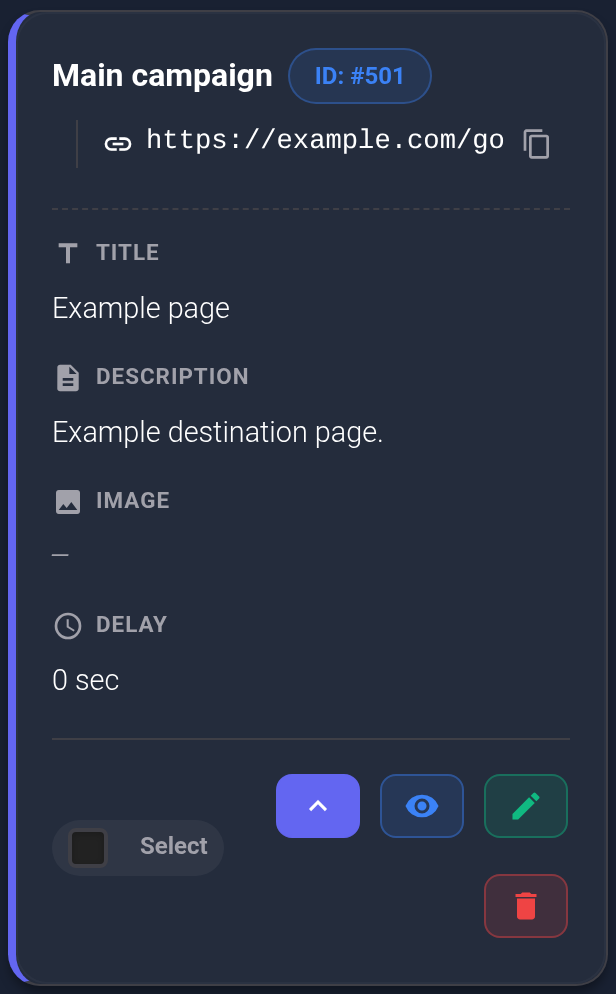
- Click the eye icon, “Preview”. Check the text, the complete destination URL under “Redirect target”, and the delay. “No image set” is expected when the image field is empty.
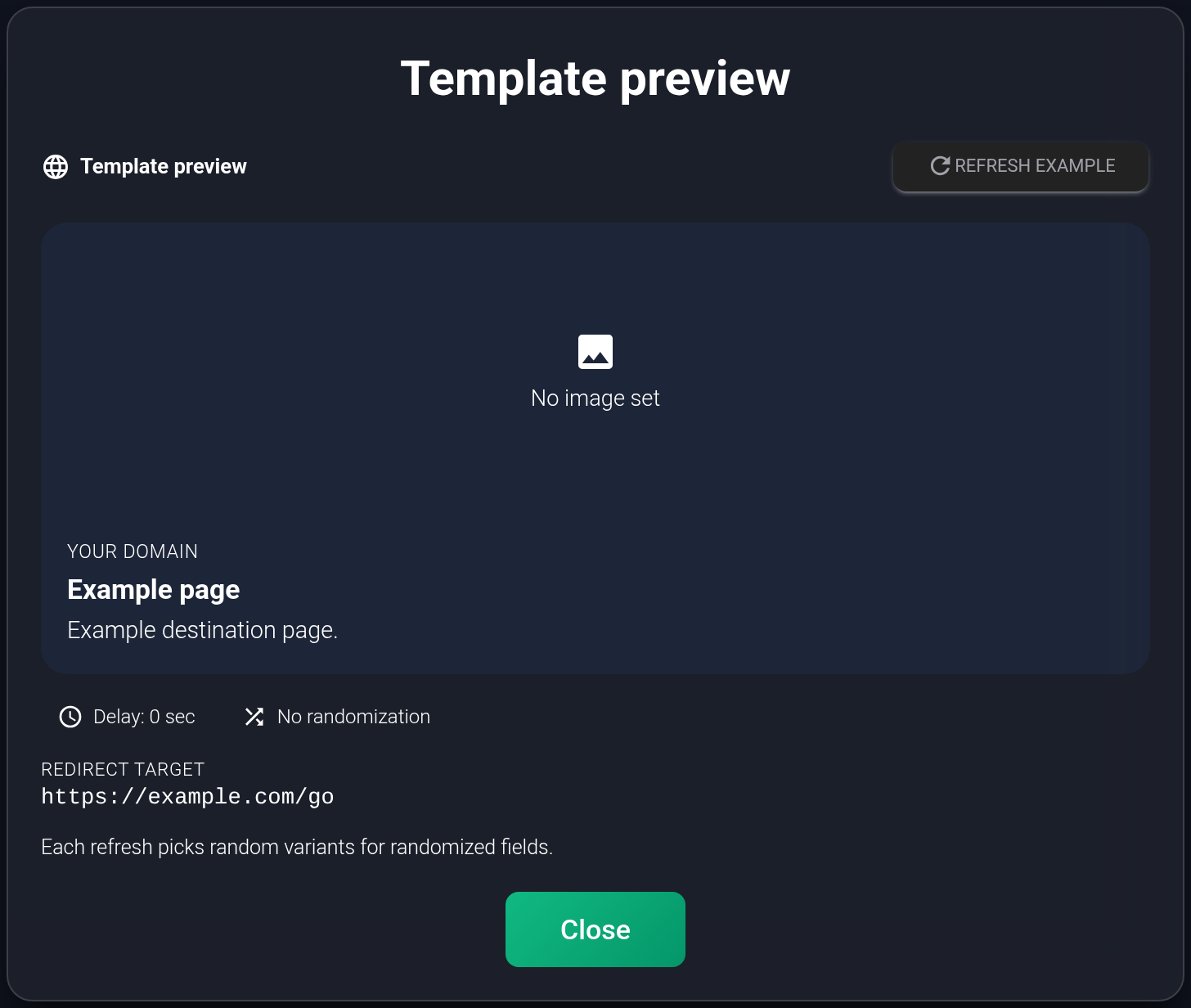
This is an example built from the saved fields, not the destination page itself. “YOUR DOMAIN” is a placeholder, not confirmation of a domain assignment. “Refresh example” selects random variants again if any are configured; it does not save changes or check website availability. A particular messaging app may display the shared link differently.
- Close the preview. In “Plans”, find the required card and click “Settings”. Select this template where it should be used: in a visitor-routing rule, an incoming link, or the default action. Follow the relevant guide and save the setting.
- Open the actual link your visitors will use and check that it leads to the expected page. A card's presence in the library does not confirm this.
Edit a saved template#
Click the pencil icon, “Edit”, on the required card, change the fields, and click “Save”. After the list refreshes, check the details and preview again. One template can be used in several places: editing it affects every rule and stream that uses that ID. If only one setup needs a different destination, create a separate template and assign it there.
If the template is missing or the URL does not open#
- Saving fails. Check Offer Page and the image URL, remove spaces inside URLs and empty variants next to |. If the request's result is unclear, check the library before trying again to avoid creating a duplicate.
- The card is missing. Reset filters, check the account and active plan, and search by comment or part of the target URL.
- The preview looks correct, but the redirect fails. Open the target URL directly, then check the assigned template ID, rule or incoming link, and redirect method. The preview does not perform these checks.
- You want to delete a template. Check its usage first. Deleting it also deletes its linked streams; this is not a way to pause them temporarily. Check any rules and default action that reference the same ID.
- The cause is unclear. Send support the template and plan IDs, incoming and target URLs, attempt time, and error text.