A traffic processing rule chooses what to show a visitor when a condition matches. For example: send visits from Germany to template #501 and use the default action for other visits. TDS is the name of this filtering feature in the account. A rule does not register a domain or change DNS.
You need an active plan that includes filtering and a saved template with a destination URL. This example uses plan #101, template #501 “Main campaign”, and country code DE. Use your own IDs and conditions. If the add buttons are disabled, check what your package includes.
Create a rule#
- Open “Plans” → “Settings” on the required card. Check the plan ID, then open “Filtering (TDS)”.

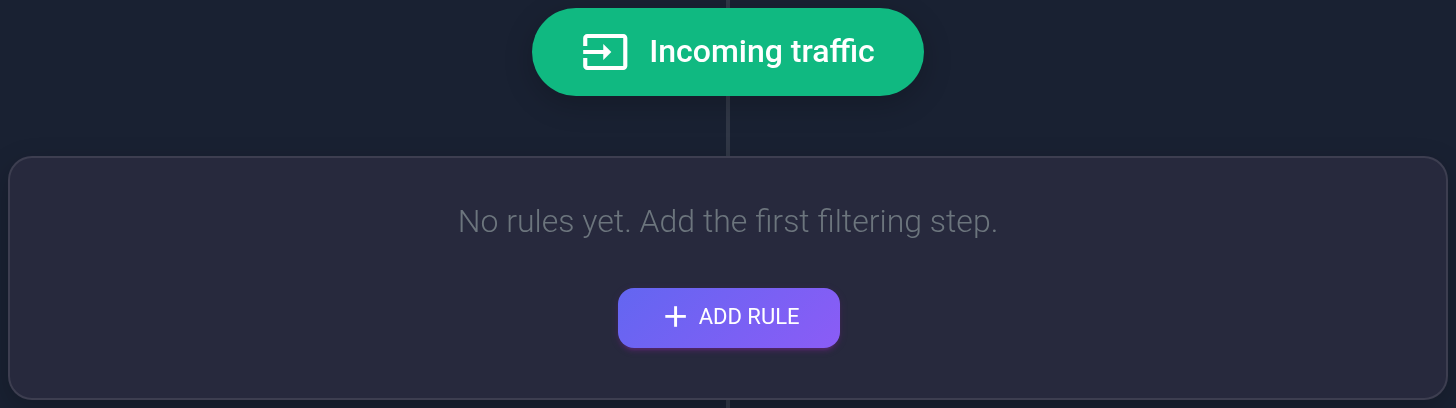
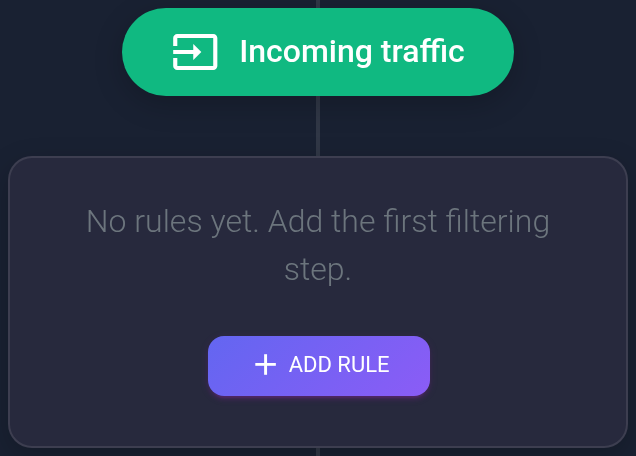
- If the diagram is empty, click “Add rule”. In an existing diagram, “Add condition to this step” adds to that group; “Add next step” creates another one. One condition in one step is enough for this first example.
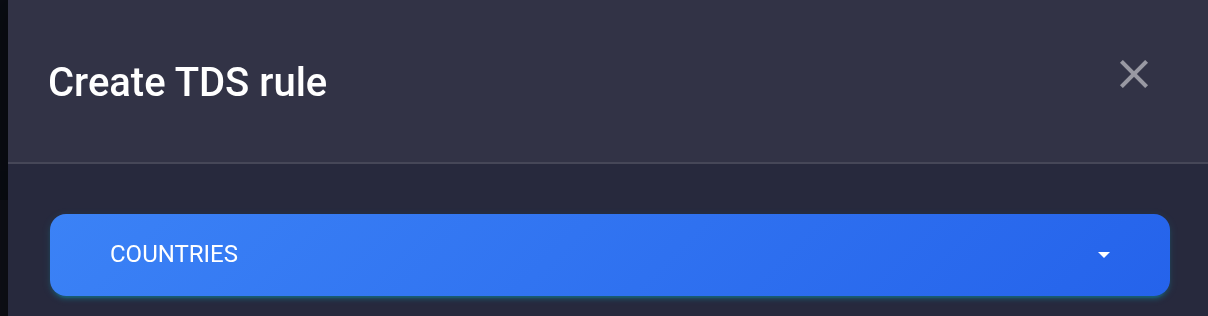
- Select “Countries” in the side panel. The condition type determines the fields and accepted values. For cities, operating systems, devices, browsers, repeat visits, IP addresses, or traffic sources, follow the hint in that type's form.
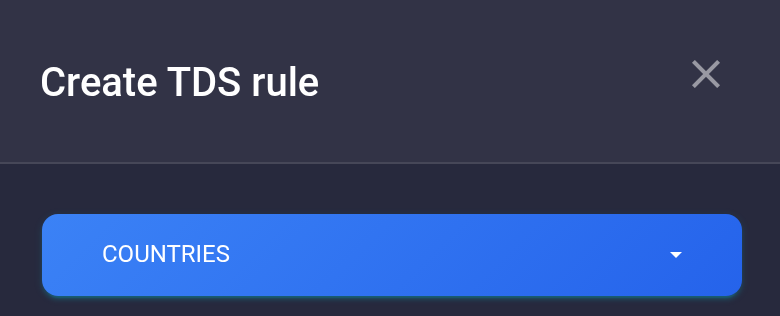
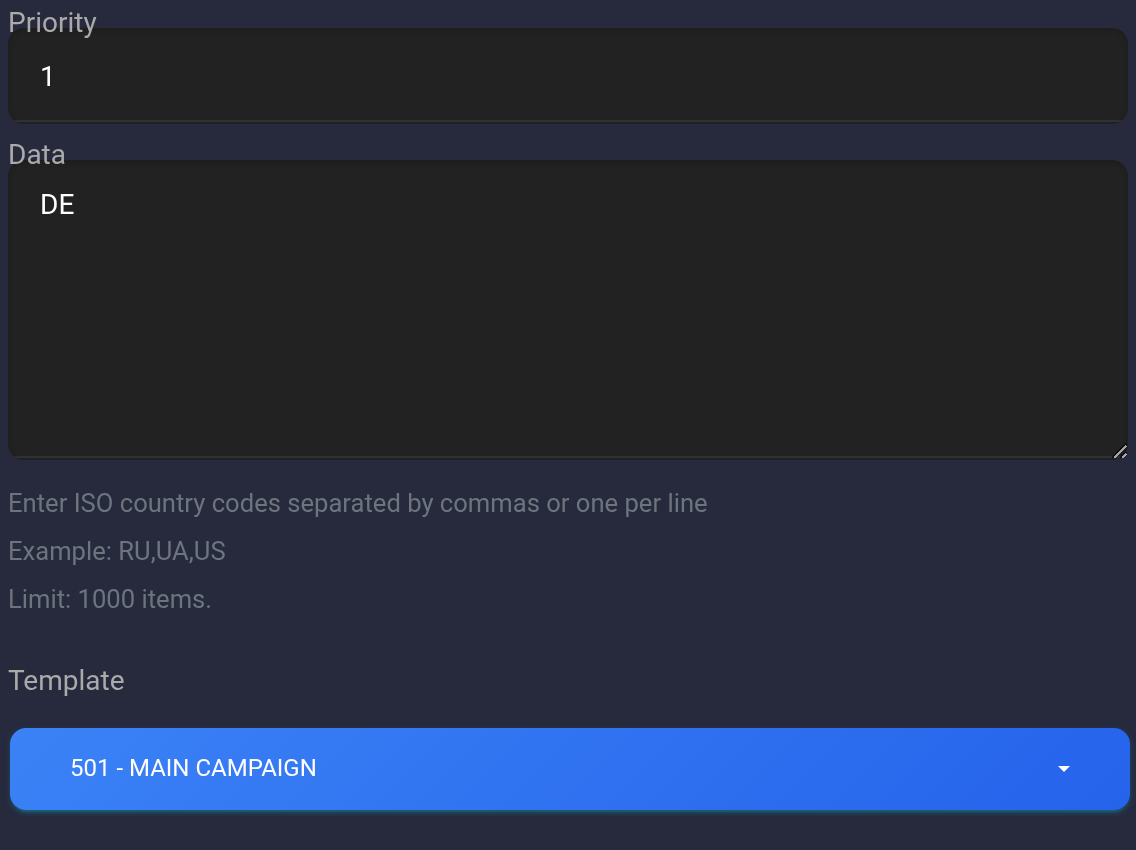
- Enter 1 in “Priority”. The allowed range is 1–100. If the first form opens with 0, replace it. Lower numbers are checked earlier.
- Enter
DEin “Data”: Germany's two-letter country code. For several countries, use values such asDE,FRwithout spaces or put each code on a separate line. Do not enter the country name instead of its code. - Under “Template”, select #501 “Main campaign”. Check the ID; similar comments can belong to different templates. “White Page(s)” shows a configured page instead of redirecting to the destination. That is a different action.
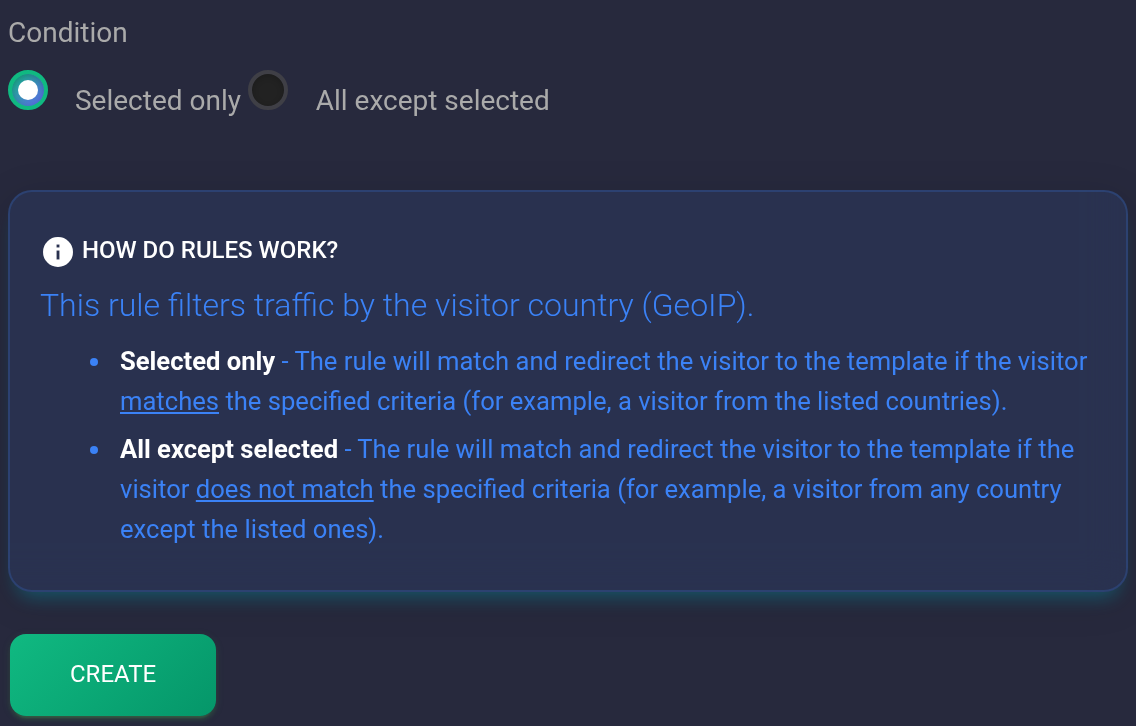
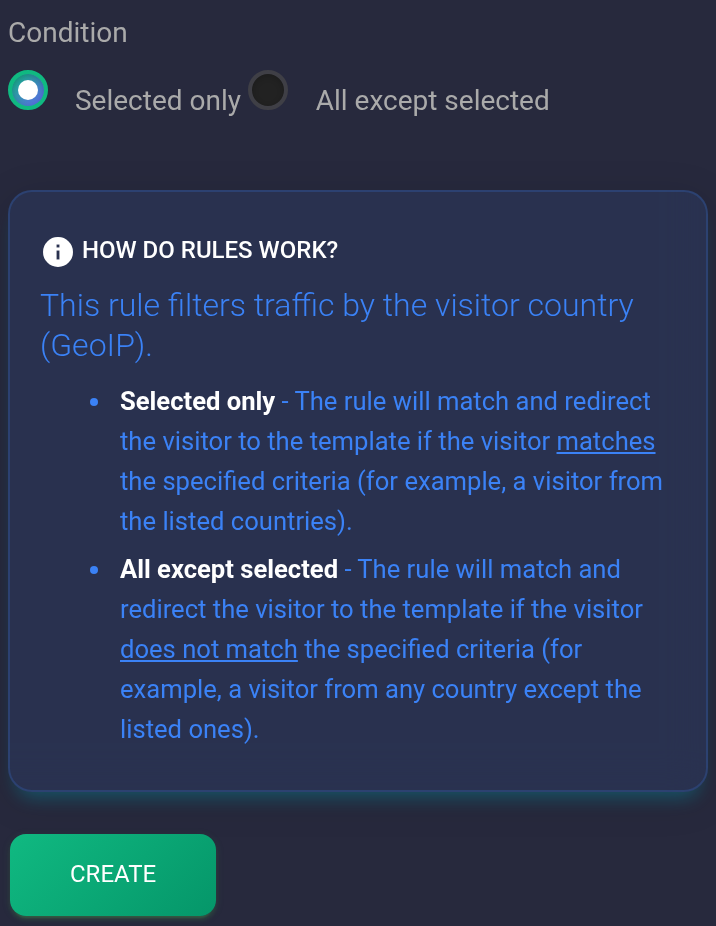
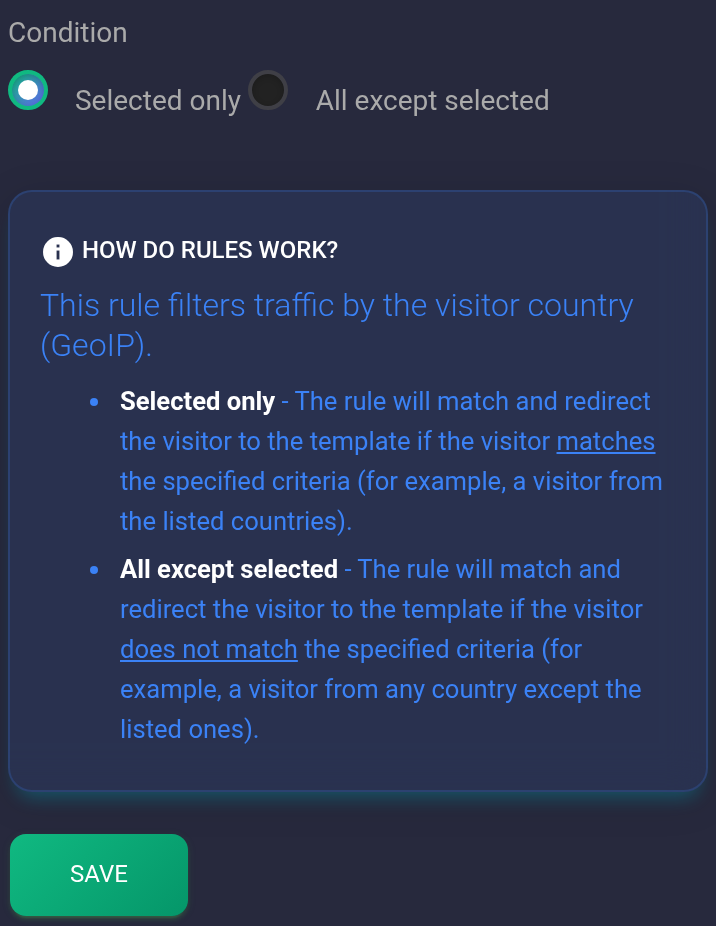
- Select “Selected only”: in this example the condition matches DE. “All except selected” reverses the selection and matches other countries.
- Click “Create” once. If an error appears, correct the indicated field. Filling in the form does not save a rule. On success, the panel closes and the diagram refreshes.
Check the result#
- The diagram should show “Step 1”, country DE, “Selected only”, and destination template 501. Refresh the page and reopen filtering. The saved condition should remain.
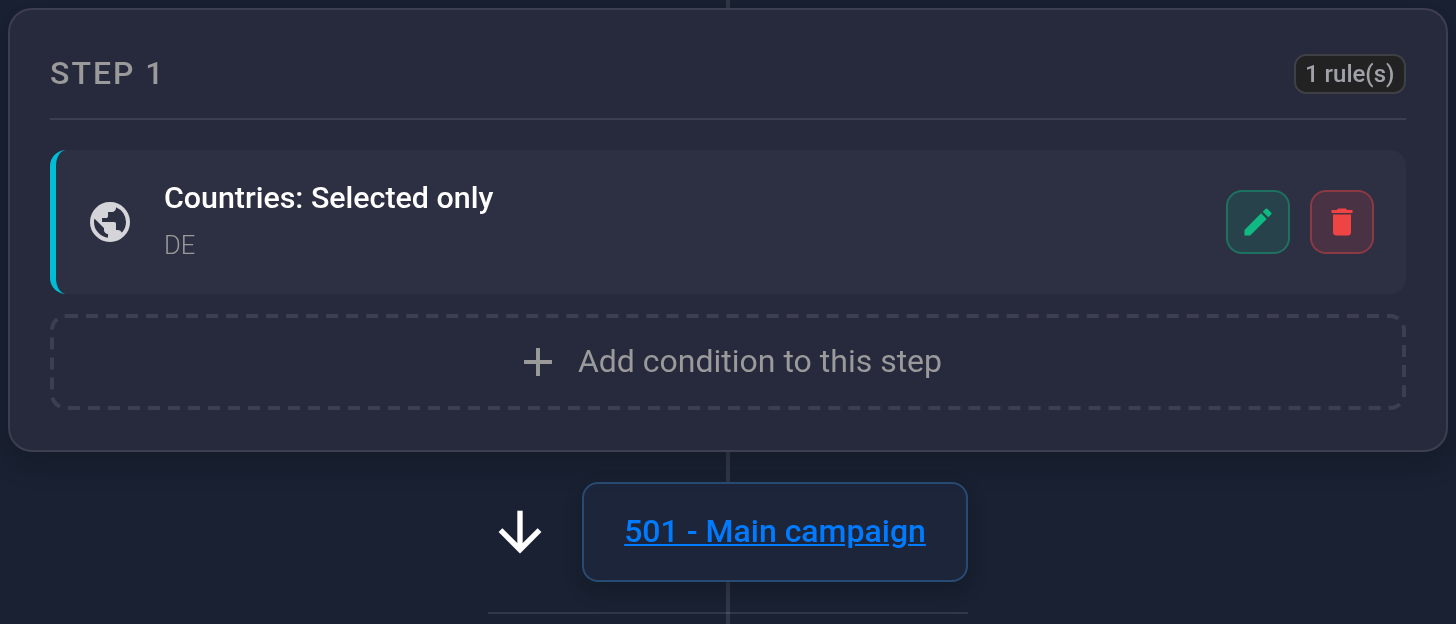
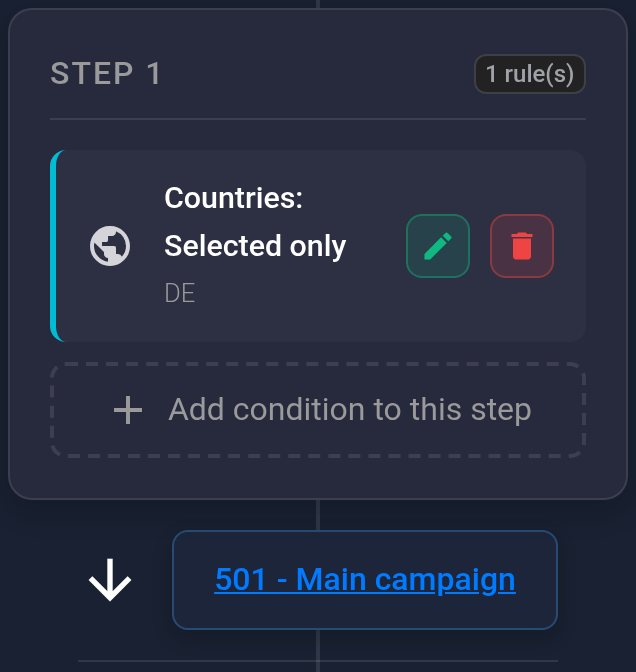
“Step 1” is the block's position in the diagram; priority is the number in the form. For simple independent conditions, use separate steps with different priorities, such as 1 and then 2. An earlier matching rule can finish choosing the action before later rules are checked.
Several conditions with the same priority are not interchangeable alternatives. In the first step, every condition must match, and the last condition supplies the action. At later priorities, checks continue until the first match. If you do not need that combination, keep one condition per step. The hint icon next to “Priority” explains the current behavior.
- Open your connected test domain or incoming link. Find the attempt by its time in visit history. Check the detected country and the resulting action. An ordinary visit from another country does not test the DE branch.
- Check a visit that does not match too. An incoming link may use its own template; a direct visit may use the selection below the diagram. See the separate guide. “Bot not detected” alone does not mean that access was allowed.
Edit or delete a condition#
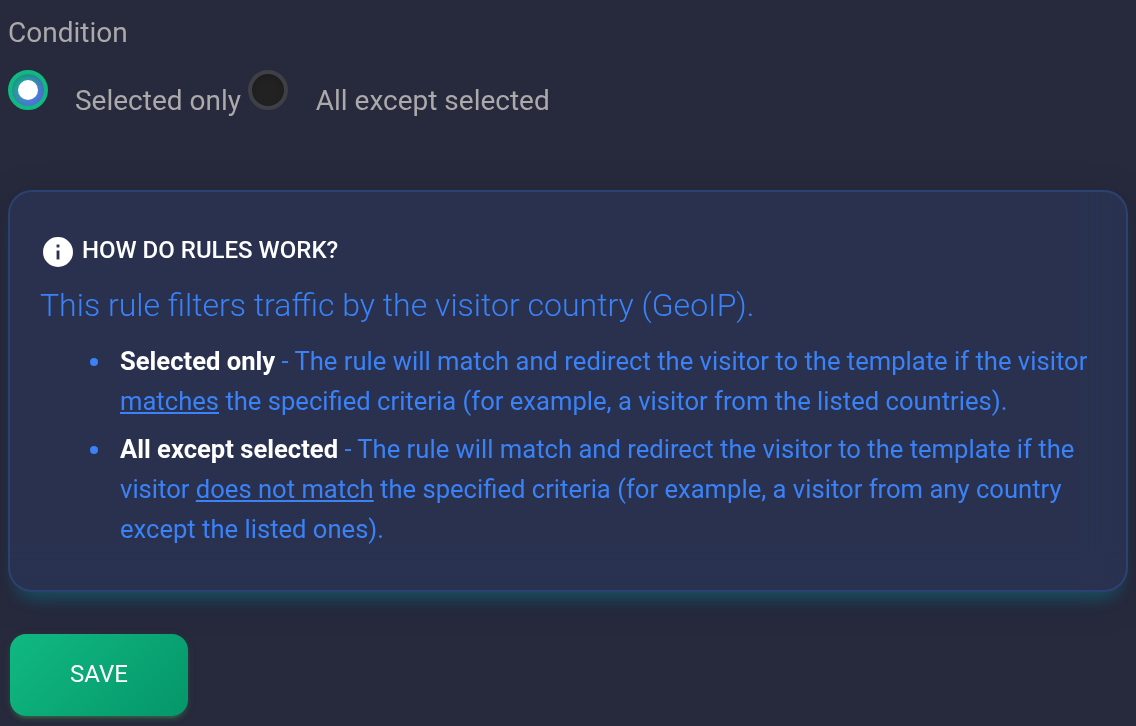
Click the green pencil on the required row. Check the plan, country, priority, mode, and template, make your changes, and click “Save”. Refresh the diagram and check a visit again.
The red trash icon deletes that condition after confirmation. Check the other conditions in its step and the default action first: deletion can change the result. To leave the form without saving changes, close the panel.
If the result is unexpected#
- The rule did not appear: check the form error, priority 1–100, selected template, and country code. A duplicate-condition message means you should find the existing condition rather than submit the same form again.
- A different template was selected: check earlier steps, inclusion or exclusion mode, and saved template IDs.
- The condition did not match: compare the entered value with that visit's data in history, then check the action used when there is no match.
- The cause is unclear: send support the plan ID, visit time, error text, and a diagram screenshot without personal data. Do not send an API key or password.