Assigning a domain to a plan selects the KEHR settings that process its visits. It does not buy the domain name or connect it automatically after registration. To protect an existing PHP website, use the separate site connection workflow, which does not require DNS changes.
Before starting, open “Plans”, check “Active”, and note the number after # on the required card. The example below uses 101. The domain and numbers in the screenshots are examples; use your own.
For manual addition, the domain must already be configured to work with KEHR. If it is not connected yet, first follow the guides for the server IP and DNS records. Registering a name or having an ordinary website that opens is not enough. Do not change a working website's DNS when your goal is to connect PHP site protection.
Add an address#
- Open “Domains”. This list is for working with plans; domain registration is a separate section. Search for your address. If its card already exists, do not add it again: proceed to plan selection below.
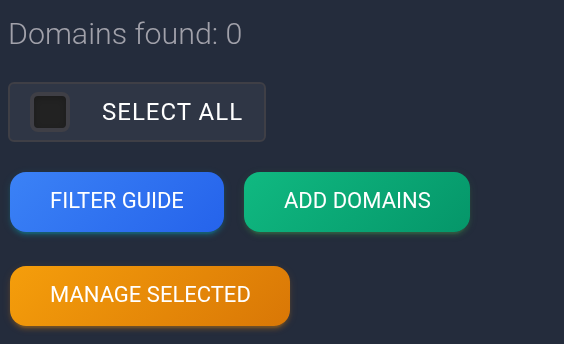
- If there is no card, click “Add domains”. A side panel opens with an input field.

- Enter only the name, for example example.com, without https://, a port, path, or parameters. Enter multiple addresses one per line, up to 20 at a time as the form states. For a separate subdomain, enter its complete name, such as promo.example.com.
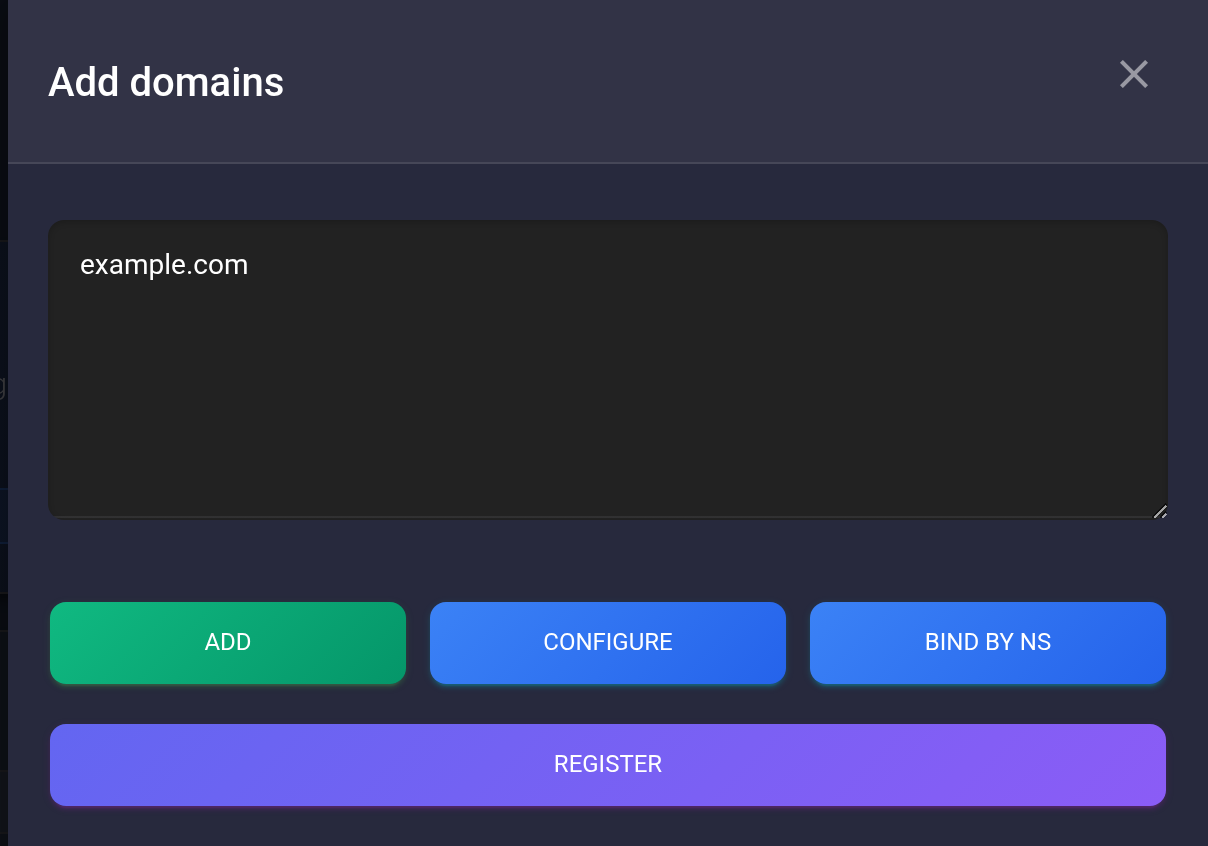
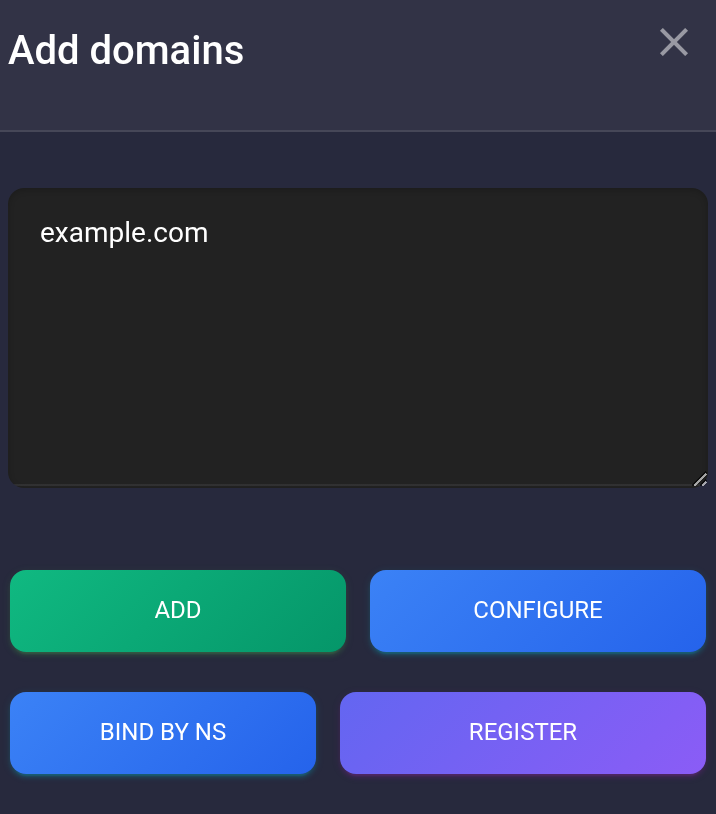
“Add” submits the entered addresses for checking. “Configure” opens connection instructions, “Bind by NS” is a separate workflow, and “Register” opens domain registration. For this step, use “Add”.
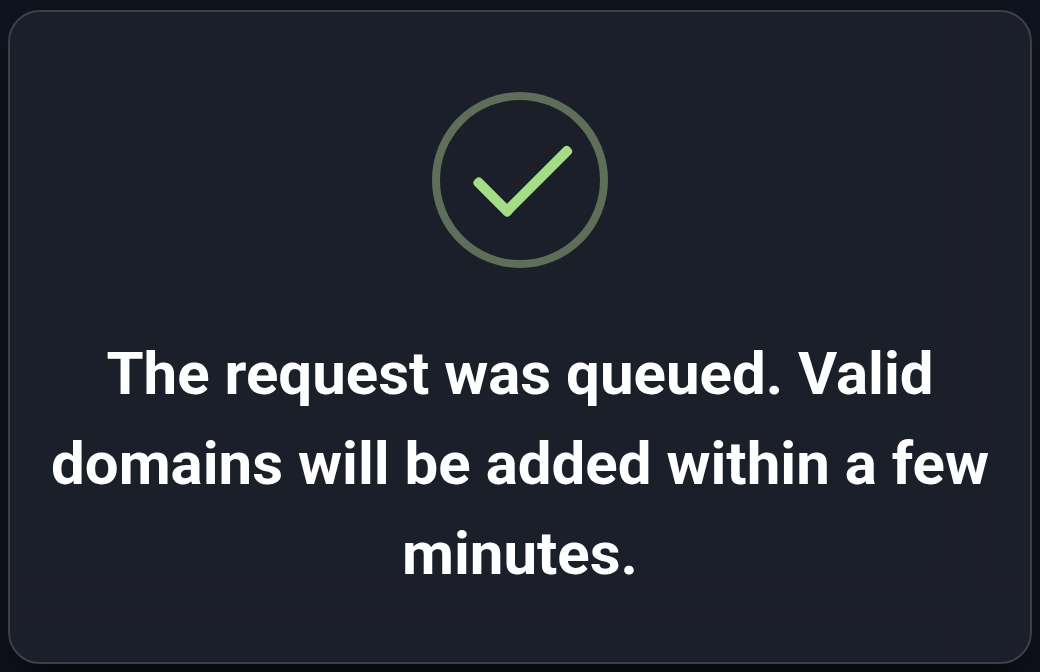
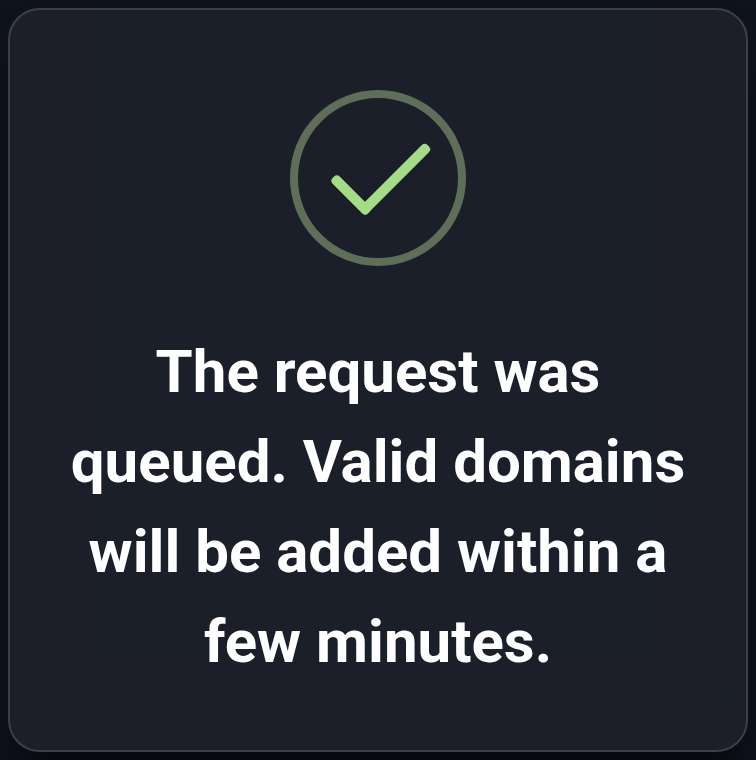
- Click “Add” once. The queued message means the request was accepted, not that every domain has already been added. The page refreshes automatically; if the card has not appeared, wait a few minutes and refresh the list again.
Select a plan on the card#
If the domain is already assigned to another plan, check how it is being used first. Reassigning it deletes the old plan's incoming links associated with that domain; selecting the old plan again does not restore them automatically. To extend the service, use “Renew” in Plans.
- On the required domain's card, open the plan selector next to the added date; on a phone it appears below the date. “Free” means “not assigned to a plan” here, not that the domain name is available to register.
- Select the number you noted earlier. The list shows the plan number and its comment, for example “101 — Main domain”. This is not necessarily the package name from the catalog. If the comment is blank, use the number.
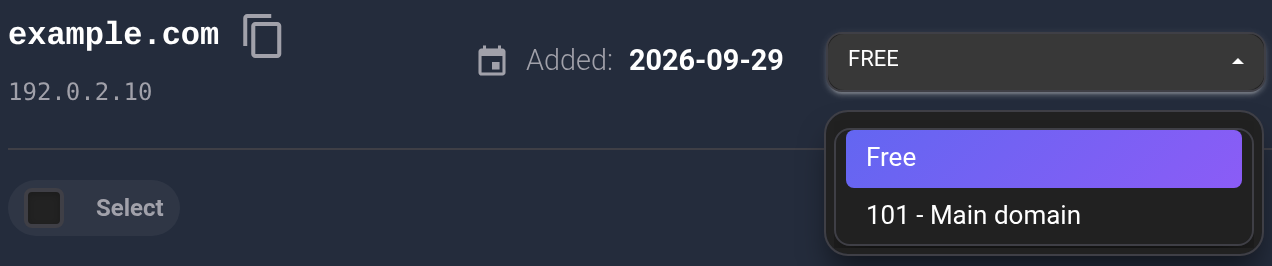
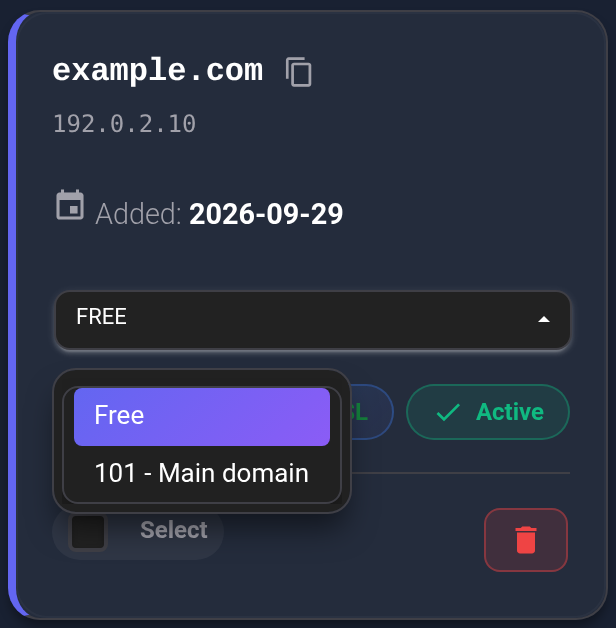
- The selection saves immediately; there is no separate “Save” button. Wait for the request to finish and the “Plan changed” message, then refresh the page. Check that the card still shows 101, or your own plan number. If there is an error, read the section below before changing the selection repeatedly.

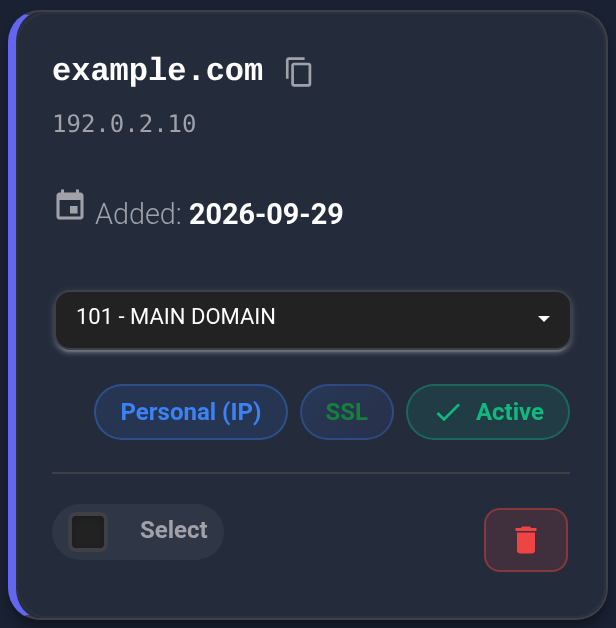
Verify the assignment and address#
- Return to “Plans” and open “Settings” on the card with the same number. In the initial plan information section, find “Domains” and your address. Check subsequent pages if the list is long.

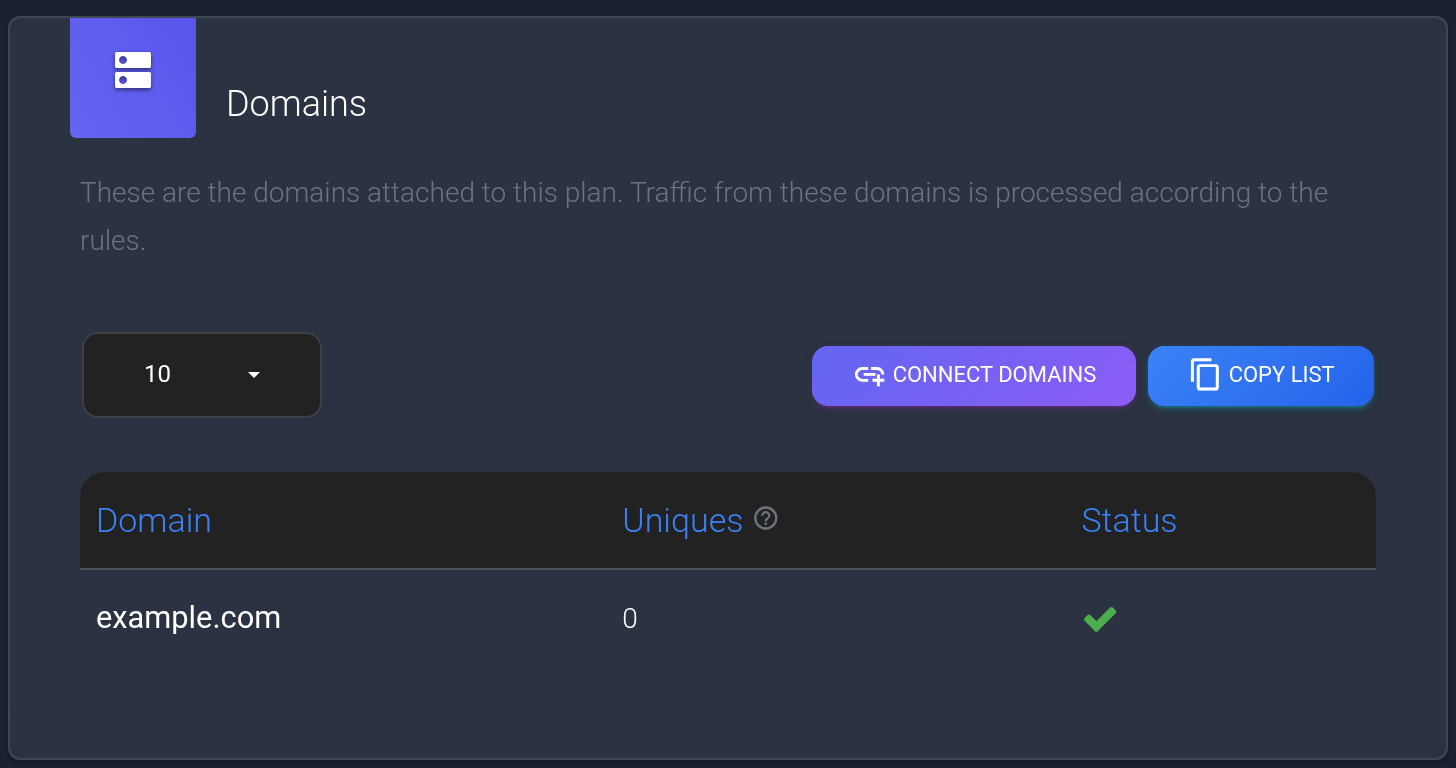
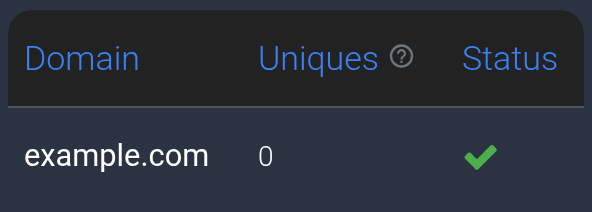
- Configure the required incoming links and visitor-routing rules. Open the actual link your visitors will use and check the expected page or redirect. A domain's presence in the plan list does not by itself verify DNS, the certificate, or the destination page.
If the address does not appear or does not work#
- No card appears after adding. Click “Reset” to clear filters, then search for the exact name. Check its spelling and connection to KEHR. A queued request may not add an address that fails the checks; do not submit the same list repeatedly.
- The required plan is missing or the selection did not persist. Check its number, active status, and domain limit. After an error, refresh the page and check the saved value: a brief message alone does not replace this check.
- The assignment exists, but the address does not open or goes to the wrong place. Check the IP and DNS, allow changed records to update, then check the chosen incoming link and rules. “Active” on the domain card and the SSL indicator are separate information; they do not confirm the entire visitor path.
- The cause is unclear. Send support the domain, plan number, attempt time, and error text or screenshot. Specify where you stopped: adding the domain, selecting a plan, or opening the link.