A stream is an incoming address that you add to a plan and assign to a template. For example, a visitor opens example.com/promo, and the selected template defines the destination page. The incoming link and the destination URL serve different purposes.
You need an active plan that supports streams, a connected domain, and a ready template. The domain must work with the required DNS and HTTPS settings. Your plan limits the number of streams.
Add a link manually#
Open the stream list#
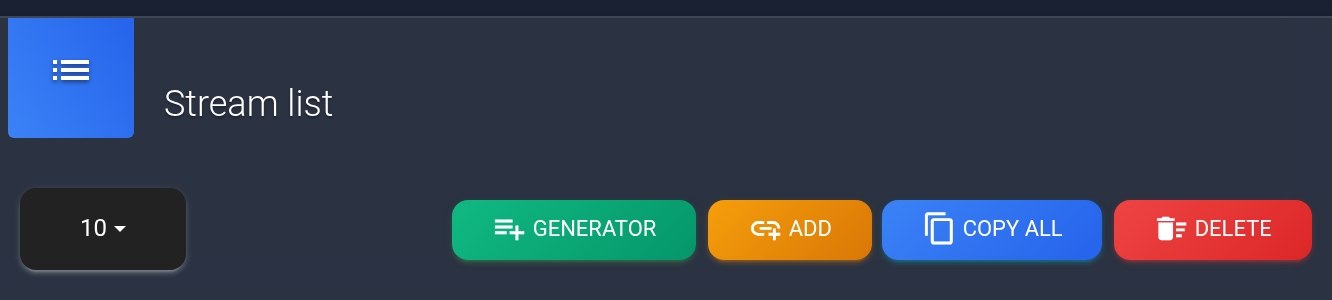
Open Plans, click “Settings” for the required plan, and select “Incoming traffic”. This example uses plan #101. If the tab or its buttons are missing, check the plan's features and whether it is active.


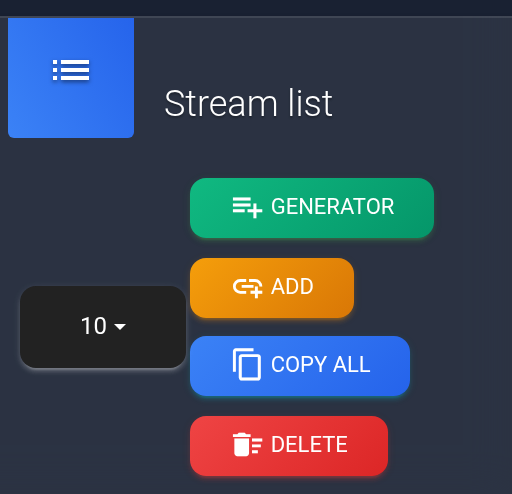
Click “Add”. The adjacent “Generator” button only produces a list of new addresses; use “Add” to save them.
Enter the address and select a template#
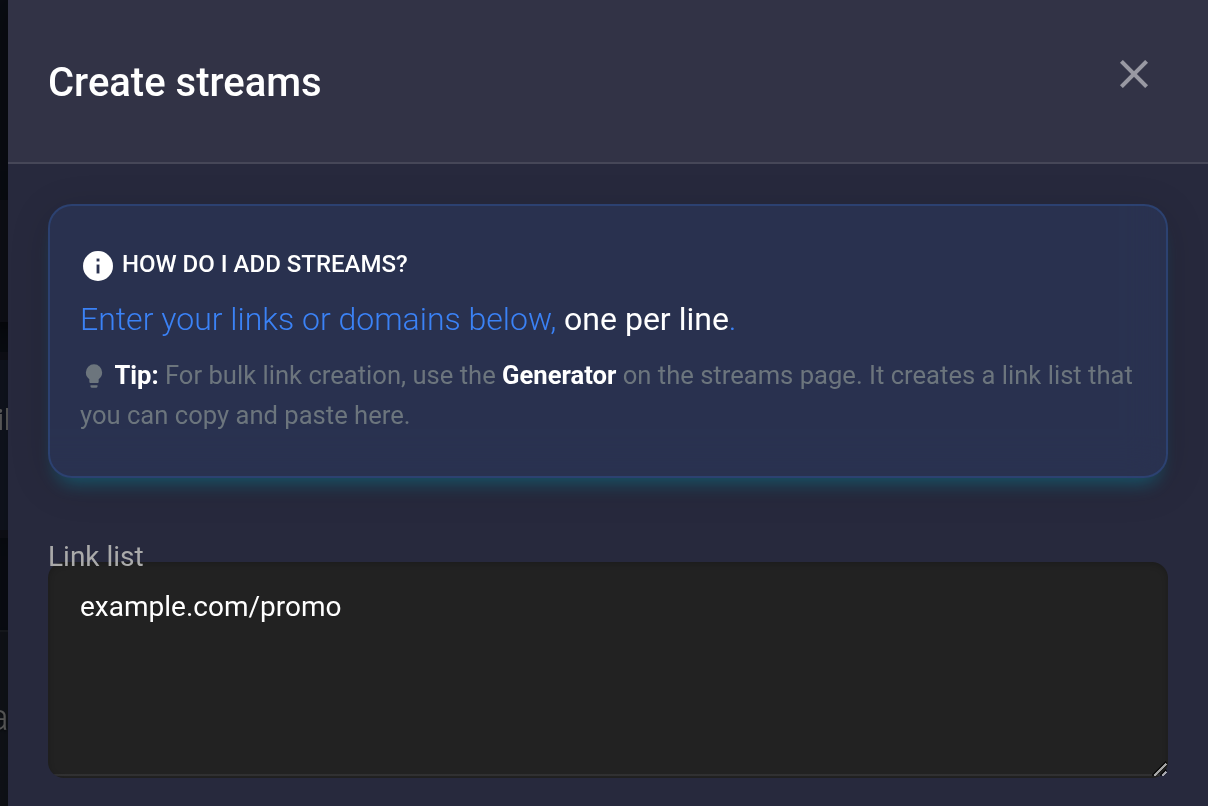
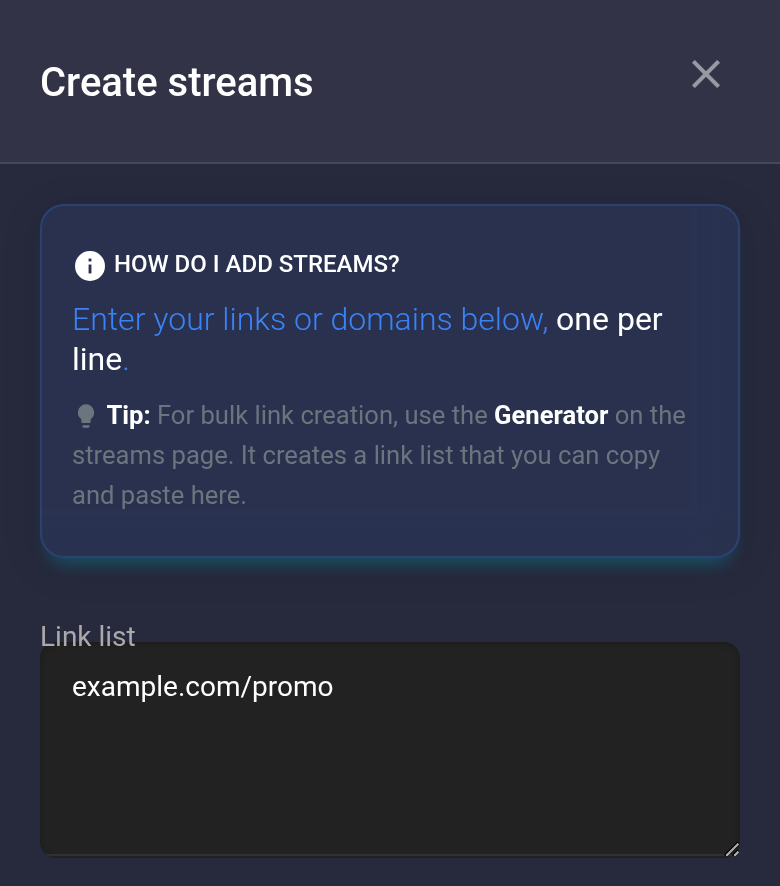
Enter example.com/promo in “Link list”. For multiple addresses, enter one per line, without commas or spaces at either end. Replace example.com with your connected domain.
- For your first link, leave sequential and random template assignment off.
- Leave “Delete after first visit” off to create a reusable link. Your own test visit can consume a one-time link.
- Select a template. This example uses 501 — Main campaign. Its number lets you check the assignment in the table.
- Click “Create” once and wait for the response. If an error appears, correct the indicated fields.
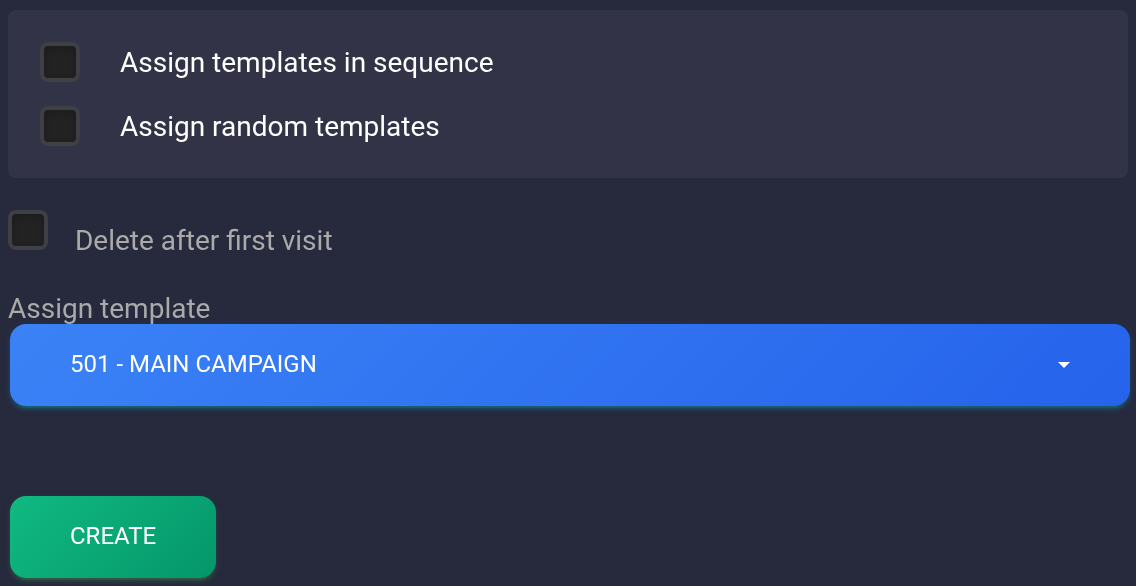
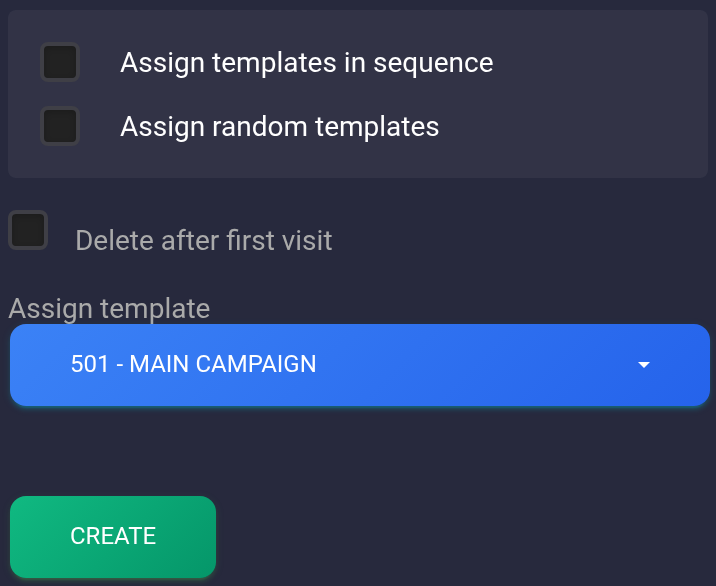
For bulk assignment, you can enable one option: sequential assignment changes the template for successive addresses; random assignment picks one at random. The selection includes your templates from the selected template number onwards. Do not enable both options together; check the assignments row by row after adding links.
Check the saved row#
Find example.com/promo and template number 501 in “Stream list”. Refresh the page, reopen “Incoming traffic”, and check that the row remains. For multiple addresses, check every row: a success message alone does not confirm that the entire list was added.
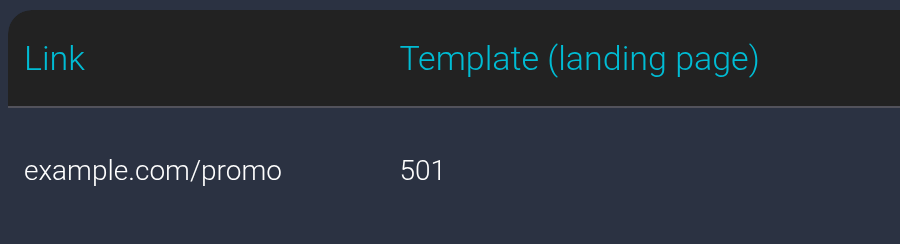
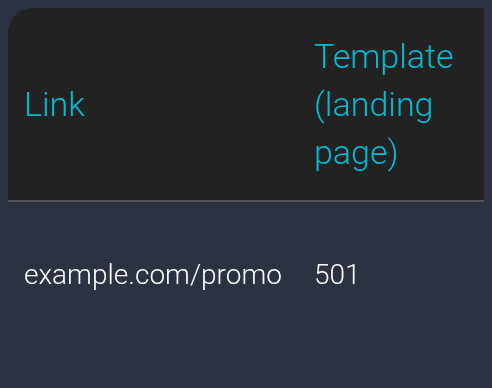
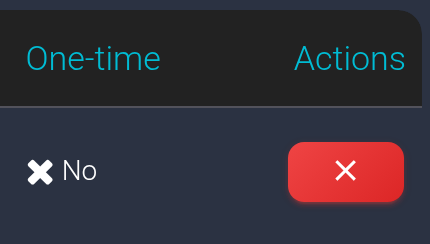
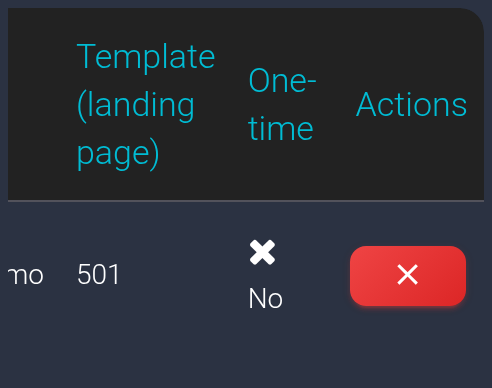
The “One-time” column should show “No” for this example. The red cross on the right deletes the stream; do not click it to test the link. On a phone, swipe the table to the right to reveal these columns.
Open the exact incoming address, including /promo, in a new tab. The domain root is a different address and can have a different destination. A stream template does not disable other traffic checks: if the visit is blocked, check the reason in the visit history.
Generate multiple links#
Create a small list#
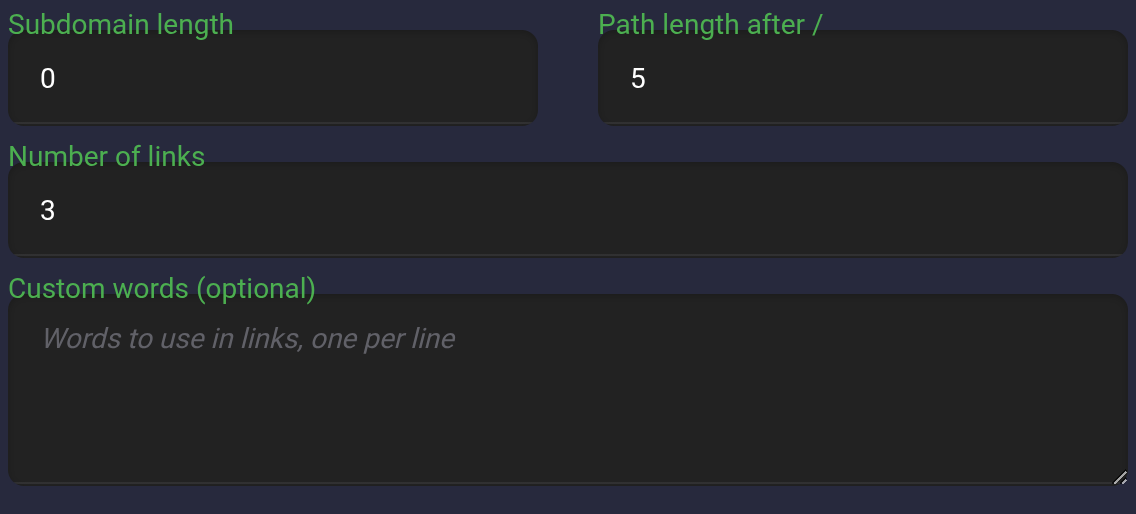
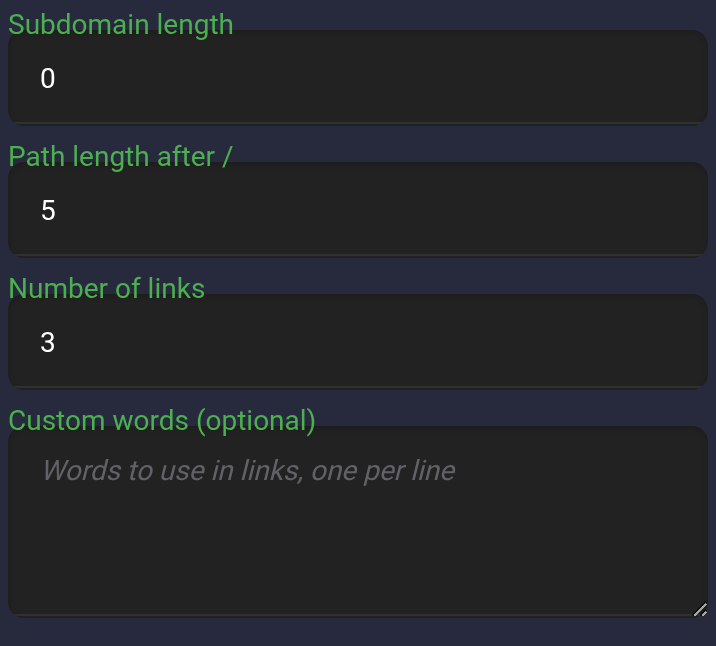
Click “Generator” in the same tab. It uses domains connected to this plan. For your first run, create three addresses without a subdomain:
- “Subdomain length” — 0: use the main domain.
- “Path length after /” — 5: five characters in the path.
- “Number of links” — 3.
- “Custom words (optional)” — leave empty to generate random character combinations.
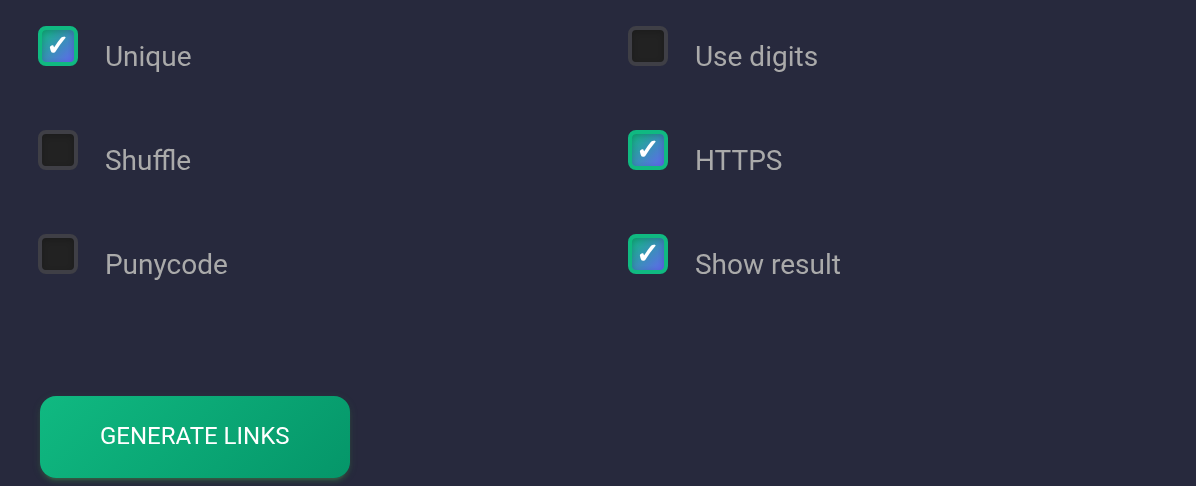
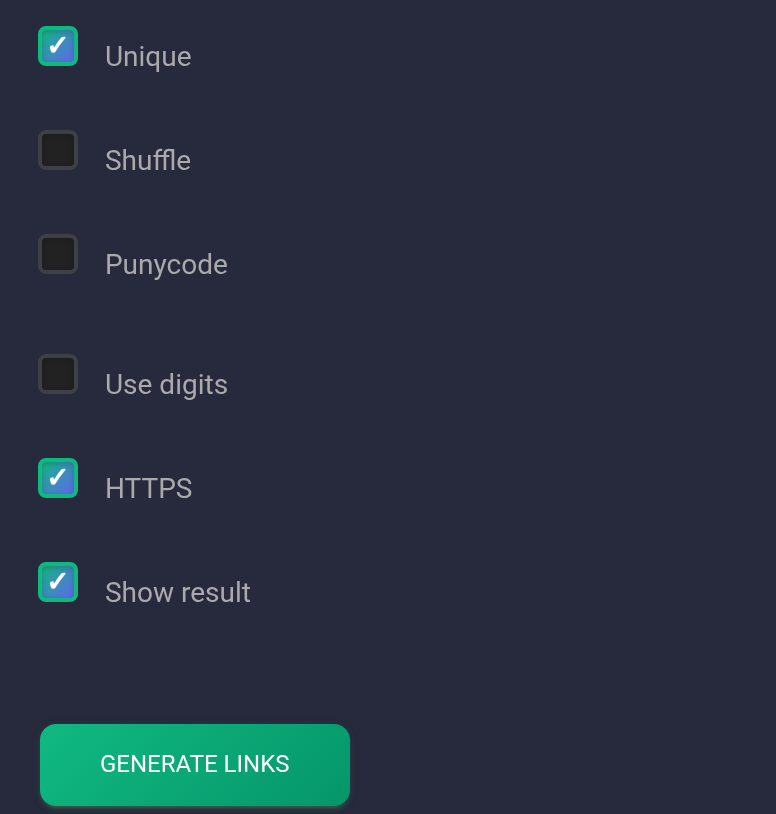
Enable “Unique” and “Show result”. This example also enables HTTPS: it adds https:// to the address, but does not issue a certificate or configure the domain. If HTTPS is not working yet, configure it first. Leave the other checkboxes off for this example, then click “Generate links”.
Copy the result and add it to the plan#
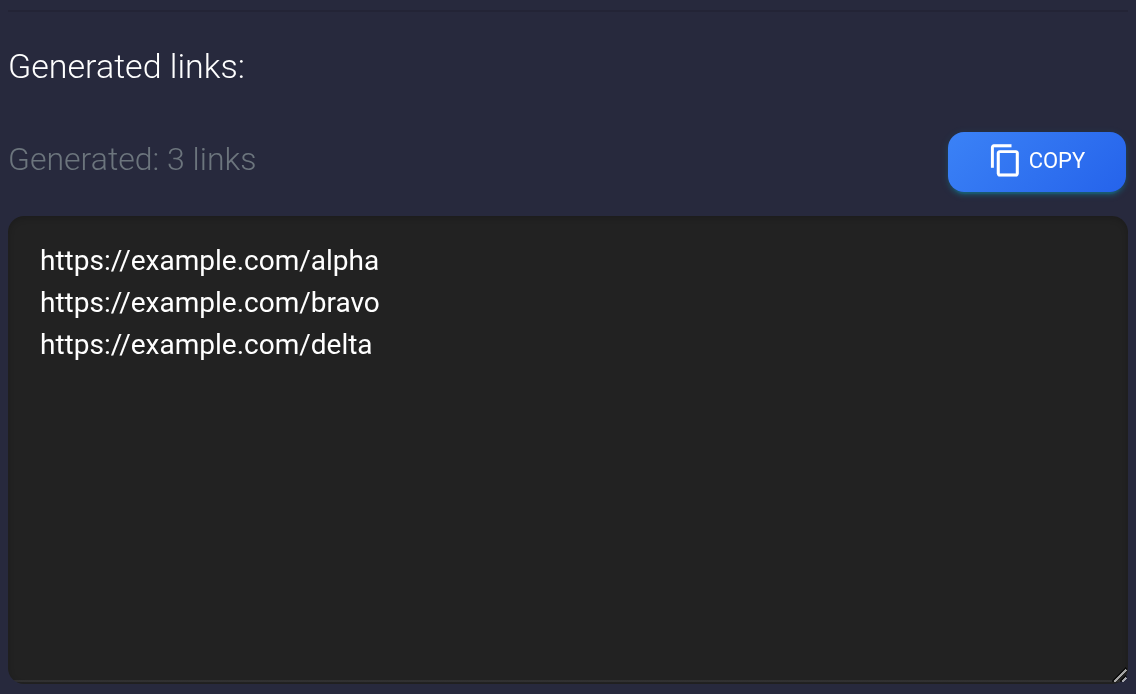
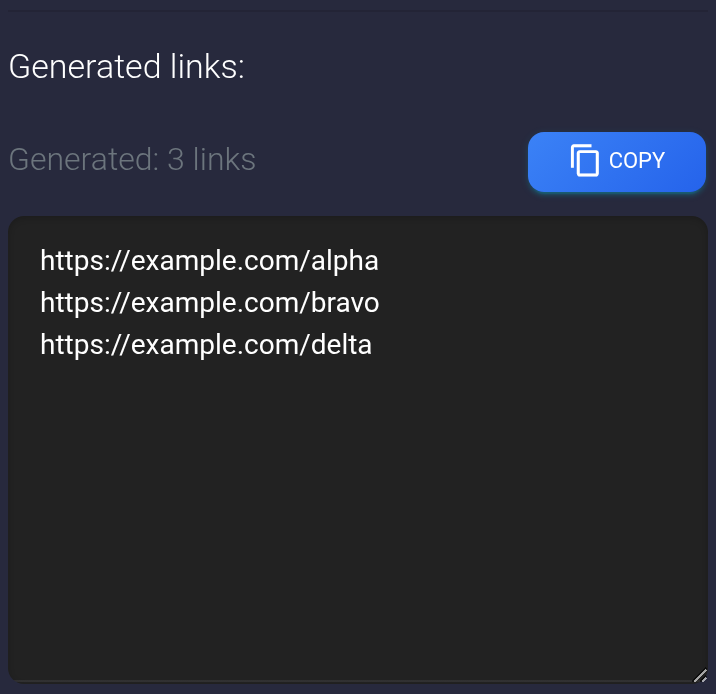
A list and a “Copy” button appear below. The screenshot shows an example with three addresses; your random paths will differ. Check the domains and number of rows, then copy the list. If “Show result” is off, the result downloads as an archive containing a link list instead of appearing in the panel.
Generating addresses does not create streams. Close the panel, click “Add”, paste the copied addresses into “Link list”, select a template, and click “Create” as described above. Then check the table rows. If the plan contains several domains, check which ones appear in the result.
Subdomains such as abc.example.com need working DNS and HTTPS for those addresses. The generator does not configure them. If you do not need subdomains, leave their length at zero.
If a link does not work#
- No row appeared: check the connected domain, selected template, available limit, and whether the link is already in the list. Retry one affected row instead of the whole list.
- The generator returned nothing: check that the plan has a domain, the fields are filled in, and “Show result” is enabled. Try a small list of three addresses.
- A different destination opens: compare the full address and template number with the table. Sequential or random assignment can give links different templates.
- A one-time link was already used: create a new one. Use a reusable link for repeated checks.
- The visit is blocked: find it in the visit history and check the reason. A stream setting does not guarantee that every request is allowed. For an address without a matching stream, check the default action.
If the cause remains unclear, give support the plan number, affected incoming address, template number, test time with its time zone, and a screenshot of the result or error. Do not include API keys or other secrets.