In Plans, click “Settings” for the required plan, then open the “Settings” tab and its “Redirect and cloaking settings” block. Here you choose how the destination opens, whether URL parameters are forwarded, and what detected bots receive.
These settings apply across the plan and may affect several domains, rules, and streams. A template defines the destination; this screen defines how it opens. Some checkboxes depend on your package's features; clicking a disabled checkbox does not enable it.
Choose a redirect method#
Open “Redirect type”. For an ordinary redirect without an extra click, “302 redirect (server-side)” is a starting option if it suits your destination. Choose other methods for a specific need and check the result in your visitor's browser.
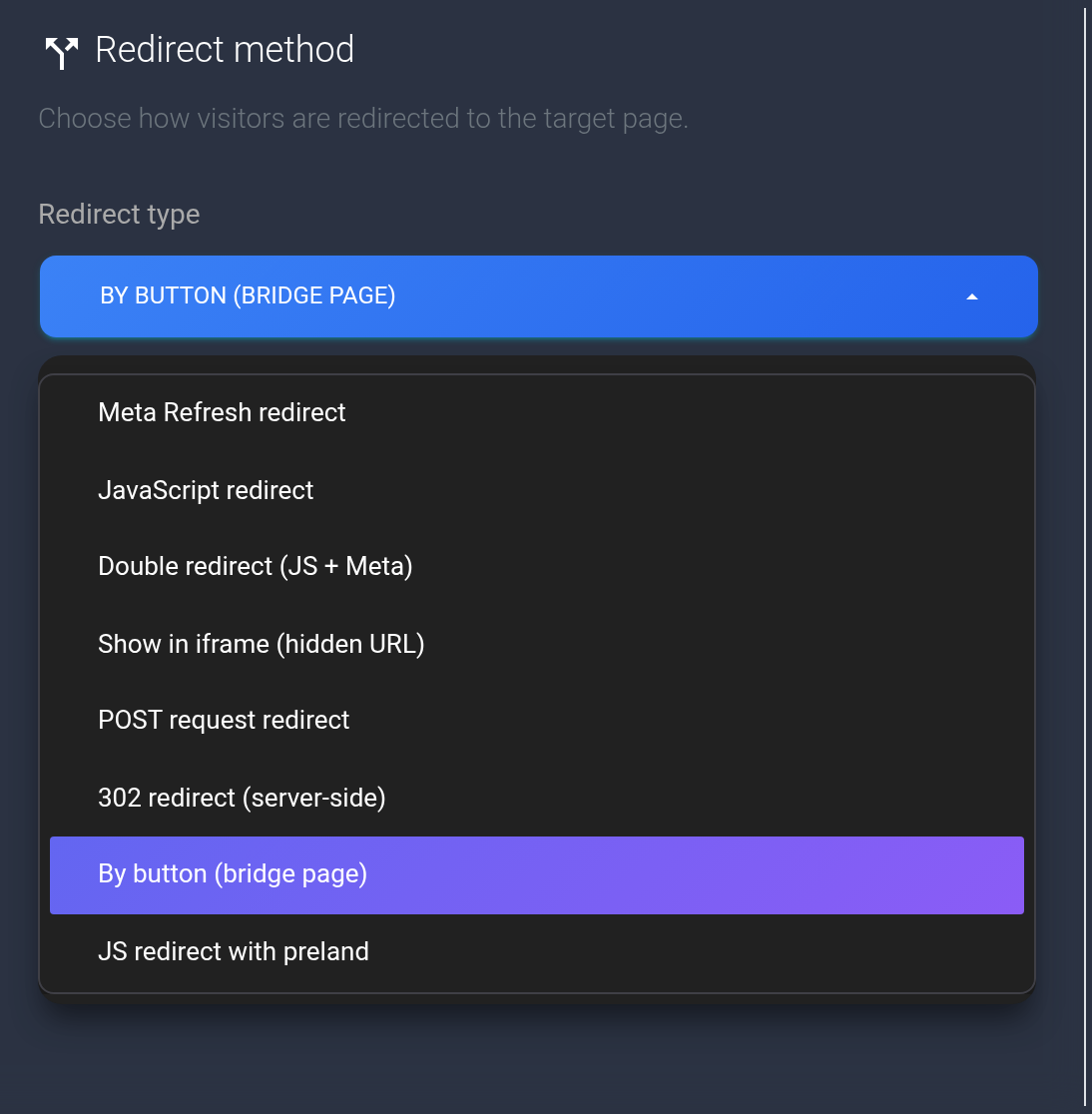
| Method in the list | What a visitor receives and what to check |
|---|---|
| 302 redirect (server-side) | The server immediately gives the browser a destination URL. The redirect itself does not require JavaScript; the template delay does not apply. |
| Meta Refresh redirect | The browser receives a page with an automatic Meta Refresh navigation. The template delay applies. |
| JavaScript redirect | JavaScript navigates automatically after the template delay. Blocking scripts can prevent this method from completing. |
| Double redirect (JS + Meta) | Navigation has two stages: JavaScript, then Meta. JavaScript and cookies must work; this does not mean two different destination pages. |
| Show in iframe (hidden URL) | The destination is displayed inside the incoming page. The destination must permit embedding; its security settings may block iframe loading. The option's name does not make the destination URL secret. |
| POST request redirect | A JavaScript page submits a POST form to the destination. Use a destination that accepts POST over HTTPS; this method converts an http:// destination to https://. It does not forward the visitor's original form body. |
| By button (bridge page) | The visitor clicks a button on an intermediate page. After choosing this type, fill in “Button text”, up to 25 characters. Use one template destination for a simple setup. |
| JS redirect with preland | An automatic JavaScript redirect with a short message and a waiting indicator. The wait is at least one second even with a delay of 0. This option does not upload custom preland HTML. |
For “By button”, when GET forwarding is off and the template contains two destinations separated by |, the first opens in the current tab and the second opens in a new tab from the same click. The browser may restrict the new tab. With GET forwarding on, one destination is selected from the variants. Do not add | unless you need this behavior.
Forward GET parameters#
Enable “Pass GET parameters, such as utm_source” if the destination needs values from your incoming URL. For example, an incoming URL https://example.com/promo?utm_source=newsletter and destination https://example.org/landing produce https://example.org/landing?utm_source=newsletter.
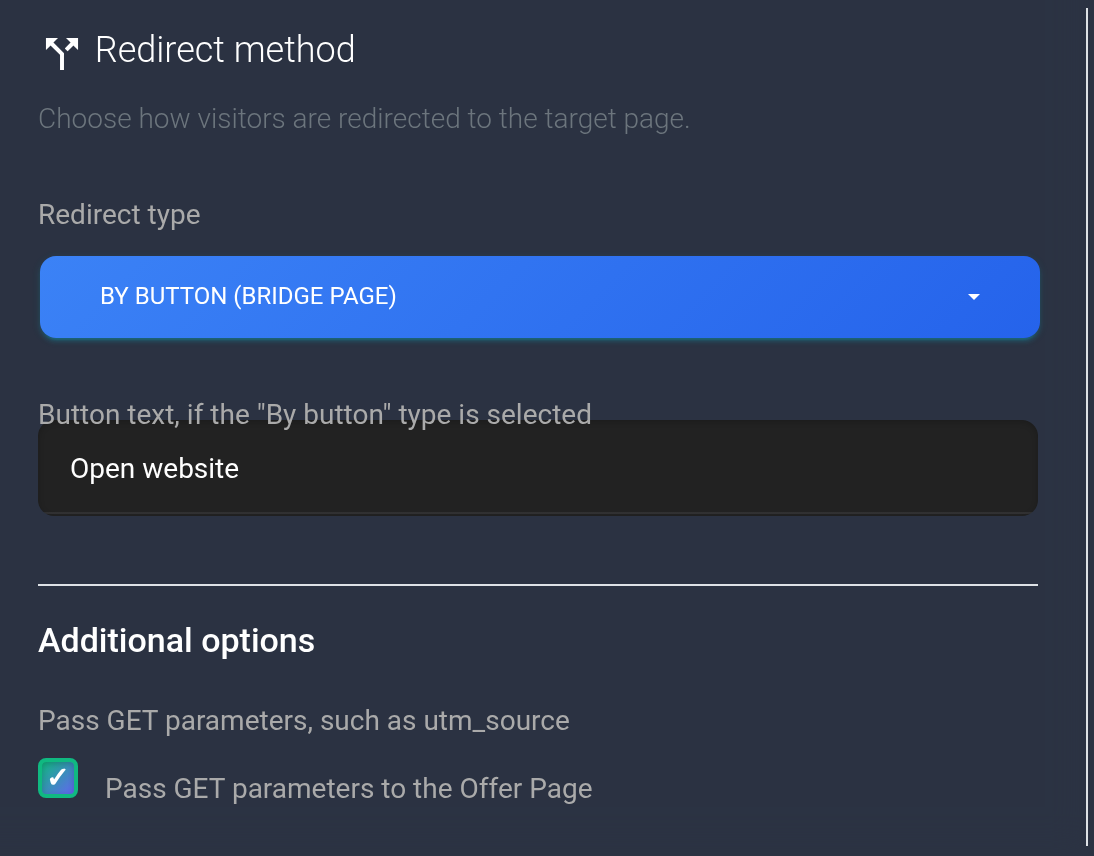
If the destination already has parameters, incoming parameters are appended with &. Matching names are not replaced automatically: ?source=one in the destination and ?source=two at the entrance can produce two source values. Coordinate such parameters with your destination page. With forwarding off, the destination's own parameters remain and incoming parameters are not added.
This forwards URL parameters, not POST body fields or the part after #. Test the exact incoming URL you intend to use. With the POST method, URL parameters stay in the destination URL; this checkbox does not turn them into form fields.
Cloaking and White Page for bots#
“Cloaking” enables unwanted traffic classification. “Additional redirect protection” can add browser verification and also enables bot protection: turning off “Cloaking” alone does not turn off this additional protection. These options do not guarantee that every request will be allowed; bot classification and the visit result are separate.
- To send detected bots to other pages, enable “Send bots to trusted sites (White Page)”.
- Enter your accessible URLs in the revealed field, one per line, such as
https://example.org/infoandhttps://example.net/help. For a clear setup, use complete http:// or https:// URLs without credentials in the address. Do not put several destinations on one line. Up to 100 lines are saved. - With several destinations, one is picked at random. An empty list while diversion is enabled uses the service's standard site list; enter a URL explicitly if you need a specific page.
- “Use 302 redirect for bots” gives a server-side redirect. With this checkbox off, diversion uses Meta Refresh with a 10-second wait. “Generate random page title” changes the generated page title, not the destination URL.
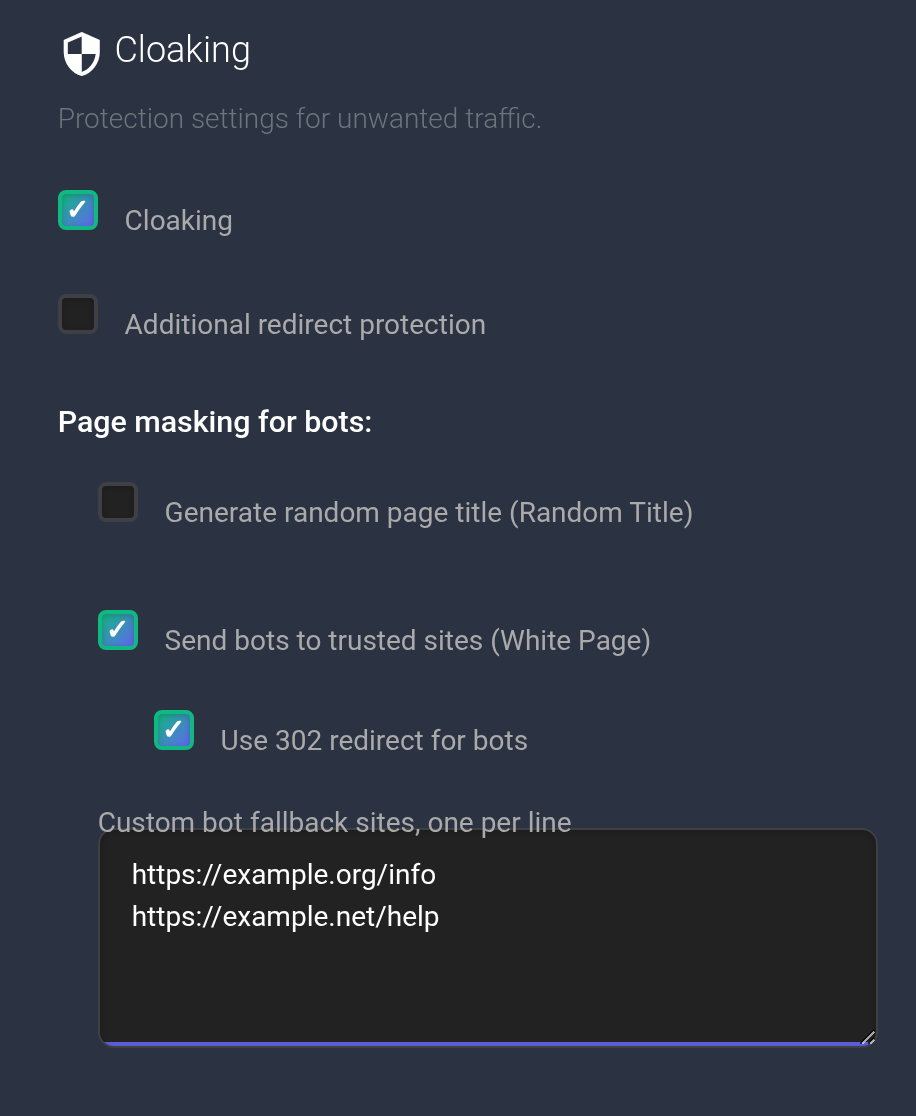
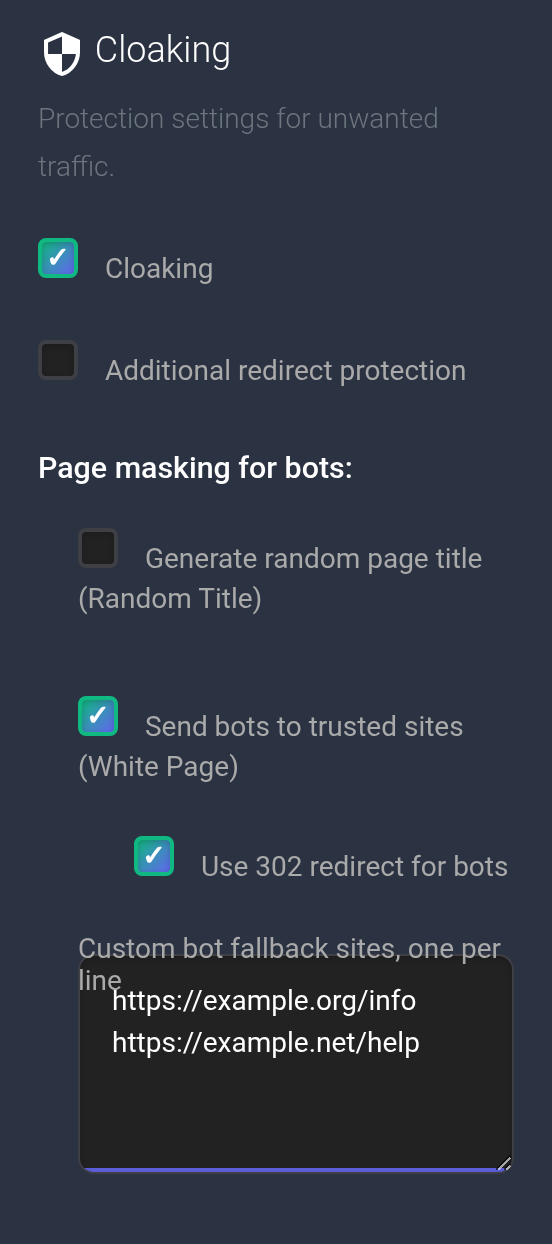
White Page here redirects a visit classified as a bot to a URL from the list. It does not upload your HTML. This list and the default action in filtering are different settings: no matching rule does not necessarily mean that a visitor was classified as a bot.
Save and check#
- Click “Save” once. Correct any indicated field error; button text must not exceed 25 characters.
- Refresh the page, reopen this tab, and compare the saved method, checkboxes, and URL list. A success notification alone is insufficient.
- Open the exact incoming URL with your required parameters in a browser. Check the destination, button, or wait according to your method.
- Find the visit in this plan's statistics and read its result and reason. An ordinary visit from your own browser does not prove that a bot received your White Page.
If an iframe area stays blank, check the destination's embedding permissions and choose another suitable method. If parameters are missing, compare the incoming URL, saved checkbox, and template destination. If settings do not survive a reload or the result is unclear, give support the plan number, method, incoming URL, intended destination, test time, and a screenshot of the settings without secrets.