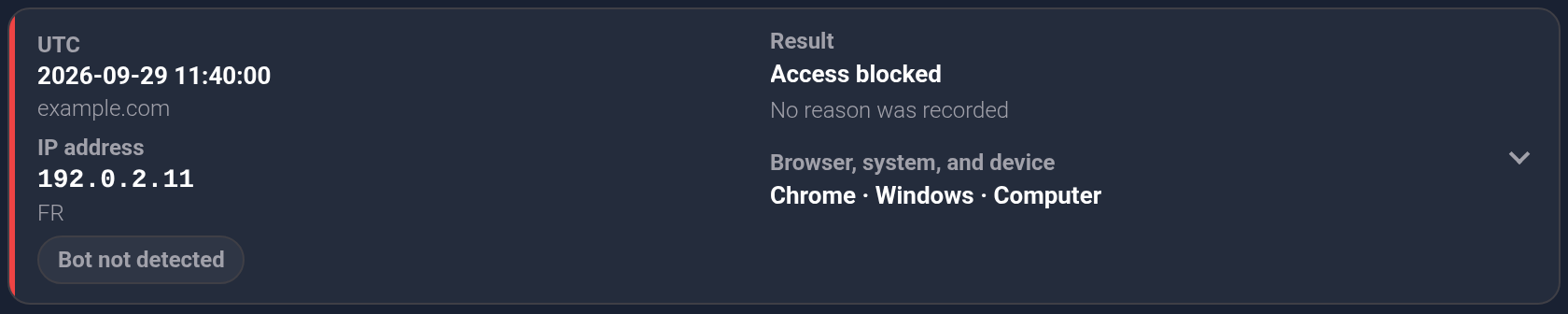
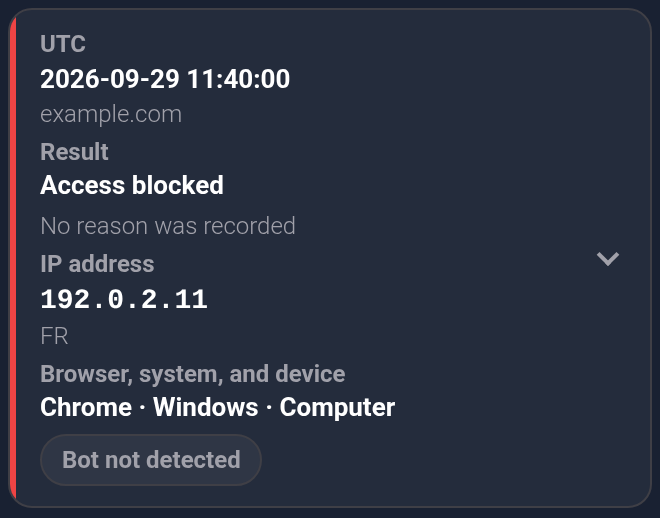
“Bot not detected” and “Access blocked” can appear in one row without a contradiction. The first is the visitor flag; the second is an access decision. The reason below the result explains why the system made that decision.
Examine a visit#
- Open the required plan’s “Statistics” from Plans and scroll to “Visit history”. Find the record by UTC time, domain or IP; the filtering guide explains the steps.
- Read the separate “Bot detected” or “Bot not detected” flag. It shows the recorded classification, not a completed redirect. No bot flag does not confirm a human visitor or successfully completed checks.
- Read “Result” and the explanation below it, if present. Click the row to inspect the address and “Processing steps” when several steps were recorded.
| Where to look | Question it answers |
|---|---|
| Bot flag | Did the system record a bot flag? |
| Result | Was access allowed, a link or page issued, access blocked, or a check completed? |
| Explanation below the result | What reason was recorded and can be explained? |
The screenshots use example visits with the same time and address to make fields easier to compare. They illustrate different results.
An allowed access example#
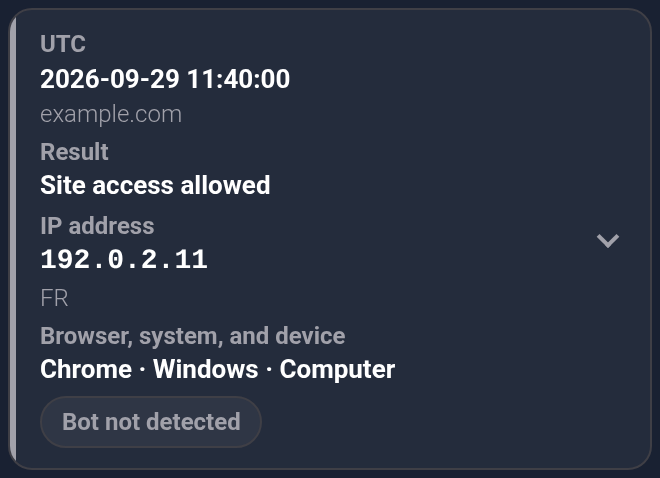
The example combines “Site access allowed” with “Bot not detected”. Entry to the current protected website does not require a separate link. The result does not prove a target page load or purchase; the statistics metrics are explained separately.

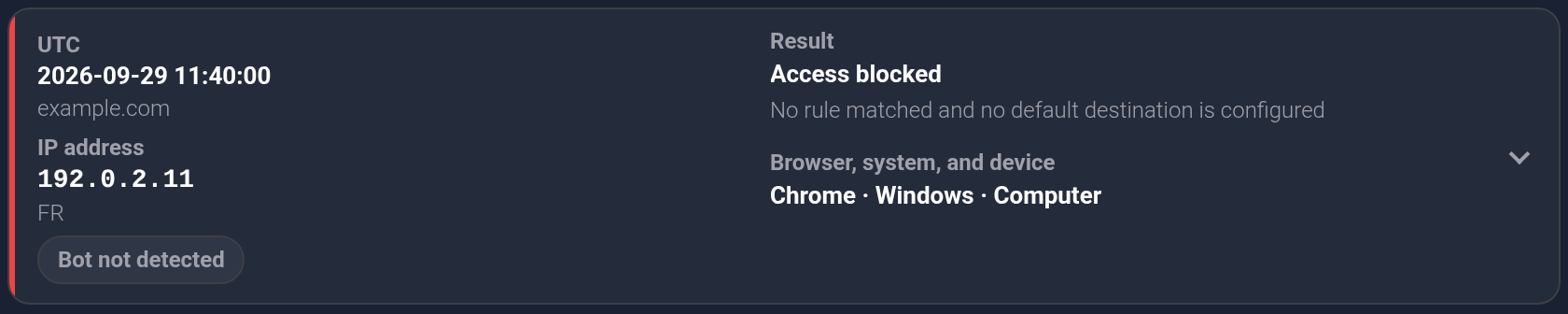
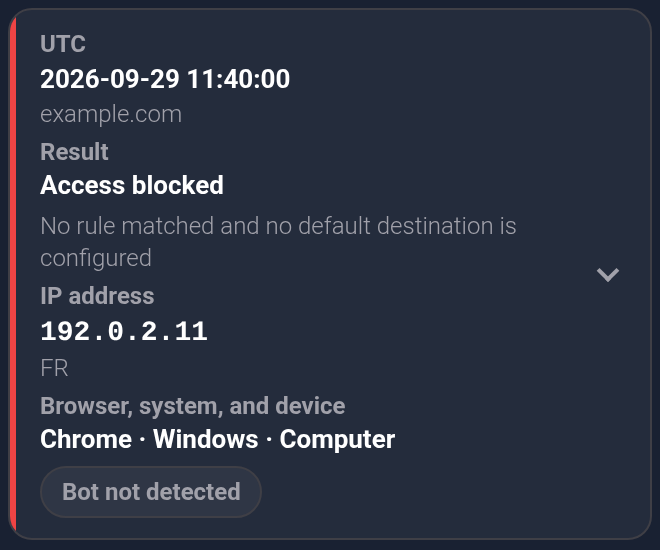
Example: no bot detected, but access blocked#
The result is “Access blocked” and the reason is “No rule matched and no default destination is configured”. No bot flag was recorded, but the visit had no permitted action. Check the matching rule or the action for other visits instead of treating the flag as permission.
A detected bot example#
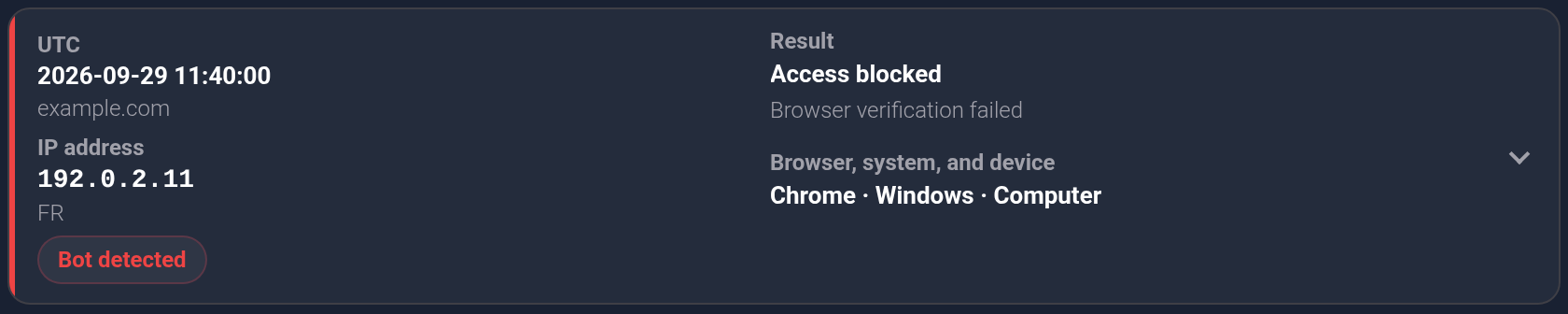
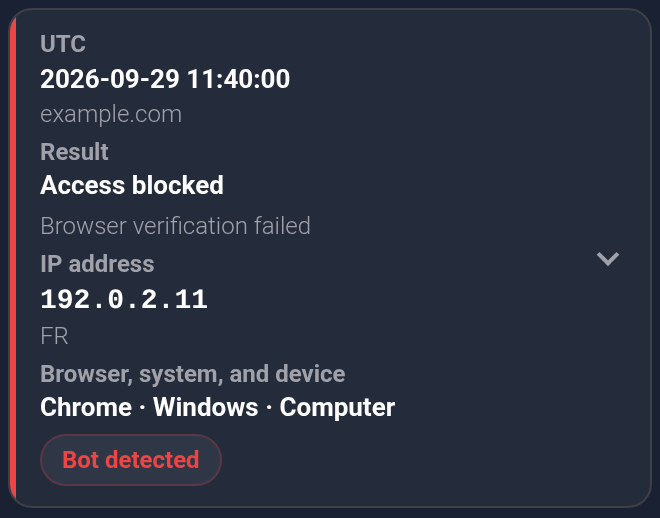
This example records “Bot detected”, “Access blocked” and “Browser verification failed”. The flag and result are separate. One reason does not establish how every bot or every check failure will appear.
An unfinished check example#
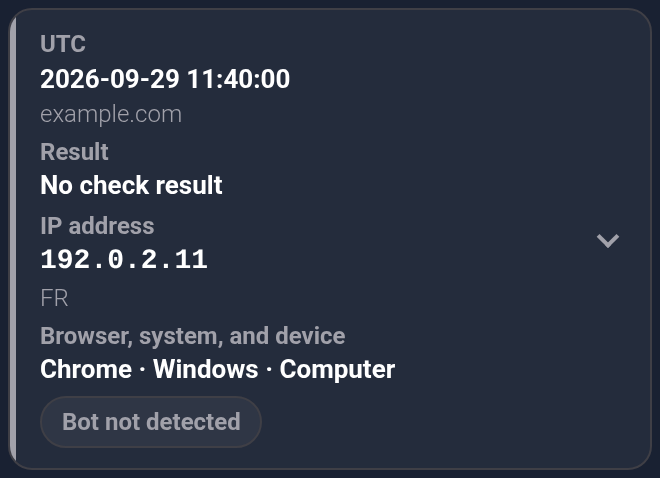
“No check result” means no completed outcome was recorded after the check started. Even alongside “Bot not detected”, this does not confirm entry. Expand the row and read recorded steps in order when several are present. To reproduce the visit, open the required page in a regular browser and let the check finish.

If the reason is missing#
“No reason was recorded” means the record has no explanation. “A reason was recorded, but its explanation is unavailable” means it cannot be displayed as a readable explanation. In either case, do not infer the reason solely from the bot flag; retain the result and time for support.
What to check if access is blocked unexpectedly#
Start with the exact explanation for the specific row. The following examples help identify the setting to inspect.
| Explanation | Next action |
|---|---|
| No rule matched and no default destination is configured | Check rule conditions and order, then the default action for the intended visits. |
| The plan is inactive | Check the plan’s state and expiry; follow the renewal guide. |
| The template for this link is unavailable | Check that the required template exists and is assigned to the link. |
| Browser verification failed | Check whether it repeats in a regular browser and whether the check can run on that page. If the expected visitor is blocked again, send support the exact message and time. |
| The site connection is inactive | Check the connection state and whether the owner disabled it. |
Also confirm you are inspecting the correct plan and assigned domain. Fix the specific setting you found, repeat the intended scenario and inspect a new history row. An old recorded result does not verify a later change.
For support, include the plan, domain, UTC time, result, flag and explanation from one row, selected filters and expected outcome. Hide IP and personal visitor information in screenshots when they are not needed for the request.