TDS statistics show recorded visits and the system’s decisions. They help explain what access a visitor received, but do not replace analytics for page loads or purchases on your website.
Open Plans and click “Statistics” for the required plan. Select the whole plan or one domain and the dates, then click “Update”. Times are in UTC: account for the difference from local time when comparing another service.
Understand the metrics#
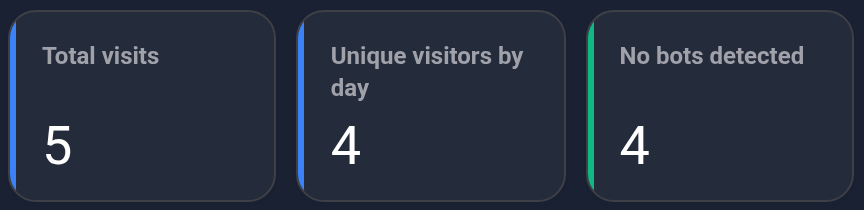
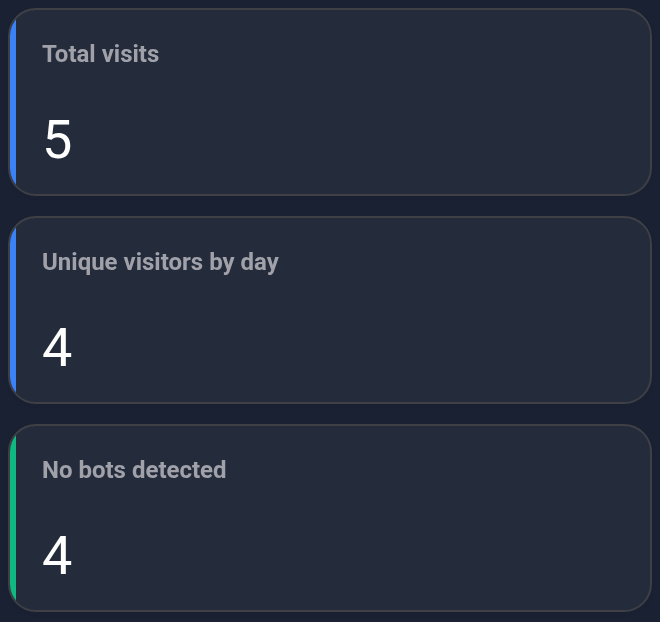
Start with the first three cards. The screenshots use example numbers and the actual KEHR interface labels.
| Metric | Meaning |
|---|---|
| Total visits | All recorded visits for the selected period and domain, including blocked visits and detected bots. |
| Unique visitors by day | Visitors with no bot flag, counted separately within each day. The period total adds up the daily values. |
| No bots detected | Visits where the system did not record a bot flag. These may include blocked visits: this does not measure allowed access. |
For example, the same visitor on Monday and Tuesday may contribute twice to daily unique visitors. This is not an exact count of different people: one person can use several devices. “No bots detected” also does not guarantee the visitor is human.
The next two cards answer different questions: what the system allowed to be issued and how many visits received a bot flag.
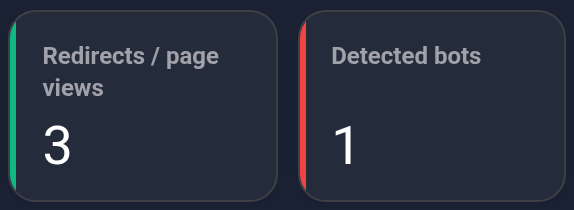
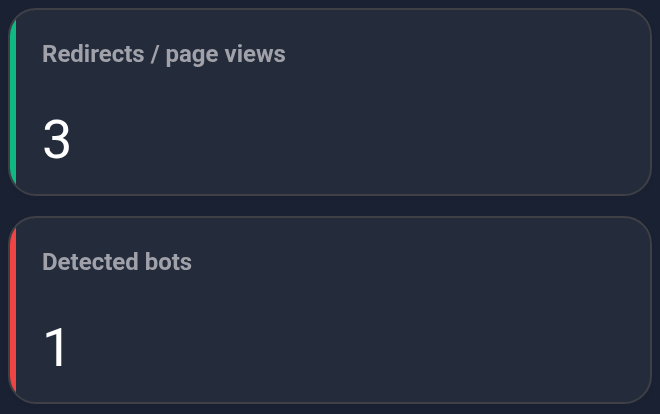
- Redirects / page views — visits with no bot flag where a link or page was issued, or entry was allowed. These are not confirmed loads of the target page.
- Detected bots — visits with a recorded bot flag. The flag and access result appear separately in visit history.
The example has 5 total visits: 4 with no bots detected and 1 flagged as a bot. Only 3 of those 4 contributed to “Redirects / page views”. Do not add 3 to the other cards: it is a subset of visits, not an extra stream.
What “allowed entry” means#
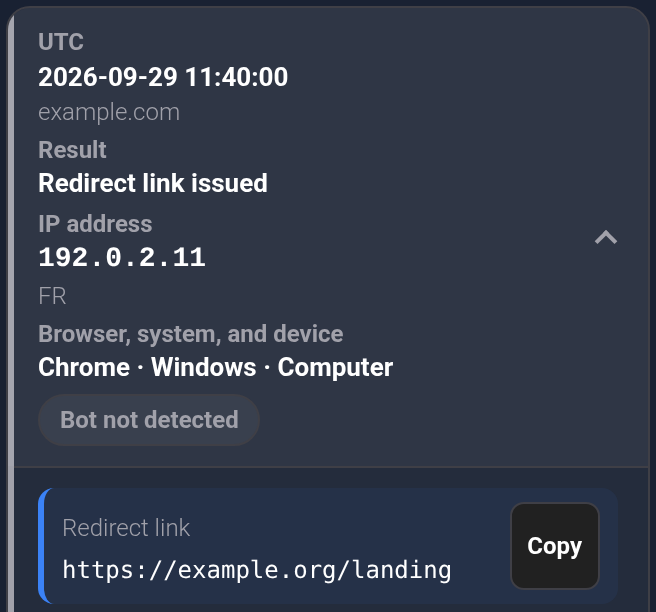
Scroll to “Visit history” and expand the required row. Read “Result” and the issued address, if recorded. The same metric can include different outcomes.
“Redirect link issued”#
The system provided the browser with an address for a redirect. The expanded row shows it under “Redirect link”. Issuing a link does not prove the browser opened and fully loaded the page.

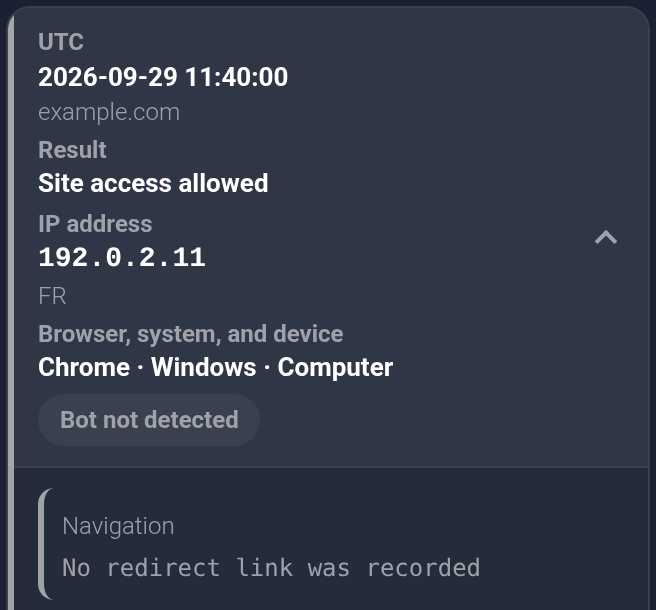
“Site access allowed”#
The system allowed access to the protected website. This decision does not require a separate target link: the visitor may continue on the current website. A missing address alone does not mean the visit was blocked.
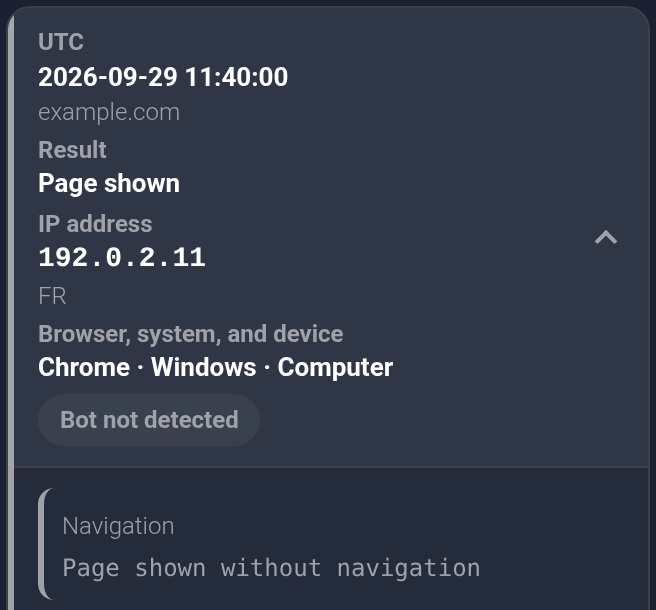
“Page shown”#
The system issued a page instead of a separate redirect. This records how the request was handled; it does not prove the visitor read the page or took an action on it.

“No check result”#
A browser check started, but no completed result was recorded. Do not treat this row as a successful entry. If further steps are recorded later, an expanded row can show their sequence.

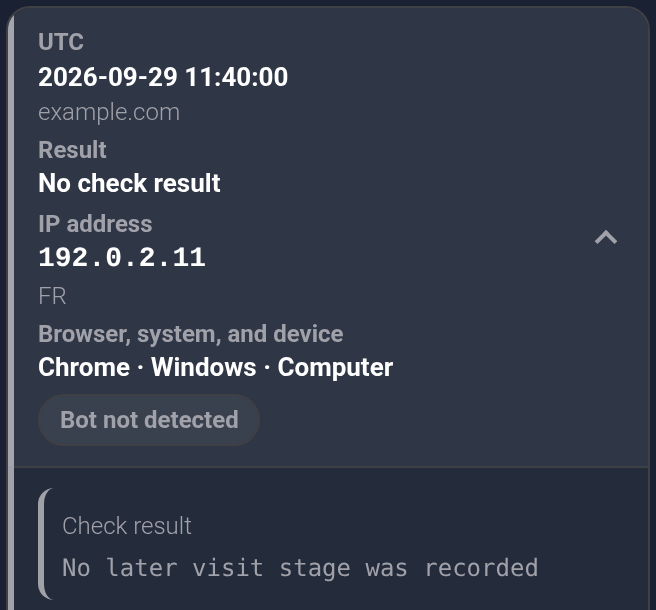
With PHP integration, the source page and another website’s analytics may measure different parts of the journey. To confirm a page load, enquiry or purchase, check that event in the website’s own analytics. Read more about the bot flag, result and reason.
If the numbers seem wrong#
- Compare the same plan or domain, dates and time zone. Remember that daily unique values are added across the period.
- Compare the same events: issuing a link and loading a page are different metrics.
- Check the history filters. They narrow the visit list and CSV, but do not change the top cards or charts. A short list therefore need not match “Total visits”.
- Expand the disputed visit and read the result, bot flag and reason. Refresh a little later when checking a visit you have just made.
If the difference remains, send support the plan, domain, dates allowing for UTC, filters and an example visit time. Say which metric from the other system you are comparing.