The detailed “Statistics” screen lets you find an individual visit, understand its result and download a CSV table for Excel or another spreadsheet editor. Open Plans and click “Statistics” for the required plan. Times on the screen and in the report use UTC.
Choose a period and domain#
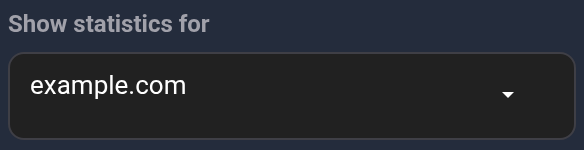
- Under “Show statistics for”, choose the whole plan or the required domain. Selecting a domain refreshes the screen.
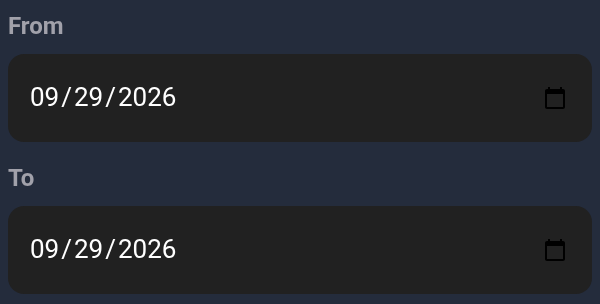
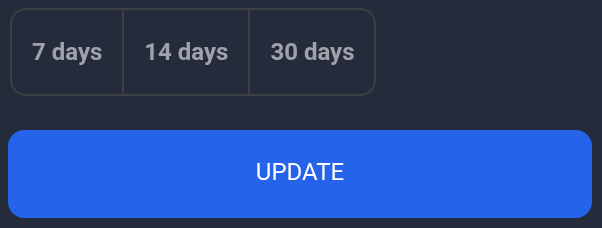
- Set “From” and “To” or select a quick period. The “To” date is included. You can select 1 to 31 days, including today; the field format depends on your browser.
- Click “Update”. For a visit near midnight, convert its local time to UTC and include the adjacent day if needed.


Find a visit#
Fill in only the filters you need#
Scroll to “Visit history” and expand “Visit filters”. Start with one known detail; add others only if there are too many results. All filled conditions must match together.
- IP address — a complete address, such as
192.0.2.11, without a port. This is an example; enter the address for the visit you need. - Visit type — “Bot detected” or “Bot not detected”. The latter does not guarantee a human visitor.
- Country — a two-letter code:
FRfor France orUAfor Ukraine. Leave it blank to include any country.

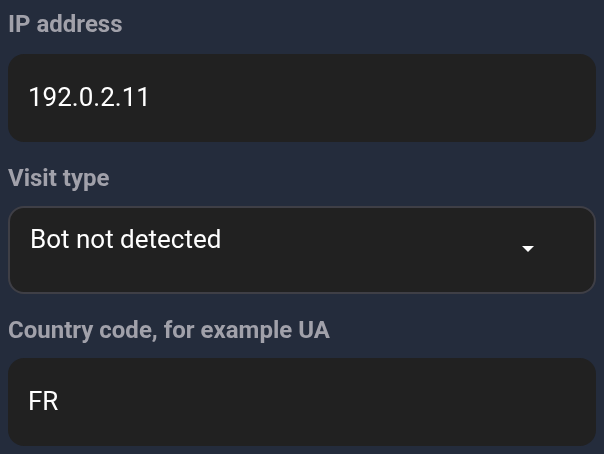
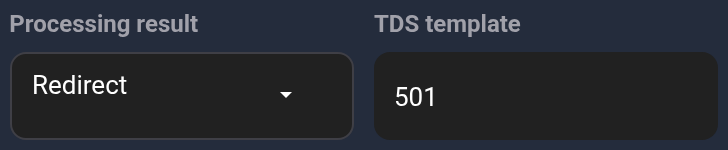
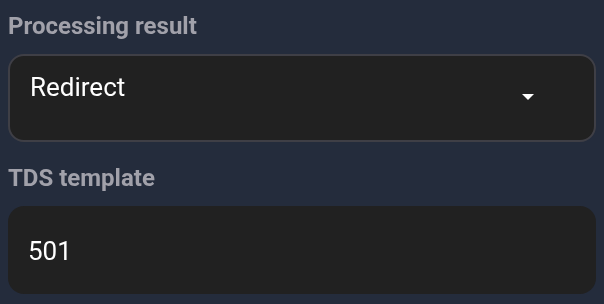
“Processing result” finds the selected action among a visit’s steps; “TDS template” finds its numeric ID among those steps. A matching row can therefore have a different final result: expand it and inspect the sequence. Redirect link, traffic source, browser data, city and other text fields can match part of a recorded value.
Click “Show results” at the bottom. The screenshot selects “Redirect” and example template 501. Click “Clear filters” to remove all conditions while keeping the selected domain and dates.

Filters change the history and CSV export. The top cards and charts still show the whole selected plan or domain for the period; their values need not match the filtered list.
Expand and read a row#
- Click the visit row. Compare UTC time, domain and IP. A time range covers the recorded steps of that visit.
- Read “Result”, the reason below it if present, and the separate bot flag. Issuing a link does not confirm the browser loaded it.
- In the expanded area, inspect the address and “Processing steps” when several steps were recorded. The example starts a check and then issues a link. “Technical details” shows the recorded traffic source and browser information.
- Use “Next 50” when available. It opens the next part of the history with the same conditions; no button means another part is not offered.
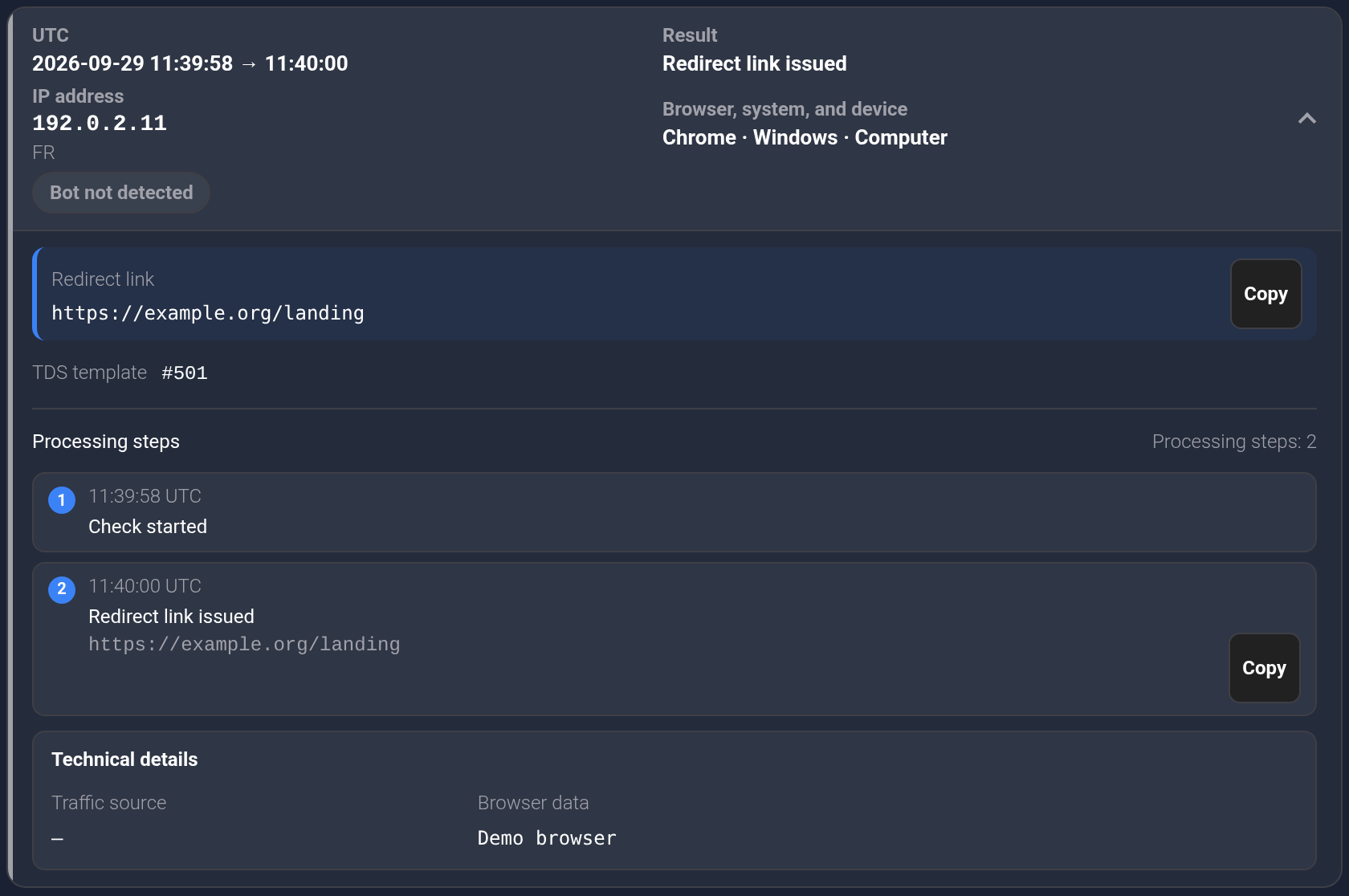
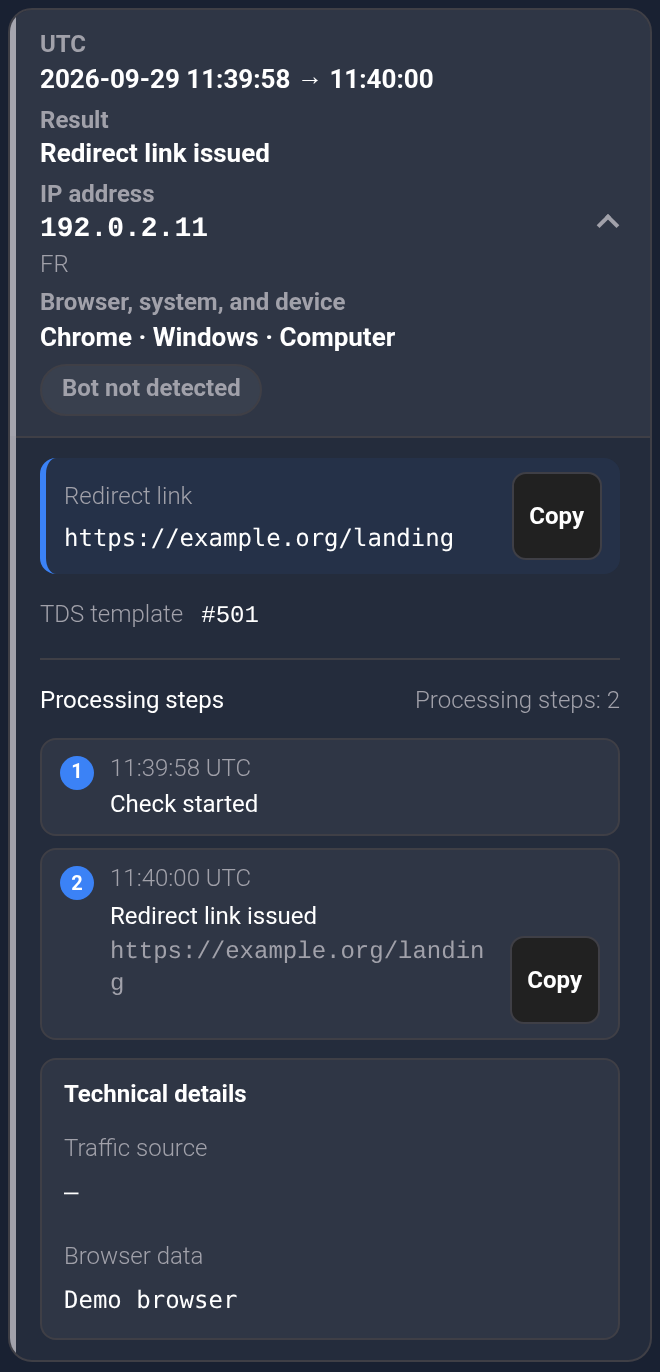
The guide to the bot flag, result and reason helps distinguish a block from an unfinished check.
Download a CSV report#
- Apply the required domain, period and filters first.
- Click “Download report” at the top. CSV respects those conditions, rather than just exporting the current history page.
- Open the file in a spreadsheet editor. If asked for import settings, select UTF-8 and a comma separator so headings and columns display correctly.


At most 1,000 records are exported, starting with the newest. If the report reaches that count, it may be incomplete: shorten the period or narrow the filters and repeat. A history row marked ×N groups repeated occurrences; CSV may list them as separate rows. The file row count can therefore differ from the screen’s row count. Compare exports from different periods using UTC.
The file includes time, domain, IP, visitor information, result, template, link and processing steps. Technical columns may contain values such as redirect or block. These describe a TDS decision, not a confirmed load of the target page. Share the report only with people who need access to these details.
If the history is empty#

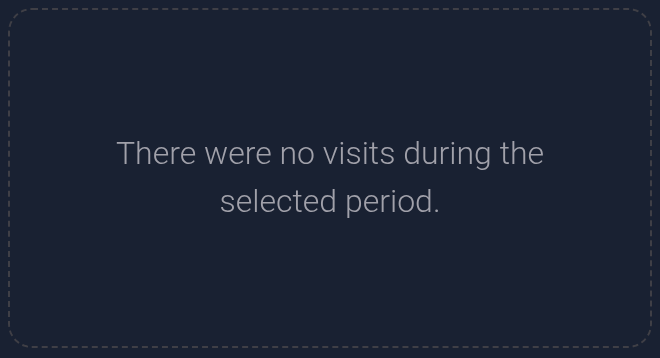
Start with “Clear filters”, then check the plan, domain and dates. One incorrect condition can hide all records. If there are no visits without filters, try a suitable longer period and check that the traffic belongs to this plan.
“Statistics are temporarily unavailable” is a data loading error, not zero visits: try again later. If the plan opens a different, older screen, its fields and export may differ. The main metrics are explained separately.