In this section, an IP address is the server address to which KEHR can direct a plan domain. First connect the server to your dashboard; then select domains to move if needed. You do not need to add a PHP site's server here to connect the site to Site protection.
The screenshots use the example server 192.0.2.10 and domain example.com. Use your own addresses and personal setup command in your account.
Add your own server#
- Open the IP section and click Add IP. The Server Setup Flow window opens.


- Read the requirements in the window. You need a separate VPS (virtual private server) or dedicated server with a clean installation of a supported system: CentOS, Ubuntu, or Debian. Running the command requires SSH, a secure way to log in to the server. If someone else manages the server, ask its administrator to do this step.
Before installation: the KEHR script stops existing web servers and the firewall, then configures HAProxy. Do not run it on a server already hosting a working site. The command contains your account key: copy your own command from the window, do not publish it, and share it with your administrator only through a secure channel. The key in the example screenshot does not work.
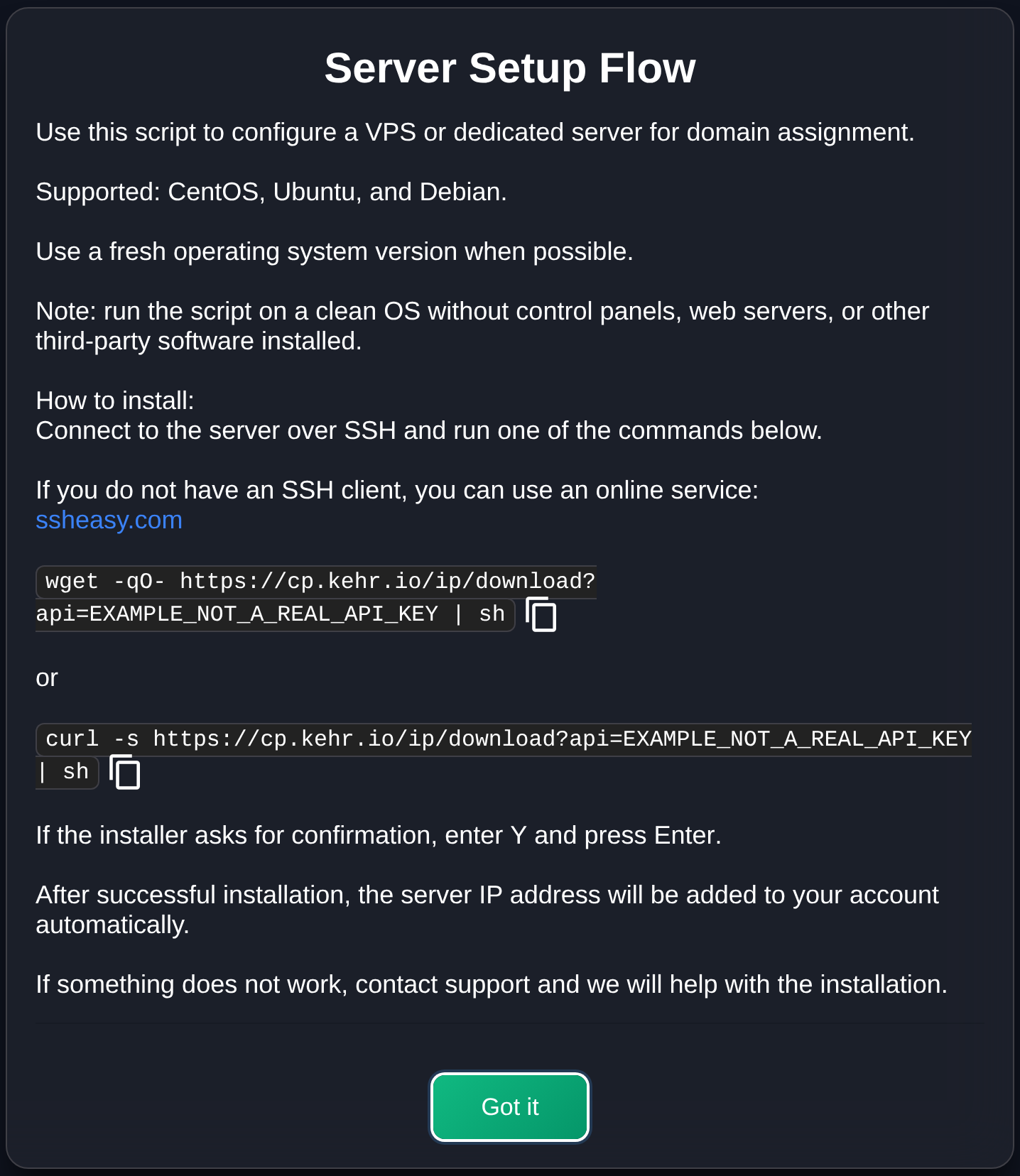
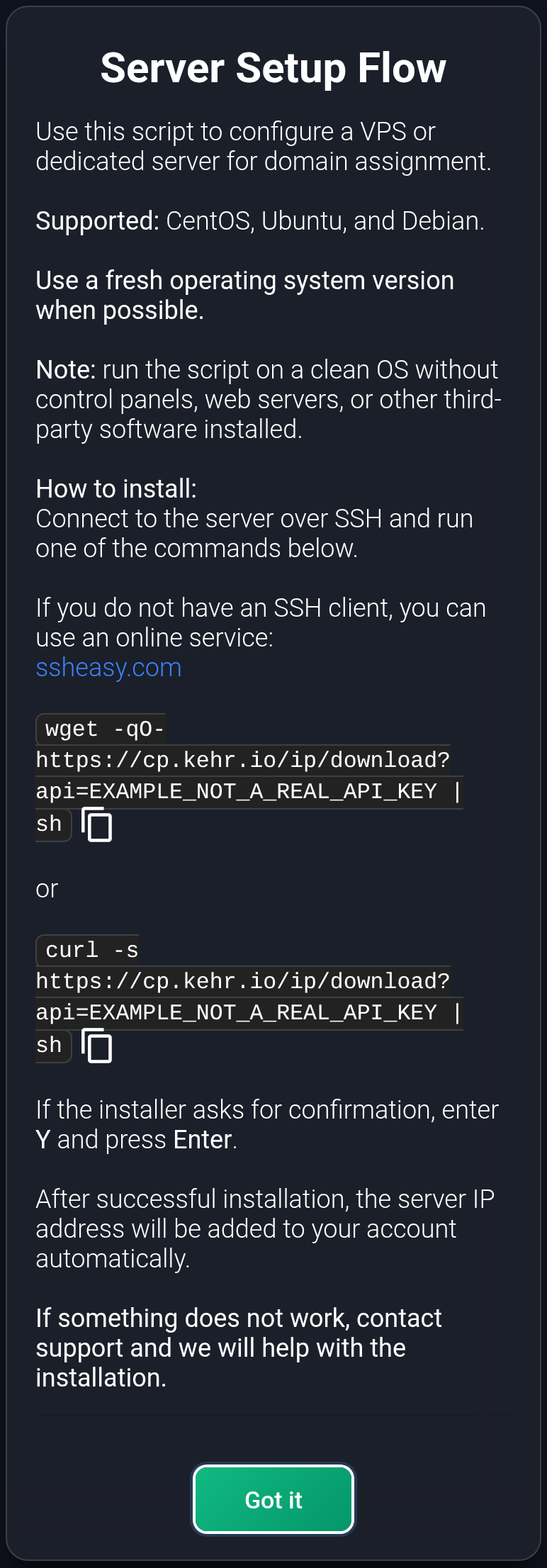
- The administrator connects to the prepared server over SSH and runs one of the commands shown in your window. Wait for the installation result. If the installer reports an error, keep the error text without the key and ask the administrator to check it.
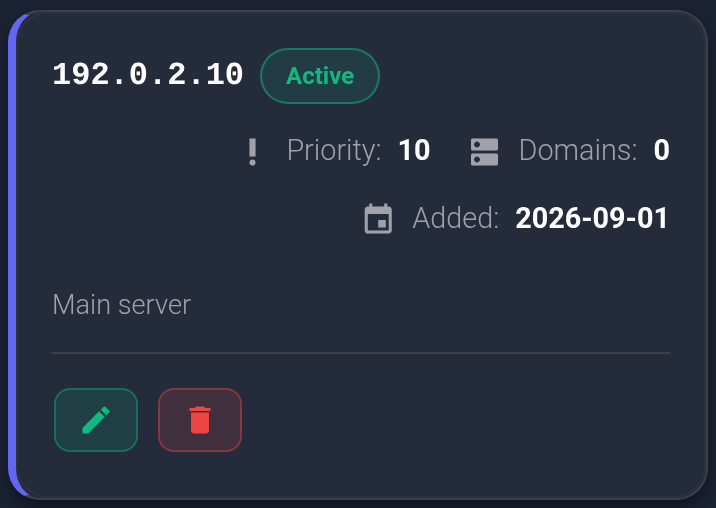
- Refresh the IP list. Find the server address card and check its status. Active means the address responds to KEHR's check; it does not yet prove that the domain works. If an IP has already been supplied and appears as a card, start with the next section.

Assign domains#
First add the domain to a plan. The IP form lists only your plan domains that KEHR can relocate. A domain with manually configured DNS or unfinished setup may be missing.
- On the required active IP card, click the pencil icon. The Edit IP form opens. The IP and Status fields are shown for reference and cannot be changed in this form.
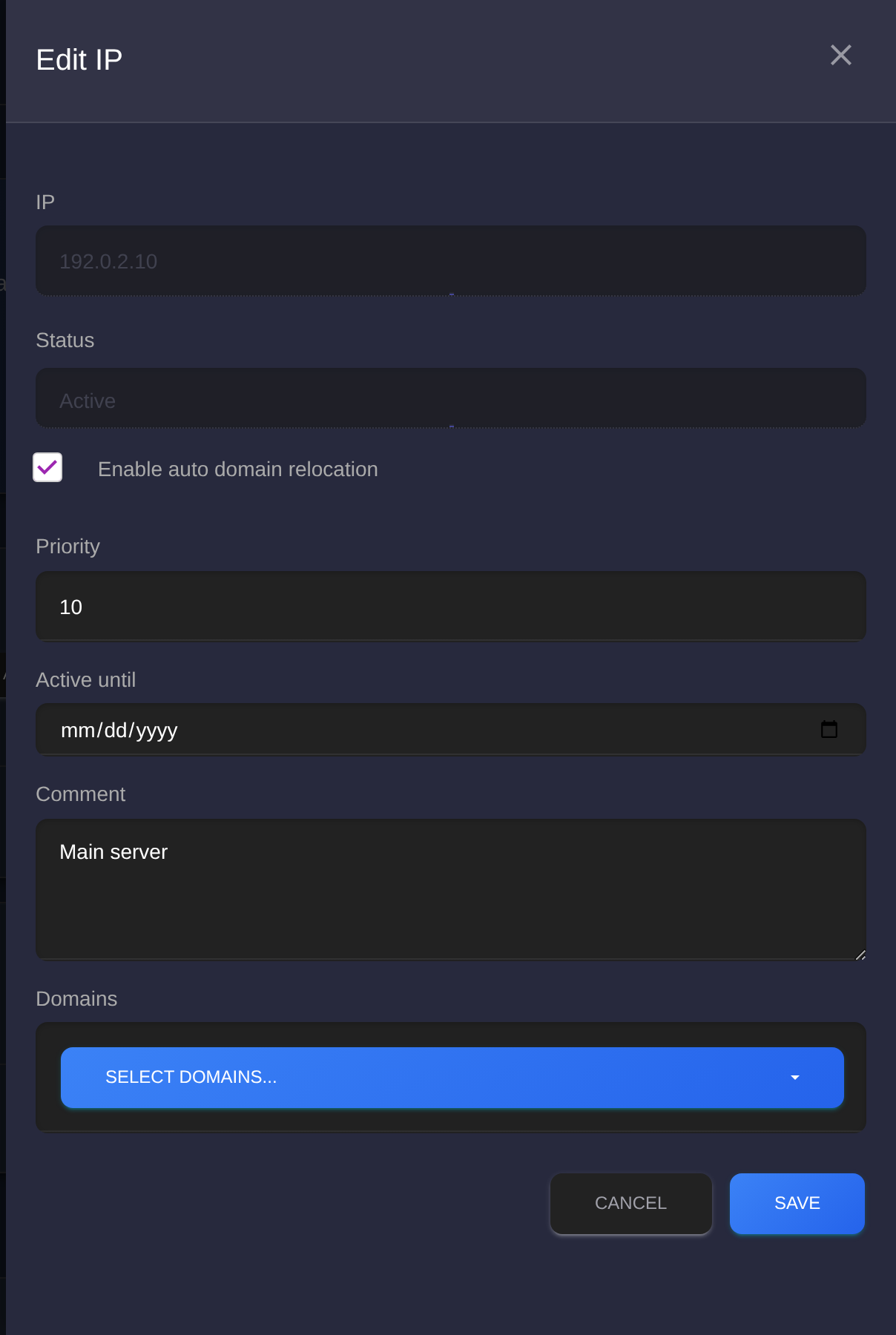
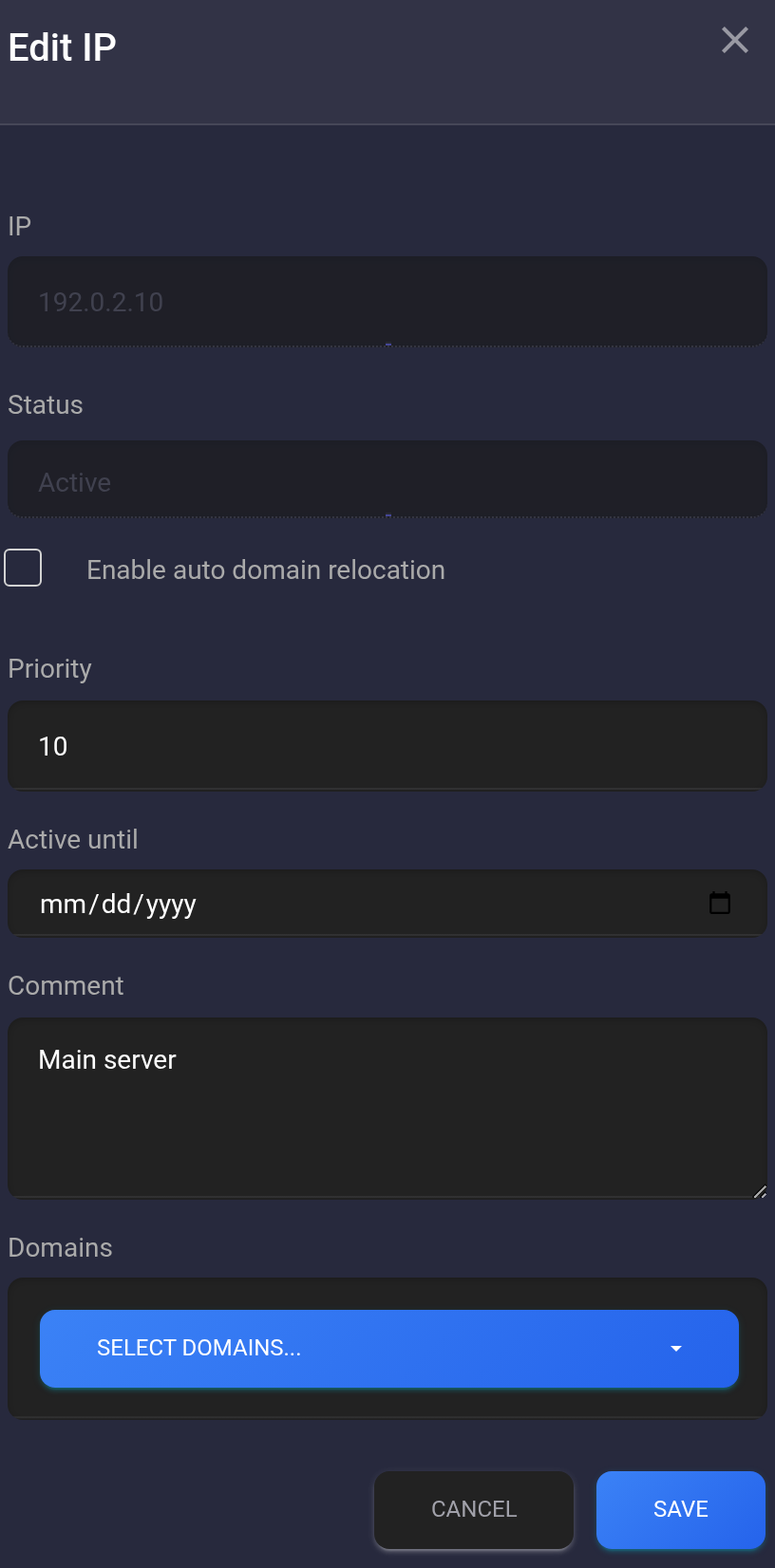
You can set an internal comment and an Active until date if you know the address's term. This date does not renew a server rental. Priority chooses a spare IP during automatic relocation: a lower number is considered first. The Enable auto domain relocation checkbox applies if this IP becomes unavailable; saving the checkbox does not immediately move domains.
- Under Domains, select the required domain, example.com in this example. This field appears only for an active IP. If the domain is missing, check that it was added to a plan and review how its DNS is managed; do not select a similar-looking domain.
- Click Save once. The IP updated successfully message means the settings were stored and the selected relocation was queued. It does not mean the move has finished. If a Domain relocation task counter appears above the list, wait for it to finish and refresh the page.
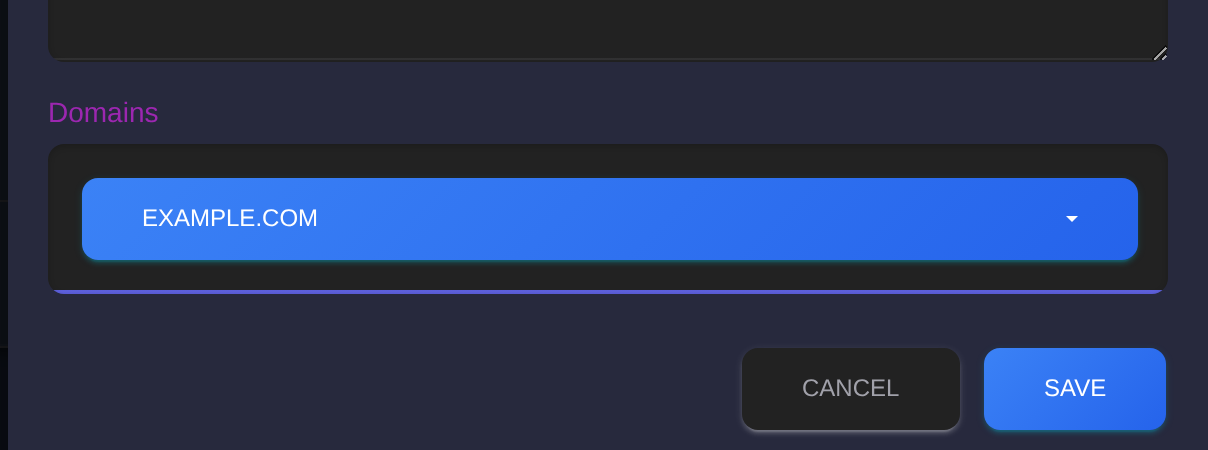
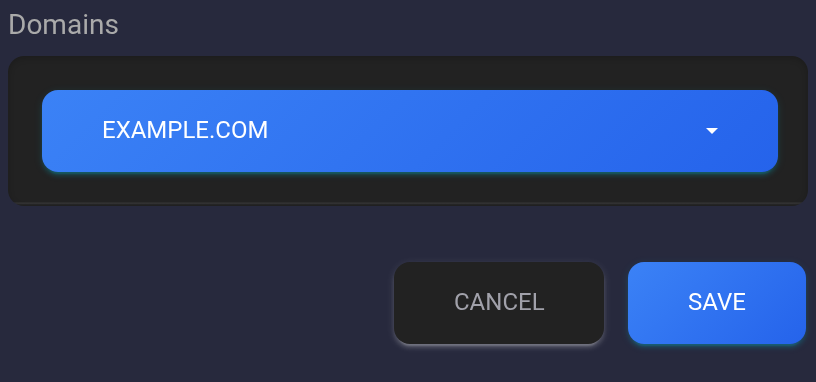
After the task, check the domain's address in DNS and open its real visitor URL in a browser. An A or AAAA DNS record points the domain to an IP address. The Domains count on the card may update later during a separate KEHR check; by itself, it does not prove that the site opens. The example below shows the card after the count has changed to 1.

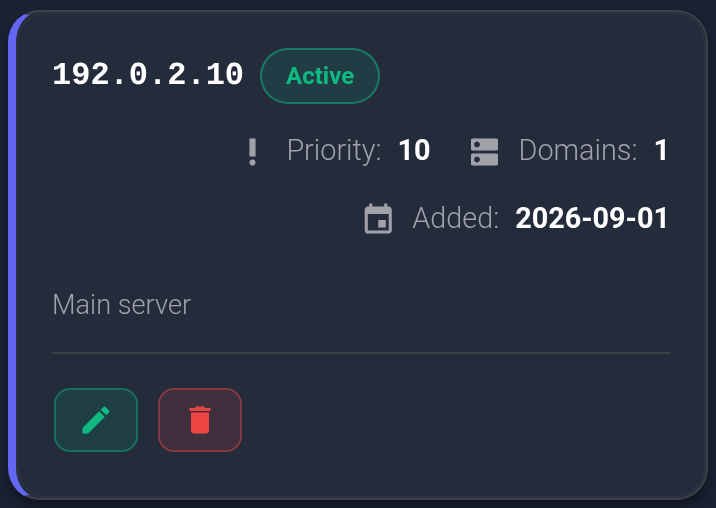
Clearing a domain selection in the IP form does not detach a domain that was already directed to that address. To change its address, select another eligible IP and verify the move; if you manage DNS manually, change the required records with your DNS provider.
If an address is unavailable#
- The IP did not appear after installation. Check the installer's message, refresh the list, and make sure the server responds. Do not send your personal command or key to support; the IP without secrets and the error text are enough.
- The domain is absent from the selector. Confirm that it was added to a plan, belongs to your account, and supports relocation with its current DNS setup. Wait for an operation already in progress to finish.
- The IP is unavailable or blocked. Check the card status and the server. Automatic relocation needs the checkbox enabled, another active IP in your account, and an address KEHR can update for the domain. Manually managed DNS records may need your own changes. The spare IP with the lower priority is chosen first.
- The move is not visible yet. Wait for the task and DNS updates. Another move request for the same domain within 15 minutes may be skipped even if the IP settings were saved. If the result is uncertain, check the domain's current address before trying again.
- You need to remove an IP. Move its linked domains to another address first and check that they work. Deleting the card does not fix DNS automatically. If the problem persists, give support the IP, domain, attempt time, and error text without the key.